FortiClient VPN configuration with Intune
- Florian Salzmann
- Posted on 15 Mar, 2022
- Updated on 12 Jul, 2026
- 02 Mins read
- Microsoft Intune
The “FortiClient VPN” can be distributed with the correct MSI package and an exported configuration file even without the Fortinet / FortiGate Premium EMS features with, for example, Intune. If you know how, the individual steps are not very complex.
To keep the package with Intune as simple as possible, I created a template for you. If you select the “FortiClient VPN.zip” file, you can download the whole thing right away.
Export FortiClient VPN configuration
First we create and export the desired configuration of the FortiClient. You can trigger the export in the client itself in the settings. Simply select the cog wheel in the top right, Backup, a storage location and set a password.
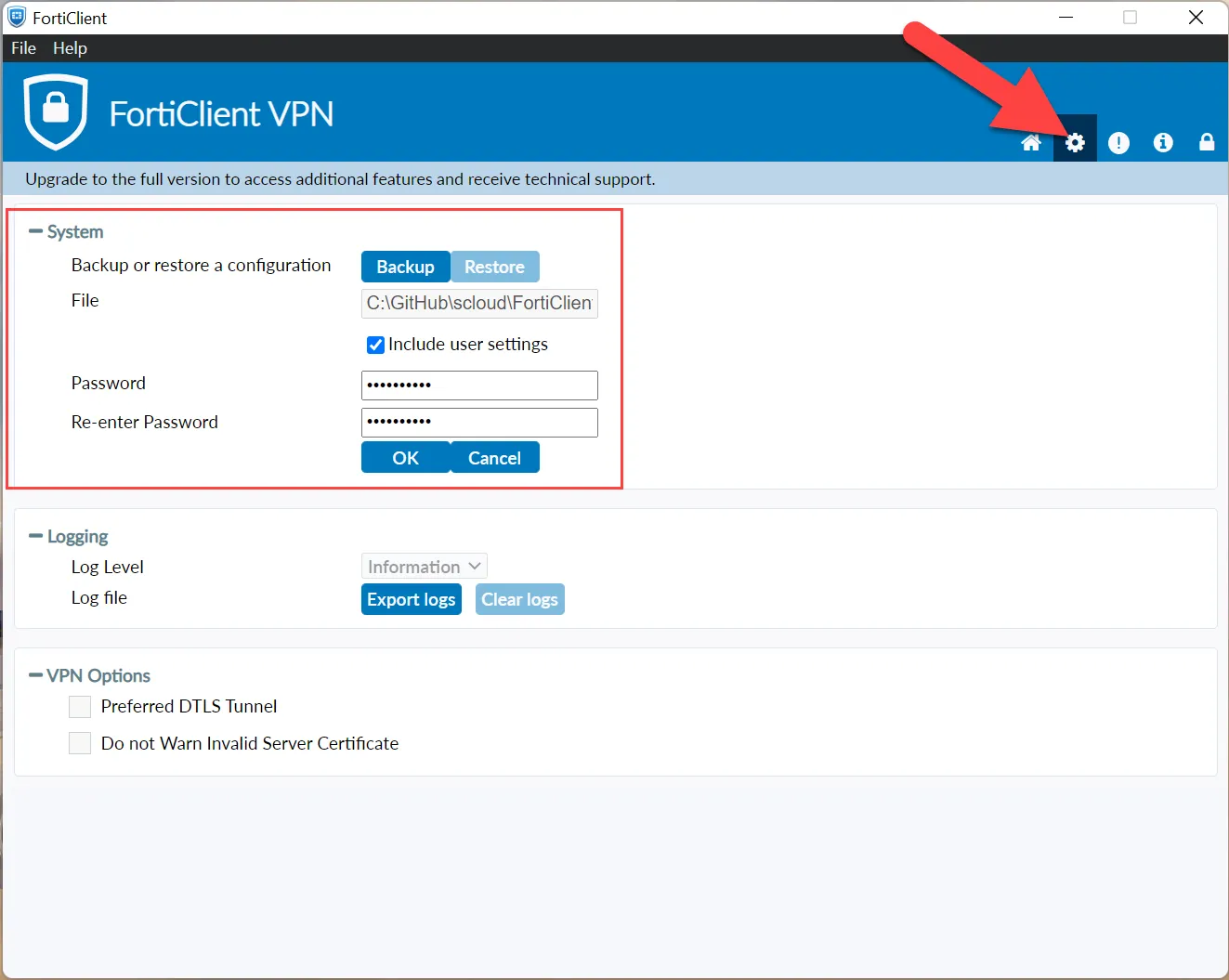
It’s best to name the backup file you just created “FortiClientVPN.conf” and put it in the downloaded template. In addition, you must enter the defined password in the “install.ps1” file in the second line ($ConfigPW).
$PackageName = "FortiClientVPN"
$ConfigPW = "Kateoih785" # insert your password here!
Extracting the MSI of the Forti Client VPN
Now all we have to do is extract the current MSI from the installation.

You can do that here Download the current EXE of the “FortiClient VPN only”.
Then run the EXE and copy the MSI from the %temp% directory out.
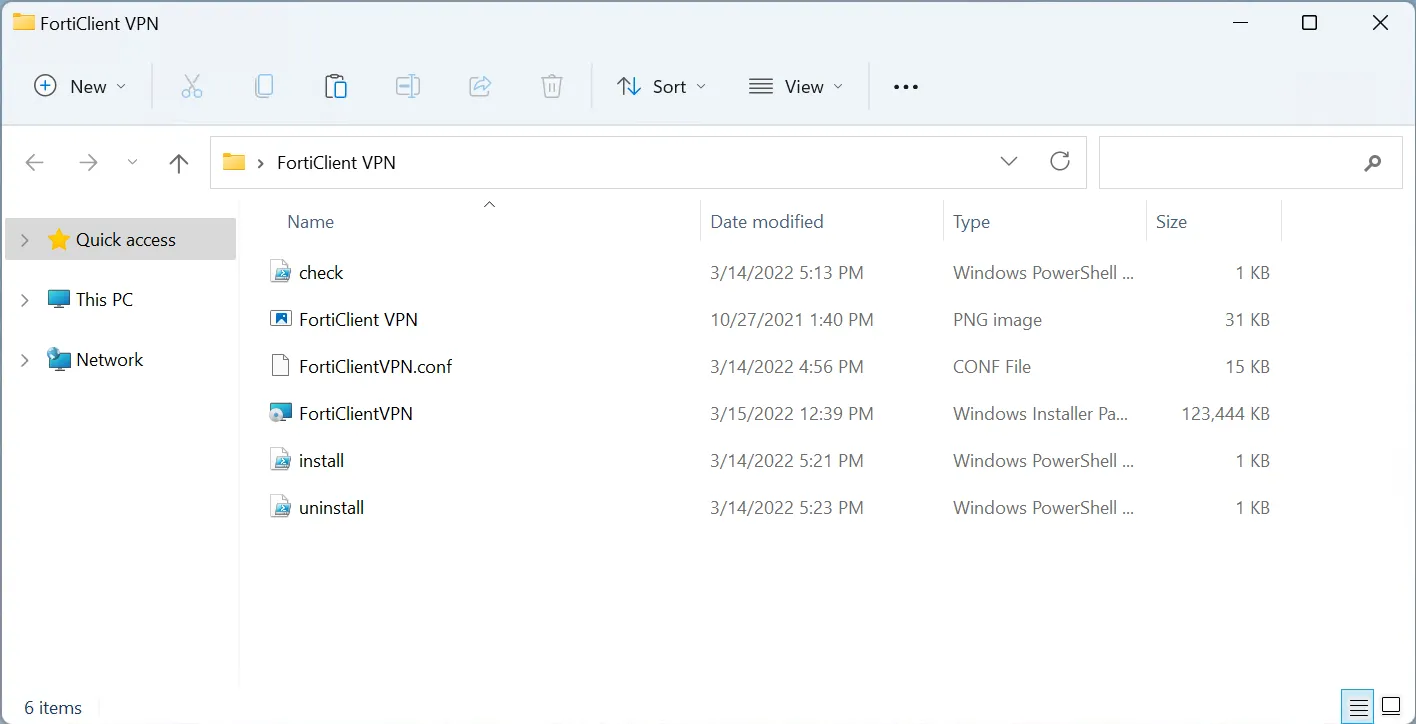
We also pack the extracted MSI into the template. The folder should then look like this:
Customize detection rule
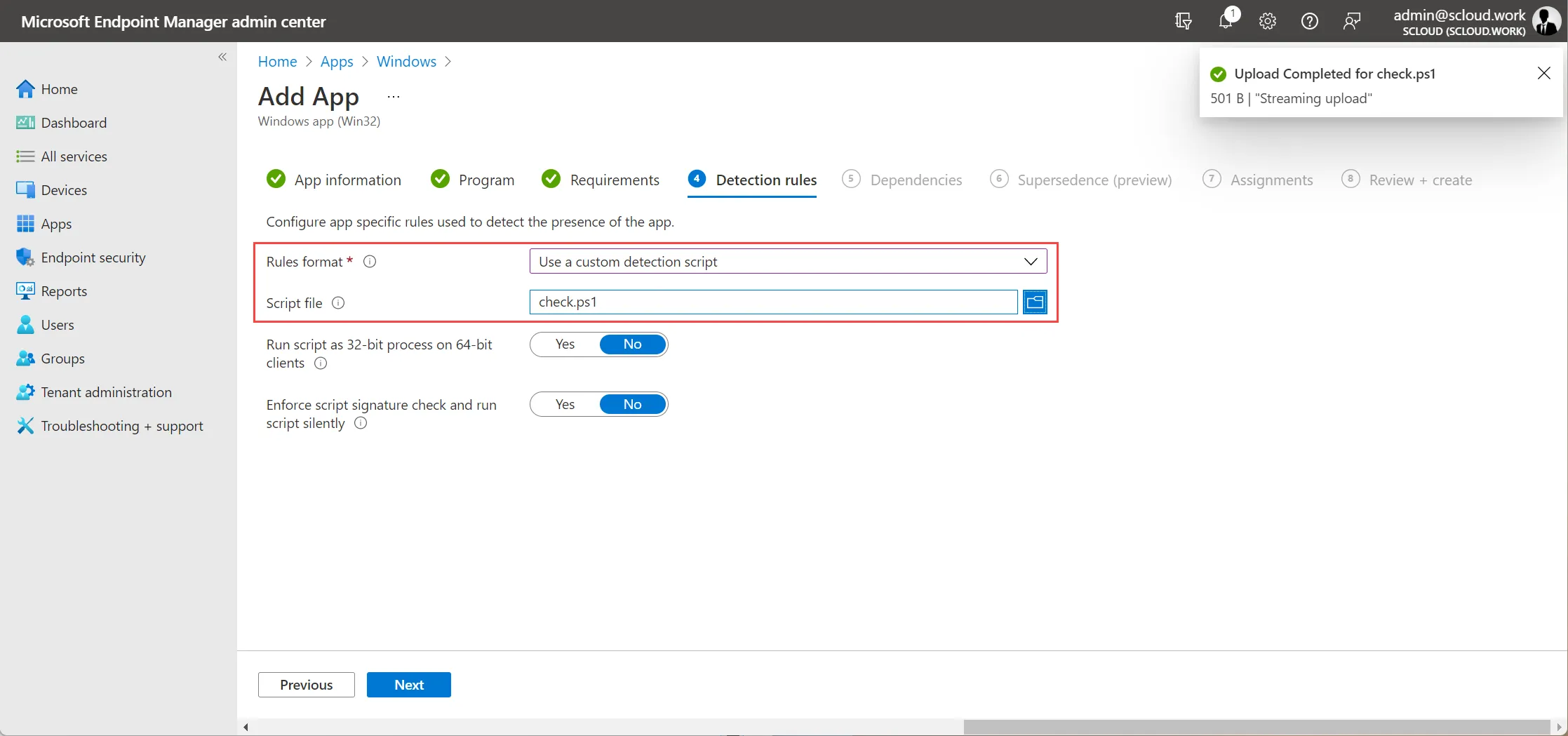
The version of the FortiClient VPN and the stored profile are checked in the detection rule (check.ps1). To do this, you have to adjust the “$ProfileName” and “$ProgramVersion_target” parameters in the second and third line. The profile name is the one you defined in the FortiClient.
$ProfileName = "DEMO scloud" # Change to your Profilename!
$ProgramVersion_target = '7.0.2.90' # Set to version from MSI
Create Intunewin
From this package we now create using the Microsoft Win32 Content Prep Tool the Intunewin file. The setup file is “install.ps1”.

We can now use the created “install.intunewin” file in the Endpoint Manager under “Apps > Windows + Add” upload and distribute.
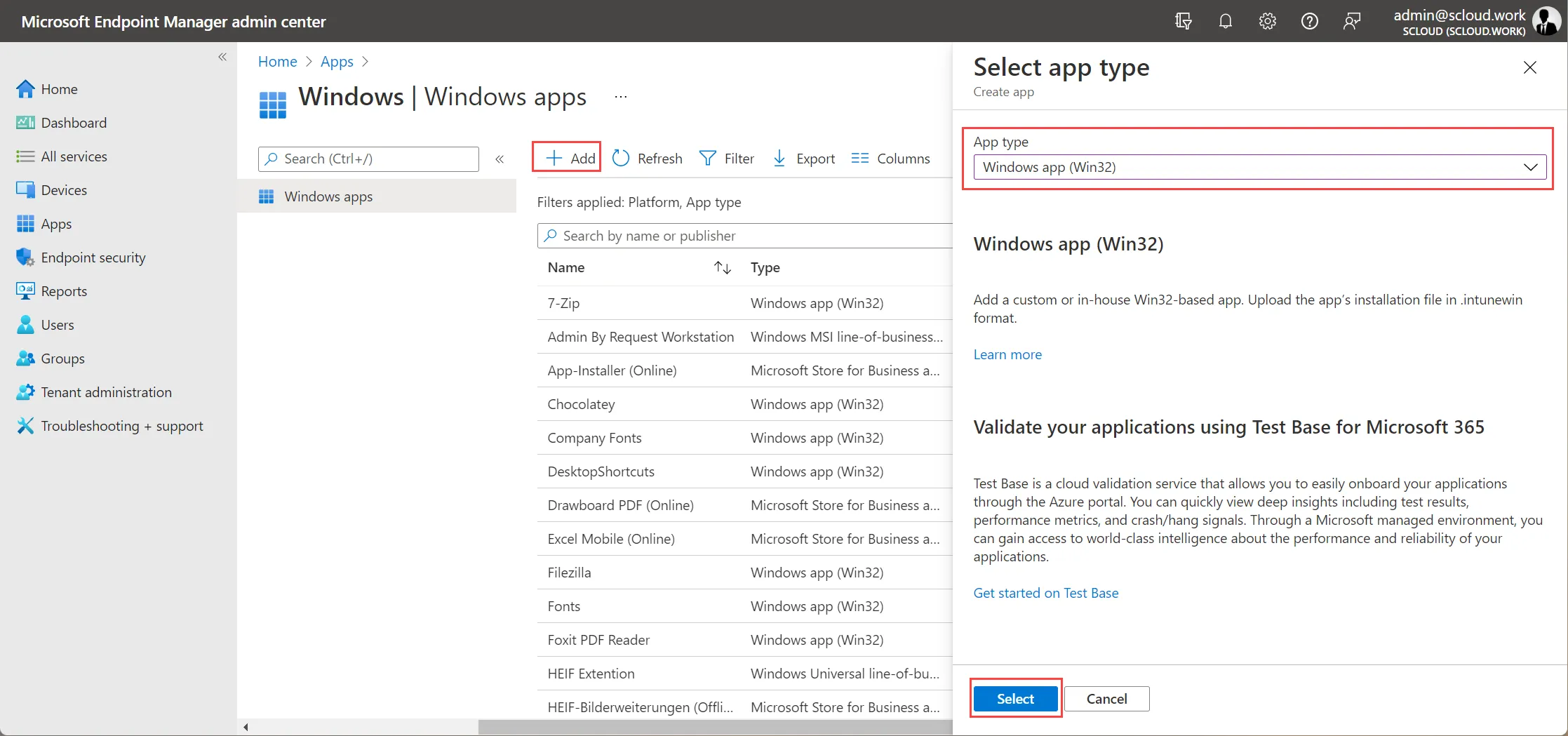
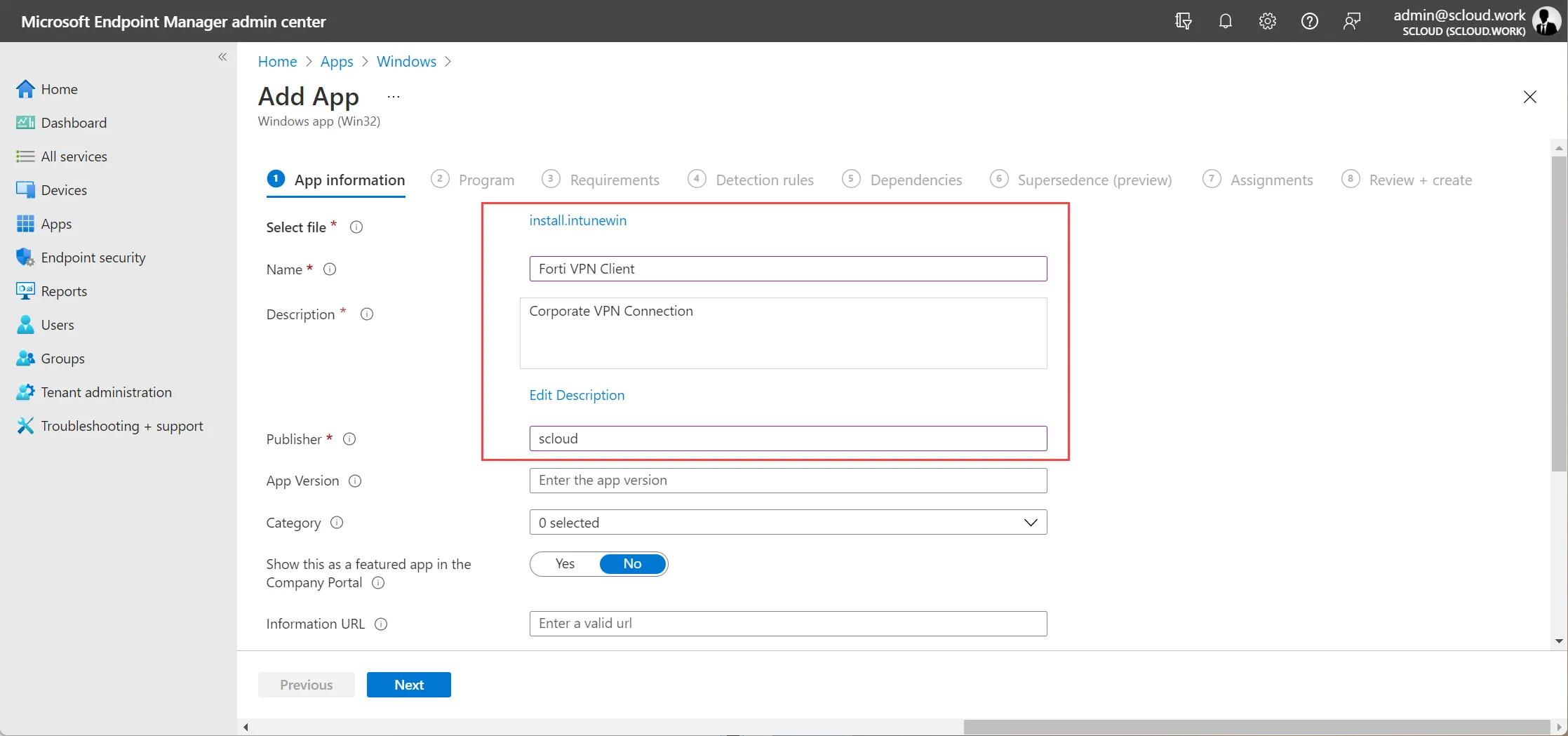
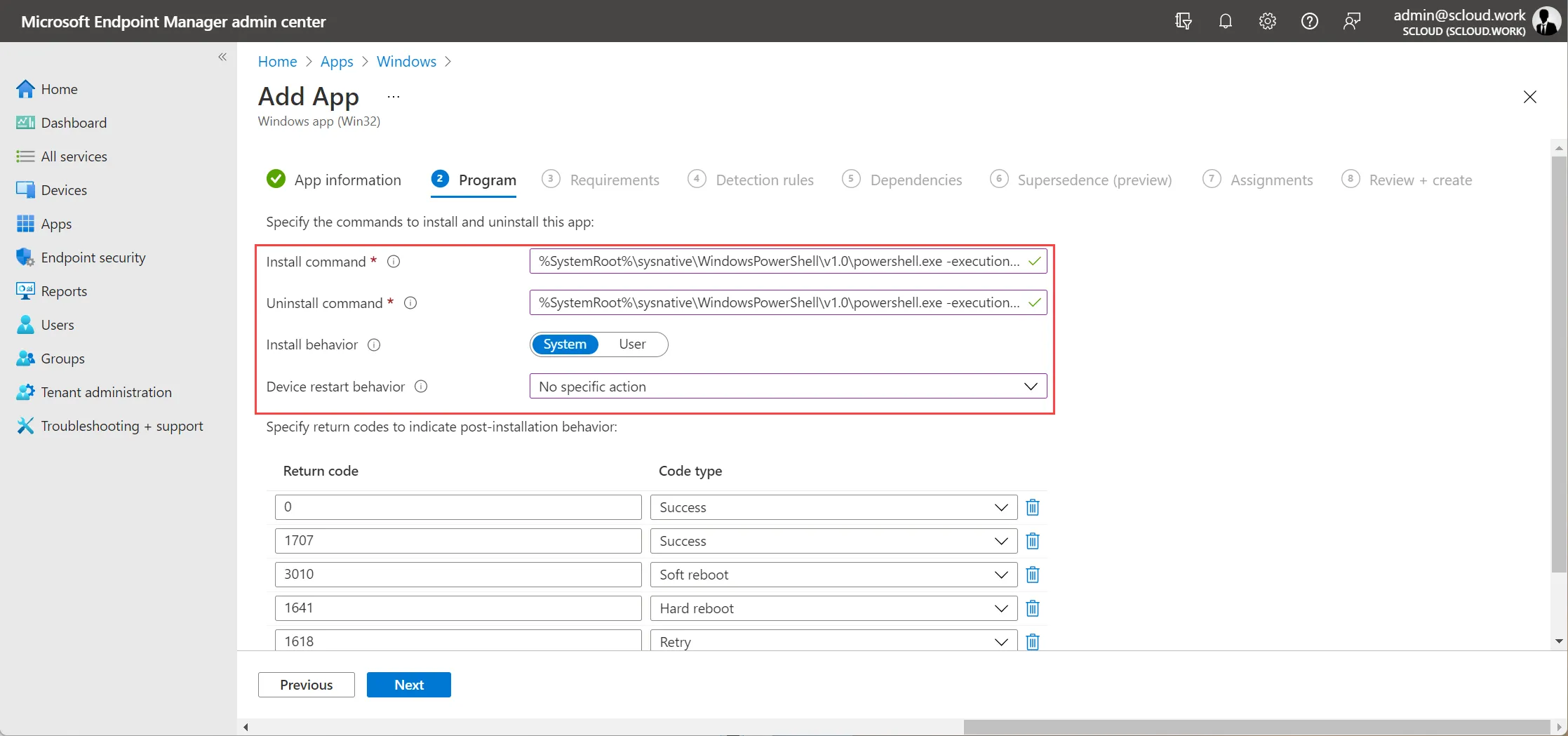
The program parameters are:
| Install command | %SystemRoot%\sysnative\WindowsPowerShell\v1.0\powershell.exe -executionpolicy bypass -command .\install.ps1 |
| Uninstall command | %SystemRoot%\sysnative\WindowsPowerShell\v1.0\powershell.exe -executionpolicy bypass -command .\uninstall.ps1 |
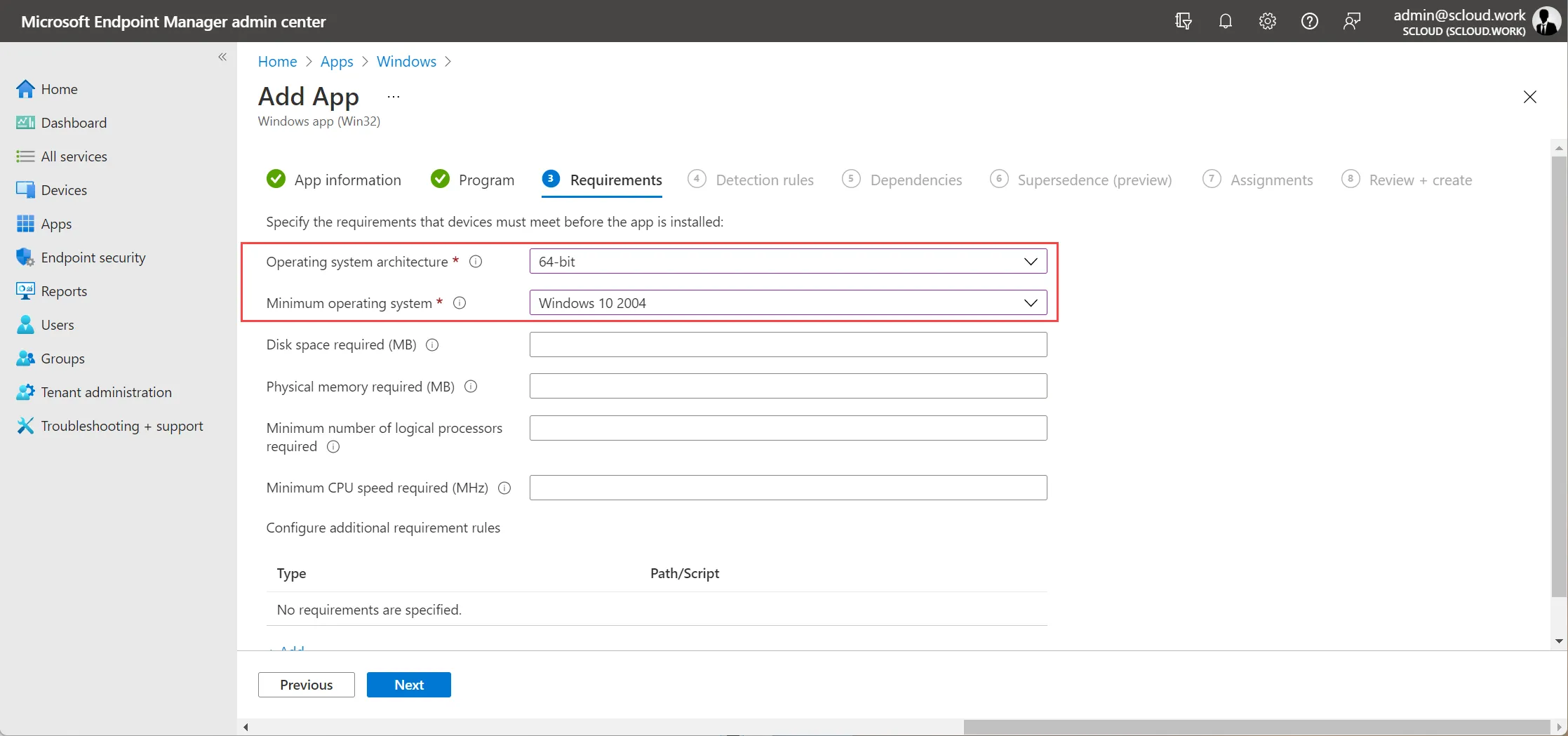
You can use the prepared “check.ps1” for the detection rule. but ATTENTION, customize the profile name and version in the detection rule first.
The package does not need dependencies, you just have to assign and save it.
This is how you can easily distribute the FortiClient VPN via Intune and update it with the same mechanism.