Mastering Assignments in Intune: Group Targeting Done Right
- Florian Salzmann
- Posted on 28 Jul, 2025
- Updated on 18 Nov, 2025
- 04 Mins read
- Intune Starter Series,Microsoft Intune
Intune policy assignment sounds simple. Pick a group, assign a profile, done. But in many environments I work with, that assumption leads to policies not applying, or worse, applying in unpredictable ways.
Often the problem is not Intune itself, but how groups are structured and used in assignments.
_BTW: Microsoft has a great guide on this as well: Assign device profiles in Microsoft Intune | Microsoft Learn
_It’s definitely worth checking out. In this post, I’ll try to include as many real-world scenarios as I’ve seen in customer environments.
Supported assignment scenarios
Before going into common mistakes, let’s first look at which assignment and exclusion combinations are supported in Intune.
The table below shows whether a combination works based on:
- Include: group used for assignment
- Exclude: group used for exclusion
- Group type: user or device
- Membership type: dynamic or static
| Include ↓ / Exclude → | Device (Dynamic) | Device (Static) | User (Dynamic) | User (Static) |
|---|---|---|---|---|
| Device (Dynamic) | ⚠️ | ✅ | ❌ | ❌ |
| Device (Static) | ⚠️ | ✅ | ❌ | ❌ |
| User (Dynamic) | ❌ | ❌ | ❌ | ❌ |
| User (Static) | ❌ | ❌ | ✅ | ✅ |
Legend:
- ✅ Supported
- ❌ Not supported
- ⚠️ Technically works but may lead to unpredictable behavior (latency)
This makes it clear why it’s so important to match inclusion and exclusion group types, and why user/device mixing should always be avoided. Some more info to each scenario is provided by Micrsoft oh their article: Assign device profiles in Microsoft Intune | Microsoft Learn
Never assign to mixed groups (users and devices)
This is the most important rule. Avoid using groups that include both users and devices in the same assignment.
- A user-assigned policy applies only when the user signs in
- A device-assigned policy applies before any user signs in
- If you mix both, you risk conflicts or delayed deployments
I’ve seen apps stuck on “pending” because they were assigned to a group with both types.
My tip:
Keep separate groups for users and devices, and clearly label them. For example: Grp-**Devices**-scloud and Grp-**Users**-scloud.
Never exclude dynamic groups or “All Devices”
It might seem logical to assign a profile to a group and then exclude “All Devices” as a catch-all safeguard. But if you do that, you’re effectively excluding everything. Nothing will receive the policy.
One common mistake I’ve seen is:
- Assigning to a group with both users and devices
- Excluding “All Devices”
On paper this looks fine. But in practice:
- Devices are excluded completely
- The user objects still seem included
- However, the policy might never apply, or apply inconsistently depending on how Intune interprets it
My advice:
Only exclude specific, intentional subgroups. Never exclude “All Devices” or similar dynamic groups from assignments.
Keep exclusion types aligned
If you assign a policy to a device group, the exclusion group must also be a device group.
Assigning to users and excluding devices (or vice versa) doesn’t make sense and will result in the exclusion being ignored.
I’ve had customers complain that exclusions “don’t work,” but after reviewing their setup, the issue was a mismatch in group types.
Good pattern:
- Assign:
Grp-Devices-Standard - Exclude:
Grp-Devices-VIP
Bad pattern:
- Assign:
Grp-Users-OfficeApps - Exclude:
Grp-Devices-VIP← this won’t do anything (good)
Avoid overlapping assignments across types
Imagine this:
- You assign a baseline profile to all devices
- Then assign a different version to all users in the IT Department
Even if the settings look similar, Intune may not handle it well.
The result can be merged settings, failed assignments, or policies fighting against each other.
My strategy:
Stick to either user- or device-based targeting per scenario. If you want to switch, test first.
Always test with pilot groups
Before going wide with any assignment, I create:
- A dedicated pilot device group
- A matching pilot user group
This helps detect issues with assignment logic, group filters, or profile conflicts early.
Bonus tip:
Use naming like Pilot-Win11-Devices or Test-MAM-Users so it’s easy to find later.
Bonus tip to the Bonus tip 😉:
Clean up the Test Assigments after the final deployment and set yourslefe a dealine for the test. Otherwise you will ned up with alot of clenp work down the road or one of the secnearios your tring to avoid.
Use filters instead of overcomplicating group exclusions
I’ve started replacing dynamic group exclusions with filters. They’re faster, cleaner, and don’t have the same group-type challangers.
Example filter:
(device.deviceOSType -eq "Windows") and (device.deviceOwnership -eq "Company")You can assign a profile to “All Users” or a specific User Group and let the filter do the targeting.
Benefits:
- No risk of mismatching group types
- More transparent logic
- Easier to manage at scale
Audit assignments and memberships regularly
Check your group membership types before assigning anything. Just because a group name includes “Devices” doesn’t mean it only contains devices.
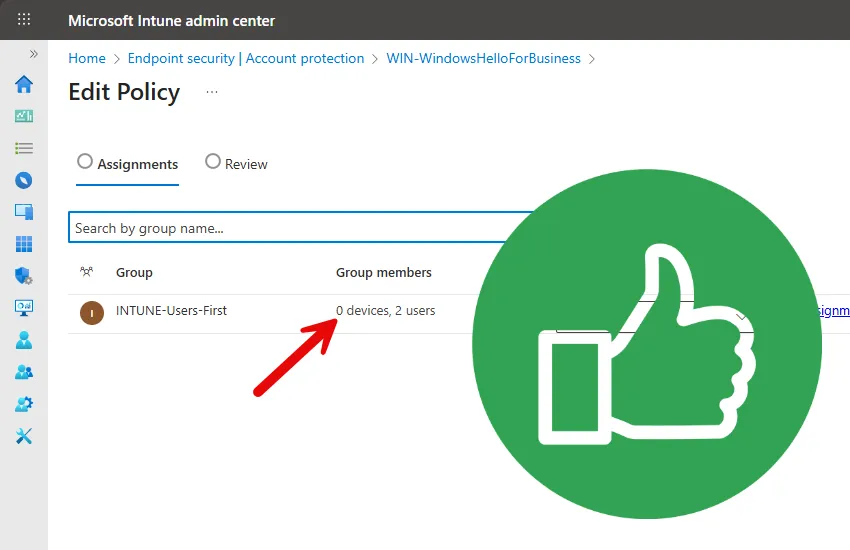
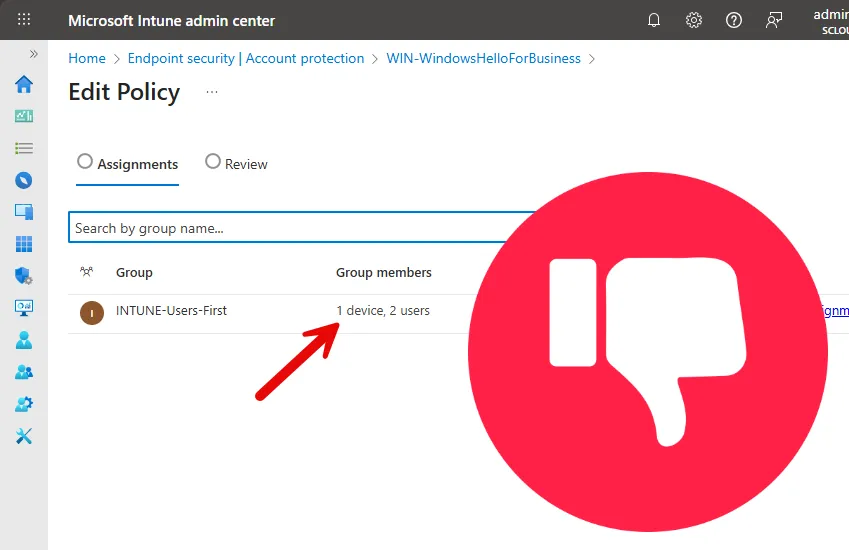
Even with clean group structures, conflicts can still occur, especially when the same device or user is targeted by multiple profiles. Vie the mainpage of Intune you can find a Report to indetify it —> “Configuration policies with errors or conflict”
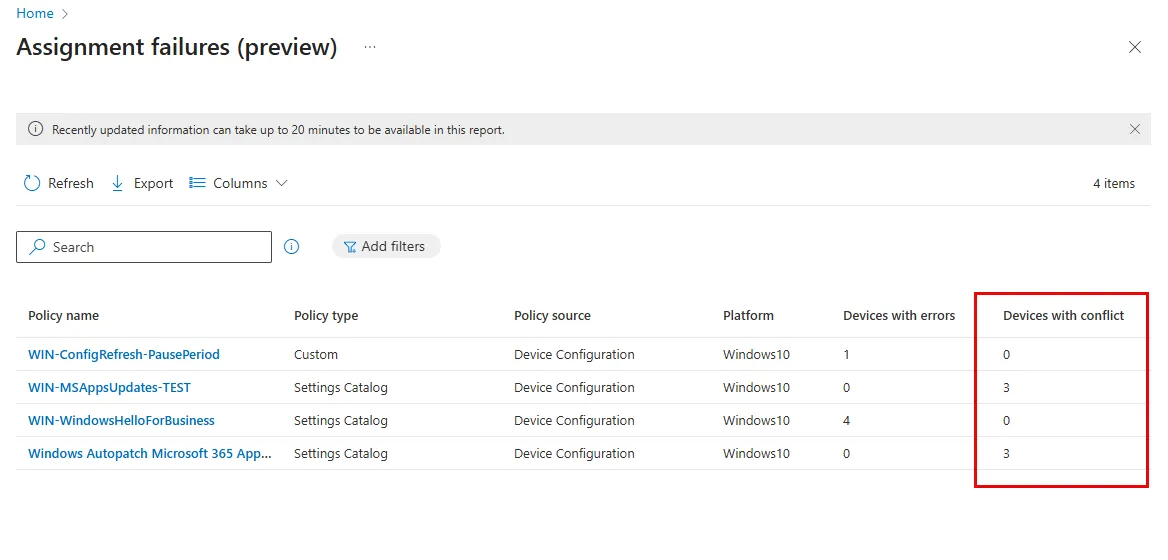
This view helps you catch and analyze problems caused by:
- Merged settings from multiple profiles
- Assignment logic mistakes
- Misconfigured exclusions
I recommend checking this regularly in larger environments or during rollout phases.
Conclusion
Assignments in Intune work best when they are predictable and clearly scoped.
By keeping user and device targeting separate, avoiding broad exclusions like “All Devices,” and auditing your groups carefully, you avoid 90 percent of the issues I regularly see in real-world environments.