Word Standard Template with Intune (Normal.dotm)
- Florian Salzmann
- Posted on 03 Mar, 2022
- Updated on 12 Jul, 2026
- 02 Mins read
- Microsoft Intune,PowerShell,Win32 Applications,Windows 10,Windows 11
It is very important to comply with the CI/CD in an organization, which means, among other things, that new Word documents have to come with the right fonts, sizes and colors. To do this, replace the Normal.dotm file in the “C:\Users\%username%\AppData\Roaming\Microsoft\Templates” directory. In order to distribute the Normal.dotm file with Intune, I have prepared a PowerShell script, which you can easily distribute as a Win32 app with Intune.
Package @GitHub (Normal template.zip)
PowerShell to distribute the Normal.dotm
The script creates the template folder locally in the user’s AppData and then copies the Normal.dotm into it. If the folder already exists, it doesn’t matter.
After execution, the script creates a validation file, which is also in the AppData of the user and contains the version.
$PackageName = "Normal-template"
$Version = "1"

Start-Transcript -Path "$env:ProgramData\Microsoft\IntuneManagementExtension\Logs\$PackageName-install.log" -Force

try{
    New-Item -Path "$env:APPDATA\Microsoft\Templates" -ItemType "Directory" -Force
    Copy-Item 'Normal.dotm' -Destination "$env:APPDATA\Microsoft\Templates\" -Recurse -Force

    New-Item -Path "$ENV:LOCALAPPDATA\_MEM\$PackageName" -ItemType "file" -Force -Value $Version
}catch{
    Write-Host "_____________________________________________________________________"
    Write-Host "ERROR"
    Write-Host "$_"
    Write-Host "_____________________________________________________________________"
}

Stop-Transcript
Create and upload Win32 app
You need the current “Microsoft Win32 Content Prep Tool”.
You then create the Intunewin file as follows, where the path is the location where the installation file and the package are located.

You will then find your install.intunewin file in the specified folder. For this, in turn, we now create a new Win32 app in the Endpoint Manager under “Apps > Windows” +Add.
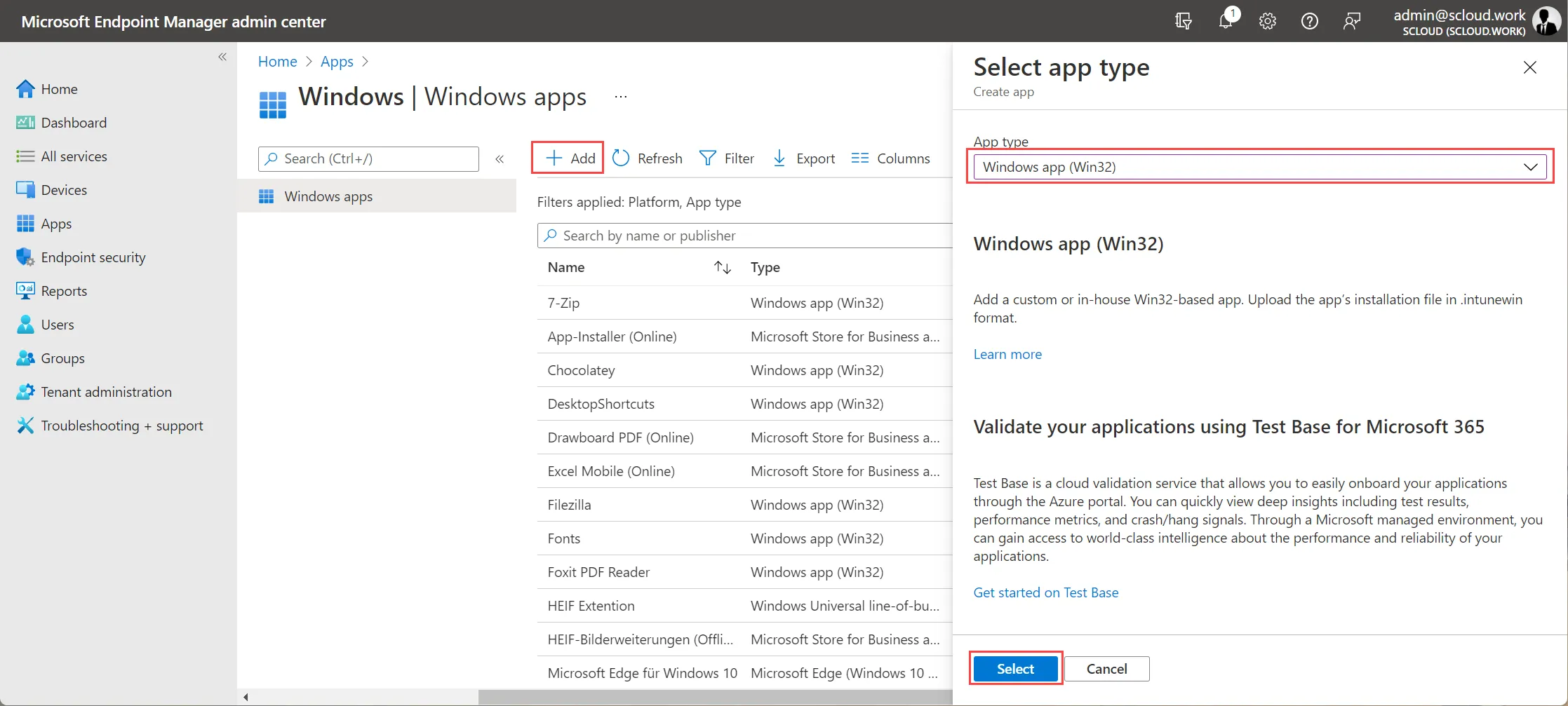
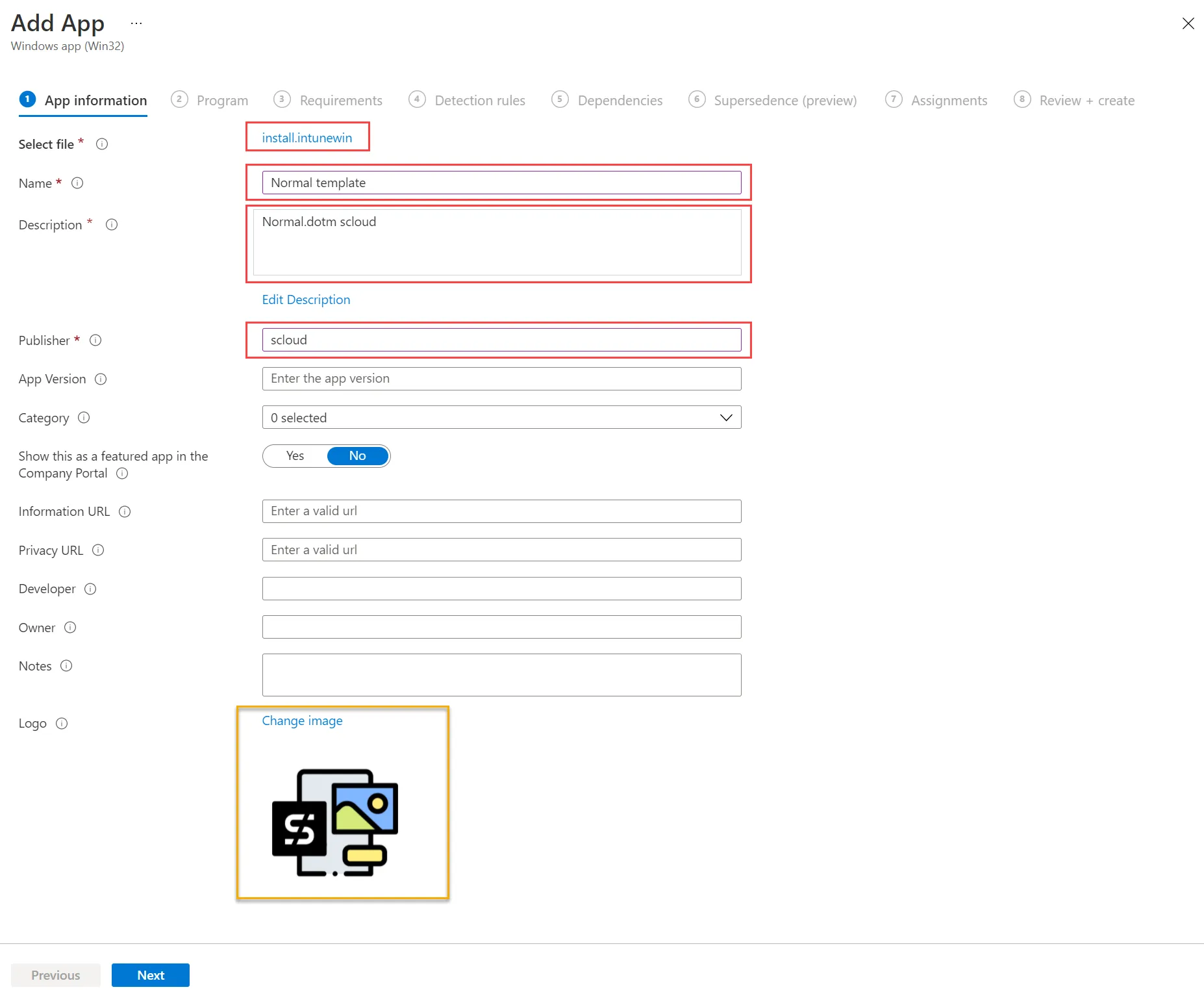
Here you upload the create install.intunewin file and assign the name, the description, the publisher and optionally an icon.
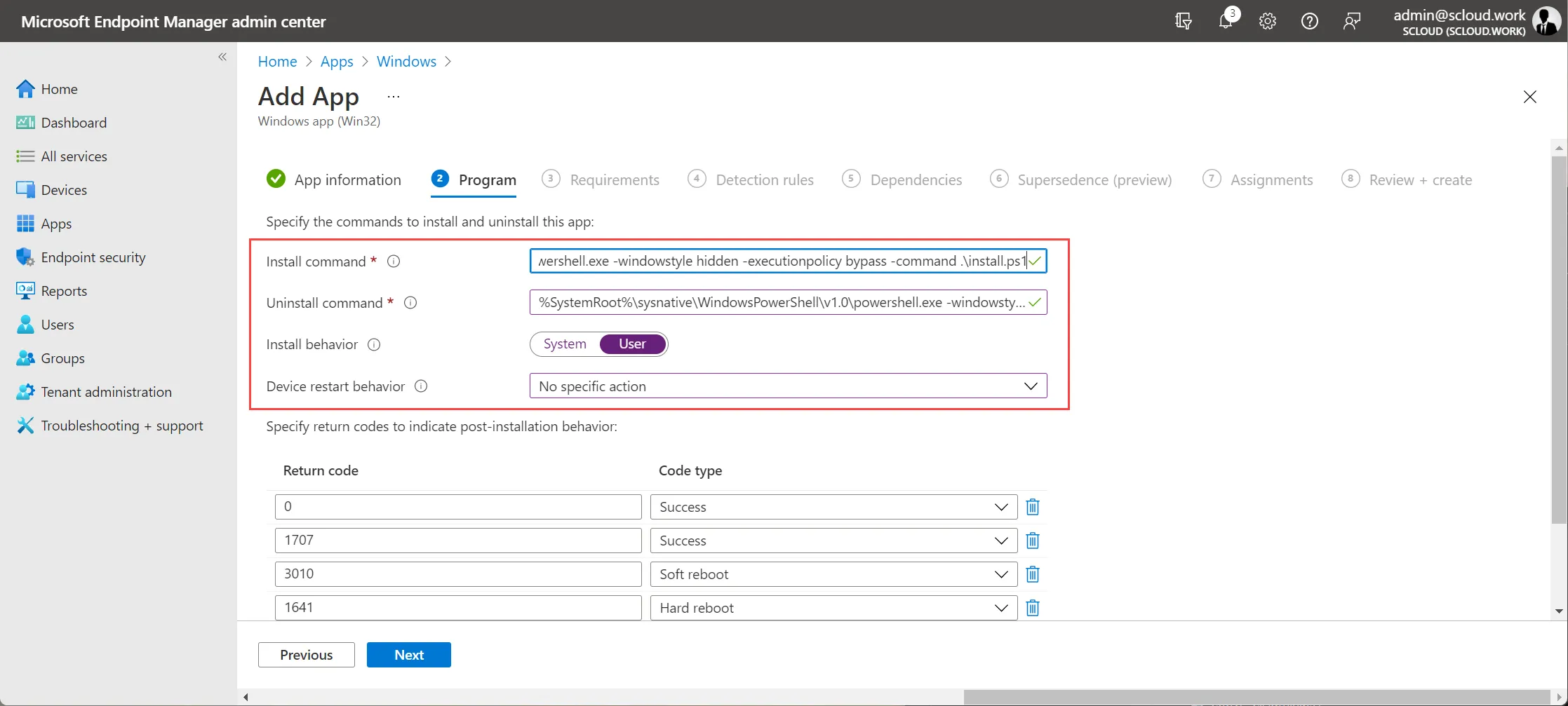
In the program settings you store the two commands and the installation behavior “User”.
| install command | %SystemRoot%\sysnative\WindowsPowerShell\v1.0\powershell.exe -windowstyle hidden -executionpolicy bypass -command .\install.ps1 |
| uninstall command | %SystemRoot%\sysnative\WindowsPowerShell\v1.0\powershell.exe -windowstyle hidden -executionpolicy bypass -command .\uninstall.ps1 |
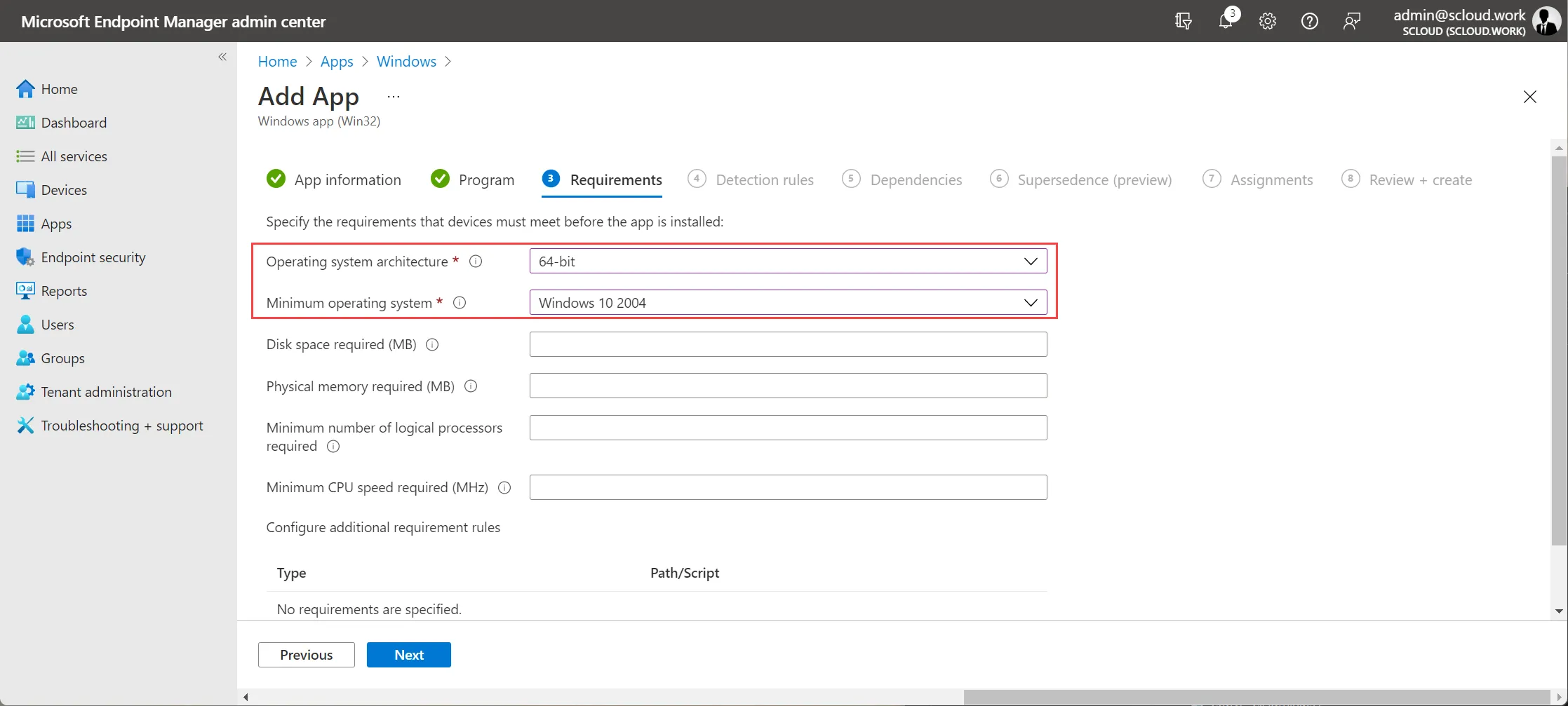
You have to define something in the requirements, but there aren’t any special ones.
As a “Detection Rule” I have prepared the file “check.ps1”.
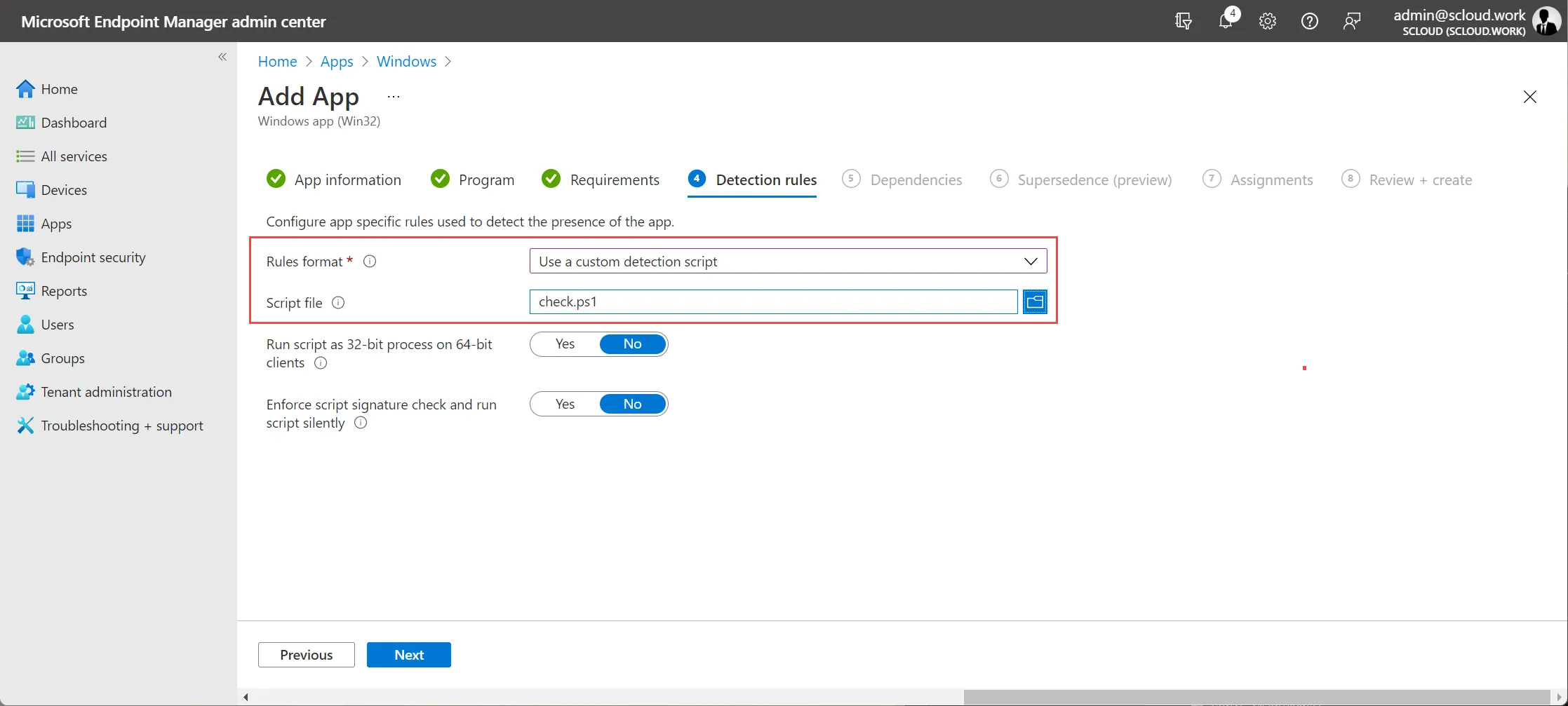
There are no dependencies and at the end you can still assign and create the package.
As soon as Intune installs the package, i.e. has replaced Normal.dotm, the user has the new Word template.
Attention: If you use special fonts in your template, these must also be installed on the device. I have documented how you can do this with Intune here: Install fonts with Intune
Update Normal.dotm
If you want to distribute a new version of Normal.dotm, you only have to increase the version in the second line in “install.ps1” and “check.ps1”.
$PackageName = "Normal-template"
$Version = "1" # Change this number for updates