PowerShell / Win32: Send Install Logs to Teams - Intune
- Florian Salzmann
- Posted on 14 Apr, 2022
- Updated on 05 Aug, 2022
- 02 Mins read
- Microsoft Intune,PowerShell,Win32 Applications
When a Win32 app installation via Intune fails, it’s not always that easy to view the log. That’s why I started to send the log of the Win32 installation, or of a PowerShell script deployed with Intune, to a Teams channel for selected installations, so I have a quick overview of the installation process on a device. To send the log, I use an “Incoming Webhook”, which I activated on the Teams channel.
Set up webhook in Teams
As a basic requirement, you need to activate the “Incoming Webhook” in the Teams channel where you want to receive the messages. This is a URL through which we can send conversations to the channel, without authentication. So make sure the URL doesn’t become public and that you don’t send any sensitive data through it.
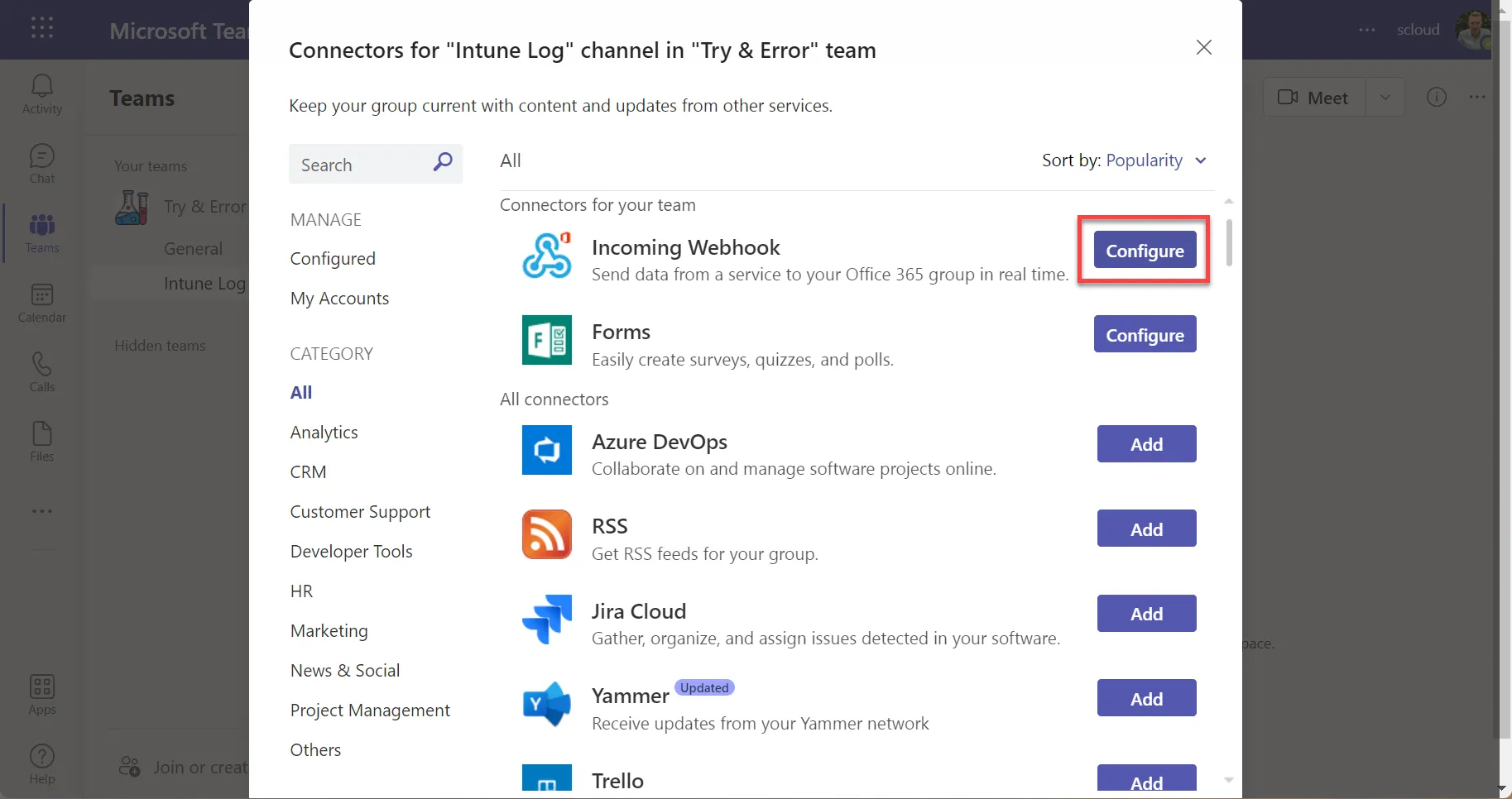
You set up the webhook via the three dots in the channel, under “Connectors”. In this menu, select “Add” twice at the “Incoming Webhook” entry.
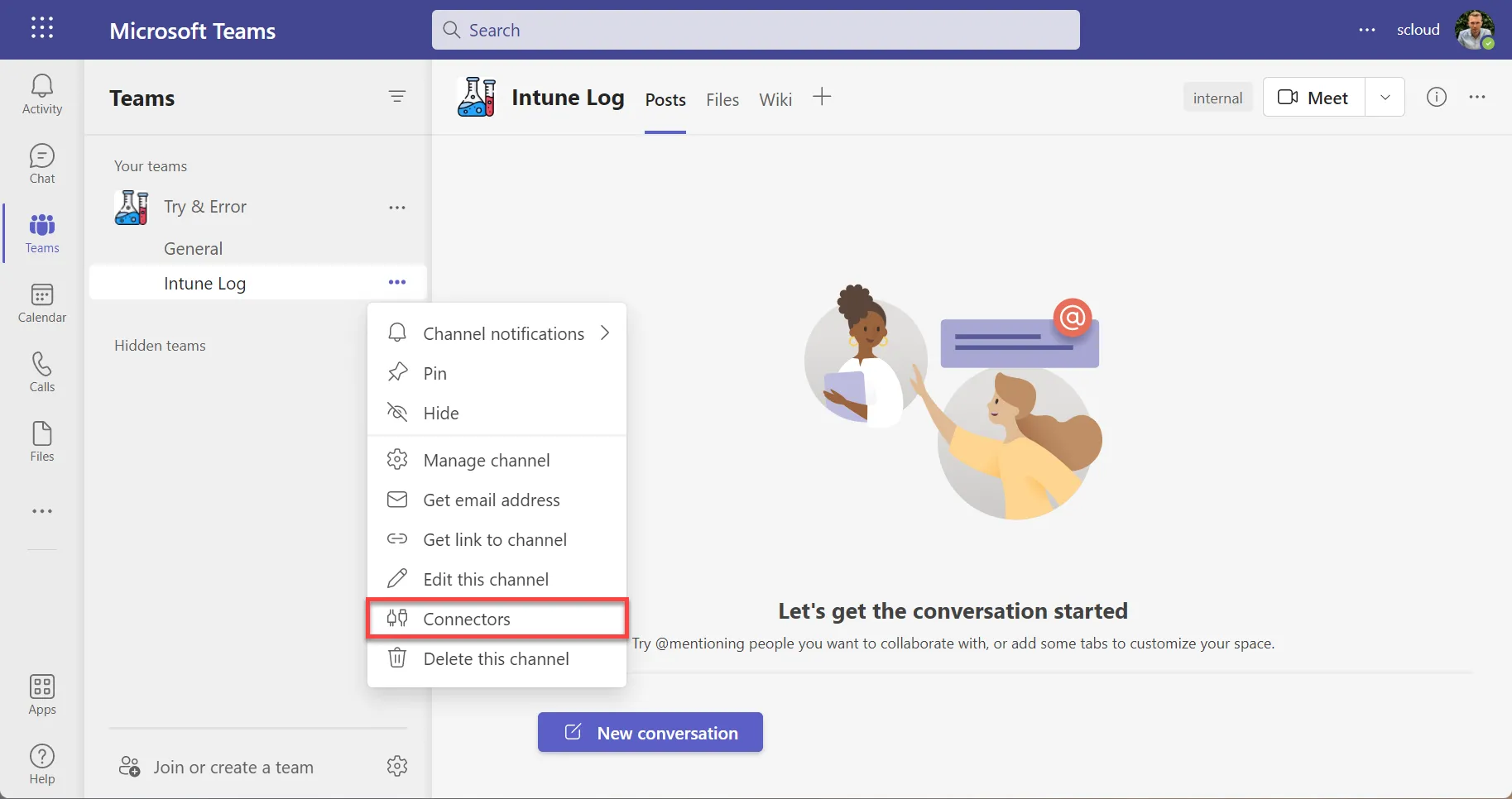
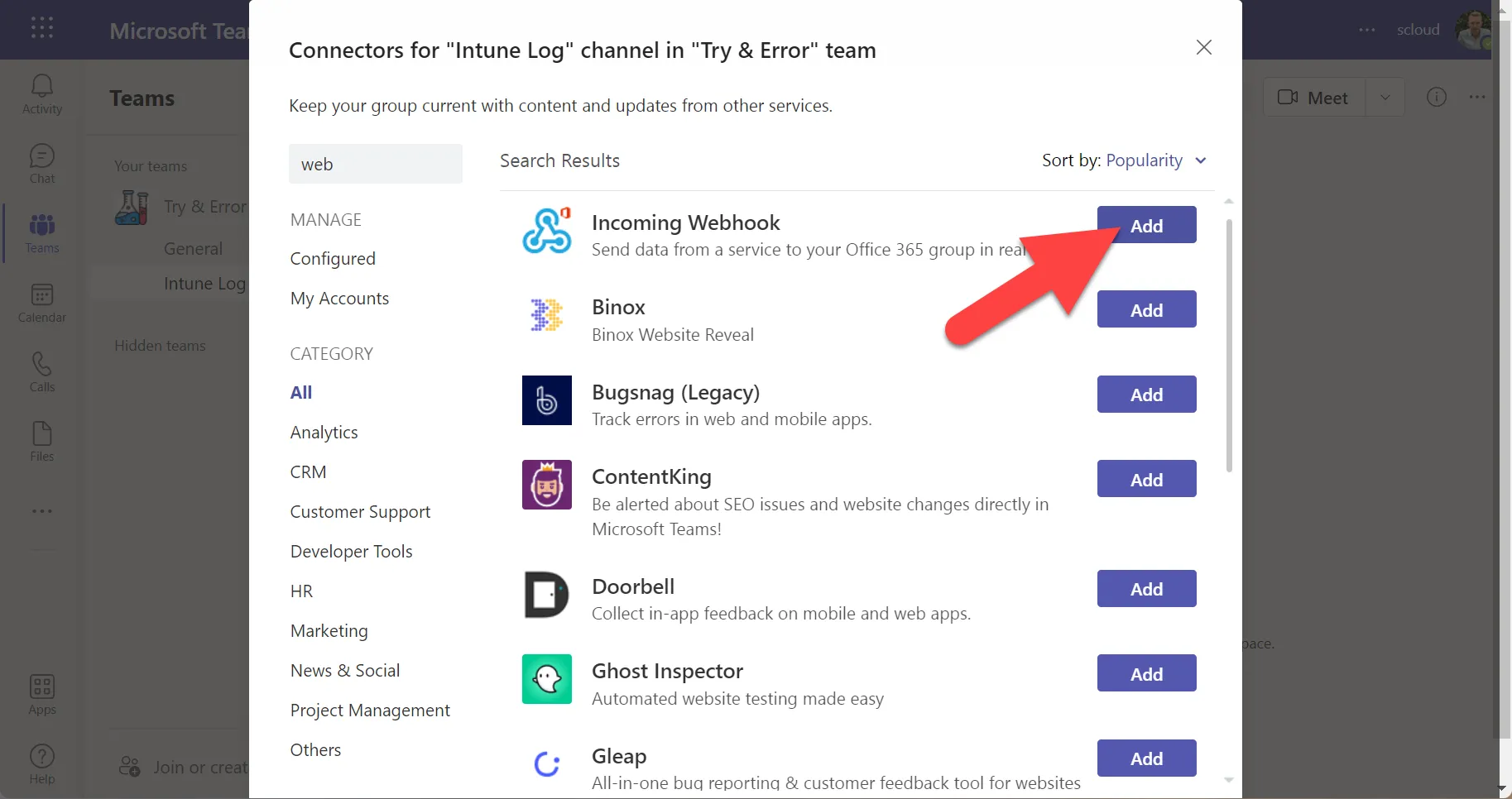
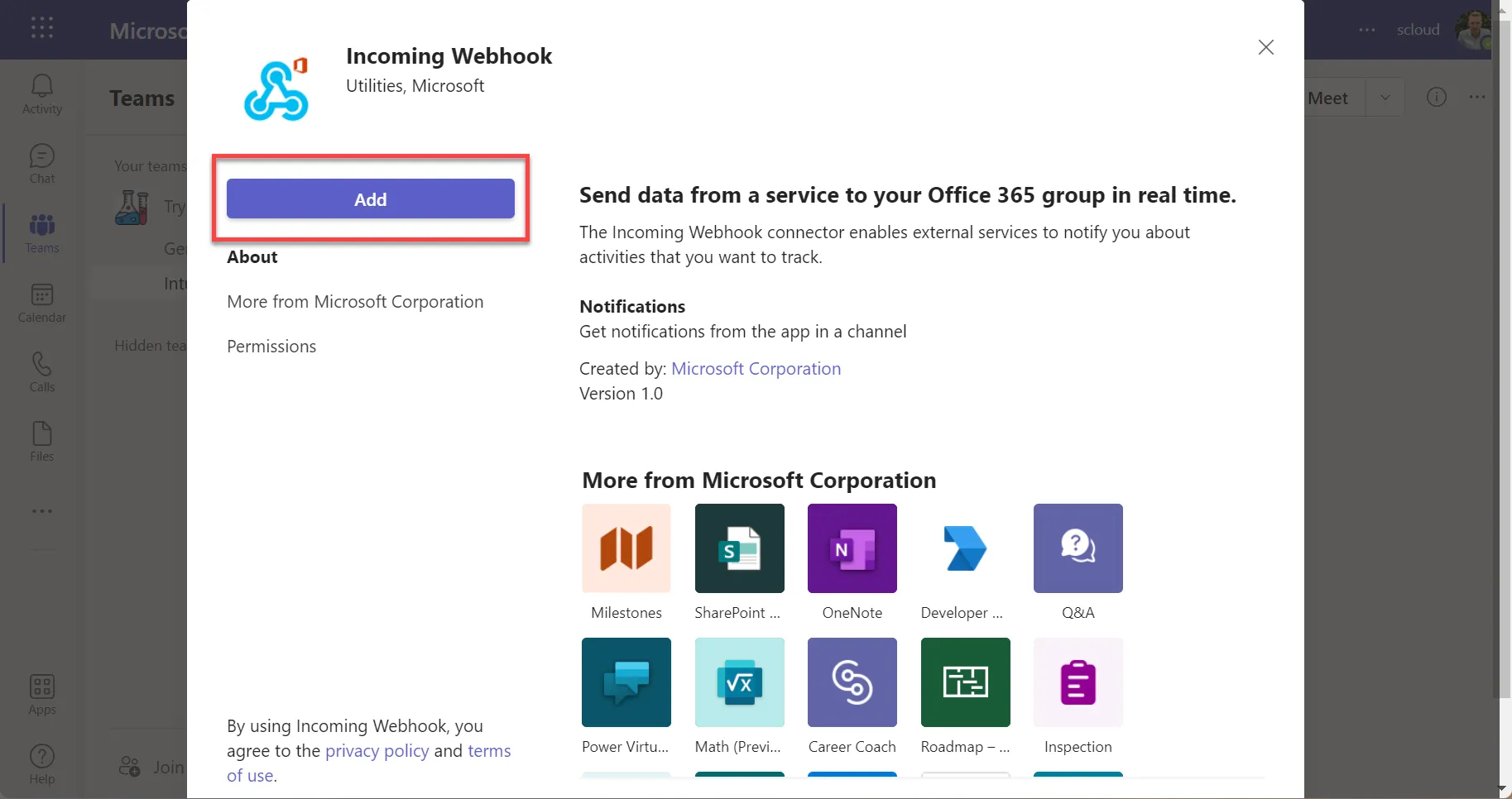
Once the “Incoming Webhook” has been added as a connector, we can configure it. To do this, go back into “Connectors” in the channel. This time you won’t see “Add” anymore, but “Configure”, and you can give the “Incoming Webhook” a name and, if you want, also a display picture. The display picture will later be shown when the webhook creates conversations.
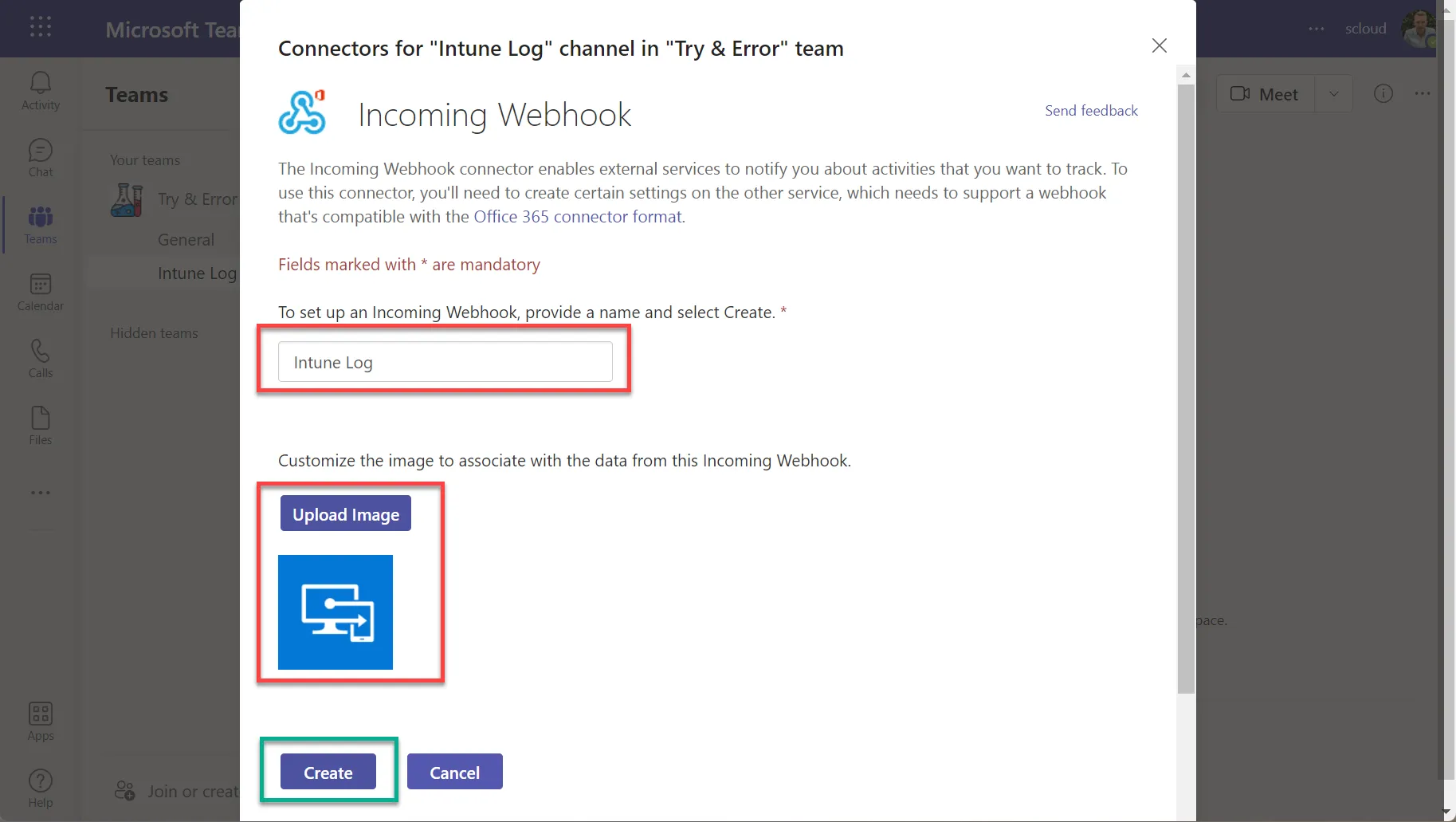
After clicking on “Create”, the URL appears, which we’ll need later in our script. Copy this out.
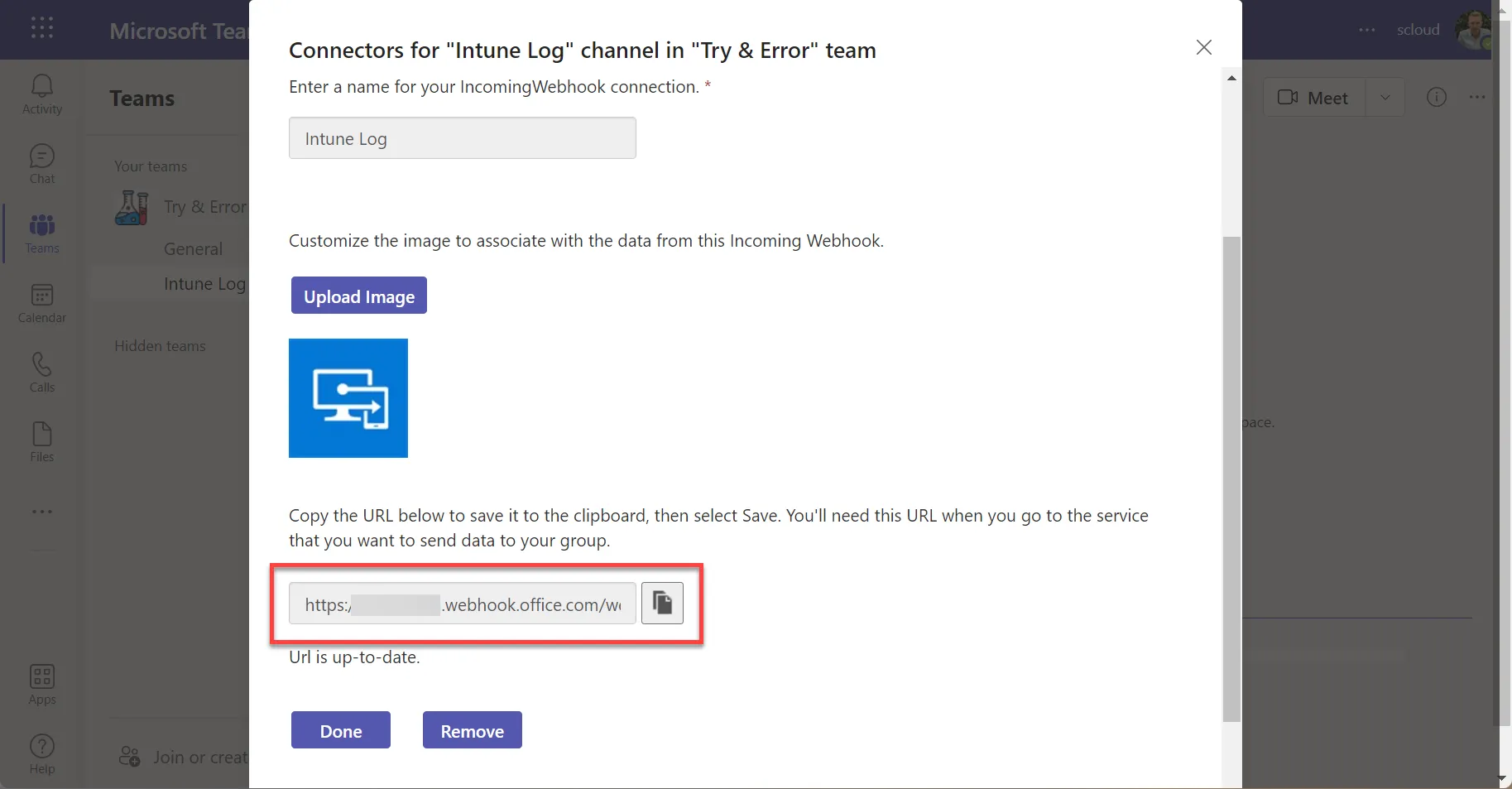
Alternatively, Microsoft’s guide: Create an Incoming Webhook - Teams | Microsoft Docs
Send webhook message with PowerShell
To send a webhook, we don’t need very many parameters. Below is an example code including the result in the Teams channel. You can also send the code as a test in any PowerShell terminal you like. All you need to do is insert your webhook URL in the first line.
$WebHookURL = "https://xxxxx.webhook.office.com/webhookb2/someid..."
$Message_Json = [PSCustomObject][Ordered]@{
	"@type" = "MessageCard"
	"@context" = "<http://schema.org/extensions>"
        "themeColor" = "0078D7"
	"title" = "Test"
	"text" = "some message..."
} | ConvertTo-Json

$parameters = @{
	"URI" = $WebHookURL
	"Method" = 'POST'
	"Body" = $Message_Json
	"ContentType" = 'application/json'
}

Invoke-RestMethod @parameters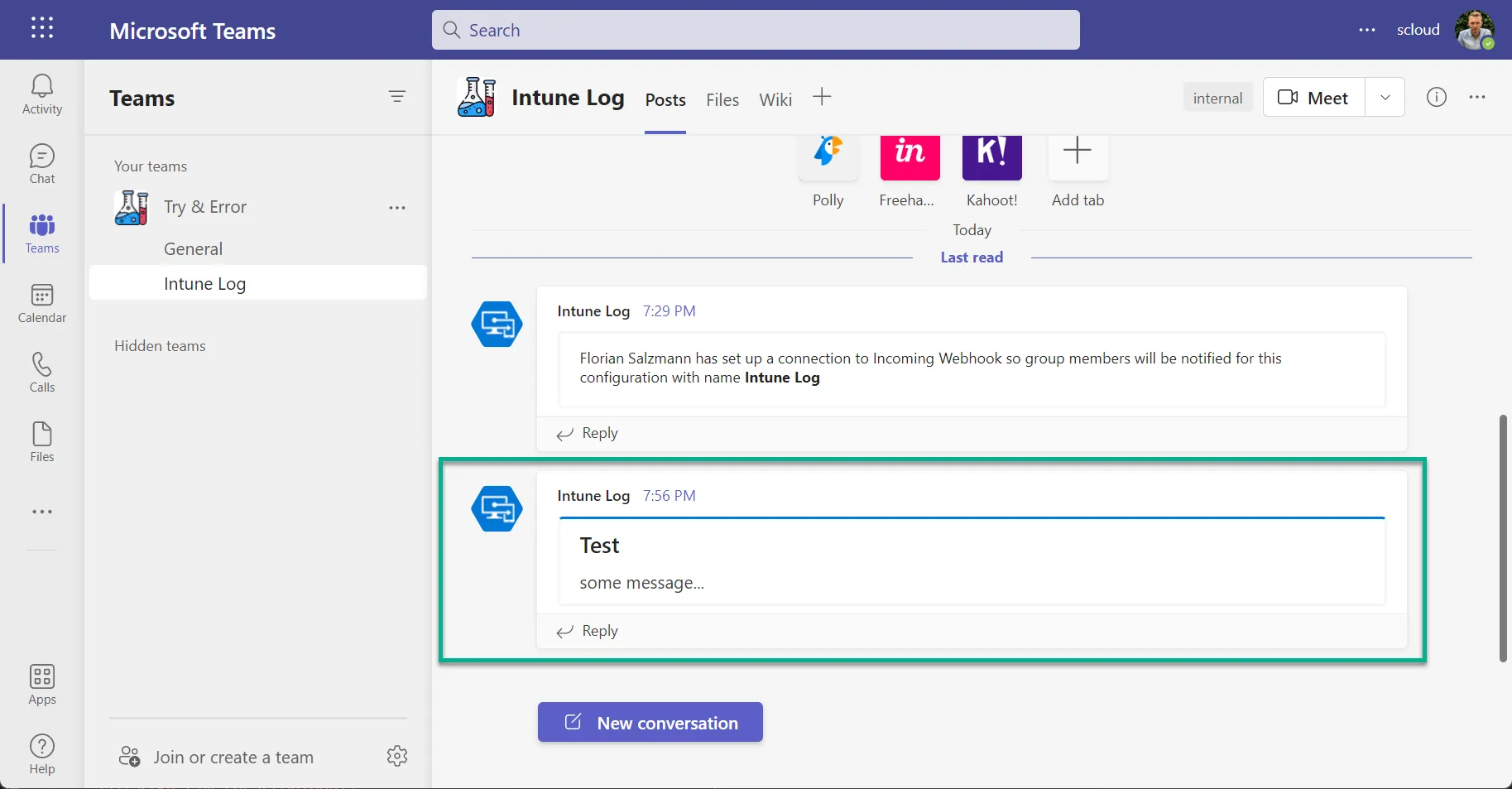
Send installation transcript to Teams
If you want to send the whole transcript / log of an Intune Win32 app installation or a PowerShell script to Teams, you can use the following template. Insert your installation routine under ”# Paste in your Installation routine here”. Also don’t forget to adjust the “$WebHookURL” parameter.
$Transcript_Path = "$env:TEMP\demo-installation.log"
Start-Transcript $Transcript_Path

# Paste in your Installation routine here

Stop-Transcript

$WebHookURL = "https://xxxxx.webhook.office.com/webhookb2/someid..."
$Message_Json = [PSCustomObject][Ordered]@{
	"@type" = "MessageCard"
	"@context" = "<http://schema.org/extensions>"
        "themeColor" = "0078D7"
	"title" = "Transcript - Demo"
	"text" = "<pre>$($(Get-Content $Transcript_Path) -join '<br>')</pre>"
} | ConvertTo-Json

$parameters = @{
	"URI" = $WebHookURL
	"Method" = 'POST'
	"Body" = $Message_Json
	"ContentType" = 'application/json'
}

Invoke-RestMethod @parameters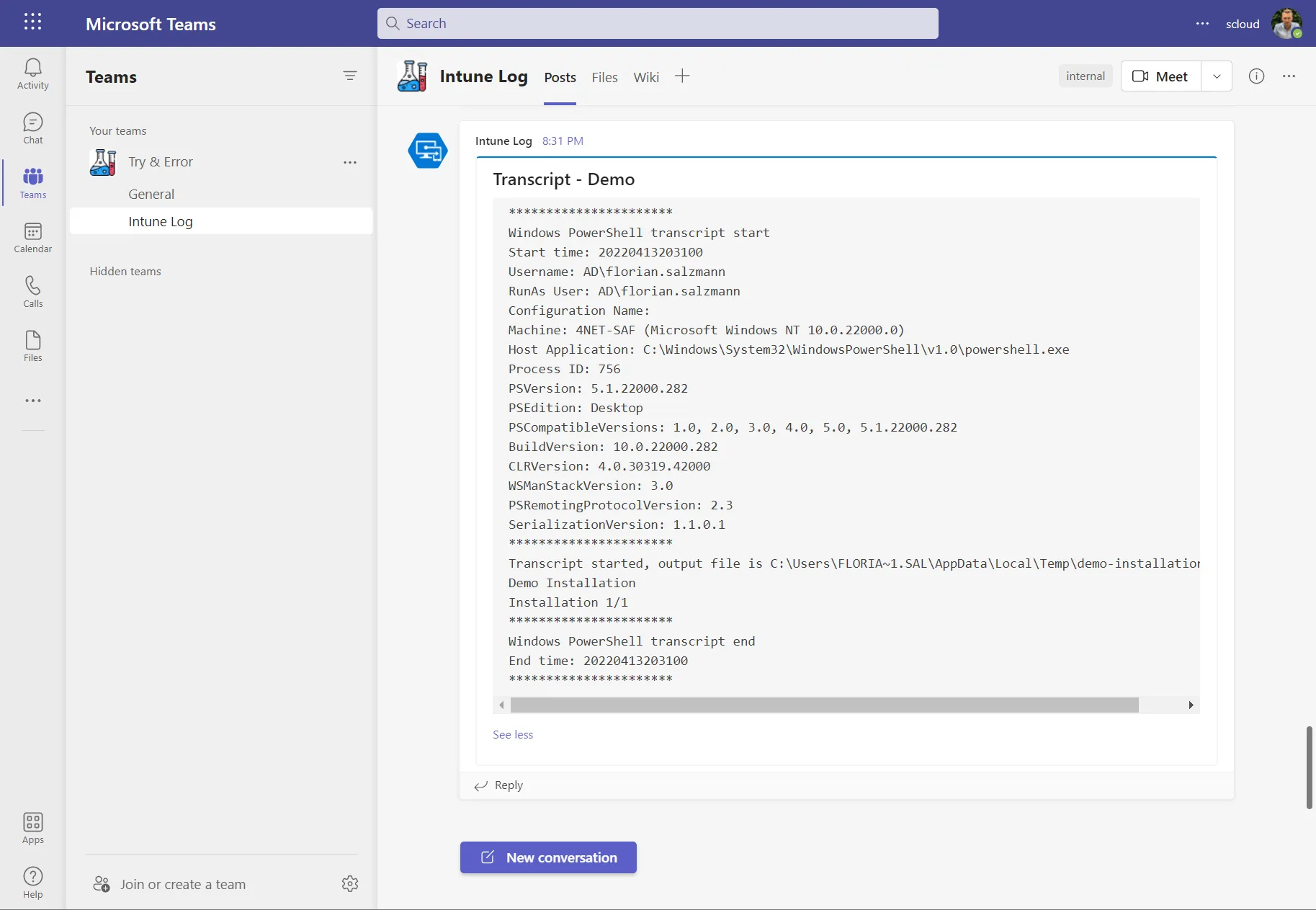
Send installation error to Teams
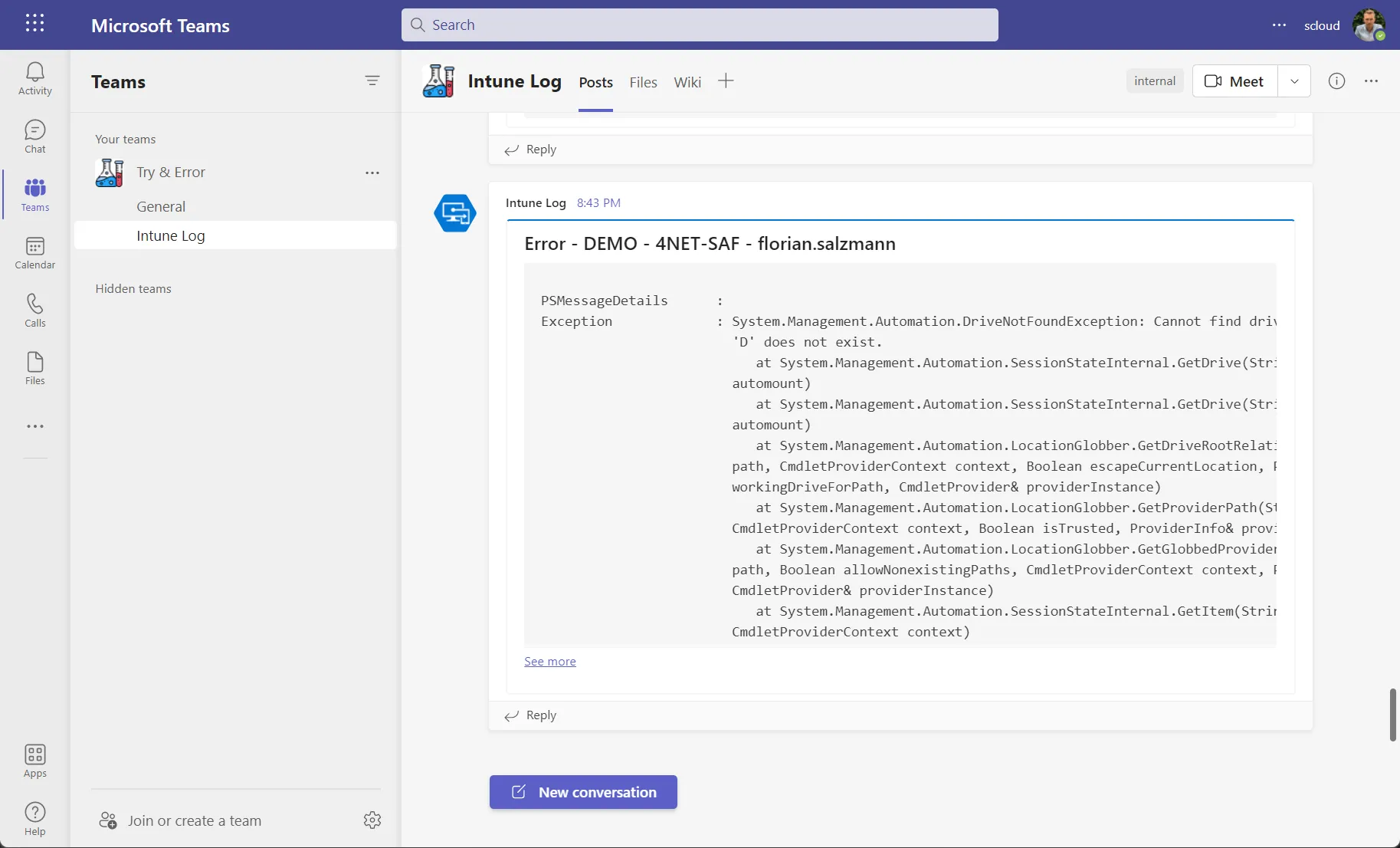
For sending an error log, we again use the same basis as above. This time, though, we don’t put the installation routine into a transcript, but into a “Try/Catch”.
try{
	# Paste in your Installation routine here
}catch{
    $WebHookURL = "https://xxxxx.webhook.office.com/webhookb2/someid..."
    $Message_Json = [PSCustomObject][Ordered]@{
        "@type" = "MessageCard"
        "@context" = "<http://schema.org/extensions>"
        "themeColor" = "ff0000"
        "title" = "Error - DEMO - $($env:computername) - $env:username"
        "text" = "<pre>$($($_ | Format-List * -Force | Out-String) -join '<br>')</pre>"
    } | ConvertTo-Json

    $parameters = @{
        "URI" = $WebHookURL
        "Method" = 'POST'
        "Body" = $Message_Json
        "ContentType" = 'application/json'
    }

    Invoke-RestMethod @parameters
}