Remove OneDrive Personal from Explorer
- Florian Salzmann
- Posted on 11 Aug, 2022
- Updated on 17 Aug, 2023
- 02 Mins read
- (Proactive) Remediations,Microsoft Intune,PowerShell
Ever noticed too many OneDrive icons causing confusion on your Windows devices?
I’ve got you covered! This quick guide explains how to remove the extra OneDrive personal icon in the Explorer using a simple PowerShell script. No fuss, just straightforward steps, with the option to use just the script or a Proactive Remediation package.
The Script to Remove OneDrive Personal
In summary, the script checks for the presence of the OneDrive Personal Icon registry key on the desktop, and if found, it removes it and logs the action. If not found, it logs that the icon was not found. The script records its entire execution process in a transcript log file.
$registryPath = "HKCU:\Software\Microsoft\Windows\CurrentVersion\Explorer\Desktop\NameSpace\{018D5C66-4533-4307-9B53-224DE2ED1FE6}"
$logFilePath = "C:\ProgramData\Microsoft\IntuneManagementExtension\Logs\Remove-OneDrivePersonal-script.log"

Start-Transcript -Path $logFilePath

if (Test-Path -Path $registryPath) {
    try {
        Remove-Item -Path $registryPath -Force -Verbose
        Write-Output "OneDrive Personal removed. "
    }
    catch {
        Write-Error "Error: $($_.Exception.Message)"
    }
}
else {
    Write-Output "All good, OneDrive Personal is already hidden."
}

Stop-Transcript
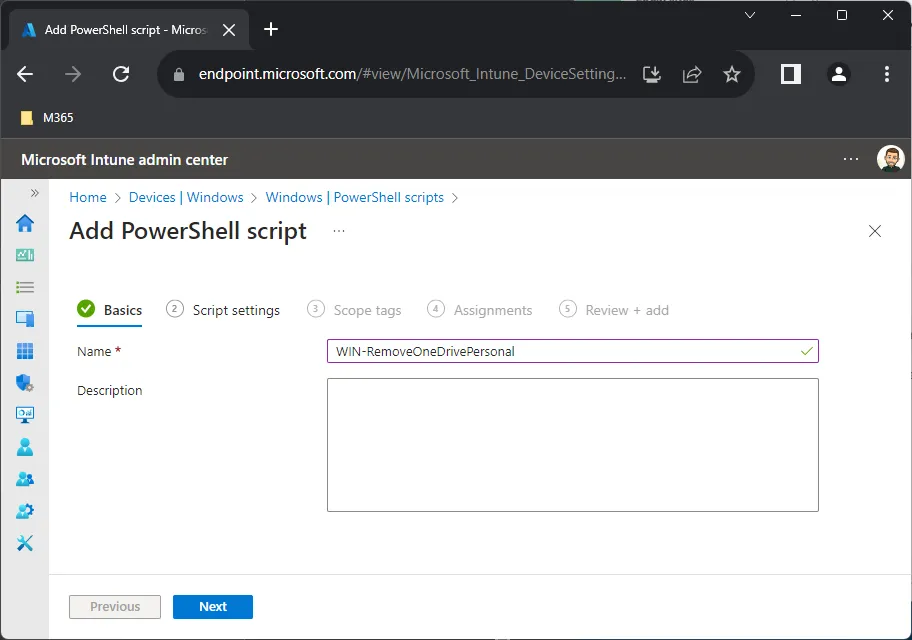
To deploy the script in Microsoft Intune just save it locally, upload and assign it under:
Intune > Devices > Windows >PowerShell scripts > +Add
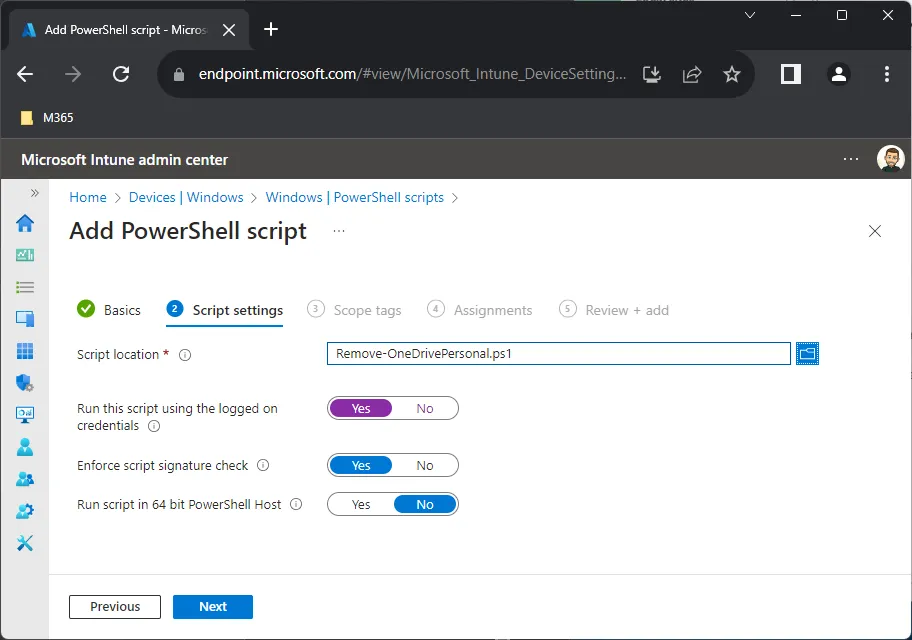
Proactive Remediation
For the Proactive Remediation, to remove the OneDrive Personal icon form the Explorer, you can use the same Script as Remediation, for the Detection you can use this:
$registryPath = "HKCU:\Software\Microsoft\Windows\CurrentVersion\Explorer\Desktop\NameSpace\{018D5C66-4533-4307-9B53-224DE2ED1FE6}"

if (Test-Path -Path $registryPath) {
    try {
        Write-Output "OneDrive Personal is visible"
        exit 1
    }
    catch {
        Write-Error "Error: $($_.Exception.Message)"
        exit 1
    }
}
else {
    Write-Output "All good, OneDrive Personal is already hidden."
    exit 0
}
Summary
I wish there weas a policy for this. But at least with this script it’s not a big deal to hide the OneDrive Personal icon from the Windows Explorer.
If you like you could also create a Win32 package out of the script,. But for me it was always enough to deploy the script initially with Intune. The Proactive Remediation package is great to monitor the stat, but unfortunately not possible for Users licensed with the Microsoft 365 Business Premium license.