Reset iPad/iPhone with Apple Configurator 2
- Florian Salzmann
- Posted on 23 Feb, 2022
- Updated on 28 Mar, 2022
- 02 Mins read
- iOS / iPadOS
For managed iOS/iPadOS devices that are enrolled in Apple Business Manager (DEP), I prefer to reset them via Endpoint Manager (MDM) whenever there’s a malfunction or a bigger problem. In certain scenarios though, this is no longer possible. For example, when there is no internet connection anymore. In these cases, there is nothing left to do but trigger a reset of the iPad / iPhone with “Apple Configurator 2” and a Mac.
The steps aren’t very involved, you can perform the reset on the device physically as follows:
- If you haven’t installed “Apple Configurator 2” yet, you’ll find it here (Mac only).
- Open “Apple Configurator 2” and connect the corresponding device via USB.
- As soon as the device is recognized, you can select it and choose “Actions > Restore”.
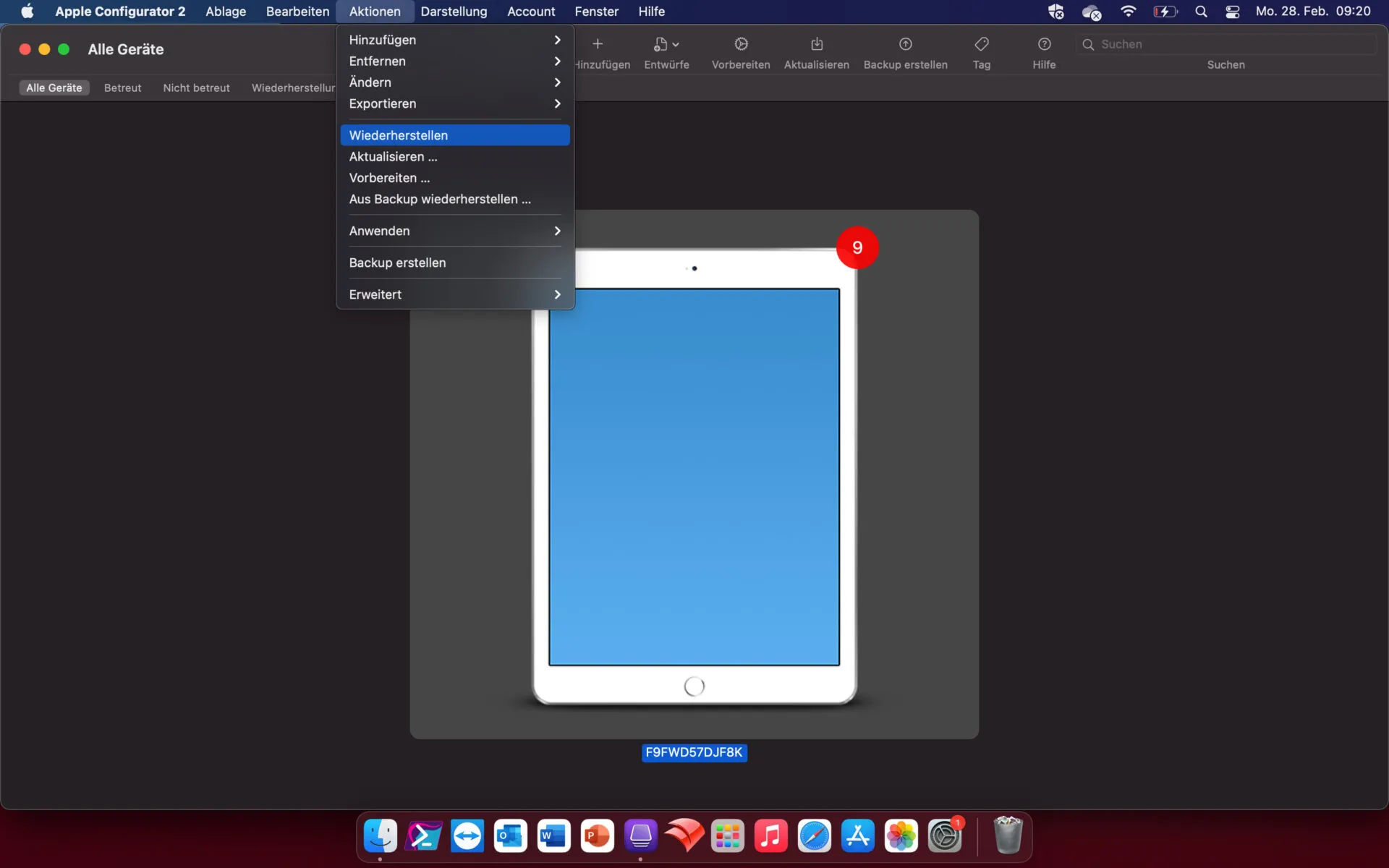
- Now the preparation and verification of the device starts.
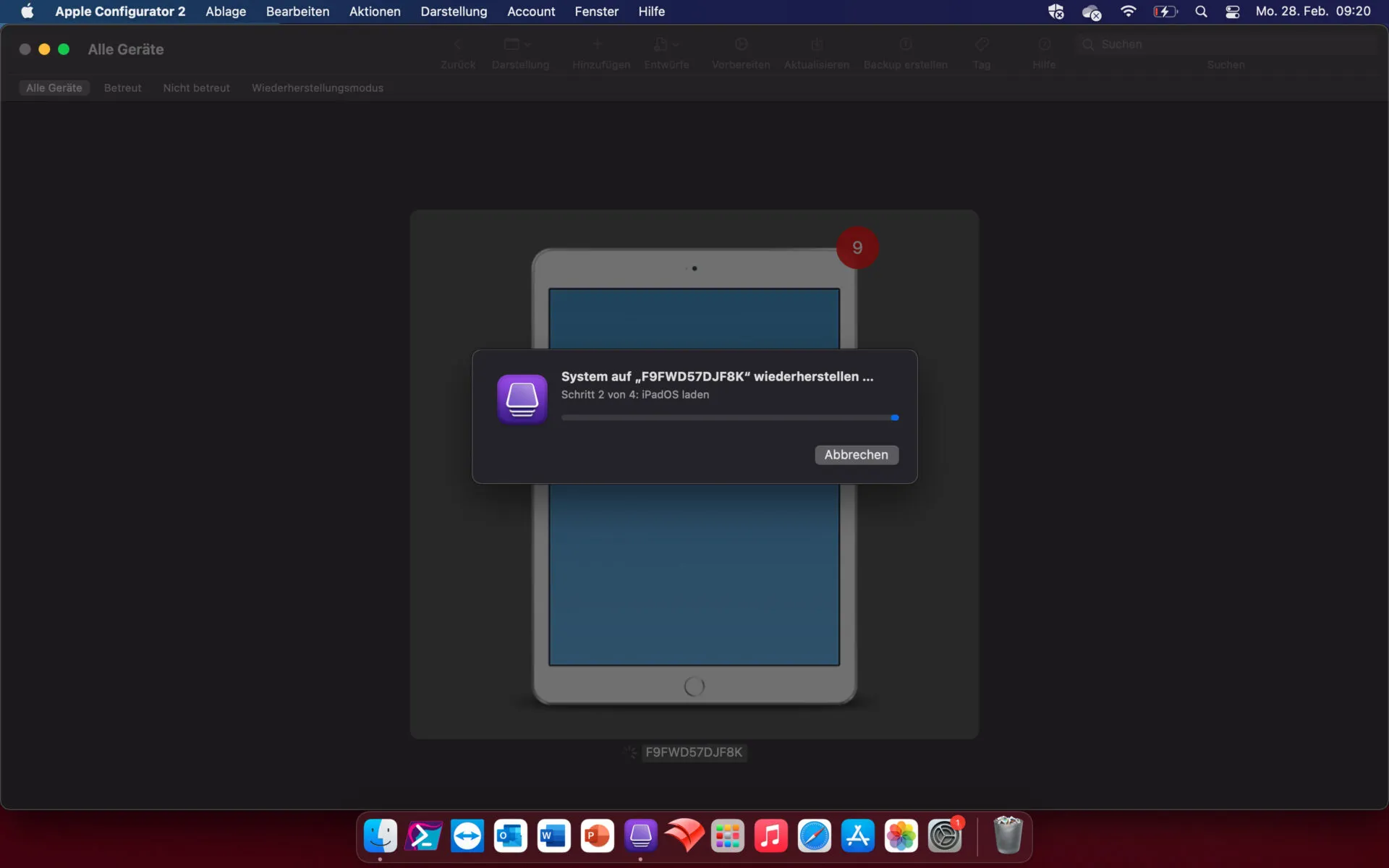
- After that, you’ll be asked to confirm:
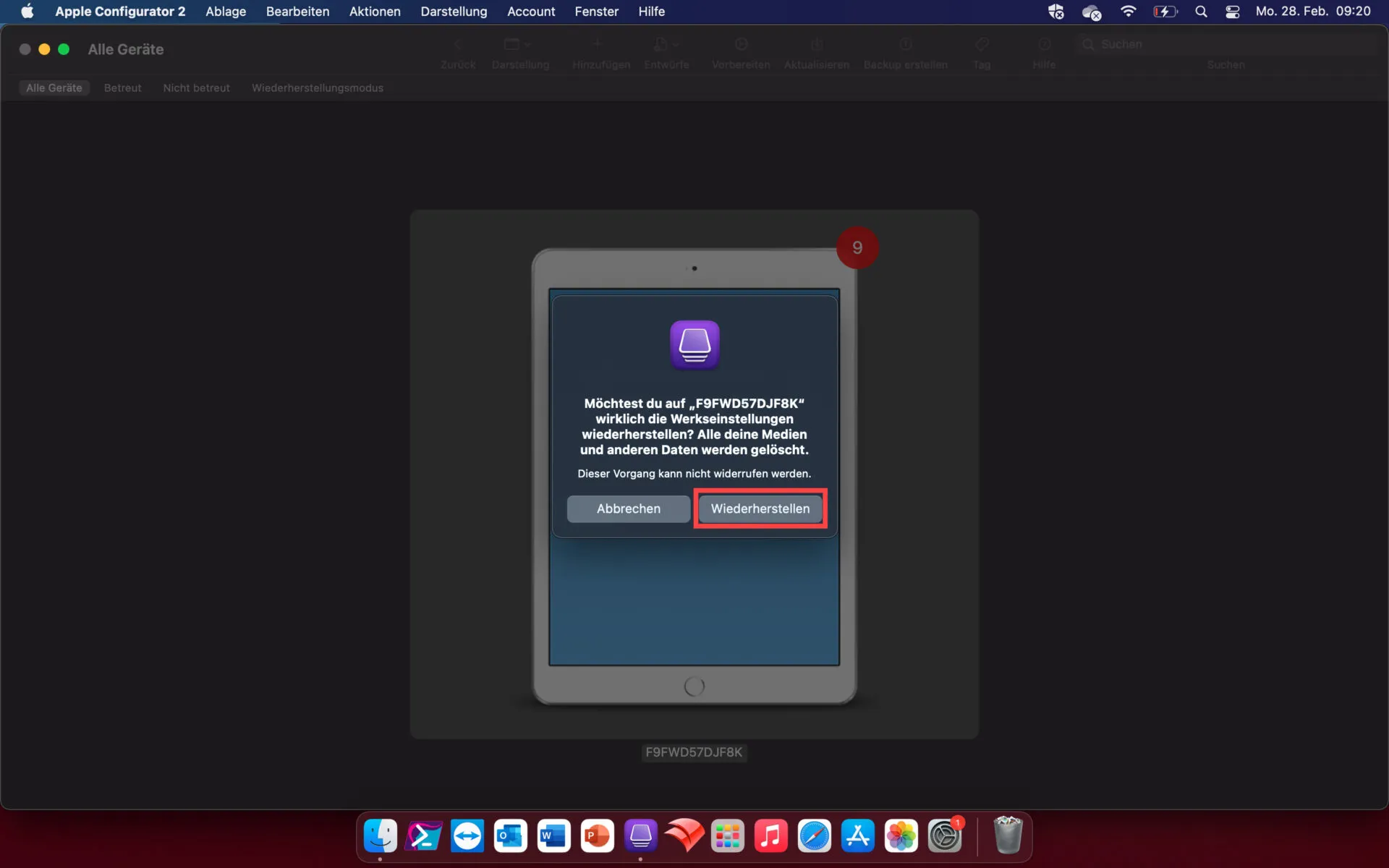
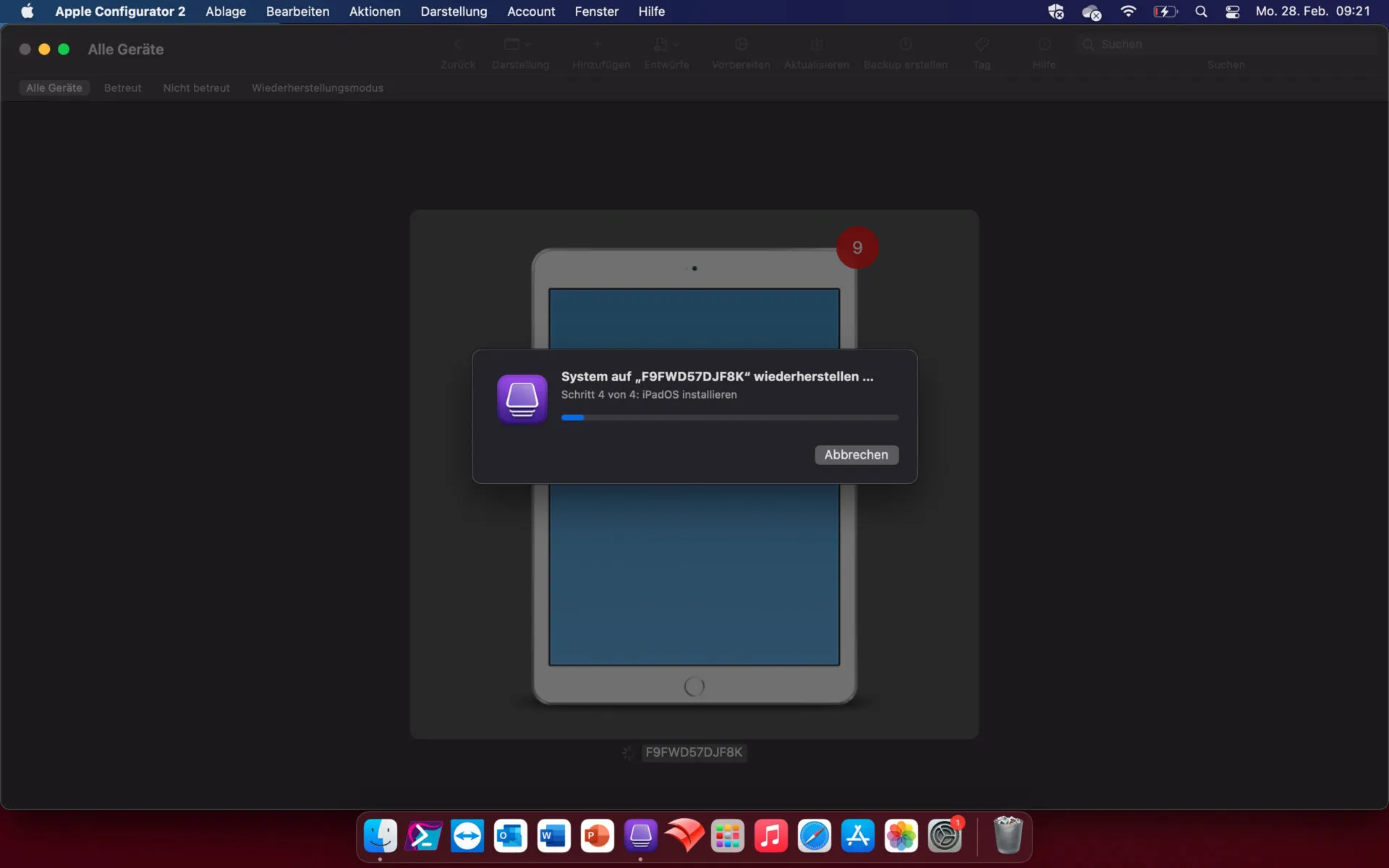
- After confirming, it takes another approx. 5 minutes and then:
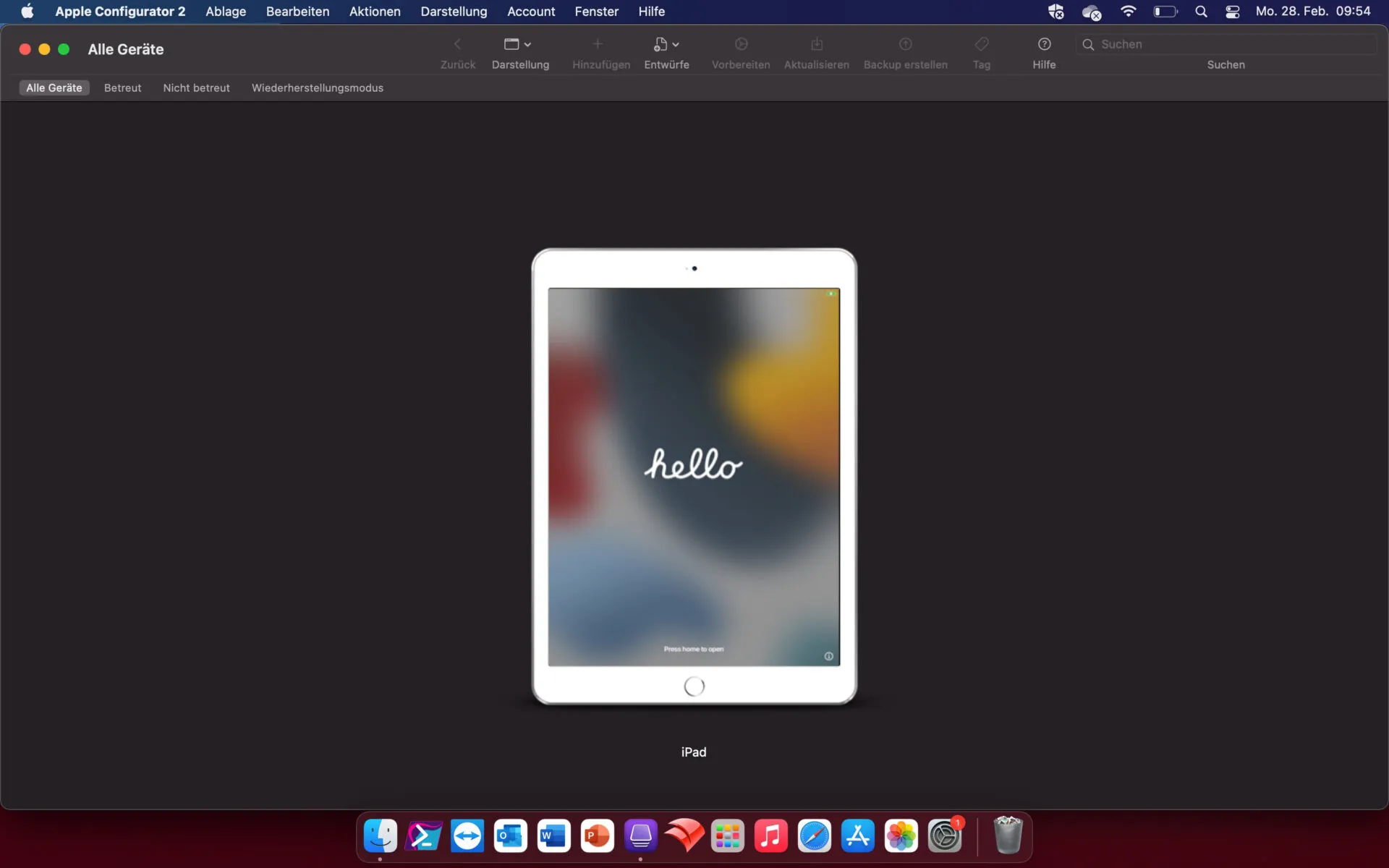
- After this process, the device is ready for use again and, if configured in Apple Business Manager or Apple School Manager, checks in directly with your MDM.
To prevent having to reset an iPad / iPhone via “Apple Configurator 2” in the first place, I recommend always distributing a backup WiFi via MDM, one that you can quickly bring online so you can do the recovery through your MDM instead. That saves you time and work.
Will the device re-enroll into Intune automatically?
Yes, as long as it’s still assigned to your MDM server in Apple Business Manager (or Apple School Manager) at the time of restore. Apple Configurator 2 doesn’t remove the device from ABM/ASM - it only wipes the device itself - so on first setup it checks in with Apple’s activation servers, sees the MDM assignment, and enrolls automatically without needing a Setup Assistant profile installed manually.
What if the restore fails or gets stuck?
The most common cause is a USB connection issue rather than a software problem - use a genuine Lightning/USB-C cable connected directly to the Mac, not through a hub or dock, since Apple Configurator 2 is picky about connection stability during the restore. If it still fails, put the device into recovery mode manually (the button combination depends on the model) before retrying “Actions > Restore” from Configurator.