Remove old user profiles - Intune
- Florian Salzmann
- Posted on 23 Mar, 2023
- Updated on 17 Aug, 2023
- 03 Mins read
- Automation,PowerShell
Old profiles on a device can unnecessarily burden local storage. There is the “Shared Configuration” in Intune, which automatically cleans up old profiles based on the last login date or the free memory. Unfortunately, this does not always work reliably. As a result, I have had situations in environments where the memory was completely full and a login was then no longer possible.
Then the only thing that helps is to reinstall the device.
To prevent this problem, I created a Proactive Remediations Package for Intune, which monitors old profiles and can remove them if necessary.
old Profile Monitor / Clean-up @GitHub
Use and customize package
You can use the pack in two different ways. Either just to get an overview of the old profiles or to clean them up.
The detection script is just enough for an overview, for profile cleanup via Intune you also distribute the remediation script.
The first line of Detection and Remediation defines which profiles are considered “too old”. The value is to be specified in days:

Create Intune package (monitoring and/or cleanup)
To use the package in Intune, create a new one at:
Intune > Reports > Endpoint analytics > Proactive remediations > +Create script package
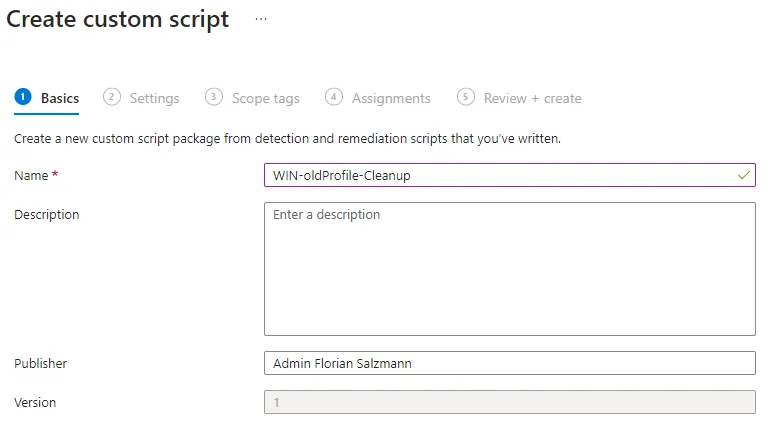
In the first step you assign a meaningful name such as “WIN oldProfile Monitor” or “WIN-oldProfile-Cleanup”.
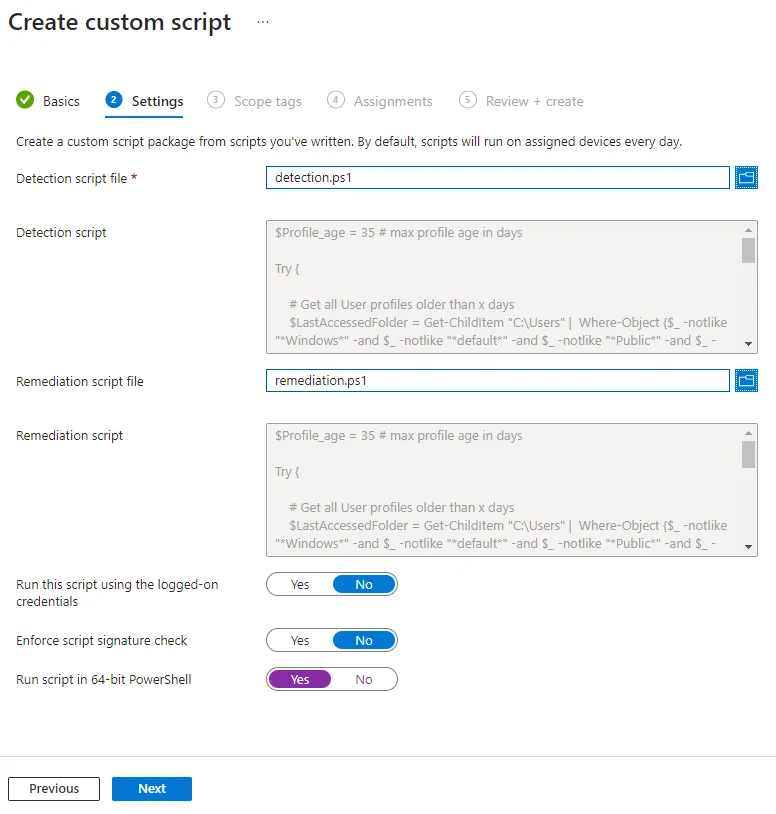
Then you only upload the detection script for pure monitoring. If you also want to do the cleanup, upload the remediation script as well.
(I recommend that you only activate the monitoring at first and only activate the cleanup when the result is as desired.)
You only have to set a scope tag if your environment allows it.
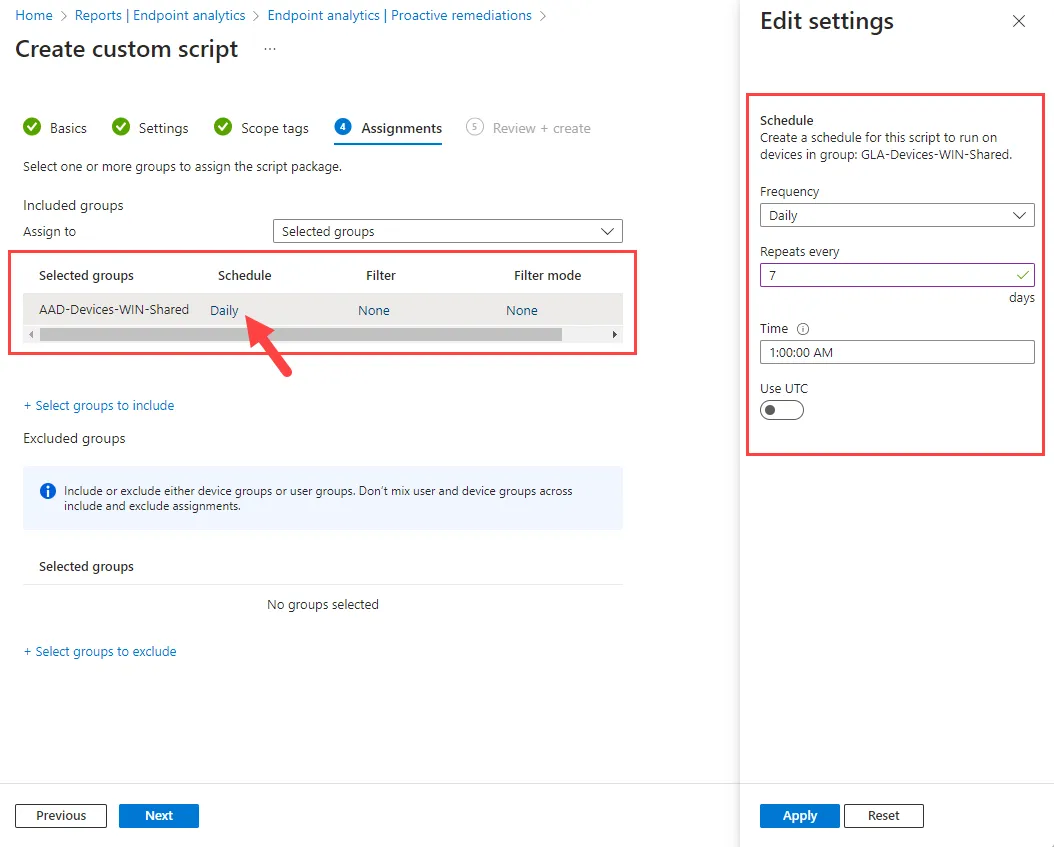
With the assignment, you assign the configuration to a desired target group with a reasonable interval.
Monitoring with and without deletion
In order to have everything displayed in the evaluation, you must first display all columns:
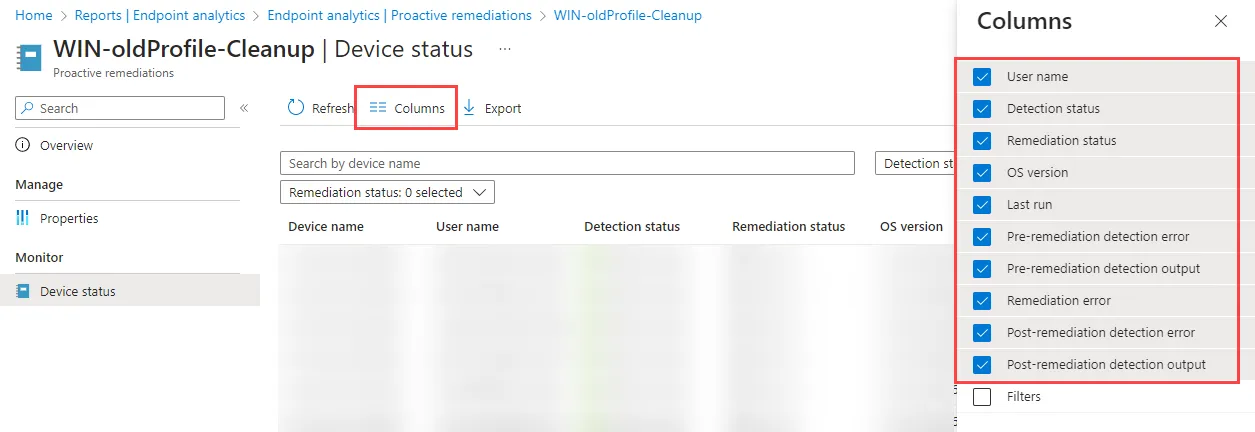
It is important to know that only the last run is saved. For example, if you run the package every hour, you only have one hour to track the action.
Do you only have the Detection rolled out, you will only find results in the column “Pre-remediation detection outputs” or at most “Pre-remediation detection error”. Remediation will not and cannot be initiated.
But you can see very clearly on which device the profiles are too old:
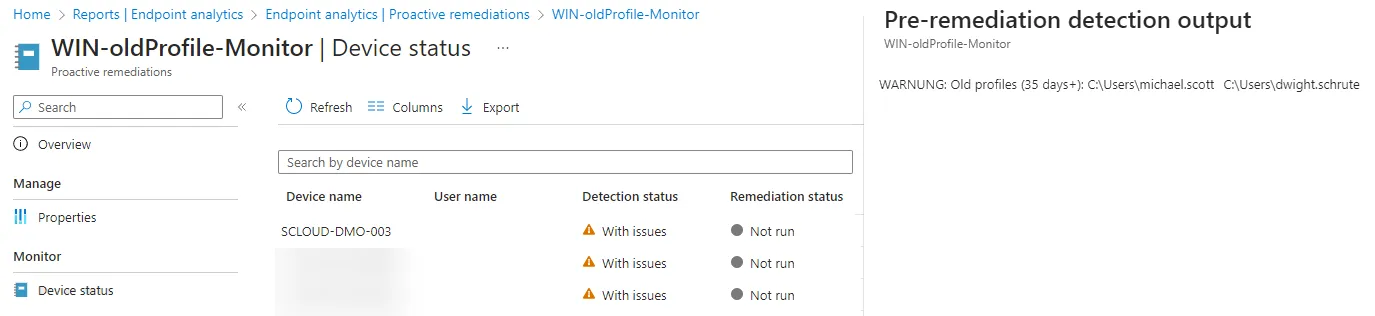
Post-remediation detection output
Are detection and remediation in action, in the event of a detection, you will also see the output after applying the remediation:

Geräte Übersicht

Pre-remediation detection output

Post-remediation detection output
Explanation of the PowerShell scripts
Within the detection and remediation script I don’t use the “LastUseTime” from the profile query. This is because it is often corrupted by antivirus programs and shows the date of the last scan for all users. That’s why I read the modification date of the individual profile folders.
The basis of both scripts is identical and uses the “Profile_age” variable to read out the profile folders that are older than x days, compares them with the current profiles and saves them in the “Profiles_2remove” variable.
This is done with the following command, excluding the Default, Windows, Public, and Admin folders:
    # Get all User profile folders older than X days
    $LastAccessedFolder = Get-ChildItem "C:\Users" |  Where-Object {$_ -notlike "*Windows*" -and $_ -notlike "*default*" -and $_ -notlike "*Public*" -and $_ -notlike "*Admin*"} | Where LastWriteTime -lt (Get-Date).AddDays(-$Profile_age)

    # Filter the list of folders to only include those that are not associated with local user accounts
    $Profiles_notLocal = $LastAccessedFolder | Where-Object { $_.Name -notin $(Get-LocalUser).Name }

    # Retrieve a list of user profiles and filter to only include the old ones
    $Profiles_2remove = Get-CimInstance -Class Win32_UserProfile | Where-Object { $_.LocalPath -in $($Profiles_notLocal.FullName) }
Detection (Check for old profiles)
The detection then only processes the variable “Profiles_2remove” and triggers remediation with exit code “1”:
if($Profiles_2remove){
    Write-Warning "Old profiles ($Profile_age days+): $($Profiles_2remove.LocalPath)"
    Exit 1
}else{
    Write-Output -NoEnumerate $(Get-CimInstance -Class Win32_UserProfile | Select-Object LocalPath, LastUseTime)
    Exit 0
}
Remediation (Remove the profiles)
Remediation checks the same as detection and, if necessary, executes with the command “Remove-CimInstance” to clean up the old profiles.
if($Profiles_2remove){
    # Removing all old profiles
    $Profiles_2remove | Remove-CimInstance
}else{
    Write-Output "No old profiles found."
}
For more tips and examples of Proactive Remediations packages, see:
Endpoint Analysis Proactive Remediation Community Repository