Splash Screen for Windows: Start-SplashScreen
- Florian Salzmann
- Posted on 16 Aug, 2024
- Updated on 19 Aug, 2024
- 02 Mins read
- PowerShell,Windows 10,Windows 11
I recently found myself in need of a visually appealing way to present my PowerShell scripts. I wanted to provide users with feedback on the script’s progress and enhance the overall user experience. That’s when I decided to create the PowerShell Script Start-SplashScreen to display a minimal Splash Screen on Windows devices.
What is Start-SplashScreen?
Start-SplashScreen is a PowerShell script I developed to execute a series of scripts while displaying a customizable splash screen. This splash screen provides real-time updates on the script’s progress, including the script name currently running and its status.
Why Use Start-SplashScreen?
- Flexibility: Run both local PowerShell commands and scripts from online repositories.
- Improved User Experience: A splash screen can significantly enhance the perceived professionalism and complexity of your scripts.
- Real-Time Feedback: Users can monitor script progress, reducing frustration and uncertainty.
- Customization: Easily tailor the splash screen’s appearance to match your branding or preferences.
How to Use Start-SplashScreen
Download the Script: You can find the Start-SplashScreen script on my GitHub repository or way easier download it via the PowerShell Gallery:
Install-Script -Name Start-SplashScreenDefine Your Processes: Create an array of objects, each containing a Name and Script property. The Script property can be a local PowerShell command or a URL to an online script.
Customize the Splash Screen (optional): Use optional parameters like MessageHeader, MessageText, MessageFinished, ClosingTimer, ColorBackground, and ColorText to personalize the splash screen.
$processes = @(
  @{
    Name = "Reading IP Adresses"
    Script = "Get-NetIPAddress"
  },
  @{
    Name = "Windows Quality Updates"
    Script = "https://raw.githubusercontent.com/FlorianSLZ/OSDCloud-Stuff/main/OOBE/Windows-Updates_Quality.ps1"
  },
  @{
    Name = "Windows Firmware and Driver Updates"
    Script = "https://raw.githubusercontent.com/FlorianSLZ/OSDCloud-Stuff/main/OOBE/Windows-Updates_DriverFirmware.ps1"
  }
)

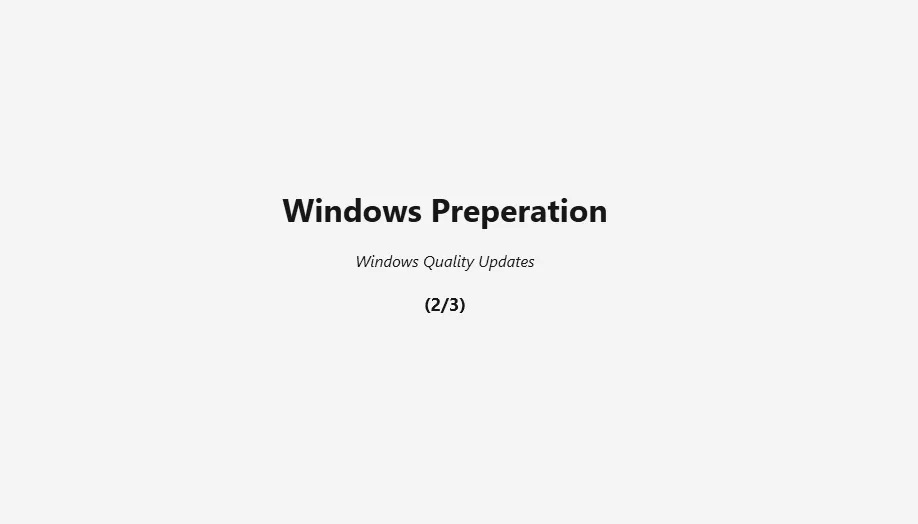
Start-SplashScreen -Processes $processes -MessageHeader "Windows Preparation"
This example runs one PowerShell command and two scripts, “Get-NetIPAddress” and the installation of Quality Updates as well as firmware and driver updates. All while displaying a splash screen with the header “Windows Preparation”.
This looks like this:
My Favorite Use Case (so far)
One of my favorite applications for Start-SplashScreen is in conjunction with OSDCloud and SetupComplete.cmd. I use it to create a streamlined Windows setup process. The splash screen displays the progress of installing Windows updates, activating Windows, and executing additional PowerShell scripts as needed. This approach provides a professional and informative experience for end-users and the end user is blocked from clicking the running PowerShell Window away.
Here’s a short demo on how a enrollment like this looks after finishing installing Windows, during the first reboot (before the visible OOBE).
As an inspiration for the SetupComplete process, I heavily relied on Akos’ excellent blog post in his OSDCloud series: OOBE Challenges #2: A Better Solution – Ákos Bakos (akosbakos.ch)
Conclusion
Start-SplashScreen is a versatile tool that can significantly enhance your PowerShell scripts. By providing visual feedback and customization options, it creates a more engaging user experience. I encourage you to try it out and see how it can benefit your projects.