Open Teams Classic in Background | Intune
- Florian Salzmann
- Posted on 16 Jun, 2022
- Updated on 12 Jul, 2026
- 02 Mins read
- Microsoft Intune,Microsoft Teams,PowerShell
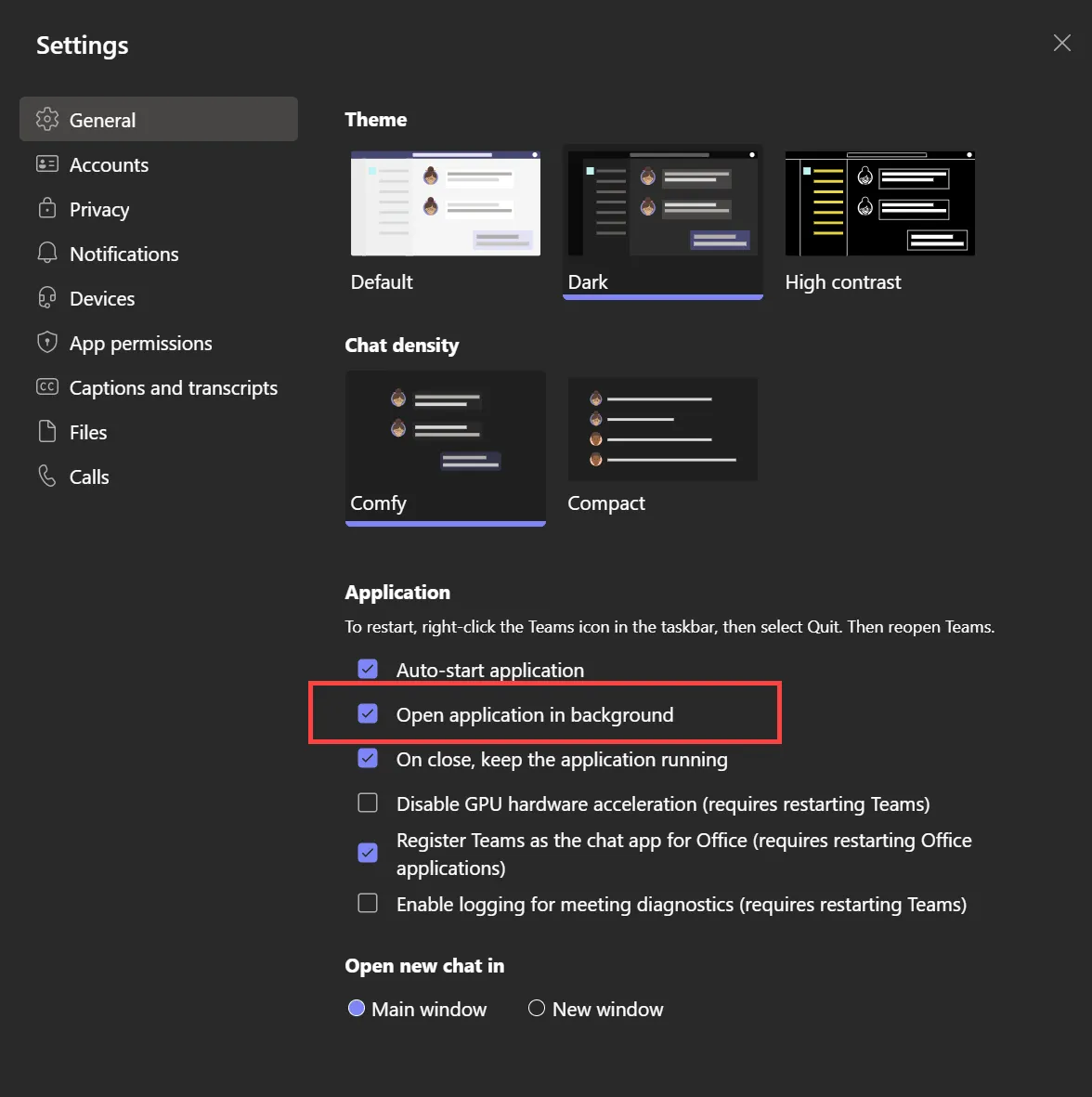
It’s not always pleasant when Teams automatically pushes itself to the fore when the system starts. For this reason, Microsoft Teams has the setting “Open application in background”. As a result, Teams is only displayed in the system tray, but the user still receives all notifications and calls.
Configuration with PowerShell and Intune
To set the setting with Intune, I use a PowerShell script.
The short form of this terminates teams if it is open, exchanges the “openAsHidden” option in the configuration file and then starts teams in the background.
# End active Teams process
if(Get-Process Teams -ErrorAction SilentlyContinue){Get-Process Teams | Stop-Process -Force}
# Replace/Set "openAsHidden" option to true
(Get-Content $ENV:APPDATA\Microsoft\Teams\desktop-config.json).replace('"openAsHidden":false', '"openAsHidden":true') | Set-Content $ENV:APPDATA\Microsoft\Teams\desktop-config.json
# Start Teams in background
Start-Process -File $env:LOCALAPPDATA\Microsoft\Teams\Update.exe -ArgumentList '--processStart "Teams.exe" --process-start-args "--system-initiated"'
However, if I distribute this script directly, it may be executed while the user is at work. If the user is then currently in a conversation or meeting, this is ended.
To prevent such behavior, I use the “RunOnce function”. I gave you the description of this in the past Blog post: “Run once at Startup” created.
The full script, ready to upload, is here on GitHub:
After downloading the script, you only have to upload and assign it. You can do this in the Endpoint Manager under “Devices > Windows > PowerShell scripts” make.
Here you select “Add” and assign a meaningful name. Then you upload the script and set the settings analogous to my screenshot.
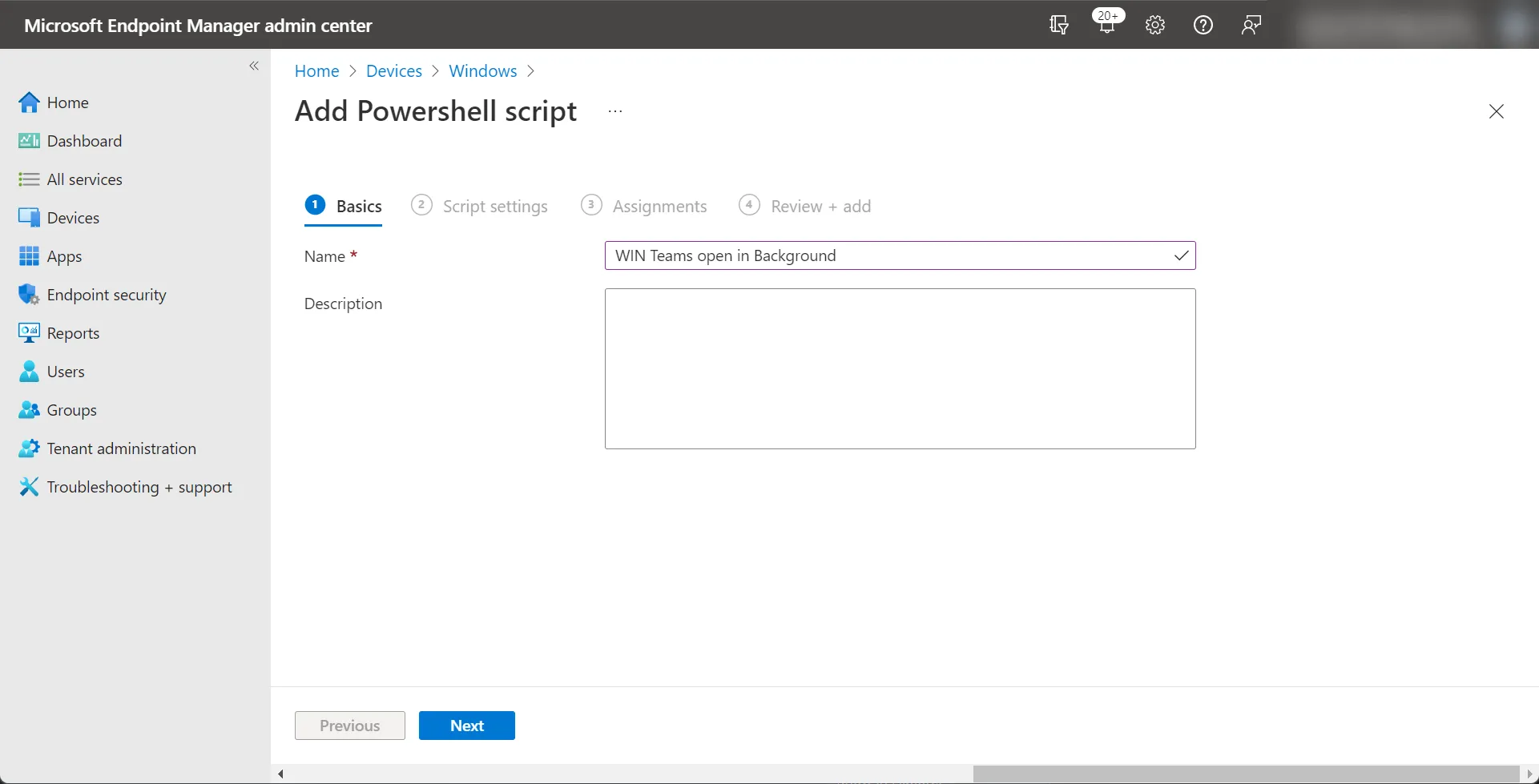
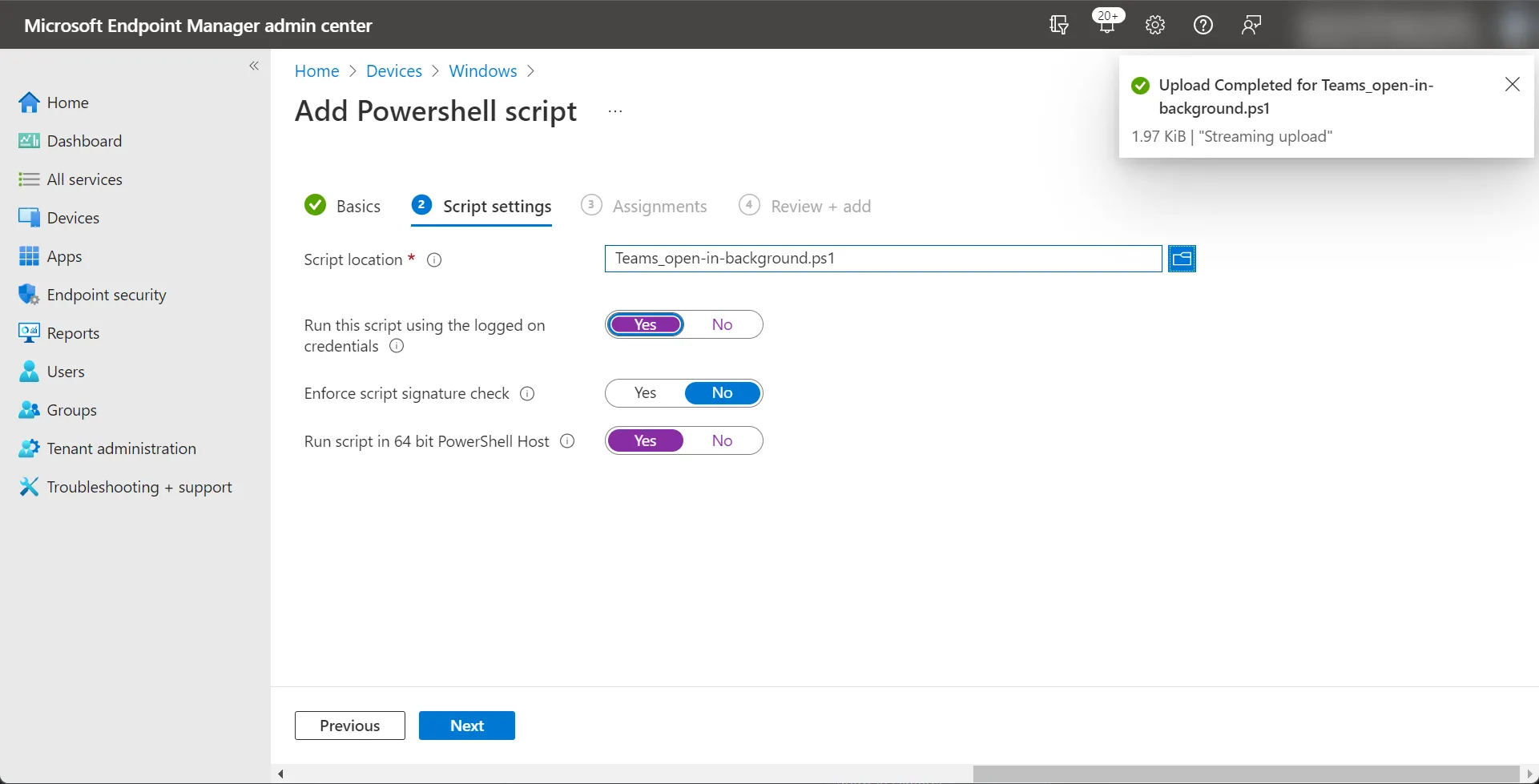
In the last step, you simply assign the script to a desired group and save the configuration. Once the managed device has executed the script, the setting will be applied the next time the user logs in. In addition, the script is cleaned on the local device.
After execution, Teams is already opened in the background.
Set the setting manually as a user
As a user, the setting can be activated with just a few clicks. To do this, navigate to the settings in Teams.
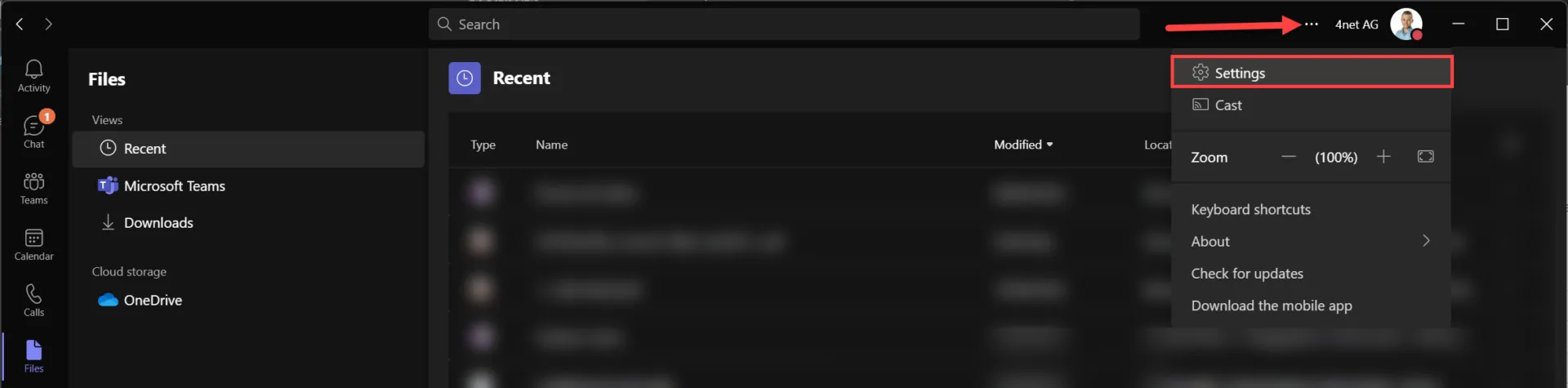
In the teams settings you will find the item “Open application in background”. If this is selected, Teams opens in the background when the system starts.