802.1X Wi-Fi Failing? Check Your Certificate Chain
- Florian Salzmann
- Posted on 28 Jul, 2026
- 03 Mins read
- Microsoft Intune,Security,Troubleshooting
When troubleshooting 802.1X Wi-Fi with Intune, I recently ran into an issue that initially looked like a certificate problem, a RADIUS issue, or even a Wi-Fi profile misconfiguration.
Everything appeared healthy in Intune. The profiles were successfully deployed. The certificates were issued correctly. Yet some devices still failed to connect to Wi-Fi.
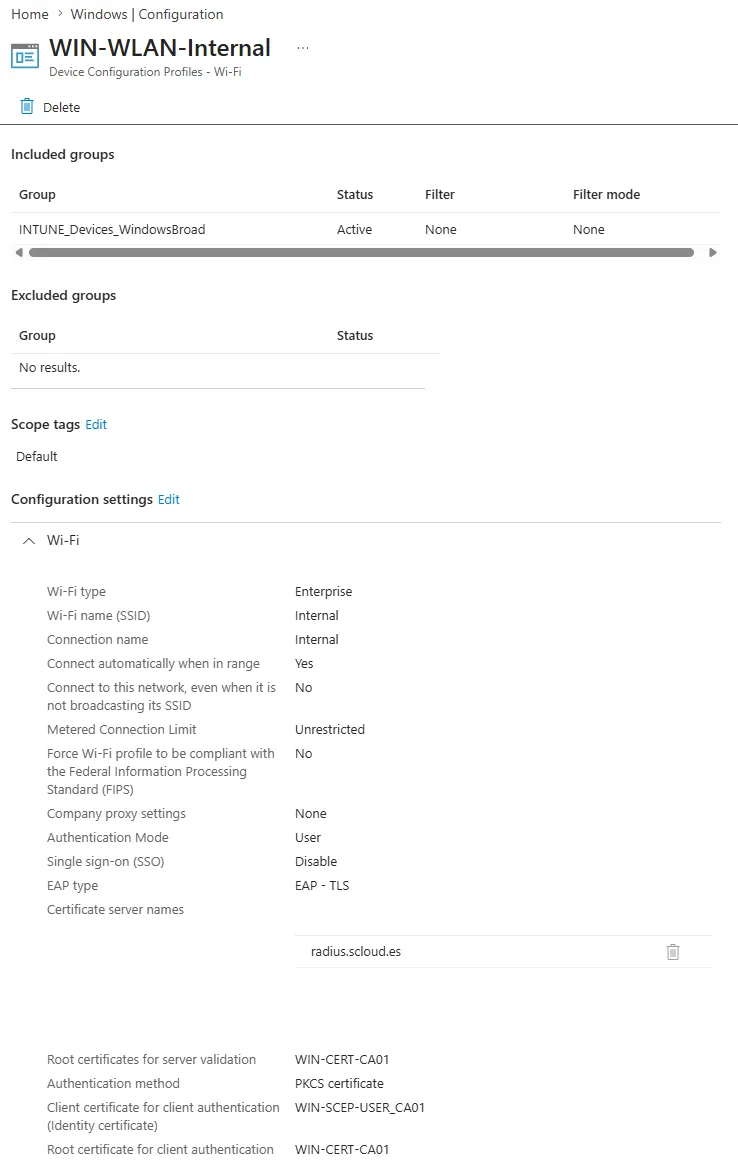
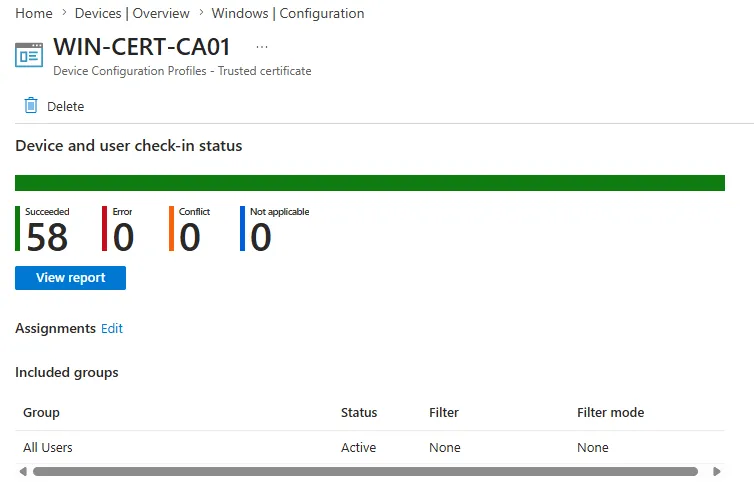
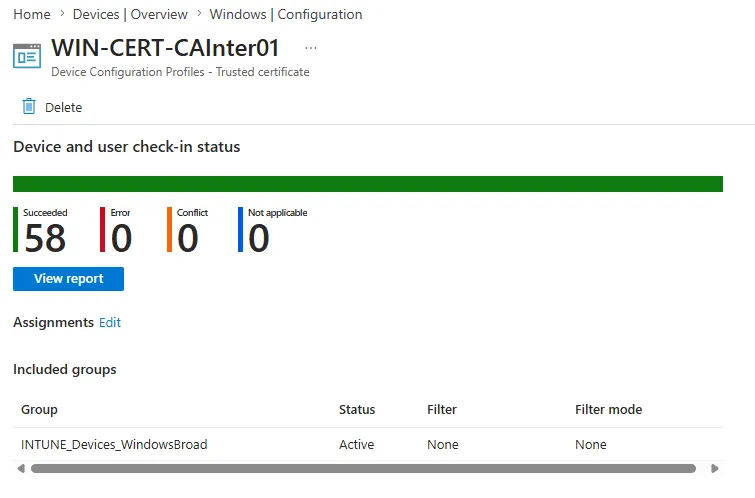
After several hours of troubleshooting, the root cause turned out to be surprisingly simple: the Wi-Fi profile, Root CA, Intermediate CA, and SCEP certificate profile were assigned to different Entra ID groups.
The solution was equally simple. I assigned all related profiles to the same group.
The Environment
The deployment included:
- Trusted Root CA profile
- Intermediate CA profile
- SCEP or PKCS certificate profile
- Wi-Fi profile using certificate-based authentication, also known as EAP-TLS
Initially, these profiles were assigned to different Entra ID groups.
On paper, this looked clean and organized. In practice, it introduced deployment timing issues that resulted in failed Wi-Fi authentication.
The Symptoms
The affected devices showed several inconsistent behaviors:
- Wi-Fi profile deployed successfully
- SCEP certificate profile reported success
- No obvious deployment failures in Intune
- Devices failed to connect to the corporate Wi-Fi
- Manual syncs occasionally fixed the issue
- Newly enrolled devices were affected more frequently
In Event Viewer, the errors pointed towards EAP authentication or certificate validation failures.
At first glance, everything suggested a RADIUS or certificate issue.
In reality, it was neither.
What Was Actually Happening?
Intune does not always process profiles assigned through different groups as a single deployment package.
As a result, devices could receive the Wi-Fi profile before the full certificate chain was available.
A typical deployment sequence looked like this:
- Wi-Fi profile gets installed
- Client certificate is not yet available
- Intermediate certificate is still missing
- Windows attempts 802.1X authentication
- Authentication fails
Even though all required profiles eventually arrived, the Wi-Fi connection had already failed.
This issue was particularly noticeable during:
- Windows Autopilot deployments
- New device enrollments
- Device refresh scenarios
- Remote deployments without Ethernet connectivity
The Fix
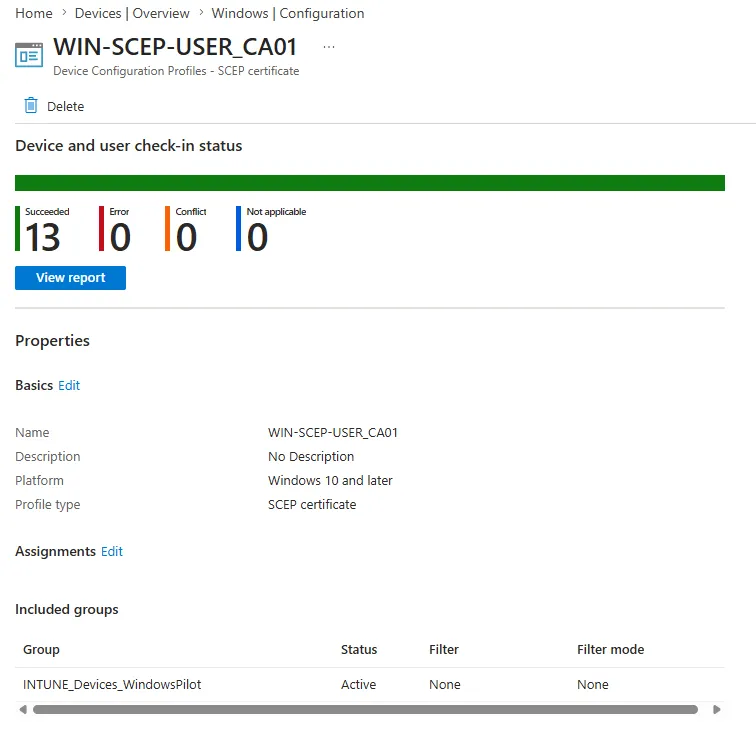
I modified the assignment strategy and assigned all related profiles to the same Entra ID group:
- Root CA profile
- Intermediate CA profile
- SCEP or PKCS profile
- Wi-Fi profile
After making this change, Intune processed the complete dependency chain much more reliably.
The issue disappeared immediately during testing.
My Recommendation
For certificate-based Wi-Fi deployments, I recommend assigning the following profiles to the same group:
- Trusted Root Certificate
- Intermediate Certificate
- SCEP or PKCS Certificate Profile
- Wi-Fi Profile
This helps ensure that the device receives the complete certificate chain before Windows attempts 802.1X authentication.
How I Troubleshoot These Issues
When I encounter 802.1X authentication failures, I typically follow this process.
1. Verify the Client Certificate
Open the local certificate store:
certlm.mscVerify that the client certificate exists and contains a private key.
2. Verify the Certificate Chain
Ensure the following certificates are present:
- Root CA
- Intermediate CA
- Client certificate
If any component is missing, EAP-TLS authentication may fail.
3. Review Intune Assignments
Check whether the following profiles are assigned to different groups:
- Wi-Fi Profile
- Root CA Profile
- Intermediate CA Profile
- SCEP or PKCS Profile
If they are split across multiple assignments, consolidate them into a single group and test again.
4. Test on a Fresh Device
Existing devices often hide deployment timing issues because certificates may already exist.
A freshly enrolled device is usually the fastest way to reproduce the issue.
Optional CLI Checks
You can also use PowerShell to quickly check the local machine certificate stores.
Get-ChildItem Cert:\LocalMachine\Root | Select-Object Subject, Thumbprint, NotAfter
Get-ChildItem Cert:\LocalMachine\CA | Select-Object Subject, Thumbprint, NotAfter
Get-ChildItem Cert:\LocalMachine\My | Select-Object Subject, Thumbprint, NotAfter, HasPrivateKey
For user-based certificates, check the current user store instead.
Get-ChildItem Cert:\CurrentUser\My | Select-Object Subject, Thumbprint, NotAfter, HasPrivateKeyFinal Thoughts
When troubleshooting 802.1X Wi-Fi in Intune, most administrators immediately focus on NPS, RADIUS policies, certificate templates, or SCEP configuration.
In my case, none of those components were responsible.
The issue was caused by the way the profiles were assigned.
Once I assigned the Wi-Fi profile, Root CA, Intermediate CA, and SCEP certificate profile to the same Entra ID group, certificate deployment became consistent and Wi-Fi authentication worked reliably.
If your 802.1X Wi-Fi authentication is failing intermittently, especially on newly enrolled devices, review your Intune assignment strategy before diving deep into certificate or RADIUS troubleshooting.
Sometimes the issue is not the certificate itself.
Sometimes it is simply the order in which Intune delivers the certificate chain.