Microsoft Edge Policies with Intune
- Florian Salzmann
- Posted on 02 Oct, 2021
- Updated on 12 Jul, 2026
- 02 Mins read
- Microsoft 365,Microsoft Intune,Windows 10,Windows 11
Short answer: create an ADMX-backed configuration profile in Intune and set the settings below to auto-sign users into Edge, sync their bookmarks, and switch the default search provider to Google.
Microsoft Edge can be configured wonderfully with Intune and the ADMX templates, so that the user is automatically signed in to the browser, his bookmarks get synchronized and Google acts as the search provider instead of Bing.
How do I configure Microsoft Edge with Intune?
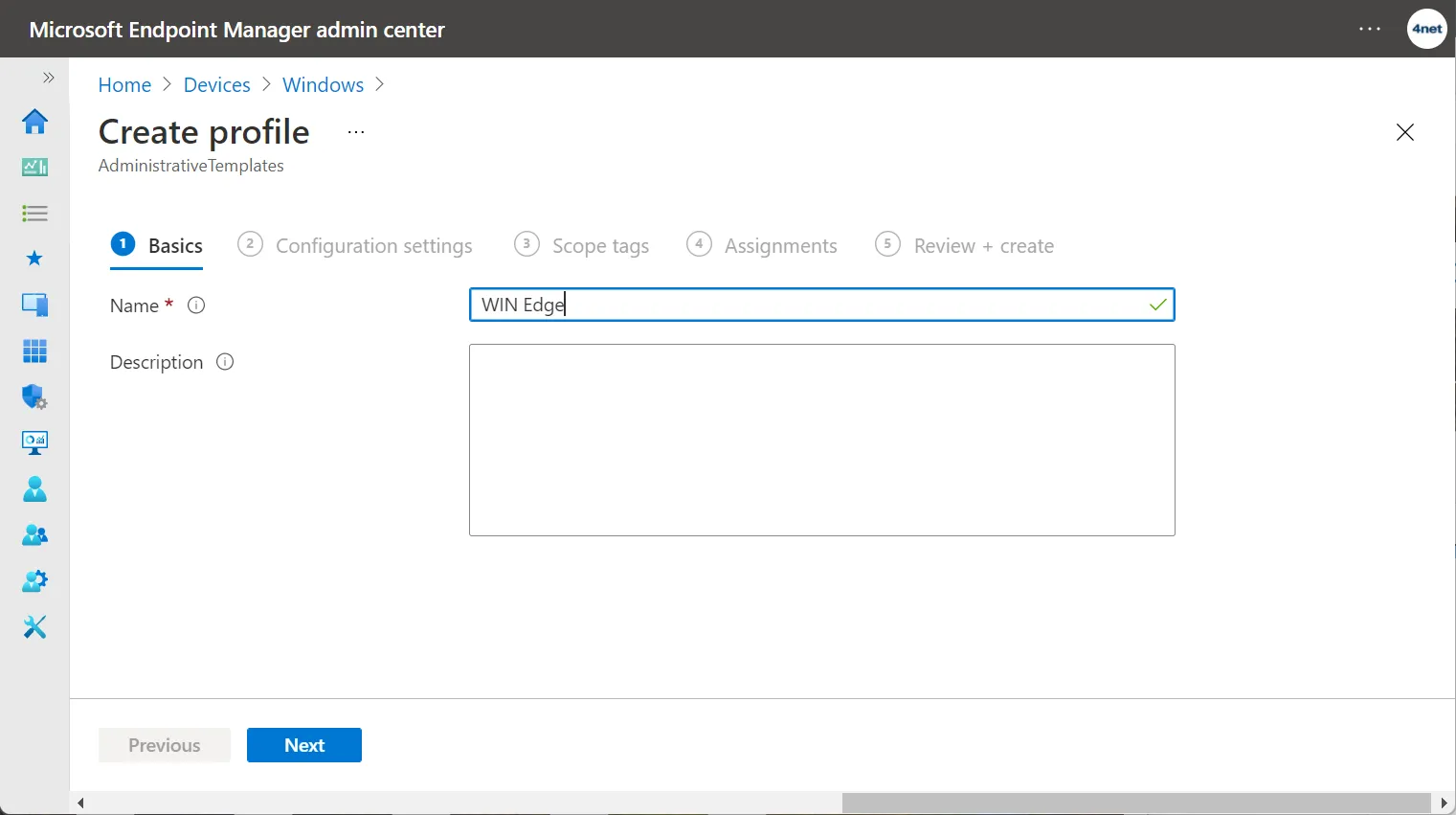
- An ADMX policy can be created under Windows - Microsoft Endpoint Manager admin center:
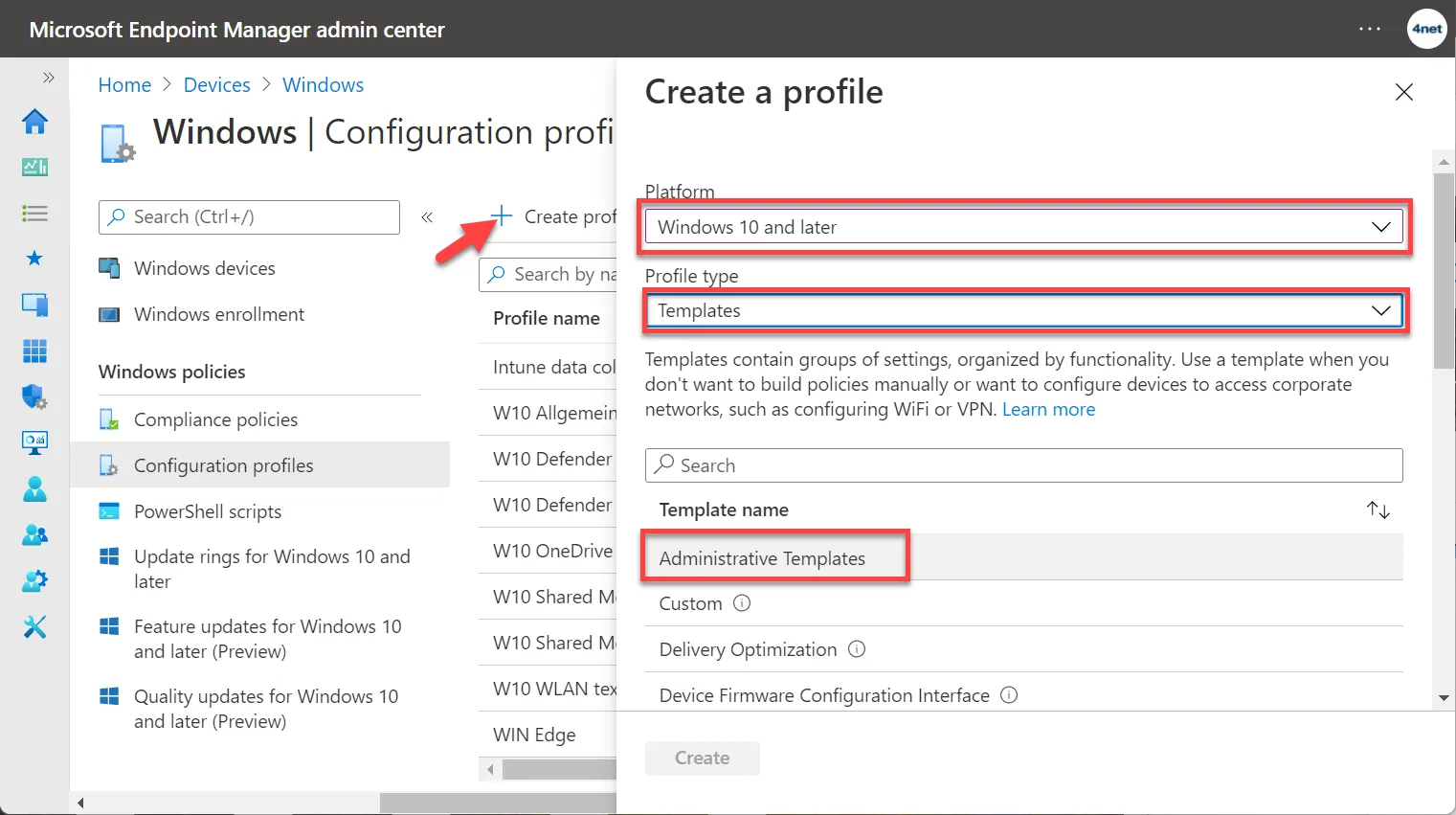
- Name and description should be chosen sensibly
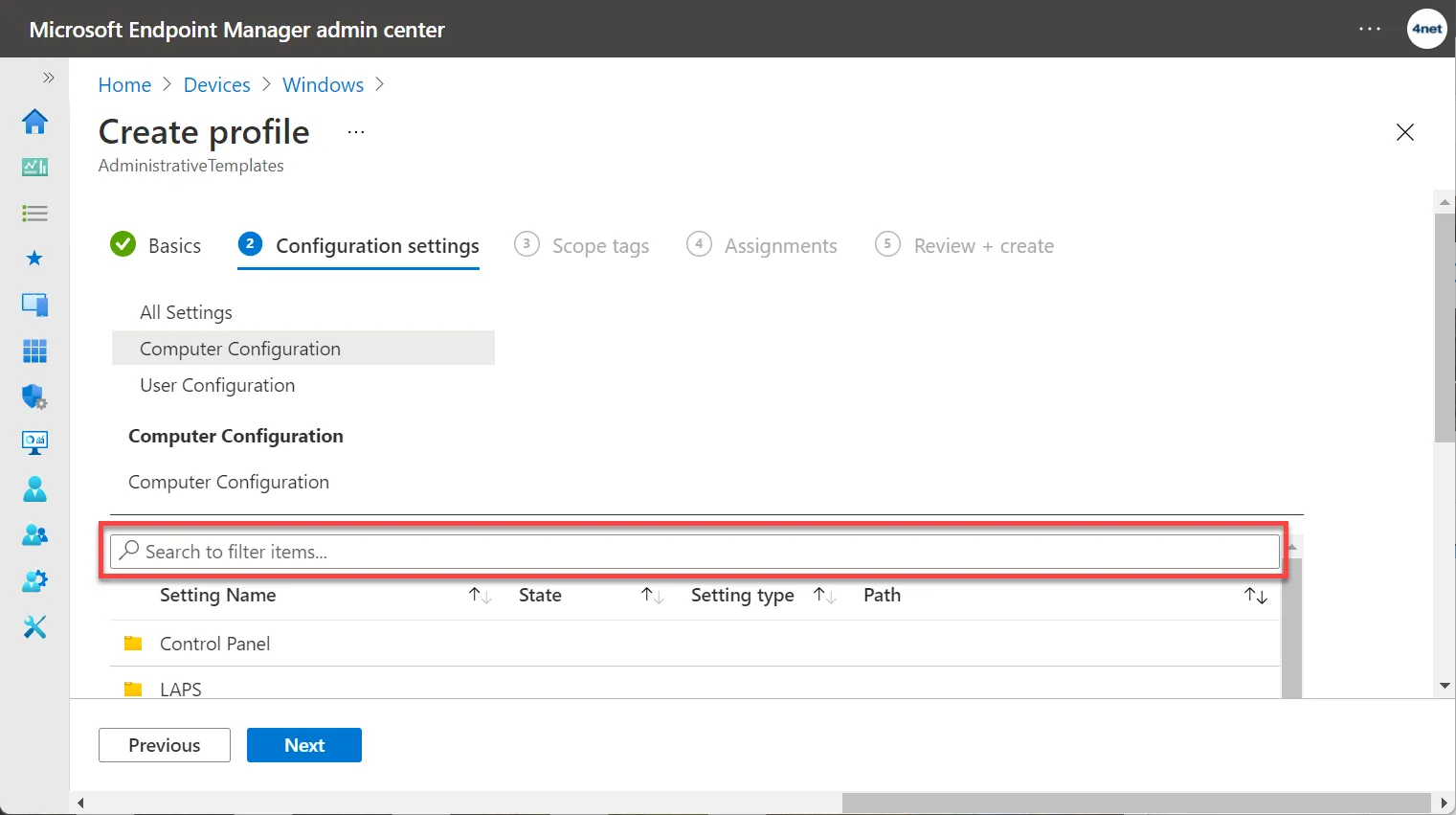
- The settings can be found fastest with the corresponding “Setting Name” via search.
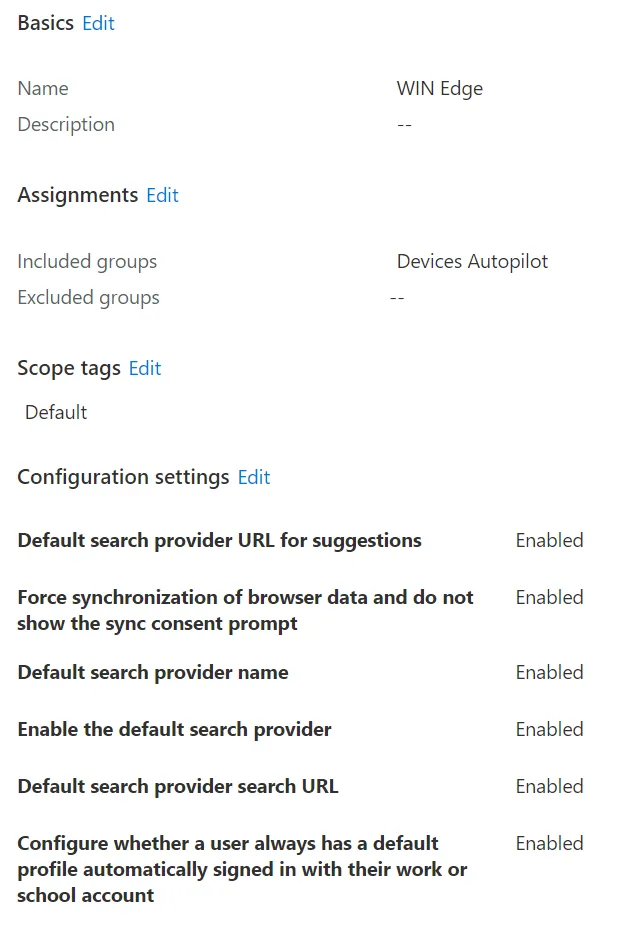
- The following Intune settings have proven themselves for Microsoft Edge with several of my customers:
| Setting | Configuration |
|---|---|
| Configure whether a user always has a default profile automatically signed in with their work or school account | Enabled |
| Default search provider URL for suggestions | Enabled, Google |
| Default search provider name | Enabled, {google:baseURL}search?q={searchTerms}&{google:RLZ}{google:originalQueryForSuggestion}{google:assistedQueryStats}{google:searchFieldtrialParameter}{google:searchClient}{google:sourceId}ie={inputEncoding} |
| Enable the default search provider | Enabled |
| Default search provider search URL | Enabled, {google:baseURL}complete/search?output=chrome&q={searchTerms} |
| Force synchronization of browser data and do not show the sync consent prompt | Enabled |
FAQ
Do I need the ADMX templates installed first?
Yes - the Edge ADMX templates must be available in Intune (via the built-in Microsoft Edge ADMX ingestion) before you can create the configuration profile shown above.
Will this force-sign users in without their consent?
Yes, “Configure whether a user always has a default profile automatically signed in” does exactly that - it’s intended for managed corporate devices, not BYOD.