Free up space for Windows 11 upgrades with Intune Remediation
- Florian Salzmann
- Posted on 14 Oct, 2025
- Updated on 12 Oct, 2026
- 07 Mins read
- (Proactive) Remediations,Microsoft Intune,PowerShell,Windows 11
When Microsoft announced the end of support for Windows 10, I started preparing several customers for their move to Windows 11.
One recurring issue quickly became clear: many devices failed to upgrade because of low disk space.
Some laptops came with only 124 GB SSDs, leaving little room for large feature updates. Even though they met all hardware requirements, the upgrade process often stopped halfway.
To solve this, I created a simple Intune Remediation that checks free space and helps users clean up their Recycle Bin and Downloads folder.
Just want the script?
If you only want the remediation, you can download it here:
Remediation with user interaction @GitHub
It includes both the detection and remediation scripts as ready-to-import PowerShell files for Intune.
If you want to understand how it works, how to deploy it, and why it matters, keep reading. I will walk you through everything step by step.
Why Does Free Disk Space Matter for Windows 11 Upgrades?
Windows 11 requires a minimum of a 64 GB disk to install (Microsoft’s Windows 11 requirements), but real world experience showed that around 25-30 GB of free space is the safe threshold for smooth upgrades.
During deployments I noticed that when devices had less, Windows Update could download the upgrade but failed during unpacking or staging.
With Intune Remediations, we can detect this condition early and guide users to clean up local files automatically without manual work or admin rights.
What Does This Remediation Do?
This lightweight solution does three simple things:
- Detection checks if the system drive has at least 30 GB free and calculates the size of the Recycle Bin and Downloads folder.
If they together hold more than 500 MB, the remediation starts. - Remediation shows a clear popup where users can open both folders or start an automatic cleanup.
- The message explains that files in Downloads are not backed up and should be moved to OneDrive or Documents before cleaning.
This small workflow keeps users in control while reducing failed Windows 11 upgrades significantly.
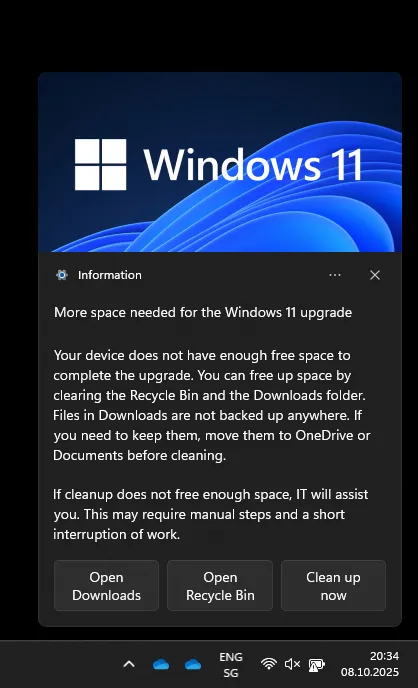
Here’s an example popup a user gets if the a remediation is triggered as well as a short demo video:
Detection script
Before you can guide users to clean up their devices, Intune needs a reliable way to detect when space is running low and if the user can actually do anithing about it.
The following detection script checks the available storage on drive C, calculates the total size of the Recycle Bin and Downloads folder, and only triggers the remediation when it can make a real difference.
$MinGBFree    = 30
$MinReclaimMB = 500

try { $freeBytes = (Get-PSDrive -Name C -ErrorAction Stop).Free } catch { exit 0 }

if ($freeBytes -ge ($MinGBFree * 1GB)) {
  Write-Output "OK. Free space is above $MinGBFree GB."
  exit 0
}

$downloadsPath = Join-Path $env:USERPROFILE "Downloads"
$dlBytes = 0
if (Test-Path -LiteralPath $downloadsPath) {
  $dlBytes = (Get-ChildItem -LiteralPath $downloadsPath -Recurse -Force -File -ErrorAction SilentlyContinue | Measure-Object -Sum Length).Sum
}

$rbBytes = 0
try {
  $shell = New-Object -ComObject Shell.Application
  $rb = $shell.Namespace('shell:RecycleBinFolder')
  if ($rb) { foreach ($item in $rb.Items()) { try { $rbBytes += [int64]$item.Size } catch {} } }
} catch {}

$combinedBytes = [int64]$dlBytes + [int64]$rbBytes
$combinedMB = [math]::Round($combinedBytes / 1MB, 0)

Write-Output "Low space. Combined Downloads + Recycle Bin = $combinedMB MB."

if ($combinedBytes -ge ($MinReclaimMB * 1MB)) {
  Write-Output "Trigger remediation."
  exit 1
}

Write-Output "No remediation needed."
exit 0
Remediation summary
Once the detection script finds a device that falls below the threshold, the remediation script takes over.
It shows a clear and friendly popup that explains the problem, why more space is needed, and what the user can do.
There are buttons to open the Downloads folder, open the Recycle Bin, or start an automatic cleanup.
The message also reminds users that files in Downloads are local only and not backed up anywhere.
# Remediation summary
# Shows a notification to help users free up space

Title:   "More space needed for the Windows 11 upgrade"
Message: "Your device does not have enough free space to complete the upgrade.
          You can free up space by clearing the Recycle Bin and the Downloads folder.
          Files in Downloads are not backed up anywhere.
          If you need to keep them, move them to OneDrive or Documents before cleaning."
Advice:  "If cleanup does not free enough space, IT will assist you.
          This may require manual steps and a short interruption of work."

Buttons:
  [Open Downloads]   Opens the Downloads folder
  [Open Recycle Bin] Opens the Recycle Bin
  [Clean up now]     Clears both automatically
The full PowerShell source is available here:
👉 GitHub - Intune FreeDiskSpace Remediation
Change the toast header image
The remediation supports a hero image at the top of the notification. Use a very small file so the toast appears quickly.
Create a tiny image
- Prepare a simple PNG or JPG, best 728 x 360 px
- Keep it small, under 10 KB if possible
- If you need help shrinking it, export at lower quality or resize via https://tinypng.com/
Convert to Base64
- Open
[https://codebeautify.org/image-to-base64-converter](https://codebeautify.org/image-to-base64-converter) - Upload your image
- Copy the Base64 output text
Add it to the remediation
In the remediation script, replace the placeholder with your Base64 string.
# At the top of the remediation script
$Picture_Base64 = "<paste your Base64 here>"
The script writes the image to a temp file and uses it as the hero graphic in the toast.
If you want no image, set the value to "xx" or remove the variable and the code skips it.
How Do You Upload and Assign the Remediation in Intune?
Follow these steps to add the detection and remediation to a Proactive Remediation package.
- Open Intune admin center
- Go to Devices > Scripts and remediations → Remediations
- Select Create
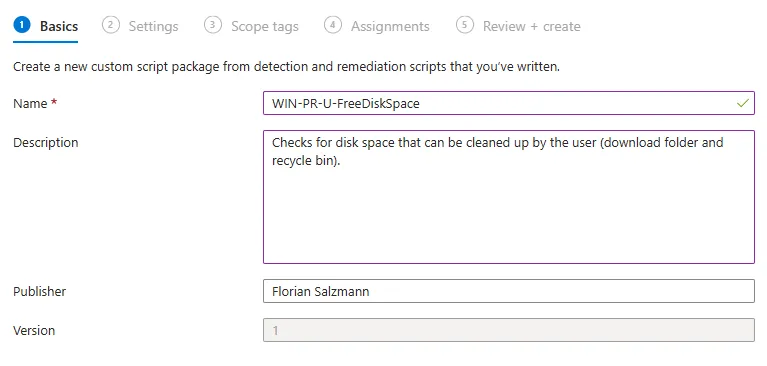
- Name it, for example
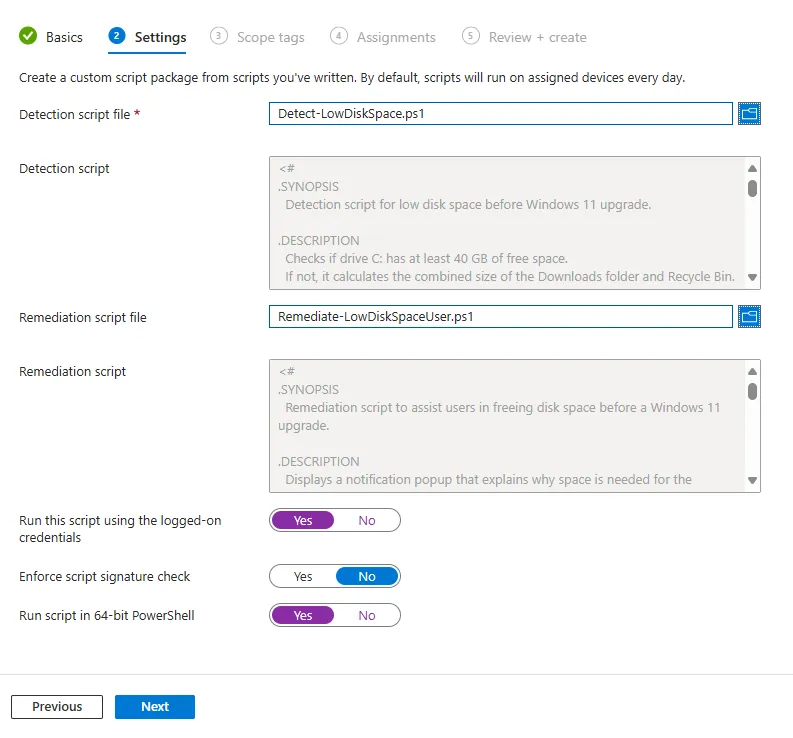
WIN-PR-U-FreeDiskSpace - Settings
- Detection script: Upload the detection script from this post
- Remediation script: Upload the remediation script from this post or your modified version
- Run this script using the logged-on credentials: Yes
- Enforce script signature check: No (only “Yes”, if you sign it by yourself)
- Run script in 64-bit PowerShell: Yes
- Scope tags if you use them
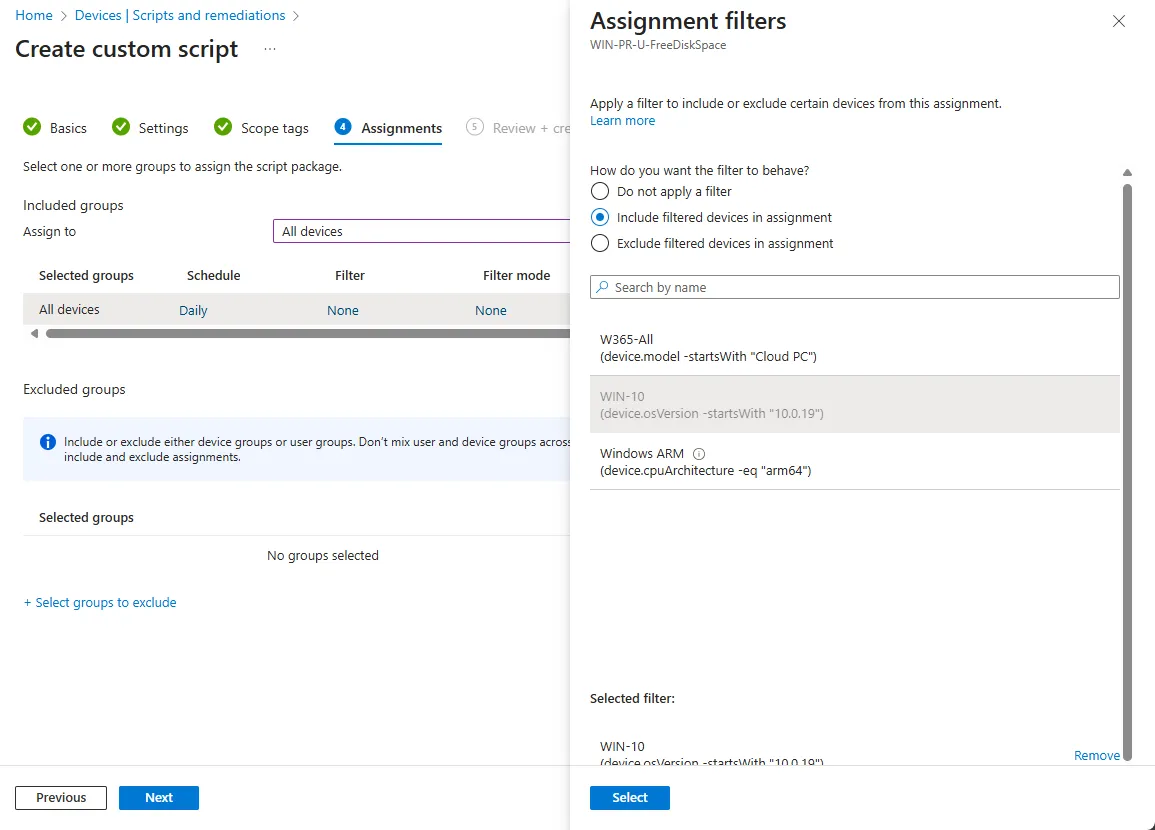
- Assignments
- Start with a pilot device group
- Add your wider Windows 10 upgrade group after validation
- You can also use all Devices with a Filter for windows 10:
(device.osVersion -startsWith "10.0.19")
- You can also use all Devices with a Filter for windows 10:
- Schedule
- Every 3 - 7 days initially is a good default
- Tighten to every day or even 4 hours for the upgrade week(s) if needed
(If they clean it up, it won’t pop up for them again.)
Monitor results
You can track the impact directly inside Intune in the built-in report of your created remediation package.
Intune > Devices > Scripts and remediations > Your Script (eg. WIN-PR-U-FreeDiskSpace)
> Device status
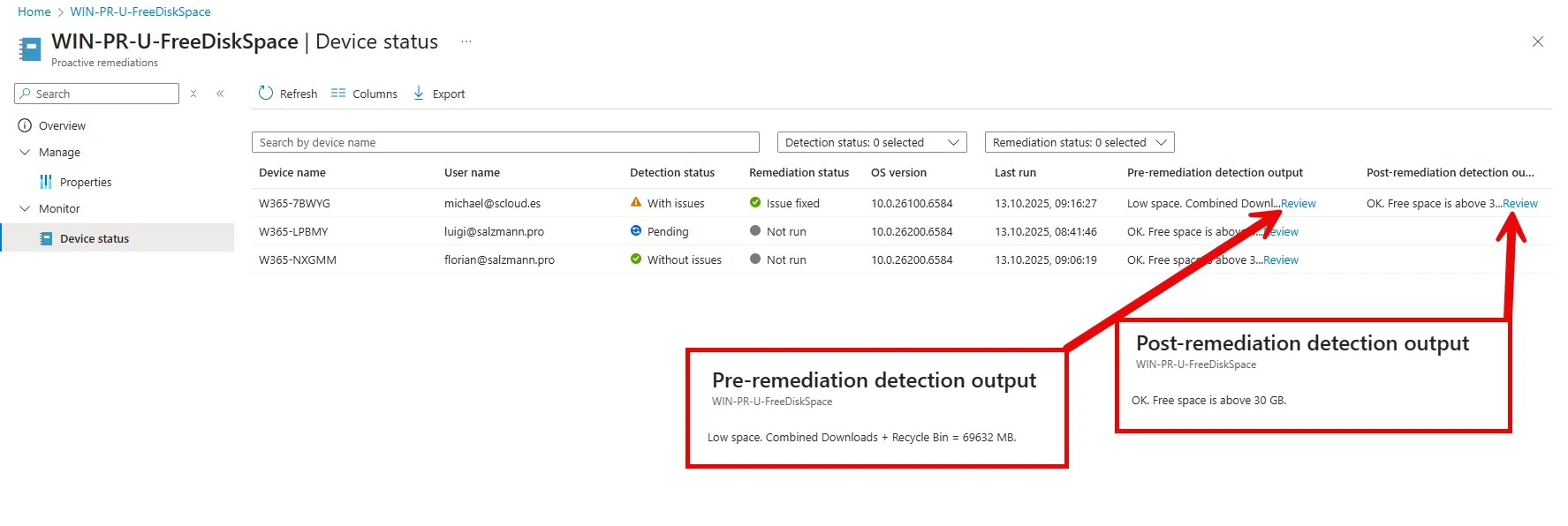
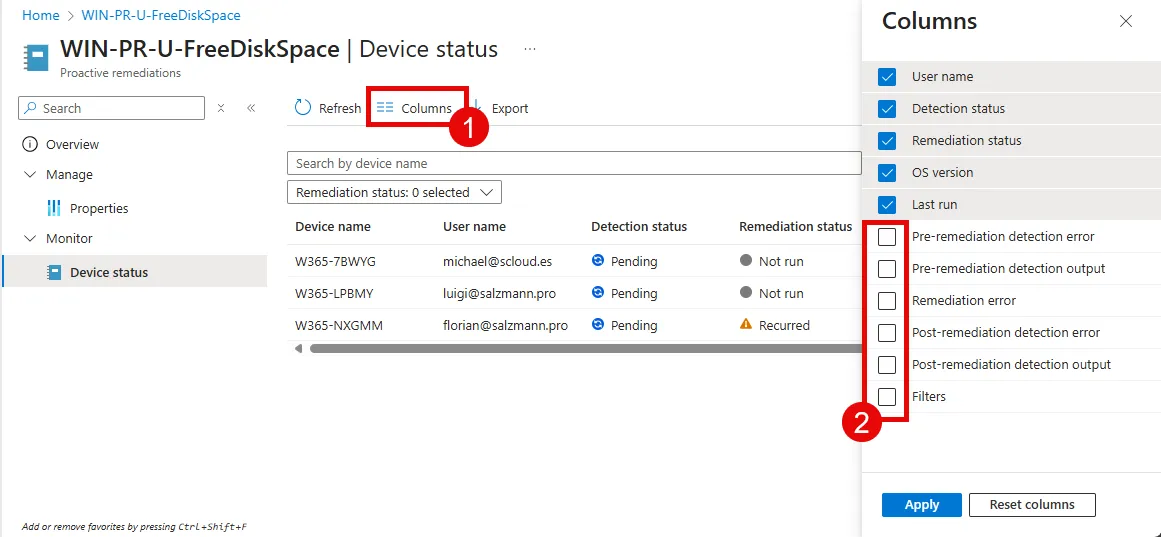
In this view you can see all collected information, including the output of the detection script before and, if applicable, the result after the remediation.
This allows you to verify that the cleanup runs as expected and which devices still need attention.
If many devices are still detected as low on space after several runs, check if they have very small SSDs or if users are keeping large local data in Downloads.
You can use this data to plan your next upgrade wave or improve communication to end users.
If you do not see the detection or remediation outputs, open the Columns menu in the report and tick the missing fields.
Unfortunately, this view is not saved, and you need to select the columns again the next time you open the report.
Real world impact
In one enterprise with more than 20’000 devices, this remediation helped reduce upgrade failures dramatically. In that particular case we had between 1’000 and 2’000 devices with very small disks that were already nearly full. What we found out was that in most cases exactly those two folders were huge.
With just moving the Downloads folder content to OneDrive manually by the users and using Files On Demand to save local space and cleaning up the Recycle bin, we managed to remediate a large portion of the issues. Most devices automatically cleaned enough space to continue, and only a small number required manual IT help.
We also had some users who wanted to stay on Windows 10 and made their disks full on purpose. That is why I included the information about an IT ticket that gets created in case the cleanup cannot be solved automatically and that this will interrupt their work. That was true for a few but helped to remediate many others.
Wrap up
Small automations often make the biggest difference.
With Intune Proactive Remediations, you can make sure devices have enough free space, reduce upgrade failures, and simplify the Windows 11 rollout in a smart and user friendly way.
Frequently asked questions
How much free disk space does a Windows 11 upgrade need?
Windows 11 requires at least a 64 GB disk, but in real deployments I found that around 25 to 30 GB of free space is the safe threshold. Below that, Windows Update can download the upgrade but fails while unpacking or staging it.
How can I detect low disk space before a Windows 11 upgrade with Intune?
Deploy an Intune Remediation with a detection script that checks whether the system drive has at least 30 GB free. If not, it adds up the size of the Recycle Bin and Downloads folder and only triggers the remediation when together they hold more than 500 MB.
What does the remediation do for the user?
It shows a toast popup that explains why more space is needed and offers three buttons: open Downloads, open the Recycle Bin, or clean up both automatically. It also warns that files in Downloads are not backed up, so users should move them to OneDrive or Documents first.
How often should the remediation run?
Every 3 to 7 days is a good default. Tighten it to daily, or even every 4 hours, during the upgrade weeks. Users who clean up are not prompted again. Start with a pilot group and then add the wider Windows 10 upgrade group.
Does this work at scale?
Yes. In one enterprise with more than 20,000 devices, 1,000 to 2,000 devices had very small, nearly full disks. In most cases the Downloads folder and Recycle Bin were the culprits, and most devices freed enough space on their own, with only a small number needing manual IT help.