Fix Lenovo SmartSense Screen Locking via Intune Proactive Remediation
- Florian Salzmann
- Posted on 31 Mar, 2026
- Updated on 17 May, 2026
- 03 Mins read
- (Proactive) Remediations,Microsoft Intune,PowerShell
If you manage Lenovo devices with Intune, you may have run into this: the screen locks or dims by itself, even during active use. Users look at an external monitor for a moment and the laptop screen goes dark. They step away briefly and it locks immediately. No obvious setting to blame.
The culprit is the Lenovo Intelligent Sensing Service, also known by its service name SmartSense. I built an Intune Proactive Remediation to detect and fix this automatically across all affected devices.
TL;DR: Lenovo’s
SmartSenseservice overrides your lock screen timeout on some ThinkPad/IdeaPad models, and Lenovo updates can silently re-enable it. A one-time script won’t catch that. Download the remediation and deploy it as an Intune Proactive Remediation — see Deploying with Intune to skip straight to the setup steps.
What is Lenovo Intelligent Sensing?
Lenovo Intelligent Sensing is a built-in feature on many ThinkPad and IdeaPad models. It uses the device camera and sensors to detect whether a user is present and looking at the screen.
The idea sounds useful. When you walk away, the screen locks automatically. When you return, it can unlock or wake up.
In consumer scenarios, this might be fine. In enterprise deployments, it creates friction. Users working across multiple monitors trigger presence detection constantly. The system interprets a user looking at an external screen as “user has left”. The result: a locked or dimmed laptop screen while the user is actively working.
The service responsible for this behaviour is:
- Service Name:
SmartSense - Display Name: Lenovo Intelligent Sensing
Why It Causes Problems in Managed Environments
I started seeing tickets about this on devices where the lock screen policy was configured correctly. Everything looked fine in Intune. But users reported the screen locking after just a few seconds of looking elsewhere.
The root cause was SmartSense running and overriding the expected screen timeout behaviour. On some Lenovo devices, this service is pre-installed and set to start automatically. It does not matter what your lock screen timeout policy says. The service acts independently.
Simply telling users to disable it in Vantage is not a scalable solution. You need to handle this at scale, and Proactive Remediations are the right tool for it.
The Fix: Proactive Remediation
You could also use a Platform Script to disable the service. It works. But there is a catch.
Lenovo updates, especially Vantage or driver package updates, can silently re-enable the SmartSense service. A Platform Script runs once and moves on. It will not catch that re-activation. Users will start hitting the issue again after an update and you will not know until the tickets come in.
A Proactive Remediation runs on a schedule. It detects the service every time it runs and remediates it again if needed. That makes it the right tool for this specific problem.
The remediation checks whether the SmartSense service exists and is running. If it is, the detection exits with a non-compliant code and the remediation disables and stops it.
This runs silently in the background. No user interaction needed. No reboot required.
Deploying with Intune
Here is how to deploy this Proactive Remediation in Intune.
- Go to Intune admin center > Devices > Remediations > + Create.
- Give the remediation a clear name. I use a consistent naming pattern for all my remediations: WIN-PR-D-LenovoSmartSense
(The D stands for Device context, which is what we need here since we are managing a service.) - Settings
- Detection script: Upload the detection script
- Remediation script: Upload the remediation script
- Run this script using the logged-on credentials: No
- Enforce script signature check: No
- Run script in 64-bit PowerShell: Yes
- Scope and Assignment
- Assign to a device group containing your Lenovo fleet. If you want to be precise, use a dynamic group filtering on device model or manufacturer.
- Set the schedule to run daily or every few hours. This ensures that even if the service gets re-enabled by a Vantage update, the remediation catches it.
- A sample dynamic group filter for Lenovo devices:
(device.deviceManufacturer -eq “LENOVO”)
- A sample dynamic group filter for Lenovo devices:
- Review and Create and Done :)
Testing and Verification
After deployment, verify the results in Intune.
Go to Devices > Remediations and open your remediation. The Device status tab shows:
- Without issues: Detection passed, no remediation needed
- With issues remediated: Service was found and disabled
- Errors: Something failed, check the output
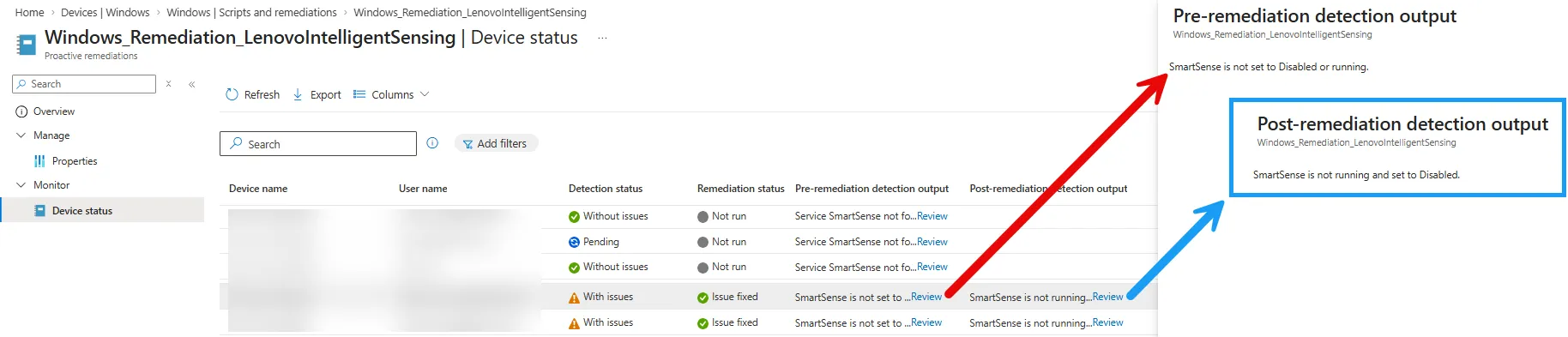
You can also run the detection script manually on a test device and check the exit code:
$service = Get-Service -Name "SmartSense" -ErrorAction SilentlyContinue
$service | Select-Object Name, Status, StartType
If the service is gone or shows Disabled with Stopped, the remediation worked.
This is a low-effort, high-impact remediation. It takes about five minutes to deploy and resolves a frustrating user experience issue silently. If you manage a mixed fleet with Lenovo hardware, I recommend adding this to your standard remediation library.