Install Worksheet Crafter with Intune
- Florian Salzmann
- Posted on 05 Aug, 2022
- Updated on 12 Jul, 2026
- 02 Mins read
- Microsoft Intune,Win32 Applications
The “Worksheet Crafter” is used in many schools to create worksheets. How you can install the Worksheet Crafter including activation / licensing with Intune, I’ve summarized here. You’ll also find the template with all necessary files on my GitHub repository (only the license you need to get yourself).
Btw. the package also works as an update for a version or a license key.
1. Organize the license
If you don’t have a license for your school yet, you can purchase one here: Worksheet Crafter (getschoolcraft.com)
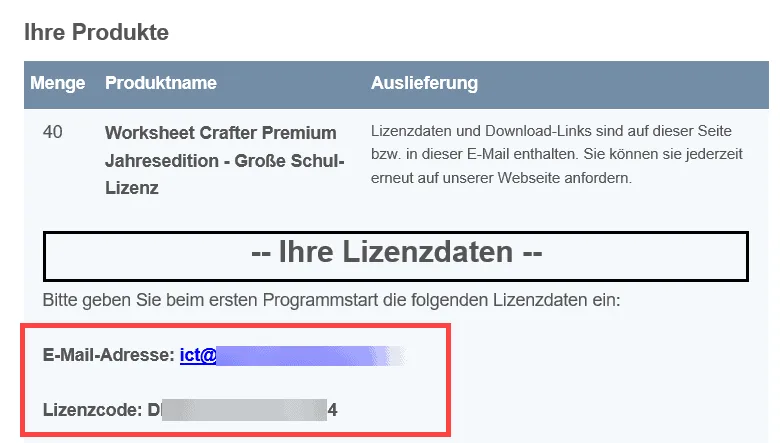
Once you’ve purchased the license, you’ll need the “email address” and the “license code” from the confirmation email.
2. Create / download Intunewin
Next, you can upload my prepared Intunewin into your environment. This currently contains the version “2022.2.7.135”.
Is this version enough for you? Then jump to point 3: Create program in Intune
If you want to deploy a different / newer version, you just need to replace the EXE “Worksheet_Crafter_Setup_Full.exe” in the package and add the corresponding version in the file “check.ps1”.
Afterwards you need to regenerate the Intunewin file.
I’ve described this process here: Win32 App / create .intunewin | scloud
3. Create program in Intune
You can now add my or your “install.intunewin” of the Worksheet Crafter in Endpoint Manager / Intune under «Apps > Windows apps».
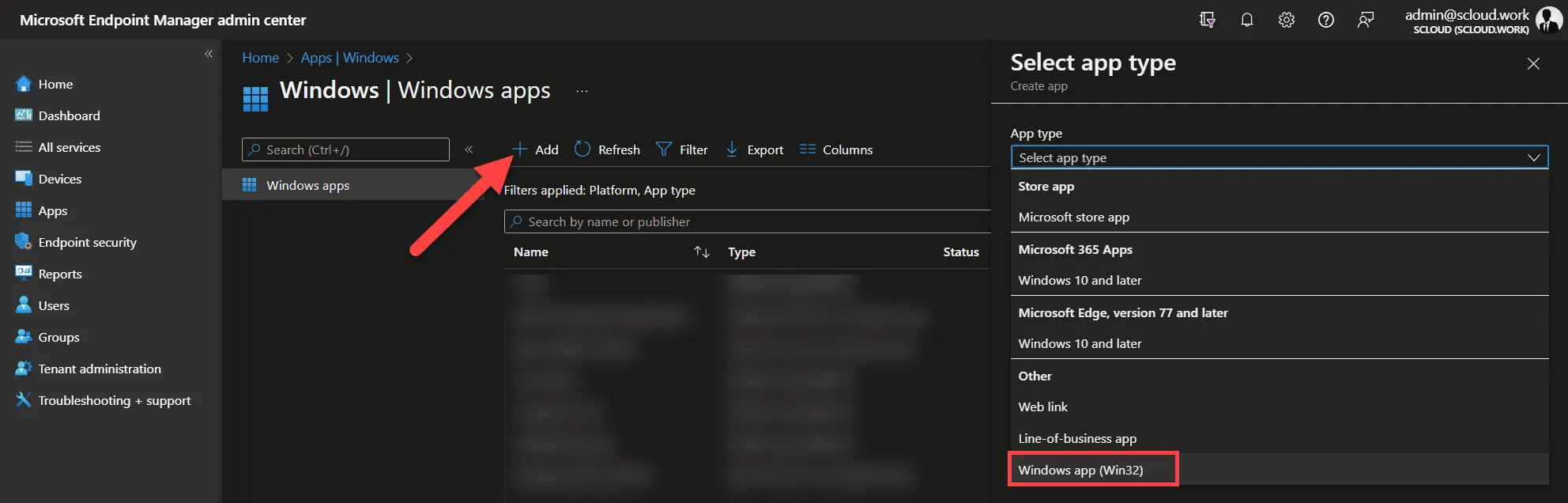
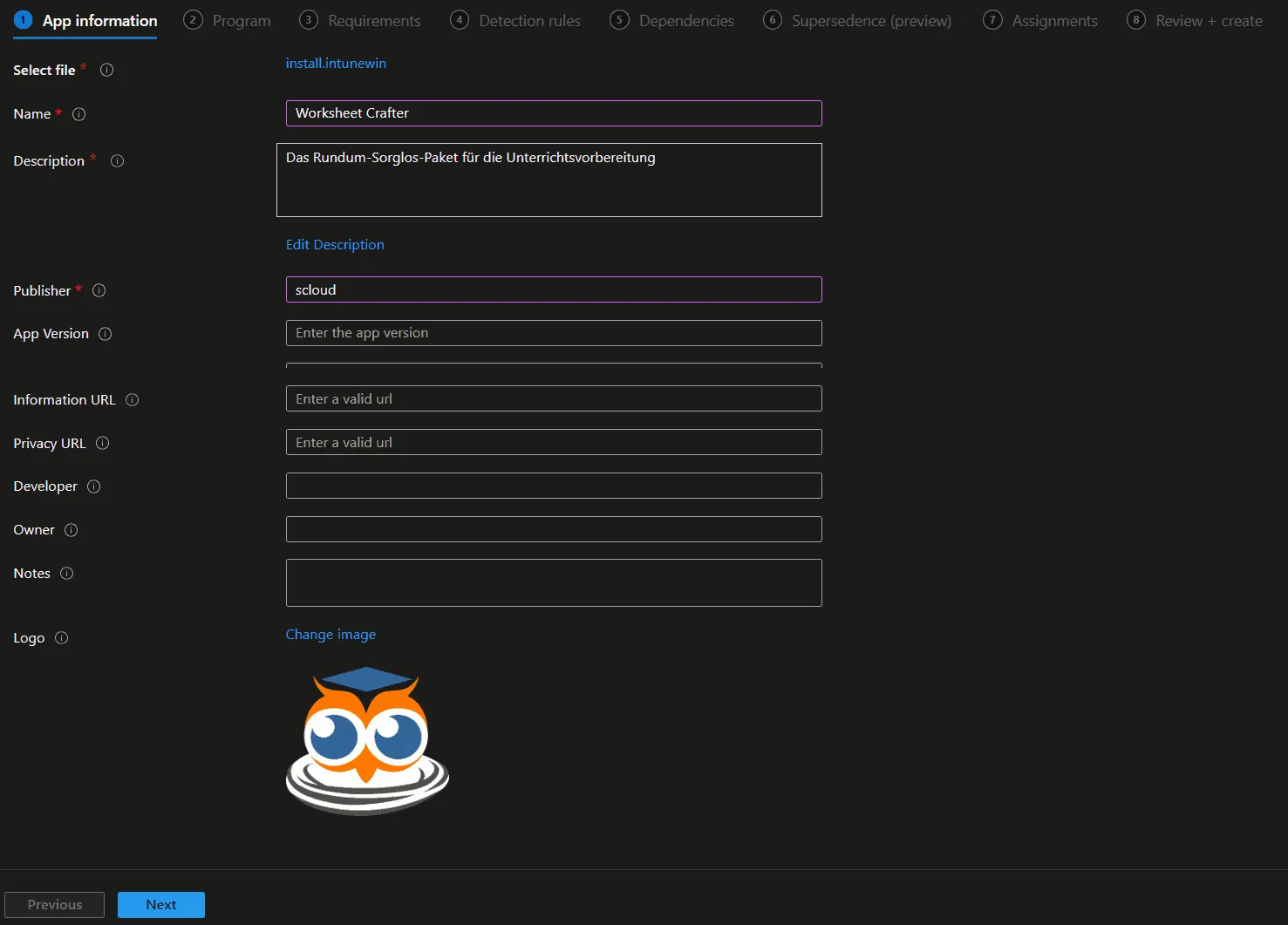
After you’ve uploaded the intunewin, you fill in at least name, description and publisher. A logo, which appears in the Company Portal, is also nice to have.
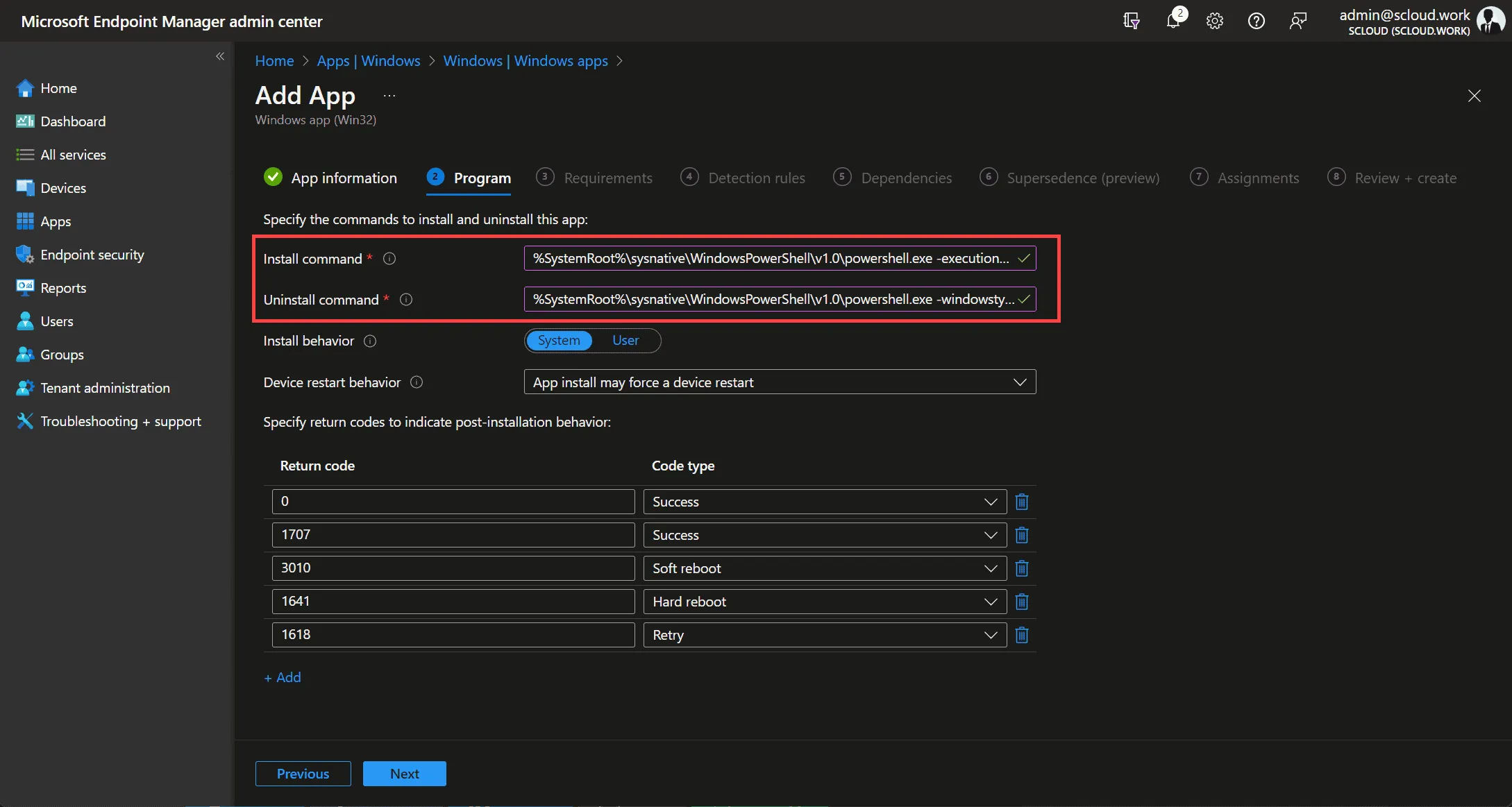
In the program installation settings you enter the following.
Important: In the install command you need to enter your registered email address as well as the license code. You can also adjust the language with the abbreviation. (here in the example German = de, English would be en.)
| install command | %SystemRoot%\sysnative\WindowsPowerShell\v1.0\powershell.exe -executionpolicy bypass -command .\install.ps1 '/USERNAME="regitered@mail.ch" /LICENSECODE="xxxx-xxxx-xxxx-xxxx" /VERYSILENT /SUPPRESSMSGBOXES /LANG=de' |
| uninstall command | %SystemRoot%\sysnative\WindowsPowerShell\v1.0\powershell.exe -windowstyle hidden -executionpolicy bypass -command .\uninstall.ps1 |
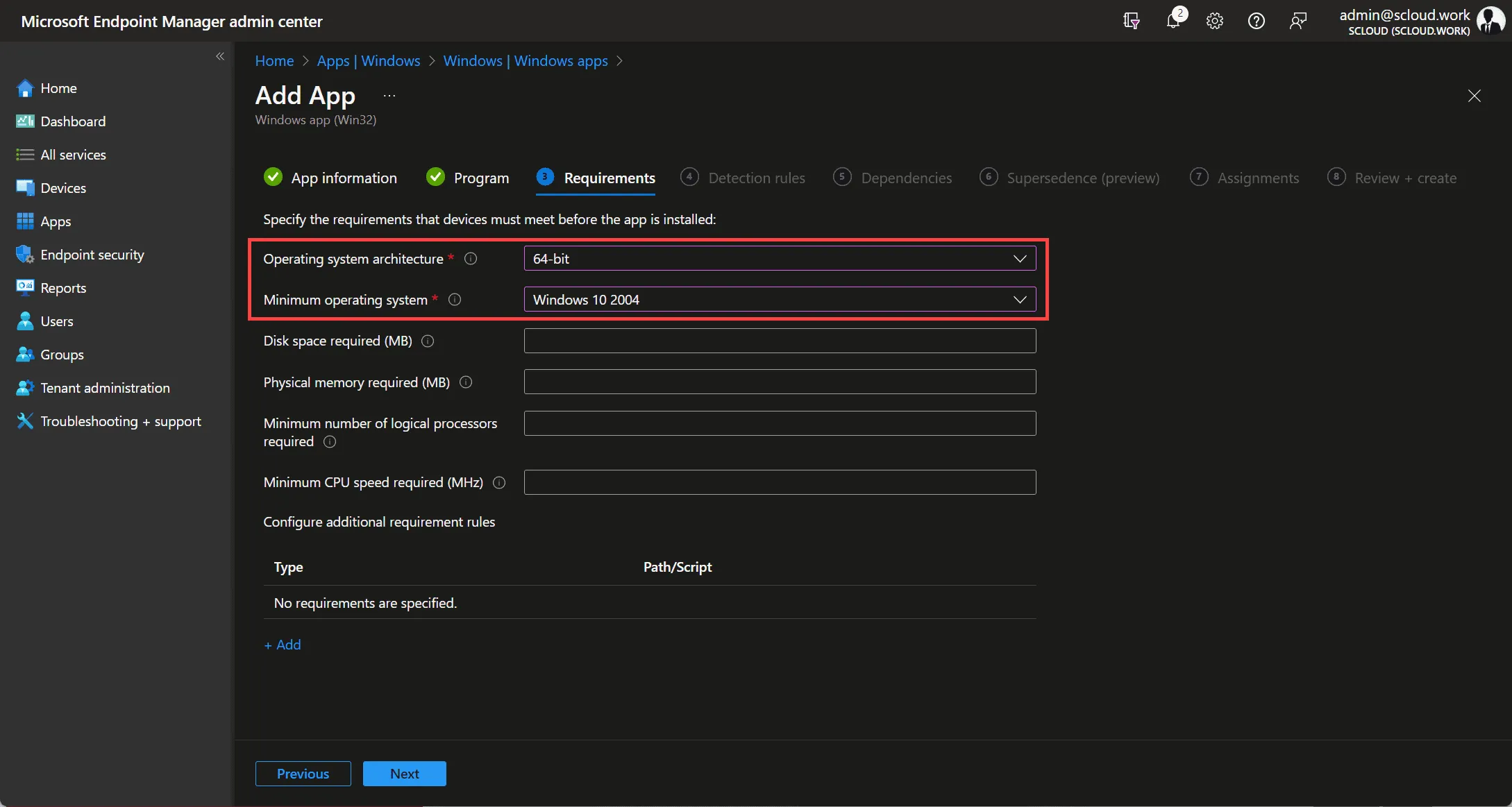
In the requirements you need to set the first two:
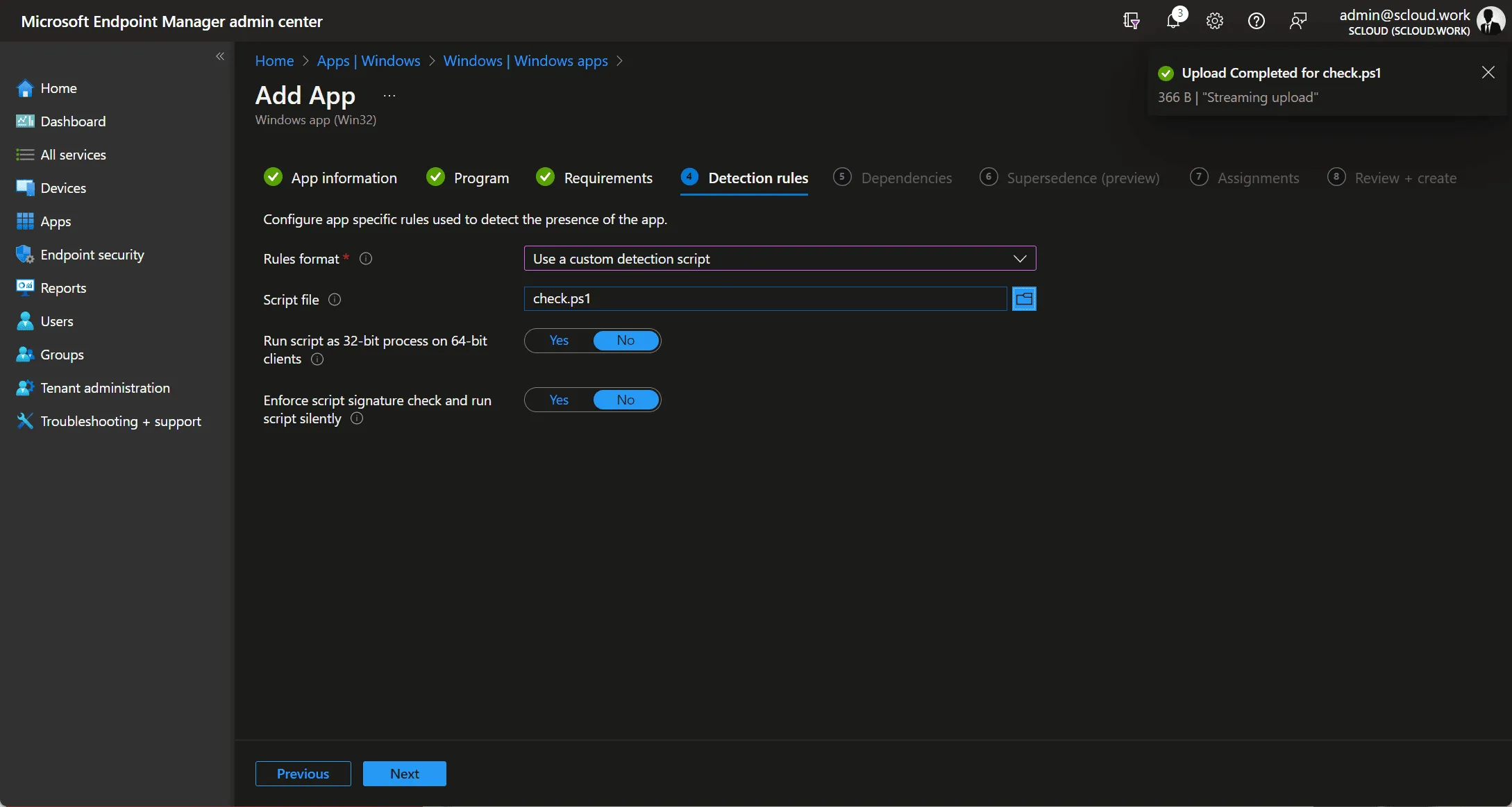
You set the detection rule to “custom detection script” and upload the file “check.ps1”.
You don’t need to adjust anything in this, unless you’re not using the EXE I provided.
You don’t need to set dependencies or superseded versions.
If you already have an existing Worksheet Crafter installation on the devices, this installation also works as an update.
Finally, you just need to assign the application to a group and let it install. And that’s it already. Next year, when the new license code arrives, you can simply adjust it in the install command.