Robopack: Third-Party App Packaging Hub for Intune
- Florian Salzmann
- Posted on 07 Aug, 2025
- Updated on 17 May, 2026
- 06 Mins read
- Microsoft Intune,Tools,Win32 Applications
I’ve worked with a lot of packaging and patching solutions over the years, but Robopack really surprised me in a good way. It’s simple, well thought out, and goes beyond what you’d expect from a third-party packaging hub.
Now, don’t worry, I won’t walk you through how to create apps or configure patching in a step-by-step guide. Robopack already does a phenomenal job documenting that themselves. Instead, I want to focus on what makes Robopack more than “just another app catalog” for Intune. Especially its strength in creating and managing your own custom packages with automatic testing. But before that, let me quickly walk you through what you get right out of the box.
Fore references here’s the link to their docs: Robopack Knowledge Base
The basic packaging hub features
Before we dive into custom packaging, let’s take a look at what Robopack already delivers out of the box. For many environments, the built-in features alone are a massive time-saver. With a connector to Intune, a rich app catalog, and automation features for patching and inventory management, Robopack can handle most standard needs without writing a single line of code.
These are the core features that make Robopack a solid choice for anyone looking to improve their app lifecycle management in Intune.

Instant App deployment
Robopack’s catalog contains a large selection of pre-packaged Win32 applications, all based on the PowerShell App Deployment Toolkit (PSADT). You can search the catalog, select an app, configure detection or installation settings, and push it to Intune instantly.
This means you can deploy commonly used software across your fleet without spending hours building packages manually.
Robopatch: Automated third-party patching
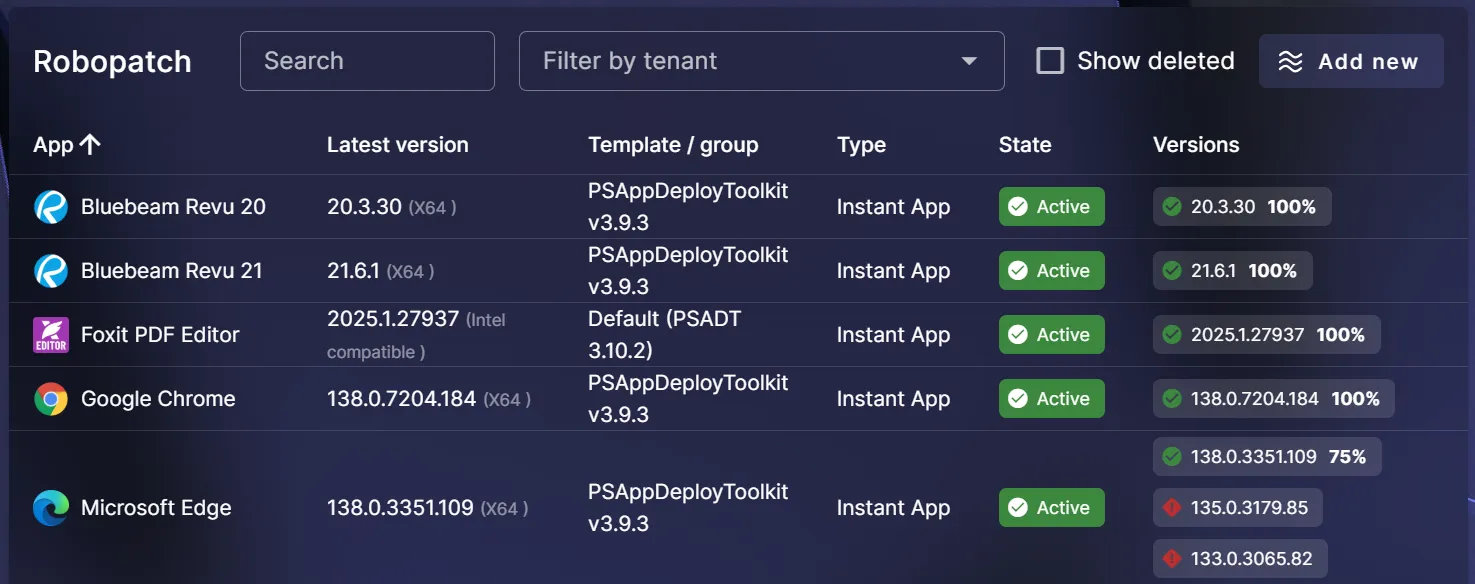
Robopatch is Robopack’s patch automation engine. Once enabled, it monitors selected applications for new versions, repackages them, and publishes the updated version to your Intune environment.
You no longer need to manually track software updates or repackage apps after each vendor release. Robopatch handles that for you, ensuring endpoints stay up to date and secure with minimal effort. You will see all apps with a patch flow set up as well as their status for the latest versions. IN the screenshot below you can see, that in my environment at this point in time 25% of devices don’t have the latest versions of Edge. In addition, you can directly see the outdated versions. To add a new app to this patch flow just click “Add new” and you will have the same setup path as you have with instant apps.
Radar: Discover apps across your tenant
Radar gives you visibility across your Intune environment. It scans every device (via the intune app inventory) and reports all installed applications, not just those deployed via Robopack.
This includes manually installed apps, legacy deployments, and tools installed through other systems. With Radar, you can identify unmanaged software, find version mismatches, clean up inconsistencies and setup patch flows for those applications. It’s especially useful during audits or when onboarding an existing tenant.
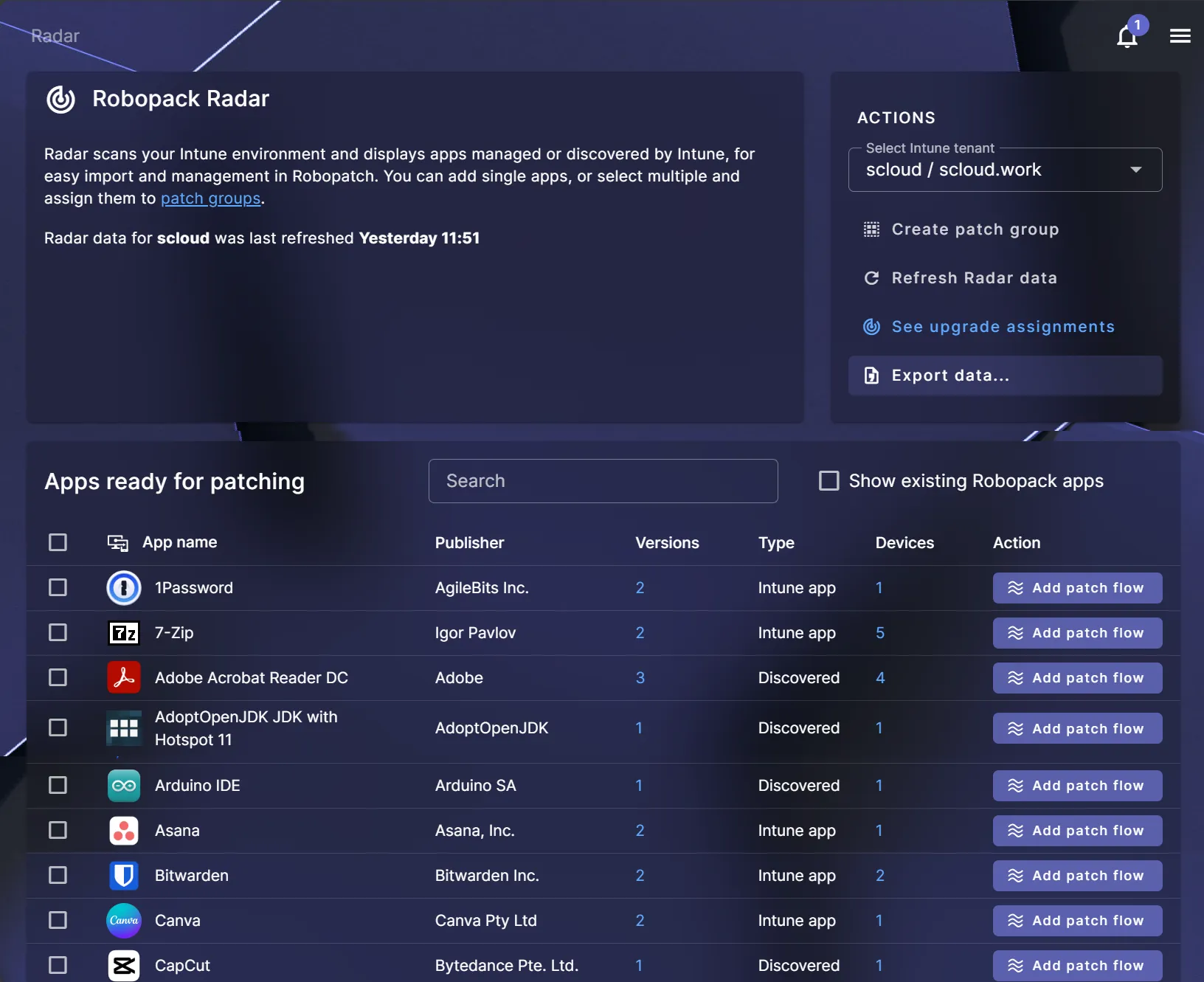
This whole discovery and one-click deployment process is especially useful because it allows you to go straight from app discovery to setting up patch flows. This is ideal for cleaning up legacy software or inconsistencies.
Custom packages with Robopack
What makes Robopack stand out from most third-party packaging solutions is its support for custom application packaging. While many platforms focus solely on delivering a catalog of pre-wrapped apps, Robopack allows you to build, test, and publish your own applications using a professional workflow that integrates tightly with Microsoft Intune.
This is ideal for internal tools, legacy installers, or applications not available in public catalogs.
Package creation with PSADT foundation
Every custom package in Robopack is built on top of the PowerShell App Deployment Toolkit (PSADT), giving you a robust and customizable framework for enterprise deployments.
To create a package, you define:
- Application metadata (name, description, version)
- Install and uninstall command lines
- Detection rules
- Icons and additional app properties
You can upload your installer (MSI, EXE, ZIP, or script) and configure the deployment logic through a guided interface. The resulting package is structured to work seamlessly in Intune as a Win32 app, including correct folder layout and app manifest.
You also have the option to include custom PowerShell scripts, such as pre-install checks or post-uninstall cleanup.
Built-in automated testing
Before any package is published, Robopack runs a full test deployment in a sandboxed virtual machine. The system installs the application using your provided configuration and performs detection checks to ensure the app installed correctly.
This process validates:
- Return codes from the installer
- Whether the detection method confirms installation
- Whether the app runs as expected in a clean environment
Test results are shown directly in the Robopack dashboard. If something fails, you can download logs or modify the configuration before retrying.
This is by far my favorite feature. It brings a level of confidence I rarely see in other packaging tools. I no longer need to spin up a separate test VM or rely on risky manual validation. Robopack integrates testing directly into the packaging workflow, making it not only safer but also faster to get from package creation to deployment.
Integrated publishing with rollout control
Once the package has passed testing, it can be published directly to Microsoft Intune with one click. You can choose to assign it immediately or make it available in the Company Portal.
Each published app appears in your Intune portal under the Win32 apps section, complete with the configured detection logic, install commands, and metadata.
Robopack also manages versioning, so when you update a custom package, the platform can automatically replace the previous version with the new one.
What’s especially useful is that you can apply the same wave and deferral logic as with their prepackaged apps. This allows you to roll out updates gradually, test deployments with pilot groups, and reduce the risk of mass deployment errors. You stay in control of the rollout process, even for your own custom apps.
Example: Creating a custom package in Robopack
1. Upload the installer
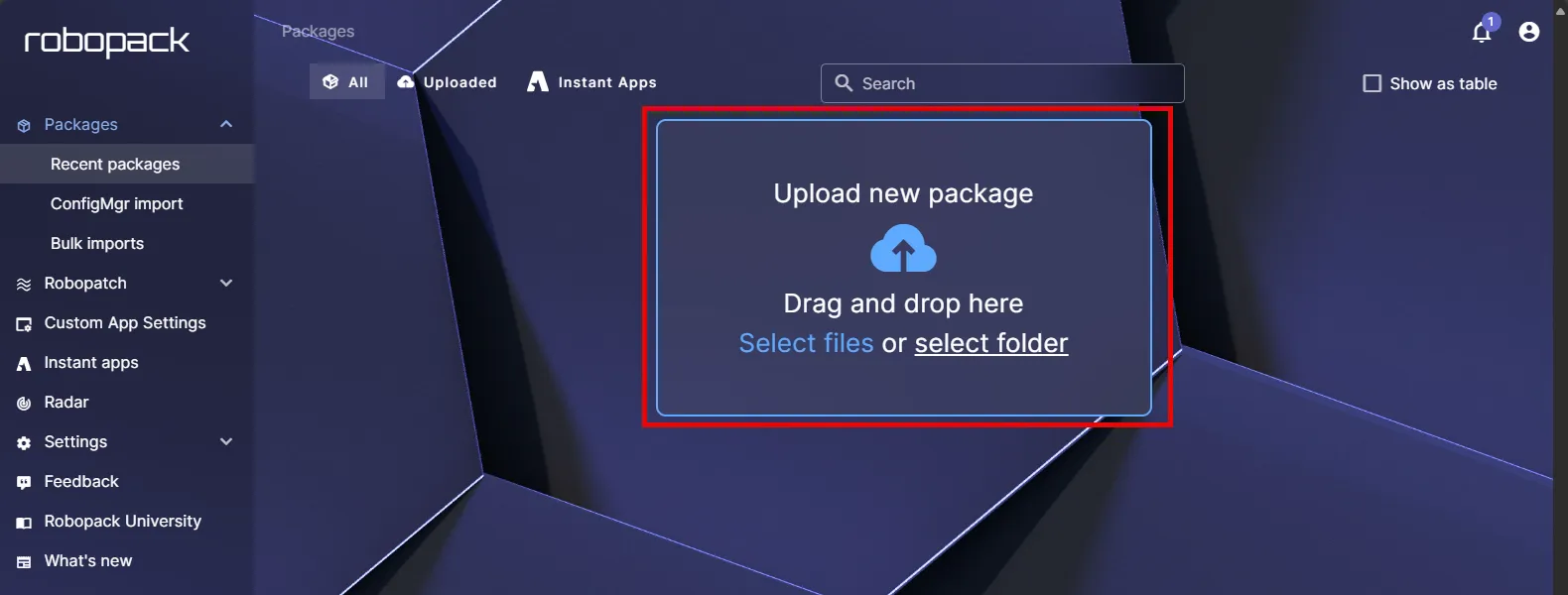
From the Packages section in Robopack, I click on “Upload new package” and upload the MSI file for Windows PC Health Check. You can also upload EXE files, scripts, or ZIP archives. Robopack supports most installer types out of the box.
2. Configure basic package information
Once the file is uploaded, Robopack automatically extracts key metadata. It attempts to detect the install and uninstall commands based on the installer type. In many cases, this works perfectly out of the box.
If not, or if you want to customize parameters (like silent switches or additional flags), you can edit the commands manually. You’re always in control.
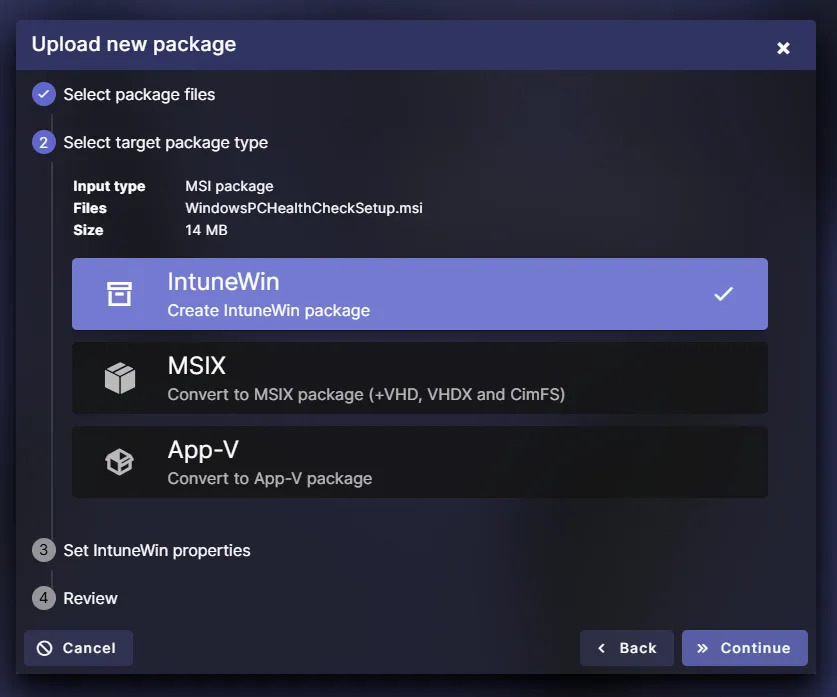
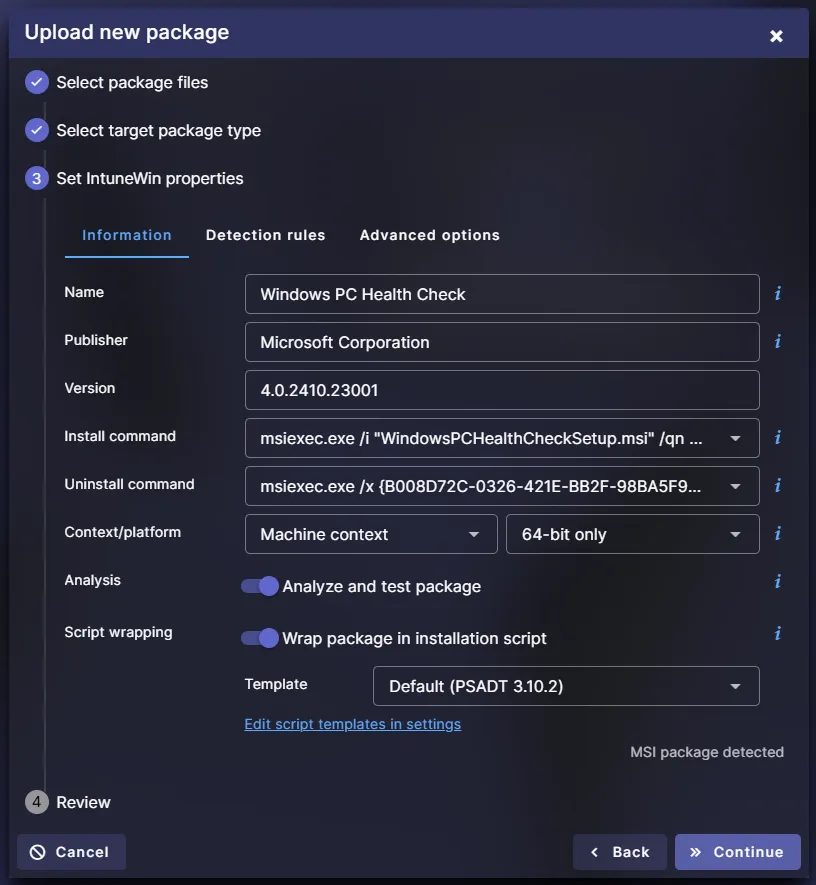
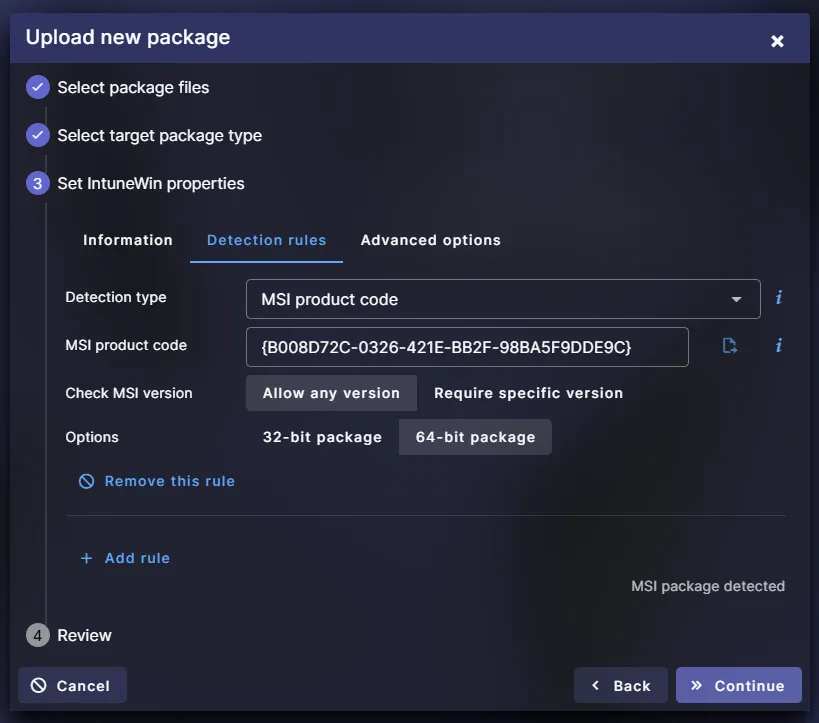
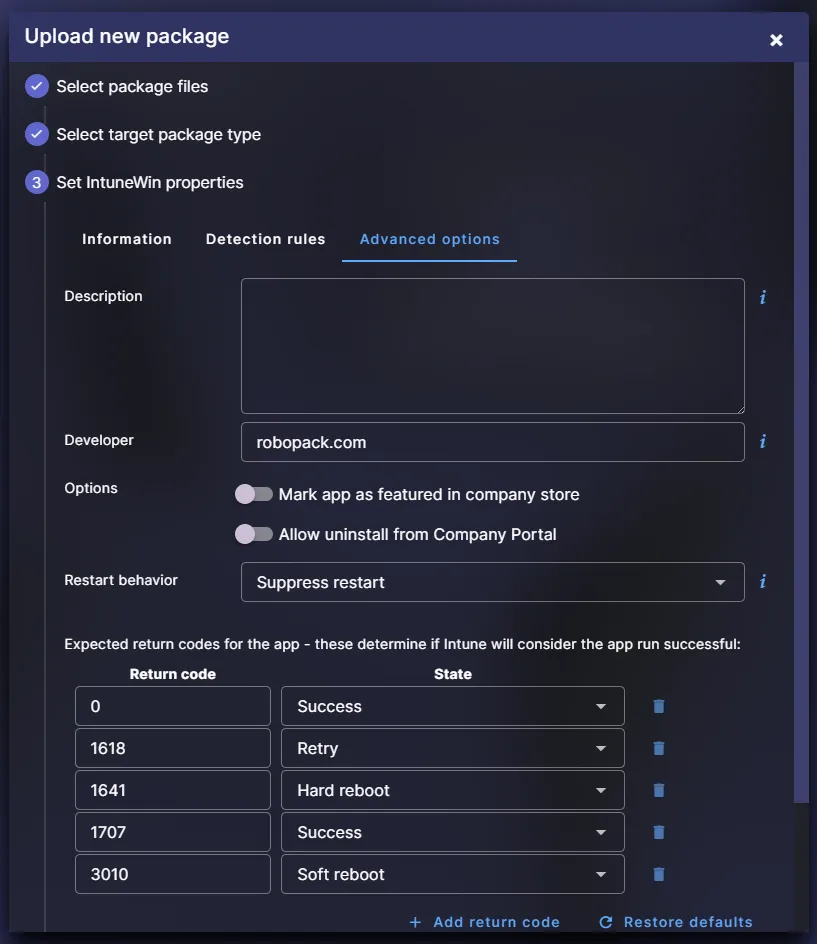
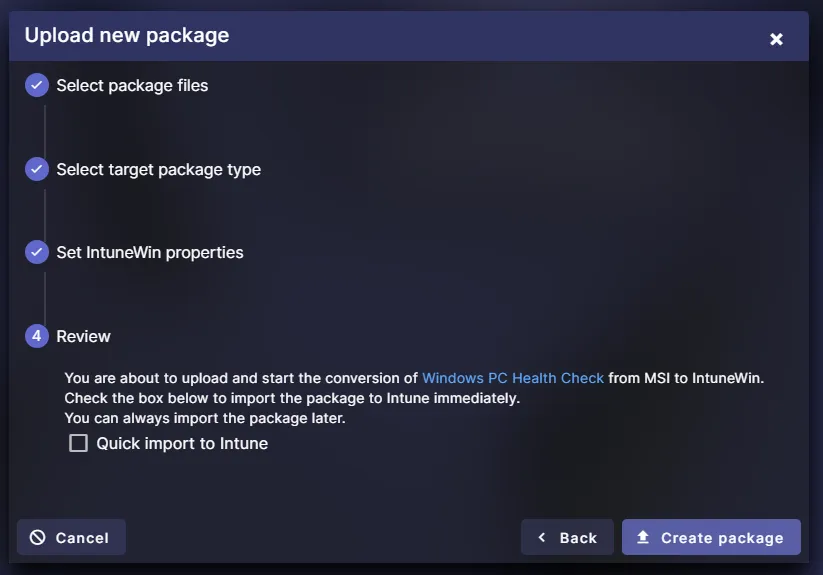
At this stage, you can also:
- Set the app name, description, and version
- Configure detection logic
- Assign categories or tags for easier filtering later
3. Automated test installation
After clicking “Create”, Robopack runs an automated test of the package. It spins up a clean virtual machine, installs the application using the provided command line, and verifies the detection rule.
This test step is fully automated and takes just a few minutes. You’ll be notified once the run completes.
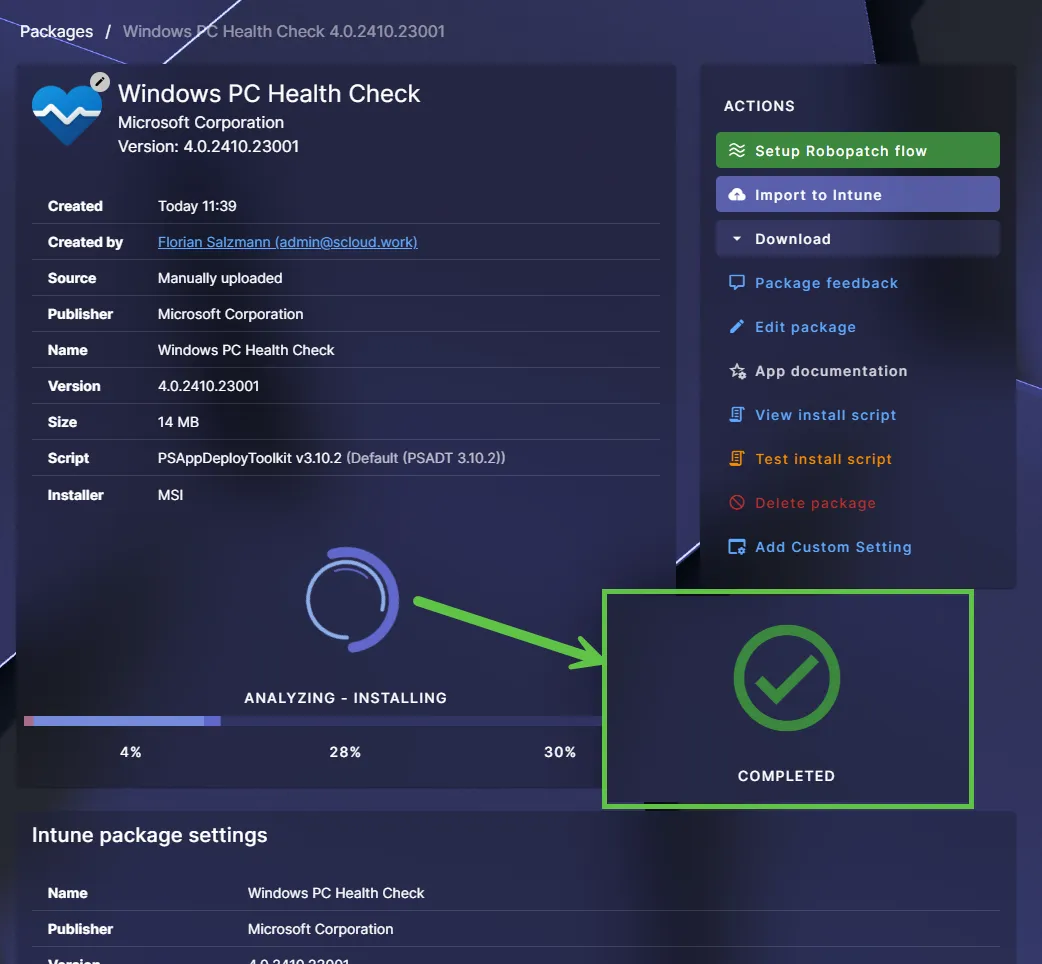
4. Review the test results
If the installation works without errors or interruptions, Robopack marks the test as successful. You’ll also see a detailed report showing:
- Installation logs
- Files and folders created
- Registry keys written during the installation
This is incredibly helpful. I use this information both for troubleshooting and when I want to build special routing logic or validate if a specific file or registry value was applied correctly. You have the report aviable directly in the UI, a dedication insatll.log as wella PDF version to download.
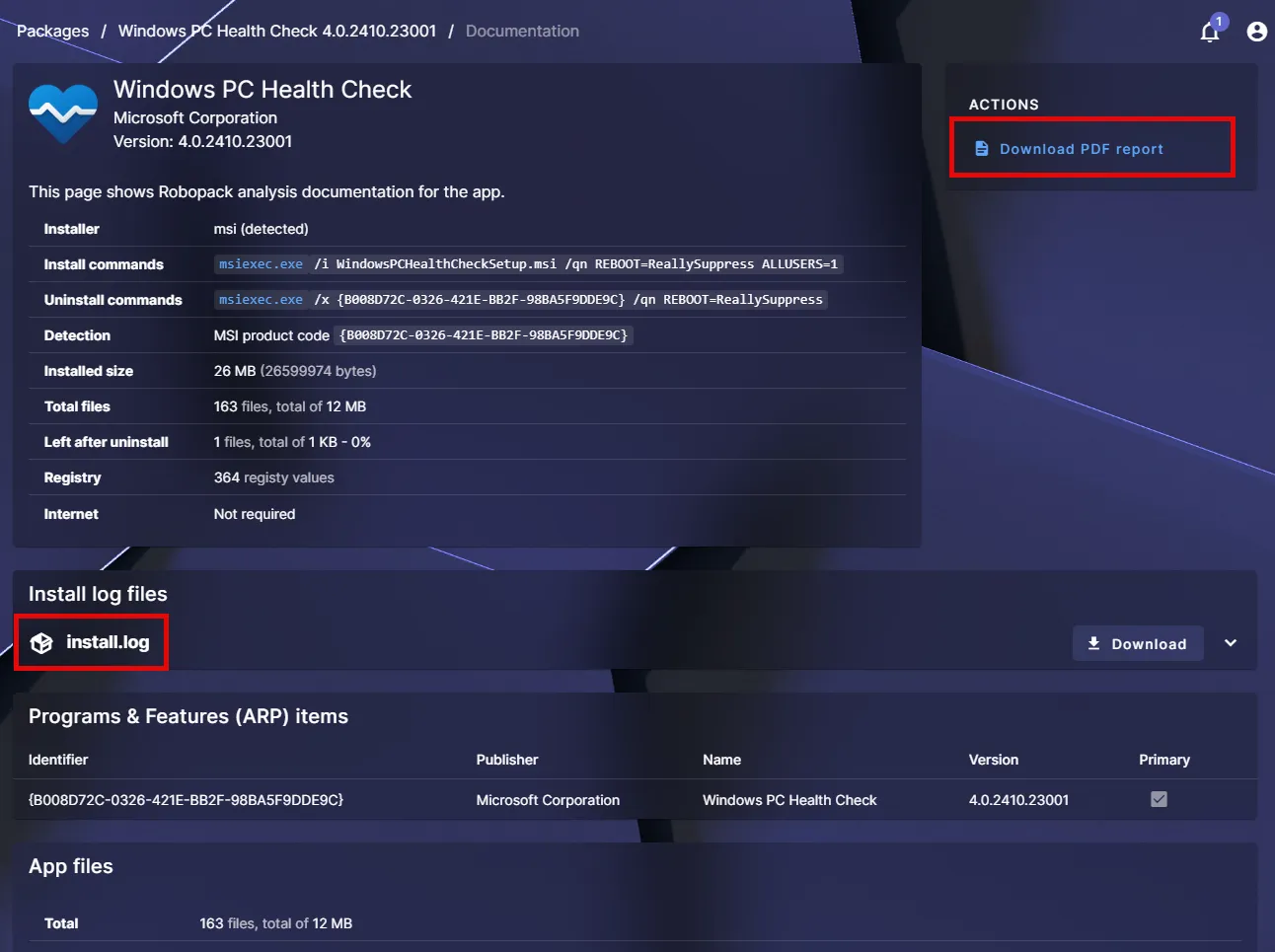
5. Customize your package further
If you still want to make adjustments after the test, Robopack gives you full flexibility.
You can:
- Add or edit PowerShell App Deployment Toolkit logic
- Import
.regfiles directly into the package - Include additional files or configuration scripts
- Target file placement to specific user locations (e.g., desktop, AppData)
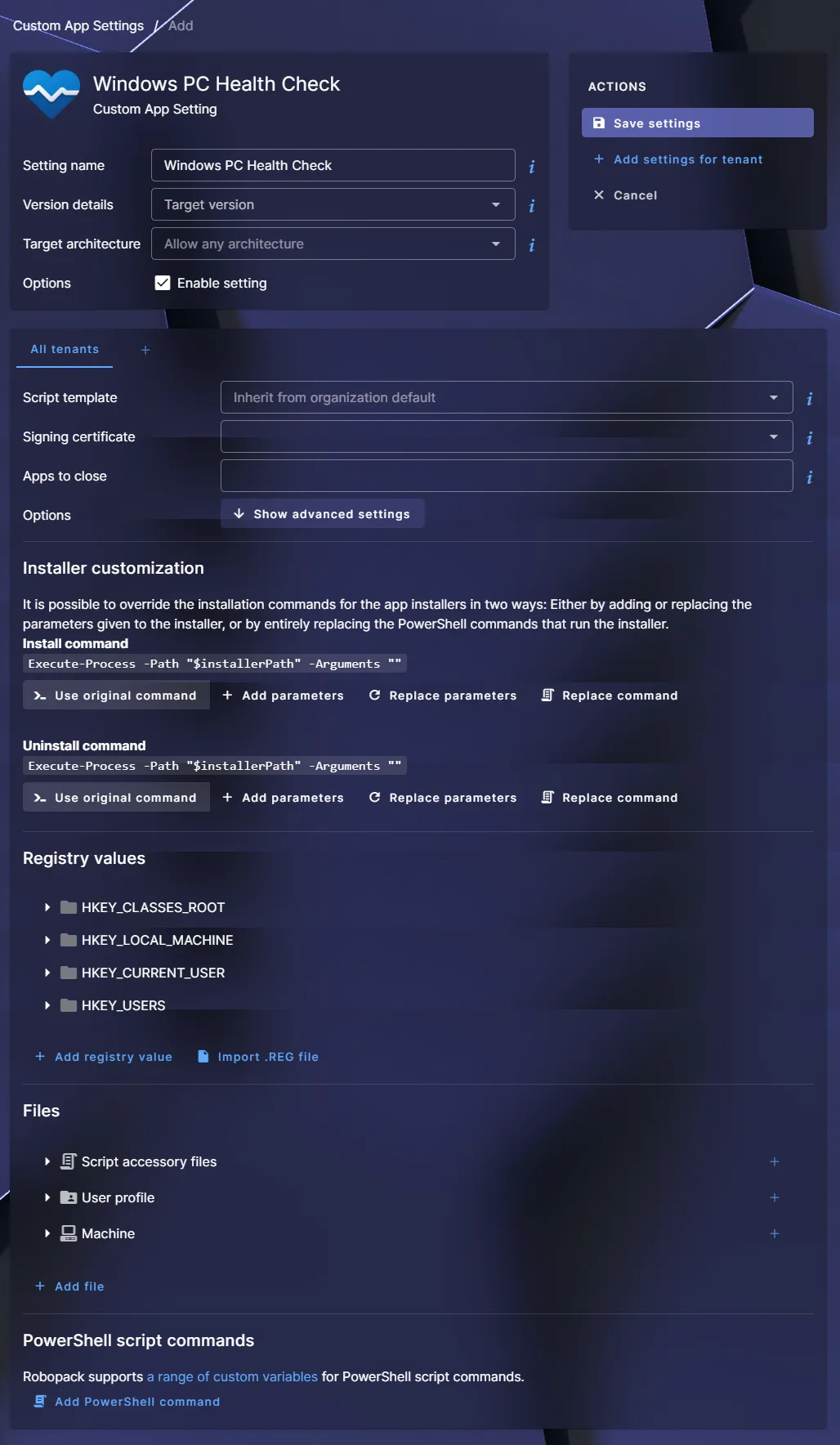
All of this is done through a clean interface with the option to drop into code if needed. It’s the perfect balance between GUI convenience and script-level control.
Final thoughts
Robopack has quickly become one of my favorite tools around app management in Intune. Whether you use their pre-buildt catalog or create your own apps from scratch, it delivers real value. You get a packaging platform that’s simple to adopt, but powerful enough for complex enterprise environments.
If you’re managing apps with Intune and want to automate the heavy lifting while keeping full control, I highly recommend giving it a try.
👉 Good to know: If you have Global Admin rights, the initial setup takes less than a minute. Seriously. Just connect your tenant and you’re ready to go.
… AND if you manage fewer than 100 devices in your tenant, Robopack is absolutely free! 🥳