How I Create and Test Win32 Apps for Intune
- Florian Salzmann
- Posted on 07 Apr, 2026
- 03 Mins read
- Microsoft Intune,Win32 Applications
Creating and, in particular, testing applications (win32) that I deploy with Intune isn’t always straightforward. It usually takes a bit of back and forth until an app works exactly as intended.
Here I’ll show you how you can test your installations quickly and easily, without unnecessarily cluttering up your PC in the process.
Creating Win32 Apps for Intune
There are quite a few different ways to create apps. In the Intune admin center, you have several app types to choose from, and the “Windows app (win32)” type can be customized very individually.
Because Win32 apps are so flexible and universal, and don’t play well with other app types during the ESP phase, I create almost exclusively Win32 apps. So this post focuses on those.
Templates for Win32 Apps
Whenever I start creating a package, I always reach for a template first, so every app follows a defined standard. This can be your own template, one from your organization, or something like the PSAppDeployToolkit.
You can find an example of my own template here: my take on Win32 apps for Intune
If you want to distribute applications via Chocolatey or winget (Windows Package Manager), you can also just use my “Intune Win32 Deployer” - it builds the app for you end to end and, if you want, uploads it straight into your Intune environment.
Creating the Intunewin File for Upload
Once you’ve defined and built the installation logic, uninstall logic, and detection rule, all that’s left is creating the intunewin file.
You can also do this step after some of the testing steps below.
I’ve explained how to create the Intunewin file here: Create Win32 App / .intunewin
Testing Platforms
As a rule, I try to run all my tests in a Windows Sandbox. That way I don’t leave any traces on my device, and if something goes wrong, I’m back on a clean Windows install with a single click.
The only downside of a Sandbox is that network dependencies and SSO don’t work. For those cases, a VM on the right network - or locally on your device (for example via Hyper-V) - can help out.
Testing a Win32 App in the Sandbox
You need to enable the Sandbox feature once per device. The fastest way is to open PowerShell as admin and run the following command:
Enable-WindowsOptionalFeature -FeatureName "Containers-DisposableClientVM" -Online -NoRestart -ErrorAction StopOnce you’ve run the command, your device needs a restart. After that, you’ll find the Sandbox feature in the Start menu.
Testing with a VM
For VM tests, I either use a VM on infrastructure that sits in the right network, or a local VM on my own device.
For running a lab environment, Simon Skotheimsvik wrote a really good article (Blog: Building a MEMpowered LAB environment).
Win32 App Testing Options
Testing the Installation without Intunewin
Want to test the installation without creating the Intunewin file every single time?
That’s easy - just run your installation file directly.
Testing the Detection Rule
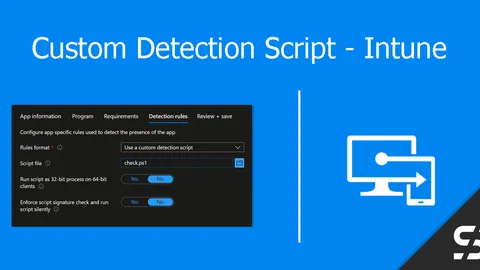
The detection rule decides whether Intune considers an app “installed” or not - and it’s one of the most common stumbling blocks in Win32 app deployment. Before I add a rule in Intune, I always test it locally first.
For a script-based detection, I run the script directly and check the exit code, exactly like Intune does later on:
powershell.exe -ExecutionPolicy Bypass -File .\detect.ps1
$LASTEXITCODE
Exit code 0 means “detected”, any other code means “not detected”. If the script also writes output via Write-Host, Intune later shows that in the log as “Discovered app”.
For a file- or registry-based rule, I simulate the check manually before configuring it in Intune:
Test-Path "C:\Program Files\MyApp\app.exe"
Get-ItemProperty "HKLM:\SOFTWARE\MyApp" -Name "Version"
That way I immediately see whether the path, registry key, or version comparison is actually correct, instead of finding out only after a failed deployment on a test device.
After the actual deployment on a test device, I also check the IntuneManagementExtension log (C:\ProgramData\Microsoft\IntuneManagementExtension\Logs) to see how Intune actually evaluated the rule. For that, I usually reach for my Intune Diagnostic Tool, which searches and formats exactly these logs automatically.
Running a Process as System
Some installations don’t work correctly even for a user with admin rights. That’s the case, for example, when you want to install Winget apps (How to: winget & Intune) in the system context.
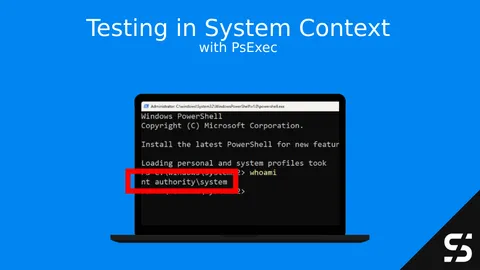

For tests like that, PsExec - Windows Sysinternals is the tool to use. It lets you open a PowerShell session as the System user while running as admin. I’ve put a script on GitHub that downloads the latest version of PsExec, runs it, and opens a PowerShell window for you.
Here’s what that looks like in action:
RunInSandbox by systanddeploy
A really simple way to test a finished Intunewin file is the tool from Damien Van Robaeys. It lets you run a file as System in a Windows Sandbox with a single right-click. He’s written a full article with instructions: Run in Sandbox: a quick way to run/extract files in Windows Sandbox from a right-click on a file