Intune Diagnostic Tool: Analyze IME and Autopilot Logs with One Script
- Florian Salzmann
- Posted on 25 Feb, 2026
- Updated on 12 Oct, 2026
- 04 Mins read
- Microsoft Intune,PowerShell
Troubleshooting Intune and Autopilot issues usually means digging through logs manually, for example the Intune Management Extension logs or the Autopilot OOBE logs described in Microsoft’s Autopilot troubleshooting guidance. With the Intune Diagnostic Tool, I built a simple PowerShell UI that lets you analyze Intune Management Extension and Autopilot logs in just a few clicks.
The idea is simple. You pick a diagnostic script, drop in your log folder or ZIP file, and hit analyze. The tool does the rest.
Why Did I Build This Tool?
When I troubleshoot Intune deployments, I always end up using the same community scripts. The problem is that each script has different parameters and expects different input formats.
Get-IntuneManagementExtensionDiagnostics expects a folder path. Get-AutopilotDiagnostics expects a ZIP or CAB file. Get-AutopilotDiagnosticsCommunity uses a different parameter name for the same thing.
I wanted a single entry point where I can just pick the script I need, point it at my logs, and go. No need to remember parameter names or extract ZIP files manually.
What Does the Intune Diagnostic Tool Do?
The tool is a single PowerShell script with a built-in graphical interface. It downloads the diagnostic scripts from the PowerShell Gallery automatically and handles all the parameter mapping for you.
Here is what it covers:
- Select from three diagnostic scripts via a dropdown
- Drag and drop a log folder, ZIP, or CAB file into the UI
- Browse for files with a file picker
- Run the analysis against the current PC with one click
- Automatic ZIP extraction when needed
- Automatic script download from the PowerShell Gallery on first use
- Dark themed UI with status indicators and a progress bar
Supported Diagnostic Scripts
The tool currently includes three well-known community scripts. You can switch between them using the dropdown at the top of the UI.
IME Diagnostics by Petri Paavola
This is Get-IntuneManagementExtensionDiagnostics. It analyzes Intune Management Extension logs and creates a detailed timeline report. The report includes Win32 app deployments, WinGet apps, PowerShell scripts, remediation scripts, and Autopilot ESP phases.
It generates an HTML report and also supports a Log Viewer UI for deeper analysis.
Project: github.com/petripaavola/Get-IntuneManagementExtensionDiagnostics
Autopilot Diagnostics by Michael Niehaus
This is Get-AutopilotDiagnostics, the original Autopilot troubleshooting script. It shows Autopilot profile settings, ESP tracking details, app and policy status, and device registration events.
The script was created by Michael Niehaus while he was at Microsoft. It accepts ZIP and CAB files captured by MDMDiagnosticsTool.
Source: PowerShell Gallery
Autopilot Diagnostics Community by Andrew Taylor
This is Get-AutopilotDiagnosticsCommunity, the actively maintained community fork. It builds on the original and adds support for Autopilot v2, new Graph API modules, improved timeline accuracy, and Delivery Optimization details.
If you are troubleshooting Autopilot today, this is the version I recommend.
Project: github.com/andrew-s-taylor/WindowsAutopilotInfo
How Do You Install and Run the Intune Diagnostic Tool?
You can install the script directly from the PowerShell Gallery. Open PowerShell as Administrator and run:
Install-Script -Name Intune-DiagTo run it after installation:
Intune-DiagOn first launch, the tool creates a folder at C:\ProgramData\IntuneDiagnostic-UI and downloads the diagnostic scripts from the PowerShell Gallery. This only happens once. After that, everything runs locally.
How to Use the Intune Diagnostic Tool
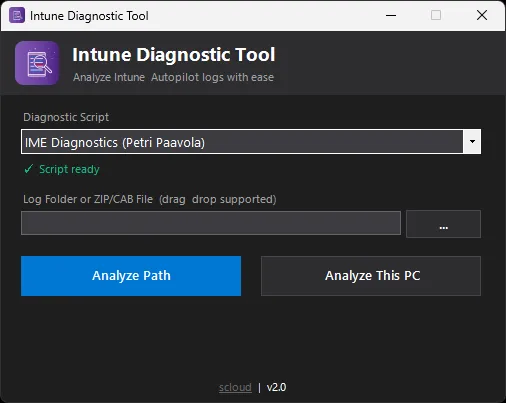
After launching the script, the UI opens in the center of your screen.
Analyze a Log Folder or ZIP File
This is the typical workflow when you receive logs from a remote device.
- Select the diagnostic script you want to use from the dropdown
- Drag and drop a folder, ZIP, or CAB file into the path field (or click the browse button)
- Click “Analyze Path”
The tool handles the rest. If you use IME Diagnostics with a ZIP file, it extracts the archive to a temp folder automatically. The Autopilot scripts receive the ZIP or CAB file directly, since they handle extraction on their own.
If you drop a folder and the selected Autopilot script expects a file, the tool searches for ZIP or CAB files inside the folder and passes the first match.
Analyze the Current Device
If you are troubleshooting directly on the affected device, you can skip the file selection entirely.
- Select the diagnostic script from the dropdown
- Click “Analyze This PC”
The script runs locally without any additional parameters. This is especially useful during Autopilot enrollment or when you are sitting in front of the device.
Credits
All the diagnostic logic comes from the amazing community scripts by Petri Paavola, Michael Niehaus, and Andrew Taylor. This tool is just a wrapper that makes them easier to use together.
If you have feedback or ideas for new scripts to add, feel free to reach out or open an issue on GitHub.
Frequently asked questions
What is the Intune Diagnostic Tool?
The Intune Diagnostic Tool is a free, open-source PowerShell script with a graphical interface that wraps three community diagnostic scripts: Get-IntuneManagementExtensionDiagnostics, Get-AutopilotDiagnostics and Get-AutopilotDiagnosticsCommunity. You pick a script, point it at a log folder, ZIP or CAB file, and it runs the analysis with the right parameters.
How do I install the Intune Diagnostic Tool?
Open PowerShell as Administrator, run Install-Script -Name Intune-Diag, then start it with Intune-Diag. On first launch it creates C:\ProgramData\IntuneDiagnostic-UI and downloads the diagnostic scripts from the PowerShell Gallery once.
Which diagnostic script should I use for Autopilot problems?
I recommend Get-AutopilotDiagnosticsCommunity by Andrew Taylor. It is the actively maintained fork of Michael Niehaus’ original Get-AutopilotDiagnostics and adds Autopilot v2 support, new Graph API modules, improved timeline accuracy and Delivery Optimization details.
Can I analyze logs from a remote device?
Yes. Drag and drop the log folder, ZIP or CAB file you received into the path field and click Analyze Path. The tool extracts ZIP files automatically for IME diagnostics and passes ZIP or CAB files directly to the Autopilot scripts. To check the device you are sitting at, click Analyze This PC instead.