How to Troubleshoot Intune Remediation Scripts Locally
- Florian Salzmann
- Posted on 27 May, 2025
- Updated on 08 Jan, 2026
- 02 Mins read
- (Proactive) Remediations,Microsoft Intune,PowerShell,Troubleshooting
When a proactive remediation script fails to work as expected, it’s much faster to test it locally than wait for the next sync from Intune. In this post, I’ll show you how I troubleshoot Intune remediation scripts directly on a Windows device. This includes script locations, relevant logs, and registry entries that help verify what happened and why.
For some samples and an introduction to Remediation scrips check out the community repo an my blog about it: Endpoint Analytics Proactive Remediation Community
Script Location on Disk
Whenever a proactive remediation is executed, the scripts are downloaded to the following directory:
C:\Windows\IMECache\HealthScriptsThe detection and remediation scripts are stored here in cleartext. That means anyone with access to the machine can open and read them. So it’s important to never include secrets, credentials or sensitive data in these scripts.
You’ll see subfolders for each script ID. Inside them, the DetectionScript.ps1 and RemediationScript.ps1 files can be manually executed for testing.
Run the scripts manually
To test a script without waiting for Intune, I run it directly from the cached folder:
cd "C:\Windows\IMECache\HealthScripts\<ScriptGUID>"
powershell.exe -ExecutionPolicy Bypass -File .\DetectionScript.ps1
The same method works for remediation:
powershell.exe -ExecutionPolicy Bypass -File .\RemediationScript.ps1This helps identify syntax issues or problems that only show up on the target device.
Check the logs
The Intune Management Extension writes all activity to a central log file:
C:\ProgramData\Microsoft\IntuneManagementExtension\Logs\IntuneManagementExtension.logI usually open it with CMTrace or Notepad++ and search for:
- Script GUID or name
ProactiveRemediation- Exit codes (like 0, 1 or other errors)
This gives a quick view of what ran, what was detected, and whether remediation was triggered.
Review execution status in the registry
Every script execution is also tracked in the registry. The local status and assignment information is available at:
HKEY_LOCAL_MACHINE\SOFTWARE\Microsoft\IntuneManagementExtension\SideCarPolicies\Scripts
This is useful for verifying whether the script was deployed and processed on the device.
Get script output and results
If your script writes values to the registry or uses output reporting, you’ll find those under:
HKLM:\SOFTWARE\Microsoft\IntuneManagementExtension\SideCarPolicies\Scripts\Reports\
You can extract this output with the following script:
$User_id = "00000000-0000-0000-0000-000000000000"
$Script_id = "xxx"
$RegPath = "HKLM:\SOFTWARE\Microsoft\IntuneManagementExtension\SideCarPolicies\Scripts\Reports\$User_id\$Script_id\Result"

Get-ItemProperty -Path $RegPath | Select-Object -ExpandProperty Result | ConvertFrom-Json | fl *Output*
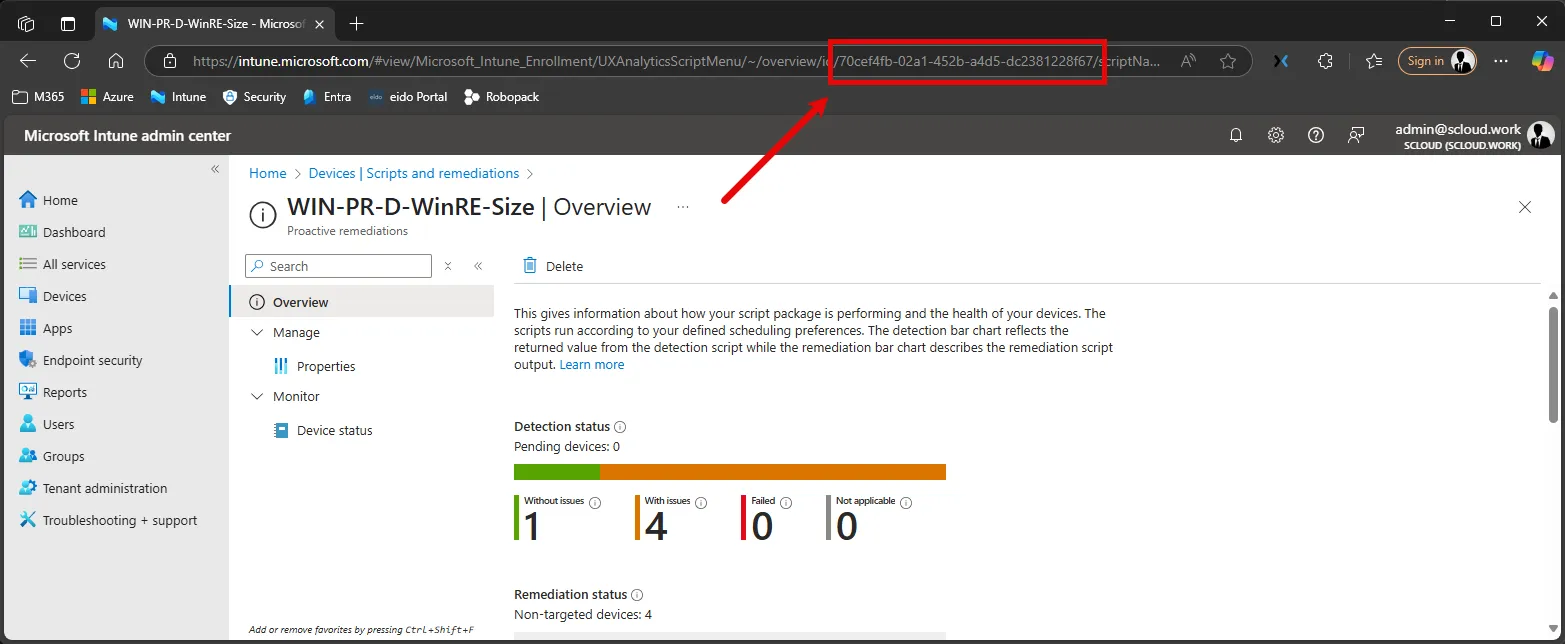
Replace $Script_id with the script’s action ID, which you can find in the Intune admin center URL when editing the remediation script.
Wanna see all outputs from all remediations?
Here you go:
$Users_all = Get-ChildItem "HKLM:\SOFTWARE\Microsoft\IntuneManagementExtension\SideCarPolicies\Scripts\Reports"

foreach($User in $Users_all){
    $User.PSChildName
    $Remediations_all = Get-ChildItem "HKLM:\SOFTWARE\Microsoft\IntuneManagementExtension\SideCarPolicies\Scripts\Reports\$($User.PSChildName)"

    foreach($Remediation in $Remediations_all){
        Get-ItemProperty -Path "HKLM:\SOFTWARE\Microsoft\IntuneManagementExtension\SideCarPolicies\Scripts\Reports\$($User.PSChildName)\$($Remediation.PSChildName)\Result" | Select-Object -ExpandProperty Result | ConvertFrom-Json | fl *Output*
    }
}
Add better logging
When building your scripts, I recommend using Start-Transcript to create a local log:
Start-Transcript -Path "C:\...\remediation_debug.log"
# script logic
Stop-Transcript
This makes it easier to understand what happens when the script runs as part of the managed task.
Summary
Troubleshooting Intune proactive remediation scripts locally saves time and reduces uncertainty. You get full visibility into the script files, logs and registry data. With this approach, I can test, debug and optimize scripts before pushing them to production.