App update via vendor URL and Remediation
- Florian Salzmann
- Posted on 18 Jul, 2023
- Updated on 21 Aug, 2023
- 02 Mins read
- (Proactive) Remediations,Microsoft Intune,PowerShell
With certain applications it is important that they are always up-to-date. This can be the case with specialist applications. However, if you don’t have the capacity to always look out for the new versions and package them after release, it can be helpful to build an automation for this.
I built one using the “LehrerOffice Desktop” example. To do this, I access the app’s vendor URL directly via remediation and update the program if necessary.
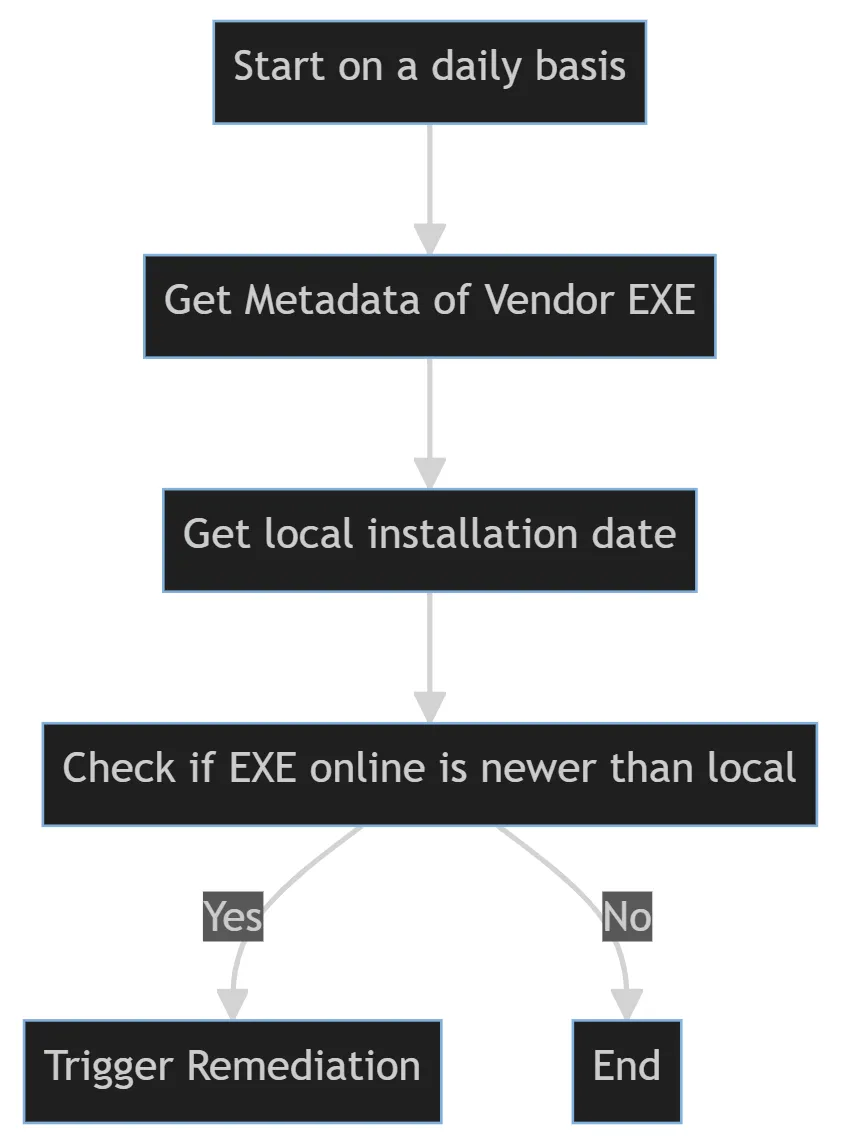
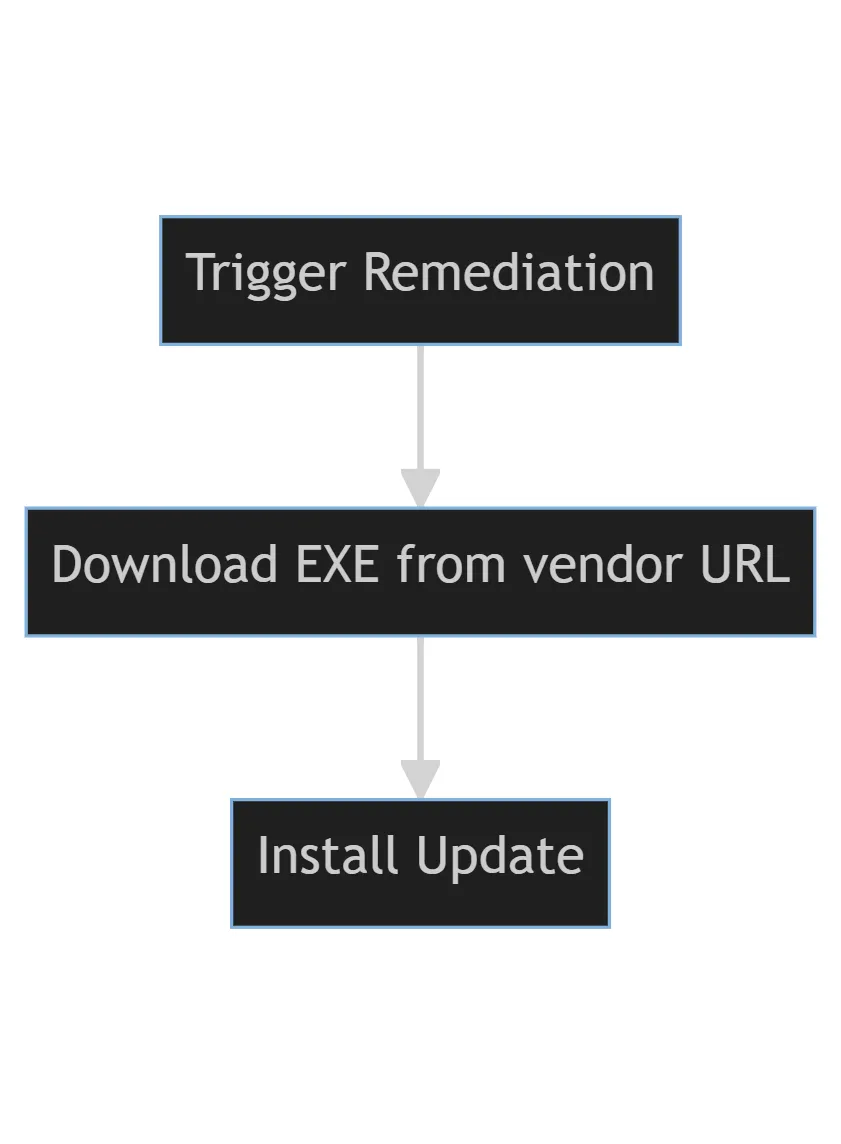
Visualization
Here I have simply visualized the whole process for you. You can also map other applications that are available via a static URL.
Detection
Remediation
(Proactive) Remediations Paket
Detection
In the detection I query the metadata of the EXE and compare it with the installation date of the local installation.
try{
	$EXE_url = "https://cmi-bildung.ch/lo/dateien/easy/lo_desktop_windows.exe"
	$EXE_meta = Invoke-WebRequest -method "Head" $EXE_url | Select Headers -ExpandProperty Headers

	$EXE_onlineDT = [DateTime]::ParseExact($($EXE_meta."Last-Modified"), "ddd, dd MMM yyyy HH:mm:ss 'GMT'", [System.Globalization.CultureInfo]::InvariantCulture)
	$EXE_onlineDTS = $EXE_onlineDT.ToString("yyyy-MM-dd")

	$EXE_uninstall = Get-ItemProperty HKLM:\SOFTWARE\WOW6432Node\Microsoft\Windows\CurrentVersion\Uninstall\* | Where-Object{$_.DisplayName -eq "LehrerOffice Desktop"}
	if(!$EXE_uninstall){
		Write-Output "LehrerOffice not installed"
		exit 1
	}
	$EXE_installDT = [DateTime]::ParseExact($($EXE_uninstall.InstallDate), "yyyyMMdd", $null)
	$EXE_installDTS = $EXE_installDT.ToString("yyyy-MM-dd")

	if($EXE_onlineDTS -gt $EXE_installDTS){
		Write-Output "LehrerOffice update available"
		exit 1
	}else{
		Write-Output "LehrerOffice is up-to-date"
		exit 0
	}

}catch{
	Write-Error $_
}
If the detection occurs (exit code 1), the remediation script is triggered.
Remediation
In the remediation I now download the EXE from the defined URL and run the update with it.
try{
	$EXE_url = "https://cmi-bildung.ch/lo/dateien/easy/lo_desktop_windows.exe"
	$EXE_localInstall = "$env:TEMP\LehrerOffice-installation.exe"

	# Download latest EXE
	(New-Object System.Net.WebClient).DownloadFile($EXE_url, $EXE_localInstall)

	# install EXE
	Start-Process $EXE_localInstall -ArgumentList '/VERYSILENT /NORUN /NOCANCEL /LOG="C:\ProgramData\Microsoft\IntuneManagementExtension\Logs\LehrerOffice-EXE-install.log"' -Wait

}catch{
	Write-Error $_
}
Create remediation package in Intune
If you would also like to carry out the update process for “LehrerOffice” or adapt it, you can download the two scripts here:
You now create the package in Intune:
Devices > Remediations > + Create script package
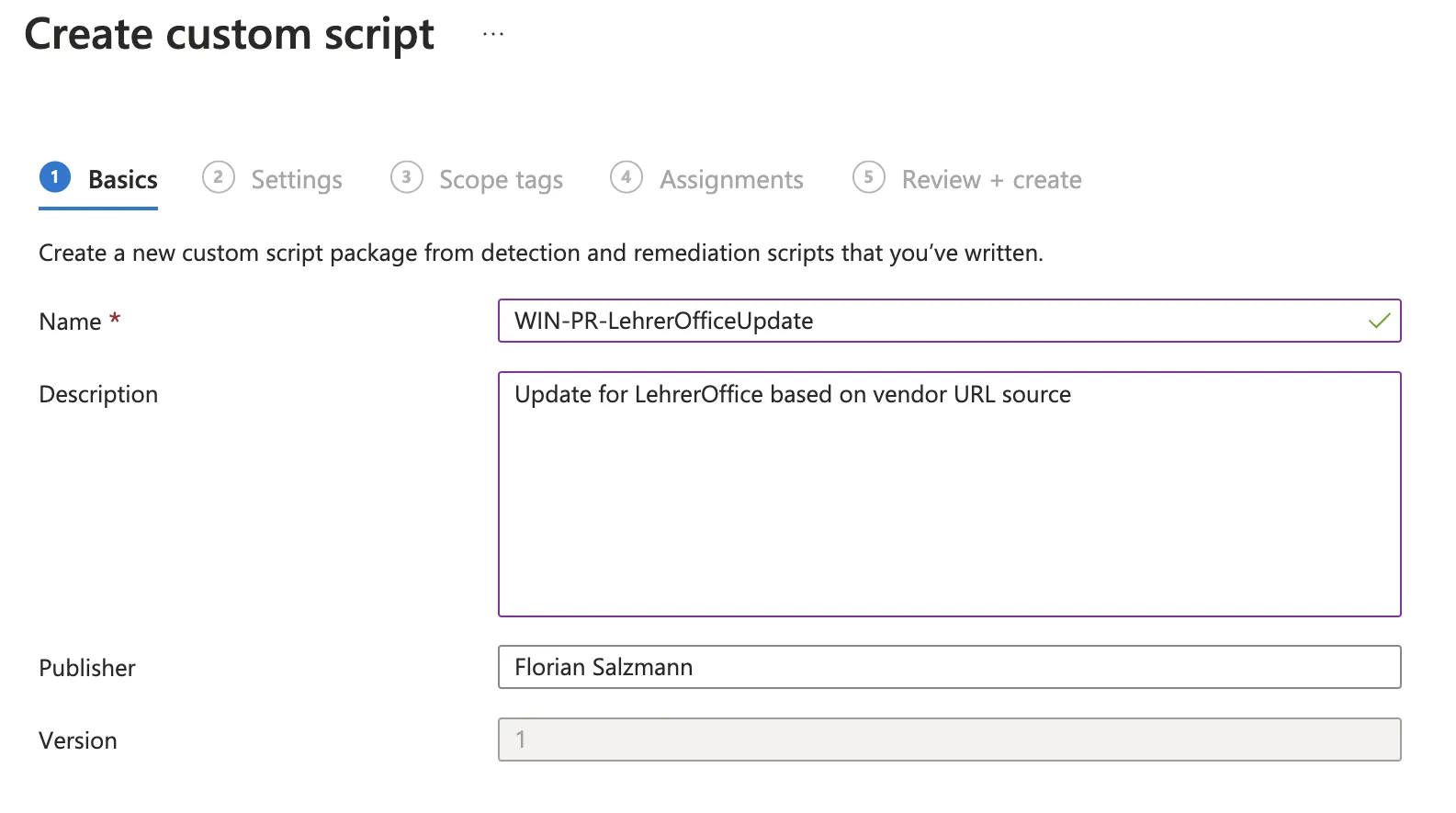
We give the package a meaningful name and an optional description.
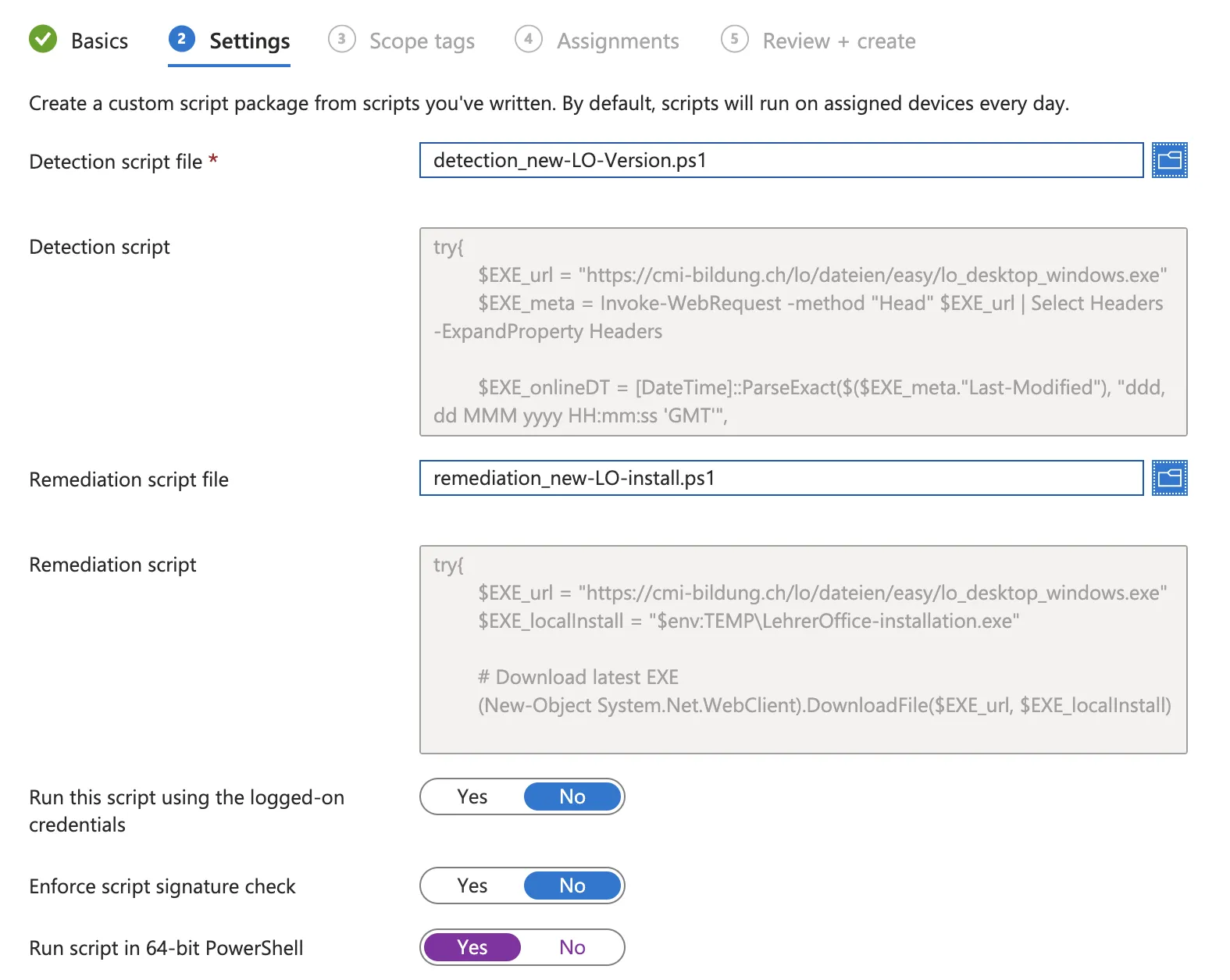
In the settings we upload the two script files and select 64-bit for the PowerShell execution.
You only have to assign a scope if this is provided for in your Intune concept.
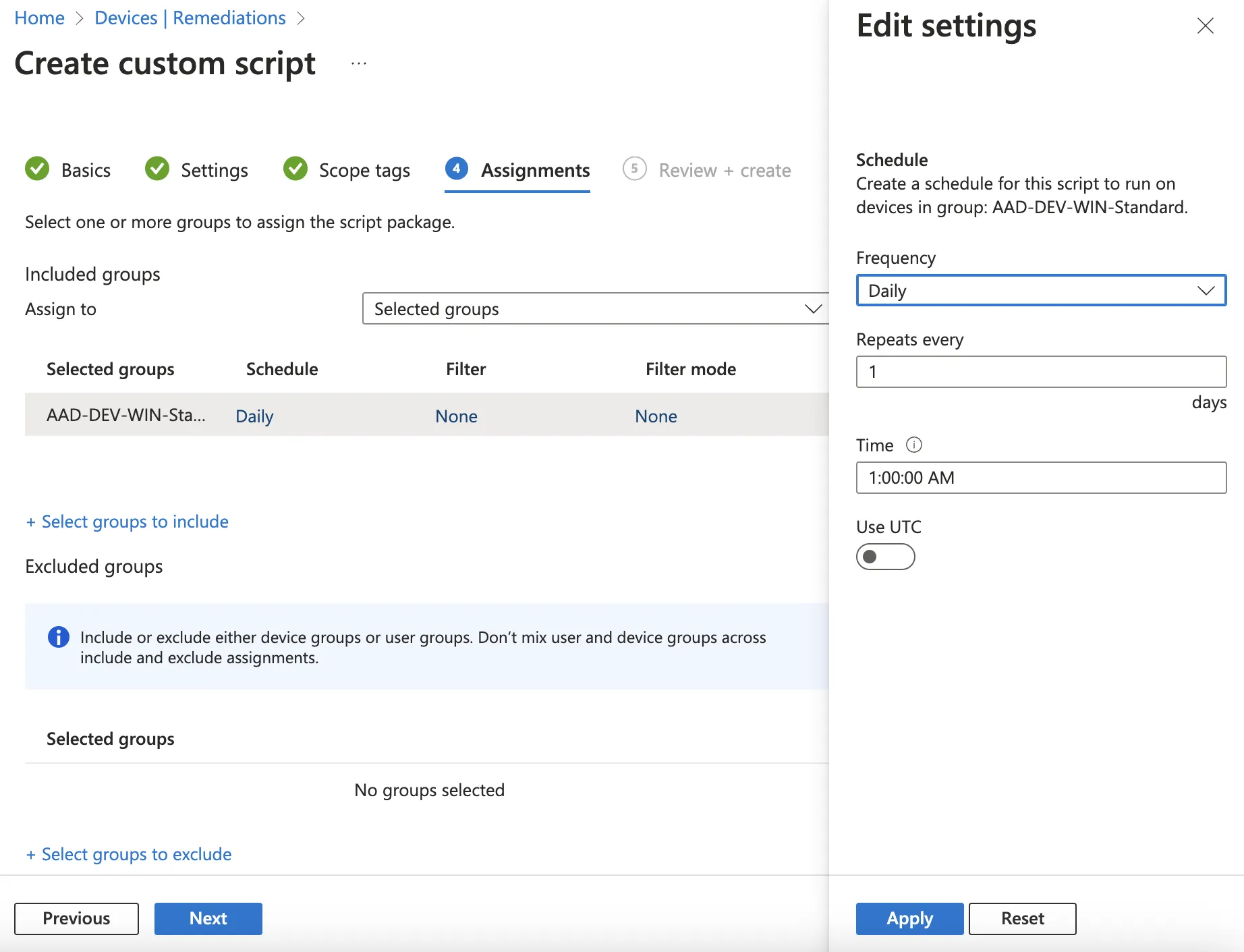
When assigning, we also define which group and how often the detection should be carried out.
In this example with the standard group, every day at 1:00 am. If the device is not running at this time, execution is caught up on.
Perform update in rings
With this type of detection, the update is always carried out on the day of the release. For example, if you only want to run it on the majority of devices after 7 days, you can create a second package and add the following code to this in the detection (line 16), which checks whether the update has been available for 7 days.
$UpdateDelay = 7
if($EXE_onlineDTS -gt $(Get-Date).AddDays(-$UpdateDelay).ToString("yyyy-MM-dd")){
	Write-Output "Update available, but not more than $UpdateDelay days"
	exit 0
}
The remediation remains the same in this case.
Summary
With this remediation package you have an easy way to automate an update of an app. In addition, you can easily split the deployment into rings with the delay and thus create a package for “First”, “Fast” and “Broad”. Of course you don’t have as much control here as if you really pack the whole thing into your own repository such as DevOps and deploy from there, but it’s much easier to implement.
Something else to keep in mind, if the app gets updates very regularly, the delay can cause problems and versions are skipped.