Cleaning Up Microsoft Apps Cache on Demand with Intune
- Florian Salzmann
- Posted on 16 Jul, 2024
- Updated on 16 Jul, 2024
- 02 Mins read
- (Proactive) Remediations,Microsoft 365,Microsoft Intune,Microsoft Office Apps,PowerShell
Having issues with Microsoft / Office Apps? A cluttered cache can sometimes lead to unexpected behavior. This guide demonstrates how to clear the Microsoft Apps cache on demand with Intune, potentially resolving various app-related problems.
This blog post covers cache cleanup for all Microsoft 365 applications (Office apps) except Outlook.
Benefits of Clearing the Microsoft Apps Cache
- Improved Performance: Clearing the cache can streamline apps by removing potentially outdated or corrupted data.
- Enhanced Stability: Removing cached data can sometimes resolve crashes, freezes, or other stability issues within apps.
- Faster Troubleshooting: This method quickly eliminates the user cache as a potential culprit, allowing you to focus on other troubleshooting steps if necessary.
Clear Microsoft Apps Cache Manually
- Close all your Office Applications

- Open this folder: %LOCALAPPDATA%\Microsoft\Office\16.0\Wef\
(you can copy an past the variable, it will automatically redirect you to the right location) - Delete all the content in this folder
Using a Script for Automatic Cleanup
Similar to the Teams cache cleanup, a PowerShell script can be created to automate the process for Microsoft Apps.
Here’s a general outline:
- The script identifies the cache location.
- It checks if the applications are running.
- If one or more applications are running, a prompt would inform the user to close it before proceeding.
- Upon confirmation, the script closes the apps and clears the cache.
Setup the Remediation in Intune
Download the Script
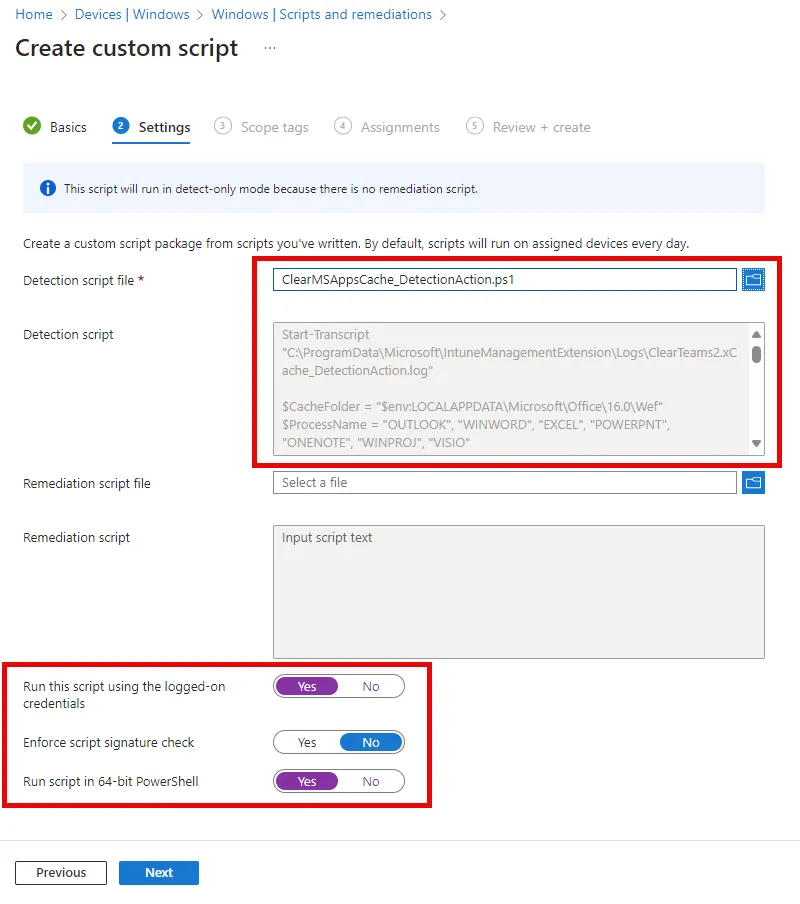
Save the code as a .ps1 file (e.g., ClearMSAppsCache_DetectionAction.ps1) or download it from GitHub (above).
Create a Remediation Package in Intune
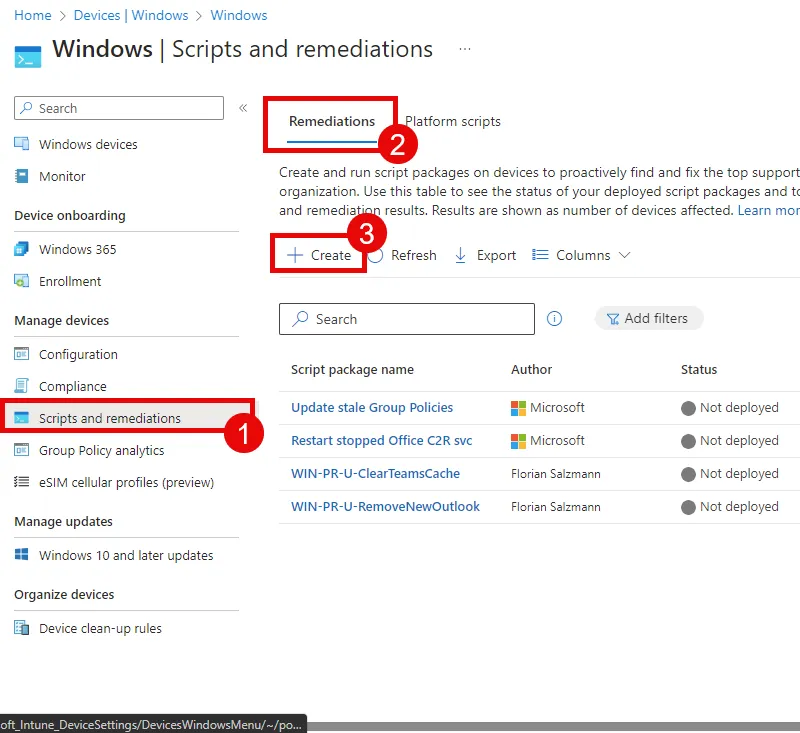
- Navigate to: Intune > Devices > Windows > Scripts and remediations
- Hit + Create
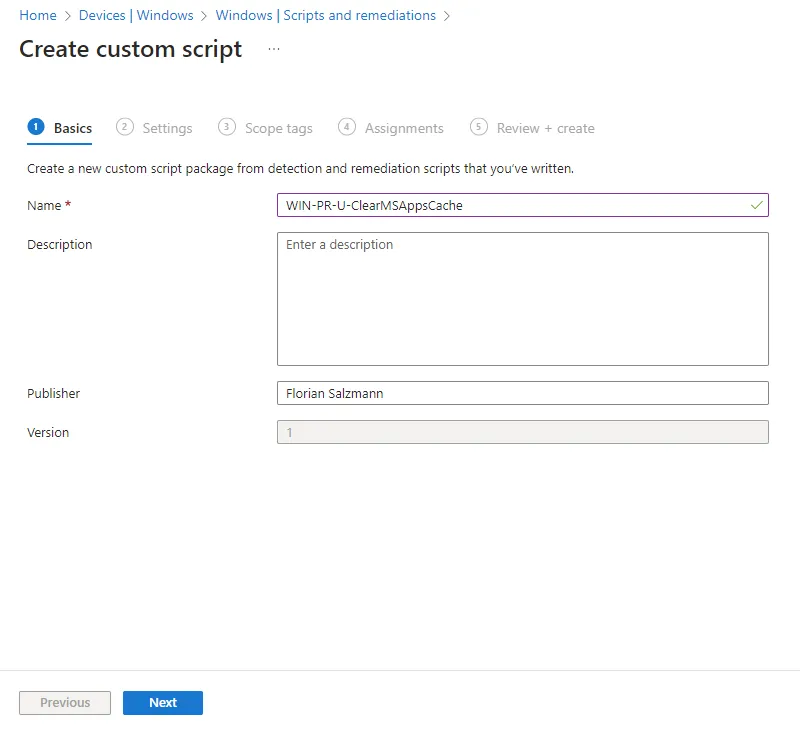
- Give your package a name and a optional description.
- Upload the previous saved PowerShell script.
(Since everything in in one script, we only need the detection)- In addition, set the script to run as the logged-on user in in 64bit context.
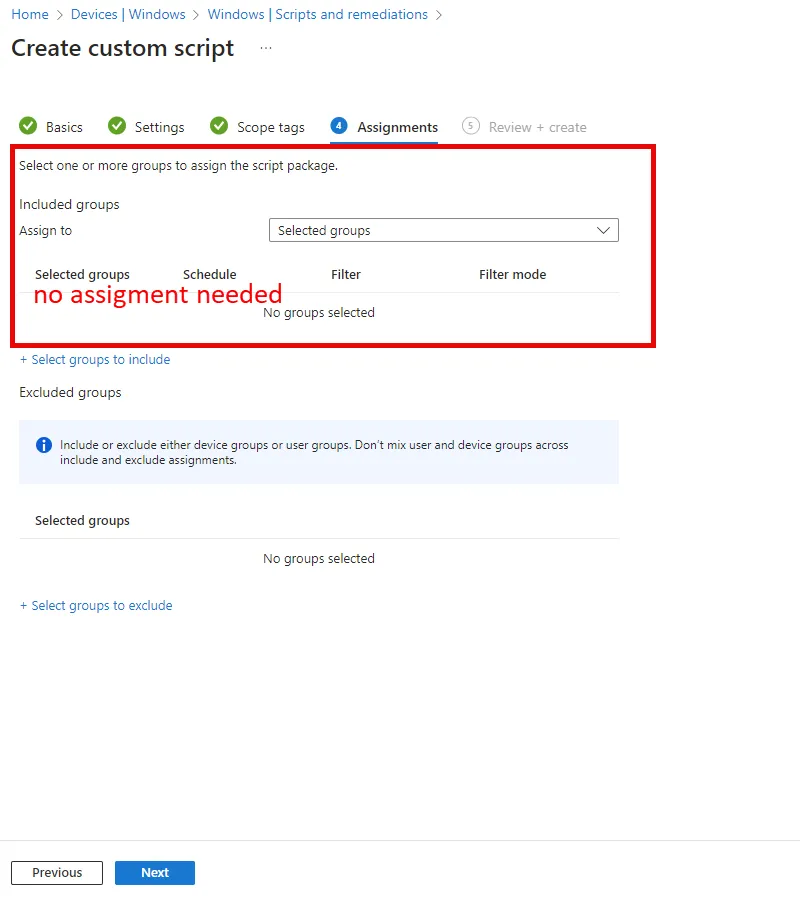
- All the other points you can skip, including the assignment. Cause we will use it only for on-demand actions.
Remediation on-demand in action
Here is a video that shows you how the on-demand remediation to clear the Microsoft 365 Apps cache in Intune works. (The video is in real time.)
Alternative Solutions
- Reinstall the App: If clearing the cache doesn’t resolve the issue, consider reinstalling the Microsoft App. This will remove all app data and reinstall it from scratch.
- Office Repair: This is a “light” option of the reinstall.