Disable Windows "Connect printer automatically" - Intune
- Florian Salzmann
- Posted on 14 Mar, 2021
- Updated on 12 Jul, 2026
- 02 Mins read
- Microsoft Intune
Short answer: Deploy a two-line PowerShell script via Intune that sets the AutoSetup registry value under NcdAutoSetup\Private to 0 - no GPO required.
Why disable “Connect printer automatically”?
The Windows function “Connect printer automatically” automatically connects recognized network printers and displays them to the users. This is very tedious, especially in offices with many network printers. Because, for example, a user sees much more than he actually needs and may not find the right printer or even print on the wrong device. Luckily, you can disable the “Automatically connect printer” feature with just two lines of PowerShell and Intune.
How do I disable “Connect printer automatically” in Windows via Intune?
Here are the two lines:
# Auto Connect für Printer deaktivieren
New-Item -Path "hklm:\SOFTWARE\Microsoft\Windows\CurrentVersion\NcdAutoSetup" -Name "Private" -Force
New-ItemProperty "hklm:\SOFTWARE\Microsoft\Windows\CurrentVersion\NcdAutoSetup\Private" -Name "AutoSetup" -Value 0 -PropertyType "DWord" -Force
We save these two lines in a script, for example “No-Auto-Printer-Connect.ps1”, and upload it to Intune.
You upload the script under: Devices > Windows > PowerShell scripts
Here you choose ”+ Add”, assign a suitable name and upload the script. Finally, you only have to assign it.
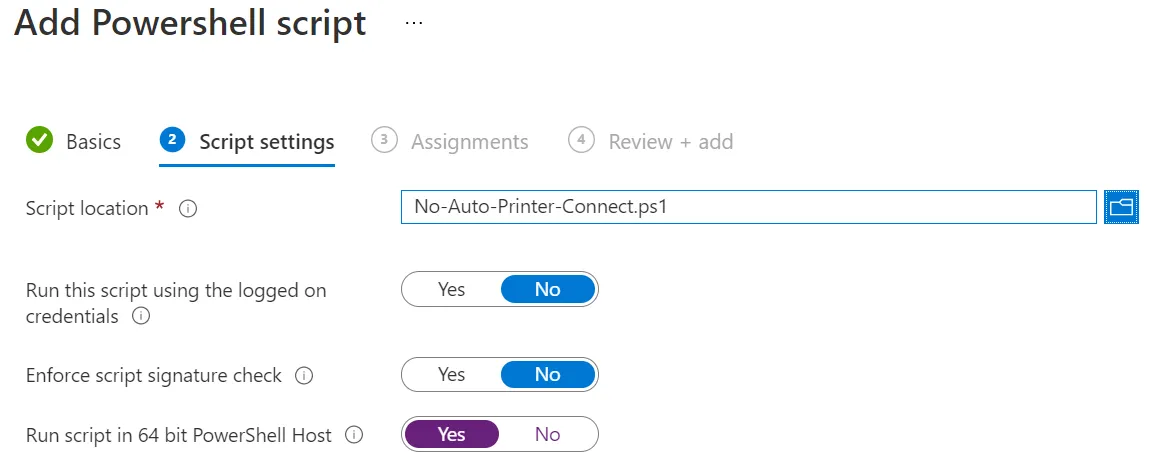
That’s it, you removed the hack in the Windows option “Connect printer automatically” with Intune.
FAQ
Which registry key controls this behavior?
HKLM:\SOFTWARE\Microsoft\Windows\CurrentVersion\NcdAutoSetup\Private, value AutoSetup, set to 0 (DWord).
Does this work with Group Policy instead of Intune?
The same registry key can be set via a GPO Preference if you’re still on-prem managed - this guide uses an Intune PowerShell script since that’s the more common path for cloud-managed fleets today.
Will this affect printers already connected on devices?
No, it only stops new automatic connections going forward; printers a user already has connected are unaffected.
How do I confirm the script actually ran on a device?
Check the script’s run status under Devices > Windows > PowerShell scripts > [your script] > Device status in Intune - it should show “Success” per device. If you want to verify locally too, Get-ItemProperty "HKLM:\SOFTWARE\Microsoft\Windows\CurrentVersion\NcdAutoSetup\Private" -Name AutoSetup should return 0.
How do I roll this back if needed?
Deploy a second script that sets the same AutoSetup value back to 1 (or deletes the Private key entirely), and unassign or remove the original script - Intune won’t revert the registry change automatically just because the assignment is removed.