Remove Any Preinstalled Microsoft Store App with Intune Settings Catalog
- Florian Salzmann
- Posted on 24 Aug, 2026
- Updated on 12 Oct, 2026
- 06 Mins read
- Microsoft Intune,Windows 11
Microsoft Intune’s Settings Catalog can now remove any preinstalled Microsoft Store app on Windows 11 - including third-party apps like Lovable - through the RemoveDefaultMicrosoftStorePackages policy’s dynamic removal list, without writing OMA URI XML or touching the registry.
You want Lovable gone from every Windows 11 device before it reaches a user. Maybe it is a different app on your list, but the story is the same. If you have ever tried RemoveDefaultMicrosoftStorePackages through Group Policy or a custom OMA URI, you know it is not a five minute job.
Microsoft added a dynamic app removal list to that policy in April 2026, which finally let you target any Microsoft Store app by its Package Family Name (PFN) instead of just the built in checkbox list. The catch was that it still ran through GPO or a raw OMA URI payload, plus a mandatory one time registry touch on every device. I tested the current Settings Catalog implementation on Windows 11, version 25H2, build 26200.8893, and removed Lovable in a few clicks and one PowerShell command. No XML, no registry key.
What Is the Microsoft Store App Removal Policy?
RemoveDefaultMicrosoftStorePackages is an ADMX backed policy (documented in the ApplicationManagement Policy CSP) that uninstalls preinstalled MSIX/APPX apps on Windows 11 Enterprise and Education devices. It originally shipped as a static checkbox list. You could tick off apps like Clipchamp, Copilot, or MicrosoftSolitaireCollection and Windows would remove them at provisioning or next sign in.
In April 2026, Microsoft extended the policy with a dynamic removal list. Instead of being limited to the apps Microsoft predefined, you could add any PFN and Windows would treat it the same way: uninstall it, block reinstallation while the policy is active, and remove the associated app data.
That part was genuinely useful. What still needed work was how you configured it.
Why Was the OMA URI Approach Painful?
If you built this through a custom OMA URI, you were writing a full XML payload by hand:
<enabled/>
<data id="Clipchamp" value="false"/>
<data id="MSTeams" value="false"/>
<data id="DynamicRemovalList" value="Microsoft.BingNews_8wekyb3d8bbwe
Microsoft.WindowsAlarms_8wekyb3d8bbwe"/>Notice the 
 in the dynamic list value. That is an HTML encoded carriage return and line feed, and it is how you separate multiple PFNs in the string. Get that wrong and the policy silently fails to apply the way you expect.
On top of that, Microsoft’s own documentation calls out a mandatory step: you have to open the dynamic list registry key once on each device for the format to normalise correctly.
HKEY_LOCAL_MACHINE\SOFTWARE\Policies\Microsoft\Windows\Appx\RemoveDefaultMicrosoftStorePackagesThat is not something you can script cleanly at scale without extra tooling, and it is easy to miss during a rollout. Add in the warning about CSP schema mismatches between older and newer devices, where a policy built for the new schema can fail to parse on an older build, and this became a policy I approached carefully rather than one I pushed out fast.
What Changed: Native Settings Catalog Support
The Settings Catalog entry for this policy now exposes the dynamic removal list directly as a setting. You search for it, add your PFNs in the field, and assign the profile. No OMA URI construction, no XML escaping, and in my test, no manual registry step.
This matters because it puts app removal in the same workflow as every other Settings Catalog policy you already manage. You are not maintaining a separate custom profile with hand built XML sitting next to your normal catalog based configuration.
How Do You Find the Package Family Name?
Before you can remove a custom app, you need its PFN. Run Get-AppxPackage on a device where the app is installed:
Get-AppxPackage *Lovable* | Select-Object PackageFamilyName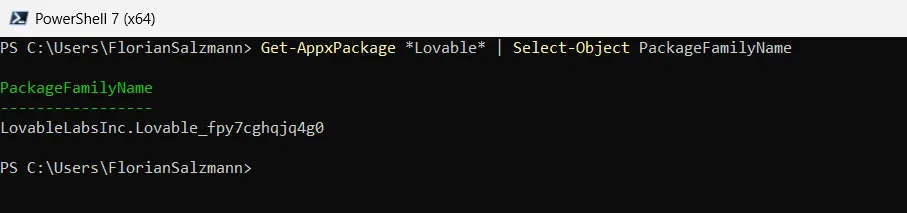
The wildcard match on the app name is enough. The output gives you the exact PFN string you paste into the Settings Catalog dynamic list field.
Testing: Removing Lovable on Windows 11 25H2
I ran this test on Windows 11, version 25H2, build 26200.8893, Enterprise edition. Lovable is not part of Microsoft’s default checkbox list, so it is a good test case for the dynamic list specifically, not the built in options.
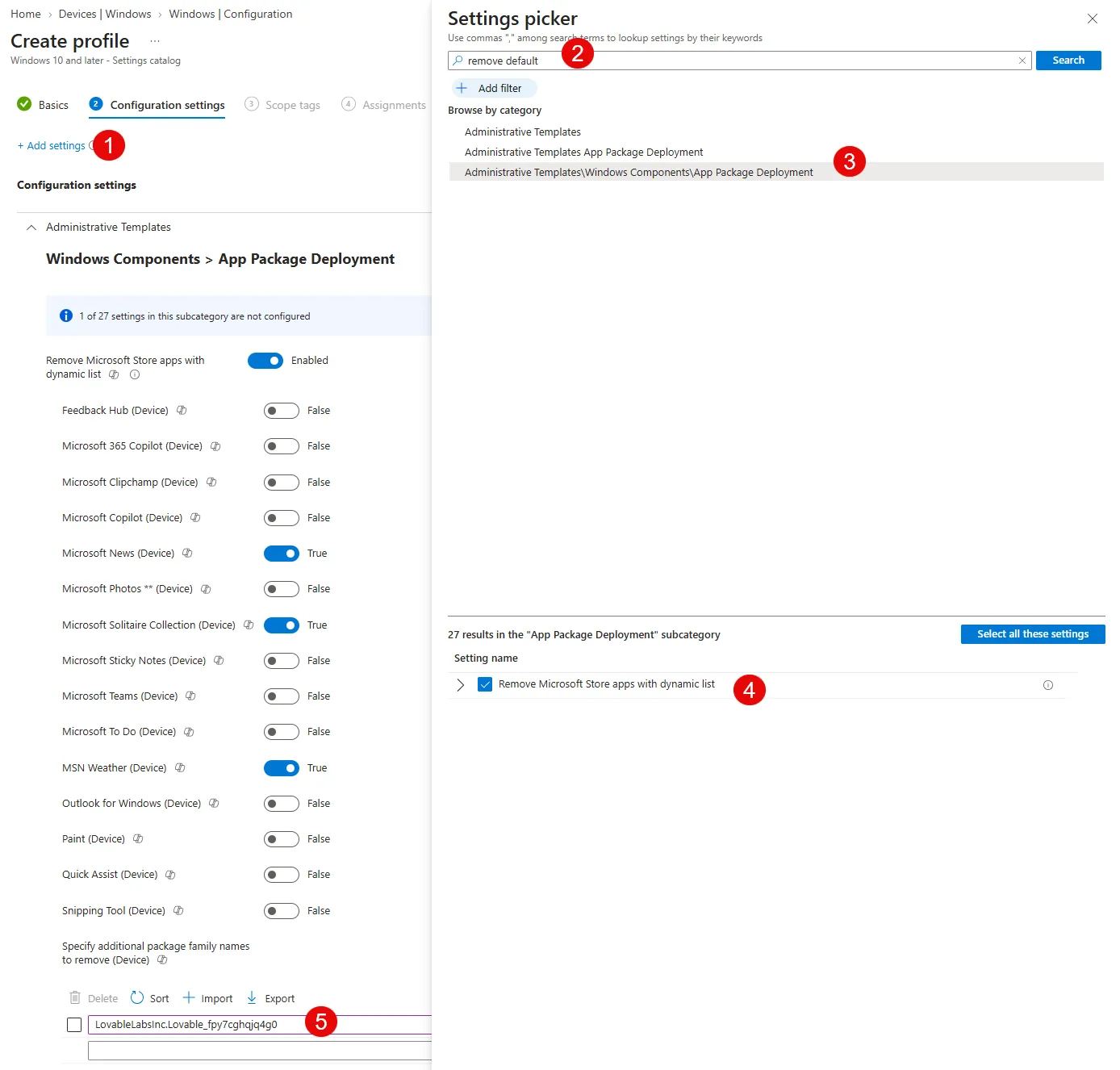
After assigning the profile and syncing the device, Lovable was removed at next sign in, along with its local app data. That last part is worth planning for. If a user has anything stored locally in the app, it is gone once the policy applies.
How Do You Deploy the Removal Policy with Intune?
- Go to Devices > Configuration > Settings catalog > + Create.
- Search for Remove default Microsoft Store packages from the system and add it.
- Leave the standard checkbox apps as needed for your organisation, or leave them all unset if you only want the custom app removed.
- In the dynamic list field, paste the PFN you resolved with
Get-AppxPackage. Use one PFN per line if you are removing more than one custom app. - Assign the profile to a small test group first, not your full fleet.
- Sync a test device and confirm the policy applies before widening the assignment.
Start narrow. This policy deletes app data on removal, so a bad PFN entry or an unintended assignment scope is not something you want to discover on production devices.
Testing and Verification
On the test device, confirm the app is gone after sign in and check that it cannot be reinstalled from the Microsoft Store while the policy is active. If you need to roll it back, remove the assignment and the app becomes installable again, though Windows will not restore what was already removed automatically.
A few things Microsoft is explicit about, and that I confirmed matter in practice:
- Removing an app also removes its on disk app data. Warn users before you push this if the app is something they use with local files.
- You cannot use the dynamic list to remove system components. It is meant for MSIX/APPX packaged apps, not core Windows functionality.
- Removed apps stay blocked from reinstallation for as long as the policy is assigned.
Caveats to Know Before You Roll This Out
This is supported on Windows 11, version 24H2 and 25H2, Enterprise and Education editions only. Home and Pro are not supported, and you need at least the April 2026 non security update installed on the device for the dynamic list functionality to work at all.
I have only confirmed the native Settings Catalog behaviour, including skipping the registry step, on build 26200.8893. If you are running a mixed fleet with older builds still on the OMA URI approach, keep that policy separate from a newer Settings Catalog based one rather than trying to consolidate immediately. Microsoft’s own guidance on the CSP schema mismatch was written with the OMA URI method in mind, so test carefully before you assume Settings Catalog fully removes that risk across every build in your environment.
Intune support for the dynamic list through Settings Catalog was still described as rolling out gradually at the time I wrote this, so if you search for the setting and only see the static checkbox options, your tenant may not have the update yet.
If you are still removing custom apps through a hand built OMA URI, this is worth switching over. Ten minutes in Settings Catalog replaces an XML payload, a registry workaround, and the schema mismatch risk that came with it. Just test on a small group first, since app data removal is not reversible once the policy applies.
Frequently asked questions
Can Intune remove any preinstalled Microsoft Store app?
Yes, on supported builds. The Settings Catalog setting Remove default Microsoft Store packages from the system has a dynamic removal list where you enter the Package Family Name of any MSIX or APPX app, including third-party apps like Lovable. It does not work for core Windows system components.
How do I find the Package Family Name of an app?
Run Get-AppxPackage with a wildcard on a device where the app is installed, for example Get-AppxPackage Lovable | Select-Object PackageFamilyName. Paste the resulting PFN into the dynamic list field, one PFN per line if you remove several apps.
Which Windows versions and editions support the dynamic removal list?
Windows 11 version 24H2 and 25H2, Enterprise and Education editions only. Home and Pro are not supported, and the device needs at least the April 2026 non-security update for the dynamic list to work.
Does removing an app also delete its data?
Yes. The policy removes the app together with its local app data and blocks reinstallation for as long as the policy is assigned. Warn users first if they keep local files in the app, and start with a small test group.
Do I still need the registry step that the OMA URI method required?
In my test on Windows 11 25H2, build 26200.8893, the Settings Catalog setting worked without the manual registry step. I have only confirmed this on that build, so keep older builds on the OMA URI approach in a separate policy and test before consolidating.