Intune Secure Boot Certificate Update: Fix Before the 2026 Deadline
- Florian Salzmann
- Posted on 13 Nov, 2025
- Updated on 12 Oct, 2026
- 10 Mins read
- Microsoft Intune
In this post I show you how I prepare my Intune devices for the Secure Boot certificate rollover that happens in 2026. The topic sounds small at first, but it affects every Windows device that uses Secure Boot. Microsoft is retiring the old Secure Boot certificates from 2011. These certificates control if your device can trust new bootloaders and receive Secure Boot related updates in the future.
To make this easier to follow I included a short overview of the change and what you need to do.
**Last updated: 13. March 2026
**I will update this blog post as soon as new recommendations and monitoring functions are available from Microsoft.
The change in short
- The 2011 certificate set expires in 2026.
- Devices must move to the 2023 certificate chain.
- Updates are handled through Windows Update or OEM firmware.
- You can opt in through a registry setting.
- There might be a future option in Intune or Autopatch but nothing official yet.
What to do
Here are the implications if you do not update the certificates in time:
- Lose the ability to install Secure Boot security updates after June 2026
- Not trust third party software signed with the new certificates after June 2026
- Not receive security fixes for Windows Boot Manager after October 2026
What Are Secure Boot Certificates?
Secure Boot checks if the boot process loads trusted components. The trust is based on four certificate lists inside the UEFI firmware.
- PK
- KEK
- DB
- DBX
The most relevant lists for us are DB and DBX. DB contains allowed signatures. DBX contains revoked signatures. Microsoft signs bootloaders and drivers with certificates. These older 2011 certificates expire in 2026. The new 2023 certificates replace them.
If a device uses the old set after the expiry, it cannot validate new bootloaders. This can impact updates and security. So we need to update the devices before 2026. Microsoft documents the key hierarchy in its Secure Boot key creation and management guidance.
What Does the 2026 Secure Boot Deadline Mean?
The Secure Boot certificates expire in two waves during 2026. After the expiry the device cannot validate newer Secure Boot components. Microsoft provides the new certificates through Windows Update or OEM firmware updates.
If the firmware blocks the update then the device is not future ready. I have already seen this on older devices. These devices need a firmware update or a replacement.
I plan to complete the rollout well before the June deadline to avoid stress. The dates and the update paths are listed in Microsoft’s article Windows Secure Boot certificate expiration and CA updates.
How Does the Secure Boot Certificate Update Work?
The core mechanism is straightforward. Windows maintains a scheduled task that runs every 12 hours. It checks the AvailableUpdates registry key under HKLM:\SYSTEM\CurrentControlSet\Control\SecureBoot for bits that indicate which updates to process. When you set the right value, the scheduled task picks it up, stages the new certificates and applies them after one or more reboots.
The value 0x5944 triggers all relevant update flags. This is the most complete option and has proven stable in production environments.
Why Is the Settings Catalog Approach Problematic?
Microsoft added Secure Boot certificate update controls to the Intune Settings Catalog. In theory this is the cleanest way to manage the rollout. In practice it has caused significant issues.
The main problem is Error 65000. When you deploy the Settings Catalog policy, many devices report this error. The root cause is a licensing check inside Windows. The Secure Boot CSP settings are blocked on Windows Pro editions. This includes devices that were upgraded from Pro to Enterprise through subscription activation. Even though these devices show as Enterprise in Intune and in system settings, the internal licensing engine still treats them as Pro for policy evaluation purposes.

Microsoft acknowledged this as a known issue and updated the Intune licensing service on 27 January 2026 to allow Pro editions. However, devices that received their license before that date need a license renewal. Microsoft stated this would resolve automatically by 27 February 2026. In practice, many tenants still see 65000 errors even after that date, especially on devices with outdated cumulative updates or stale licensing metadata.
On top of the Error 65000 problem, the Settings Catalog policy does not give you any deployment visibility. You see if the profile was assigned and if it reported as applied. But you do not see the actual Secure Boot certificate rollout status. There is no view that tells you which devices are staged, which are updated and which failed. Microsoft briefly introduced a Secure Boot Status Report in Intune, but it was pulled back because the data could not be trusted.
This means the Settings Catalog approach gives you unreliable deployment and no rollout visibility. For most environments, a script based approach is more practical.
The Universal Alternative: A Platform Script
Instead of relying on the Settings Catalog, I use an Intune Platform Script that checks the current Secure Boot state and triggers the update directly. This approach works on all Windows editions. There is no licensing gate, no CSP dependency and no Error 65000.
The script does the following in a single pass:
- Checks if the device runs elevated 64-bit PowerShell.
- Checks if Secure Boot is enabled.
- Reads the
UEFICA2023Statusregistry value to determine the current state. - If the status is “Updated” and
WindowsUEFICA2023Capableis 2, the device is done. - If the status is “InProgress”, the device is waiting for a reboot or task completion.
- If the status is “NotStarted” and the trigger is not yet set, the script sets
AvailableUpdatesto0x5944and starts the scheduled task\Microsoft\Windows\PI\Secure-Boot-Update.
Here is the full script:
Update Secure Boot Cert Script @GitHub
<#
.SYNOPSIS
    Intune Platform Script to check and remediate Secure Boot CA 2023 certificate update.

.DESCRIPTION
    Checks if Secure Boot is enabled and if the CA 2023 update has been applied.
    If not started, sets the AvailableUpdates registry trigger and starts the scheduled task.
    Designed to run as a single Intune Platform Script (not a remediation).

.NOTES
  Author: Florian Salzmann | @FlorianSLZ | https://scloud.work
  Version: 1.0
  Run As: System
  Created: 2026-03-13

#>

$ScriptName = "WIN-S-D-SecureBoot-CA2023-Update"
Start-Transcript -Path "$env:ProgramData\Microsoft\IntuneManagementExtension\Logs\$ScriptName.log" -Force


$AvailableUpdatesValue = 0x5944
$ScheduledTaskName = "\Microsoft\Windows\PI\Secure-Boot-Update"


try {

    # Check Secure Boot
    try { $sbEnabled = Confirm-SecureBootUEFI -ErrorAction SilentlyContinue } catch { $sbEnabled = $false }
    if (-not $sbEnabled) {
        Write-Warning "Secure Boot is disabled, cannot proceed."
        Exit 1
    }

    # Read current status
    $servicingPath = "HKLM:\SYSTEM\CurrentControlSet\Control\SecureBoot\Servicing"
    $sbPath        = "HKLM:\SYSTEM\CurrentControlSet\Control\SecureBoot"
    $status    = (Get-ItemProperty -Path $servicingPath -Name "UEFICA2023Status" -ErrorAction SilentlyContinue).UEFICA2023Status
    $capable   = (Get-ItemProperty -Path $servicingPath -Name "WindowsUEFICA2023Capable" -ErrorAction SilentlyContinue).WindowsUEFICA2023Capable
    $available = (Get-ItemProperty -Path $sbPath -Name "AvailableUpdates" -ErrorAction SilentlyContinue).AvailableUpdates

    Write-Host "Status=$status, Capable=$capable, AvailableUpdates=$available"

    switch ($status) {
        "Updated" {
            if ($capable -eq 2) {
                Write-Host "Secure Boot CA 2023 update complete. No action needed."
            } else {
                Write-Warning "Status is Updated but Capable=$capable (expected 2)."
            }
        }
        "InProgress" {
            Write-Host "Update in progress, waiting for reboot or task completion."
        }
        "NotStarted" {
            if (($available -band $AvailableUpdatesValue) -eq $AvailableUpdatesValue) {
                Write-Host "Trigger already set, waiting for task or reboot."
            } else {
                Set-ItemProperty -Path $sbPath -Name "AvailableUpdates" -Value $AvailableUpdatesValue -Type DWord
                Write-Host ("AvailableUpdates set to 0x{0:X}" -f $AvailableUpdatesValue)
                Start-ScheduledTask -TaskName $ScheduledTaskName
                Write-Host "Scheduled task triggered. Reboot may be required."
            }
        }
        default {
            Write-Warning "Unknown UEFICA2023Status: $status"
        }
    }
    Exit 0
}
catch {
    Write-Error "Unexpected error: $_"
    Exit 1
}

Stop-Transcript
How to Deploy the Platform Script
- Open the Microsoft Intune admin center.
- Go to Devices > Scripts and remediations > Platform scripts > Windows.
- Click Add.
- Upload the script above.
- Set Run this script using the logged on credentials to No (the script needs SYSTEM context).
- Set Run script in 64-bit PowerShell host to Yes.
- Assign the script to a device group.
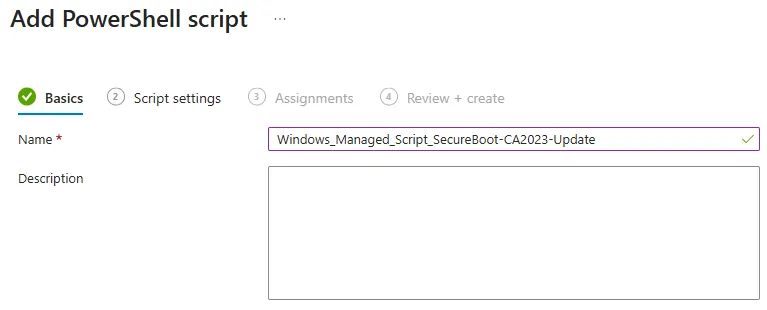
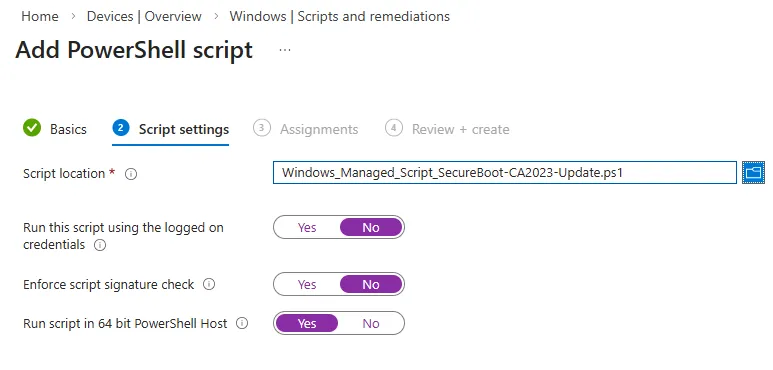
The script runs once per device. If the status is already “Updated” it does nothing. If the status is “NotStarted” it sets the trigger and kicks the scheduled task. After one or more reboots, Windows completes the certificate update on its own.
This covers Intune Business, Enterprise and Education licensed devices. No Settings Catalog policy required. No Error 65000. No dependency on diagnostic data or Microsoft controlled feature rollouts.
Alternative 2: Deploy as a Remediation Package
If you prefer the Intune Remediation (Proactive Remediation) model over a Platform Script, you can split the same logic into a detection and remediation script pair. The advantage is that you get the built-in Intune remediation reporting with compliant and non-compliant device counts, a device status breakdown and the pre/post-remediation output strings visible in the portal.
Detection & Remediation for Secure Boot Cert Update @GitHub
How to deploy the Remediation Package
- Open the Microsoft Intune admin center.
- Go to Devices > Scripts and remediations > Remediations.
- Click Create script package.
- Upload the detection script as the detection script.
- Upload the remediation script as the remediation script.
- Set Run this script using the logged on credentials to No.
- Set Run script in 64-bit PowerShell host to Yes.
- Set the schedule (for example daily) and assign to a device group.
The detection output strings include the registry values, so you can check the pre-remediation detection output column in the Intune portal to see exactly what state a device was in before the remediation ran. This gives you better rollout visibility than the Platform Script, which only runs once and does not report back in the same structured way.
Use the Platform Script if you want a simple one-time push. Use the Remediation Package if you want ongoing monitoring and repeated remediation attempts on devices that fail on the first run.
Secure Boot controls in the Intune Settings Catalog
Microsoft has added explicit Secure Boot controls to the Intune Settings Catalog. This allows Secure Boot certificate updates to be managed directly through Intune and makes the behaviour visible and auditable.
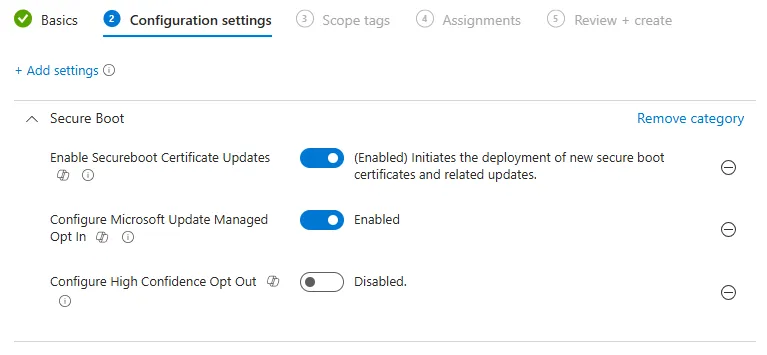
Secure Boot settings overview
| Setting name | What it does | Recommended value |
|---|---|---|
| Enable Secureboot Certificate Updates | Allows the device to receive updated Secure Boot certificates | Enabled |
| Configure Microsoft Update Managed Opt In | Uses Microsoft managed Windows Update to control rollout timing | Enabled |
| Configure High Confidence Opt Out | Excludes the device from Secure Boot certificate updates | Disabled |
Note
These settings apply only to devices with Secure Boot enabled
The Microsoft managed opt in is the safest option for mixed hardware environments
The opt out setting should be used only for validated exception devices
These settings are currently blocked on Pro editions and devices upgraded via subscription activation (Error 65000)
Microsoft updated the licensing service on 27 January 2026, but not all devices are resolved yet
The names and behaviour of these settings are documented in Microsoft’s official Intune guidance on Secure Boot certificate updates.
Set the registry opt in (legacy or fallback method)
To receive the Secure Boot certificate update the device needs this key:
$Path = "HKLM:\SYSTEM\CurrentControlSet\Control\SecureBoot\"
$Key = "MicrosoftUpdateManagedOptIn"
$KeyFormat = "DWORD"
$Value = "1"

if(!(Test-Path $Path)){New-Item -Path $Path -Force}
if(!$Key){Set-Item -Path $Path -Value $Value
}else{Set-ItemProperty -Path $Path -Name $Key -Value $Value -Type $KeyFormat}
Once the key is set, the device becomes eligible for the update. Windows Update handles everything from here.
While Microsoft does mention the registry key as a way to “opt in to Microsoft-managed Secure Boot updates”, they do not provide publicly detailed timelines or guarantee of exactly when the update will hit each device upon setting the key.
Secure Boot Status Report in Intune
Microsoft has added a built-in Secure Boot status report to the Intune admin center. This report gives you a tenant-wide view of which devices have Secure Boot enabled and whether their certificates are up to date. You do not need to run scripts or manually check devices to get this overview.
You can find the report here:
Intune admin center > Reports > Windows Autopatch > Windows quality updates > Reports tab > Secure Boot status
The report shows three states per device:
| Certificate status | Meaning | Action |
|---|---|---|
| Up to date | Device has the 2023 certificates applied | None |
| Not up to date | Device still uses 2011 certificates | Update required |
| Not applicable | Secure Boot is not enabled on the device | No certificate action needed |
The goal is that eveything is green :)
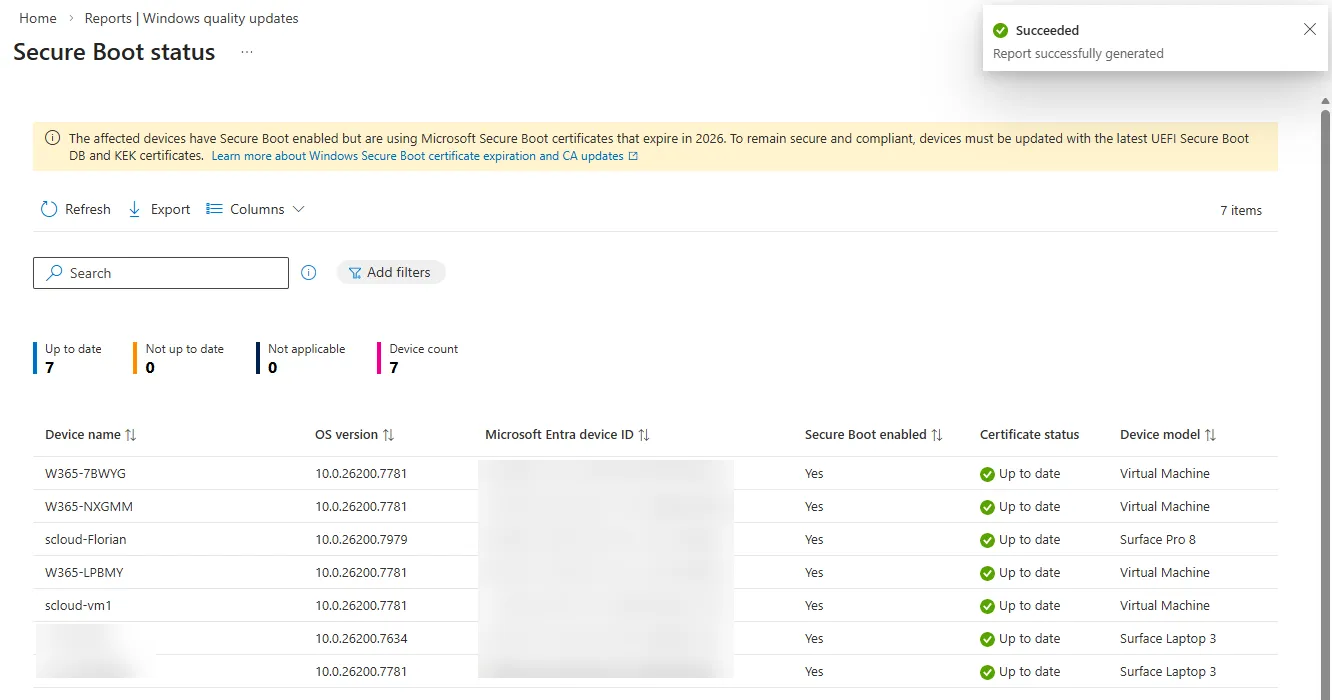
Advanced Monitoring for Installation Status
With this extended remediation I do not only check if the “Windows UEFI CA 2023” certificate is already present in the Secure Boot database. I also monitor the real deployment state of the Microsoft update itself by reading the Secure Boot servicing status from the registry.
The detection script evaluates these three internal Windows indicators:
- UEFICA2023Status
- WindowsUEFICA2023Capable
- UEFICA2023Error
This allows me to clearly see the different rollout states.
Remediation (Detection) @GitHub
The remediation can tell me:
- If the certificate is already written to the UEFI DB
- If the device is technically capable of receiving the update
- If the Microsoft servicing process already completed
- If the update failed with an internal error
- If the device is still waiting for delivery via Windows Update
Based on the output I can clearly see the real status:
- Certificate present → update completed
- Status = Updated or Capable = 2 with no error → update deployed
- No status and no certificate → update still pending
- Error value present → update failed and needs manual investigation
This gives me real deployment visibility, not just a yes or no certificate check. I can clearly separate:
- Devices that are already finished
- Devices that are opted in and still waiting
- Devices that are blocked by firmware or Secure Boot issues
- Devices that hit an update error during servicing
This makes it very easy to track the rollout in Intune and to decide where manual follow up or device replacement is required.
| UEFICA2023Status | WindowsUEFICA2023Capable | UEFICA2023Error | Certificate in DB | Deployment State | Action |
|---|---|---|---|---|---|
| Updated | 2 | 0 or empty | Yes | Update completed | None |
| Updated | 2 | 0 or empty | No | Update deployed, DB not committed yet | Reboot and recheck |
| Empty or null | 2 | 0 or empty | No | Opted in and waiting for Windows Update | Wait |
| Empty or null | 1 or 0 | 0 or empty | No | Device not capable yet | Check firmware |
| Any value | Any value | > 0 | No | Update failed | Manual investigation |
| Any value | Any value | Any value | Yes | Certificate already present | None |
| Secure Boot DB not readable | Any value | Any value | Unknown | Secure Boot or firmware access issue | Check Secure Boot and BIOS |
What Should You Not Do During the Rollout?
Do not enable High Confidence Opt Out as a general safety measure. This prevents devices from receiving required Secure Boot trust updates.
Do not mix deployment methods on the same device. If you use the Platform Script, do not also assign the Settings Catalog policy to the same devices. Pick one approach and stick with it.
Do not skip the OEM firmware update. Microsoft’s documentation is clear that OEM firmware updates are the foundation for the Secure Boot certificate update to apply correctly. Check with your hardware vendors and apply any available firmware updates before triggering the certificate deployment.
Frequently asked questions
When do the Secure Boot certificates expire?
The 2011 Secure Boot certificate set expires in 2026, in two waves. After June 2026, devices that still use the old certificates can no longer install Secure Boot security updates and do not trust third-party software signed with the new certificates. After October 2026, they also stop receiving security fixes for Windows Boot Manager.
What happens if I do not update the Secure Boot certificates?
The device keeps booting, but it cannot validate newer Secure Boot components. It loses Secure Boot security updates, does not trust software signed with the 2023 certificates, and stops receiving Windows Boot Manager fixes. Devices whose firmware blocks the update need a firmware update or replacement.
How do I update the Secure Boot certificates with Intune?
Use an Intune Platform Script that sets the AvailableUpdates registry value to 0x5944 and starts the Secure-Boot-Update scheduled task, or deploy the same logic as a Remediation package if you want ongoing reporting. The Settings Catalog policy also works, but it is blocked on Windows Pro editions with Error 65000.
Why does the Settings Catalog policy show Error 65000?
The Secure Boot CSP settings are blocked on Windows Pro editions, including devices upgraded to Enterprise through subscription activation, because the licensing engine still treats them as Pro. Microsoft updated the Intune licensing service on 27 January 2026, but many tenants still see the error, especially on devices with outdated cumulative updates.
How can I check if a device has the new Secure Boot certificate?
Read UEFICA2023Status, WindowsUEFICA2023Capable and UEFICA2023Error under HKLM:\SYSTEM\CurrentControlSet\Control\SecureBoot\Servicing. Status Updated with Capable set to 2 and no error means the update is deployed. A tenant-wide view is available in the Intune admin center under Reports > Windows Autopatch > Windows quality updates > Secure Boot status.