Understanding Microsoft 365 Licensing: Your Ultimate Guide
- Florian Salzmann
- Posted on 19 Jun, 2021
- Updated on 28 Jul, 2026
- 04 Mins read
- Licenses,Microsoft 365
When it comes to Microsoft 365 Licensing, it’s essential to cut through the jargon and make informed choices. One of the most helpful resources available is Aaron Dinnage’s comprehensive guide. In this article, we’ll dive into the world of Microsoft 365 Licensing, explore Aaron Dinnage’s guide, and introduce you to the user-friendly M365 Maps tool.
Meet M365 Maps: Simplifying Your Licensing Journey
The handiest tool to help you navigate Microsoft 365 Licensing: M365 Maps.
This innovative resource simplifies the process of understanding your options.
Tailoring Licenses to Your Needs
M365 Maps features an interactive selection tool that lets you customize your licensing choices based on your requirements. No more wading through endless options; just input your needs, and M365 Maps will present you with tailored plans. This makes your decision-making process smoother and more aligned with your organization’s goals and budget.
Clear Understanding with Subcategories and Add-Ons
Understanding the different Licensing components can be overwhelming. M365 Maps solves this by providing neatly organized subcategories and add-on options. This visual aid makes it easy to identify the features that matter most to your organization.
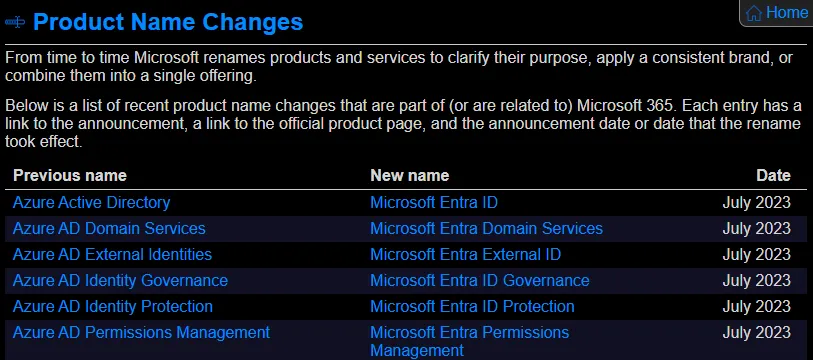
Keep Track of Product Name Changes
I’m sure you’ve come across one or two product name changes. It’s not easy to remember them all. But the Guide has you covered here as well:
Product Name Changes | M365 Maps
This section serves as a quick reference to help you keep track of Microsoft’s evolving product names, ensuring you’re always in the know.
Why M365 licensing is so confusing
Microsoft bundles features differently across plan families (Business, Enterprise, Frontline, Education) and keeps adding to them with add-ons like Teams Premium, Copilot, or additional security SKUs. A feature that’s included in one plan can be a separate add-on in another - that’s exactly the kind of difference M365 Maps makes visible at a glance, instead of you having to piece it together from individual product pages.
Check which licenses are currently assigned in your tenant
Before comparing licenses, it’s worth checking what’s already assigned in your own tenant. In the Microsoft 365 admin center that’s under “Billing > Licenses”. Via PowerShell (Microsoft Graph) you can automate this:
Connect-MgGraph -Scopes "Organization.Read.All"
Get-MgSubscribedSku | Select-Object SkuPartNumber, ConsumedUnits, @{N='Total';E={$_.PrepaidUnits.Enabled}}
That shows you immediately which SKUs are in use and how many seats are still free, before you use M365 Maps to check whether an upgrade or an additional add-on would actually get you the feature you’re after.
Which license do you actually need? A few real examples
M365 Maps is the best place to compare plans side by side, but the question I get asked most often is more specific: “do I already have this, or do I need to buy something?” Here are a few answers I’ve had to work out myself while setting these features up in actual tenants:
| Feature | License it actually needs | Details |
|---|---|---|
| Proactive Remediations (self-healing scripts) | Windows Enterprise E3/E5 (or Intune Plan 2) - not included in Business Premium | My workaround for Business Premium tenants |
| Certificate Connector for on-prem CA integration | Intune Plan 1 - already included in M365 E3 | Cloud PKI vs. Certificate Connector comparison (in the works) |
| Cloud PKI | Intune Suite, the Cloud PKI add-on, or M365 E5 (from July 2026) | Cloud PKI vs. Certificate Connector comparison (in the works) |
| Intune Endpoint Privilege Management | Included in M365 E5 from 1 July 2026, otherwise a separate add-on | Intune EPM vs. the alternatives |
| Defender for Business (MAM onboarding for Android/iOS) | Defender for Business or Endpoint, plus an Intune license | Defender for Business for Android MAM |
| Defender for Business itself | Included from Microsoft 365 Business Premium | Defender for Business onboarding |
| Advanced Hunting for blocked USB device events | Defender for Endpoint Plan 2 with E5 licensing | Block USB drives with Intune (in the works) |
| Driver update management via Intune (Dell/HP) | Windows Enterprise or Education | Dell driver with Intune |
This list will grow as I run into more of these - it’s usually faster to check here first than to dig through Microsoft’s product pages.
How I actually use M365 Maps with clients
In practice, I pull up M365 Maps live during a licensing conversation rather than beforehand. I first check what’s already assigned in the tenant (see above), then use the M365 Maps comparison to see whether the feature someone’s asking about is already included in what they’re paying for, or genuinely needs an upgrade or add-on SKU. More often than not it’s the former - Business Premium in particular already includes security and Intune features that a lot of admins don’t realize are sitting there switched off.
FAQ
Is M365 Maps an official Microsoft resource?
No, it’s a community-maintained tool (Aaron Dinnage), not an official Microsoft resource - but the licensing data is updated regularly.
How often does licensing change, so it’s worth checking again?
Microsoft adjusts bundling and pricing several times a year, usually alongside larger product releases (e.g. new Copilot or security add-ons). I check M365 Maps at least once a quarter before preparing a licensing recommendation for a client - the scope of add-ons in particular changes more often than you’d expect.
Conclusion
In the world of Microsoft Licensing, informed decisions are crucial. Aaron Dinnage’s M365 Maps are here to simplify the complexities of licensing, making it easier for small businesses, IT administrators, and decision-makers in large organizations to choose the right options. Stay informed, stay empowered, and make the most of Microsoft 365 Licensing with these invaluable tools at your fingertips.