Defender for Business for Android - MAM
- Florian Salzmann
- Posted on 25 Feb, 2022
- Updated on 12 Jul, 2026
- 04 Mins read
- Defender for Business,Microsoft Intune,Security
Defender for Business lets you protect Android devices just like Defender for Endpoint, via MDM as well as MAM. The Defender protects the device with a web filter and malware scanning. On Android devices, both features require that the device is managed with Intune. For the management itself, there’s a distinction between MDM (Mobile Device Management) and MAM (Mobile Application Management). MAM comes into play when devices don’t belong to the company and only part of the applications on the device should be protected and managed. Android calls this kind of management “Device Administrator”.
Do you want to protect iOS devices with Defender?
—> Then I have a guide for you here: Defender for Business for iOS Deployment (MAM and MDM)
Defender for Android - Intune - Device Administrator
In this post I focus on the MAM management of Defender for Business on Android devices. Defender for Endpoint offers the identical options. I’ll write about the configuration for MDM devices in a separate post.
Requirements
- Licenses:
- Defender for Business or Endpoint and an Intune license assigned
- or Microsoft 365 Business Premium
- Device is enrolled in MEM / Intune with Company Portal
Defender for Business - Intune Integration
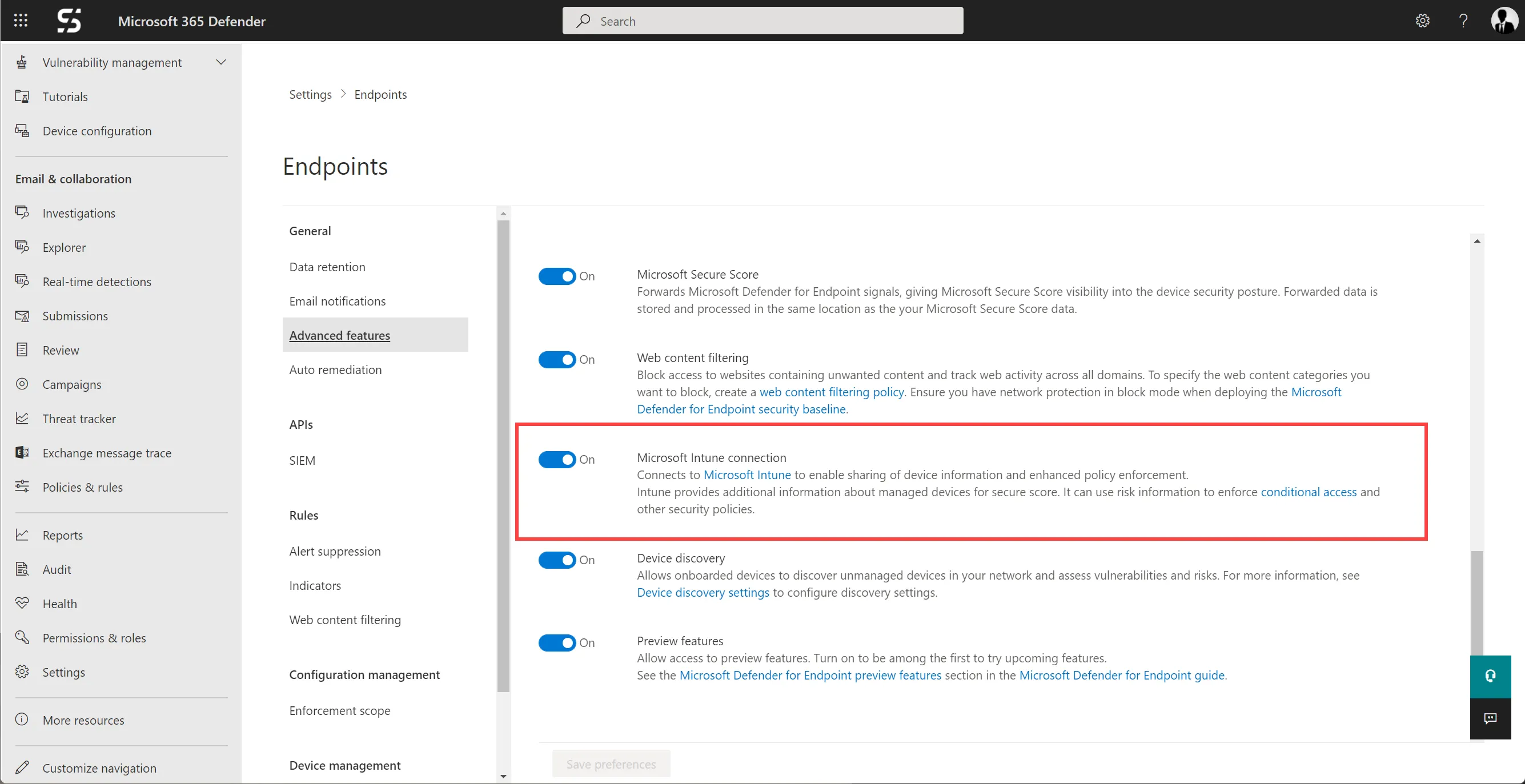
You must make sure that the Intune connection is active. You find this in the Advanced features of Defender.
If you already completed the initial setup as described here (Defender for Business Onboarding / Setup), you can skip these steps.
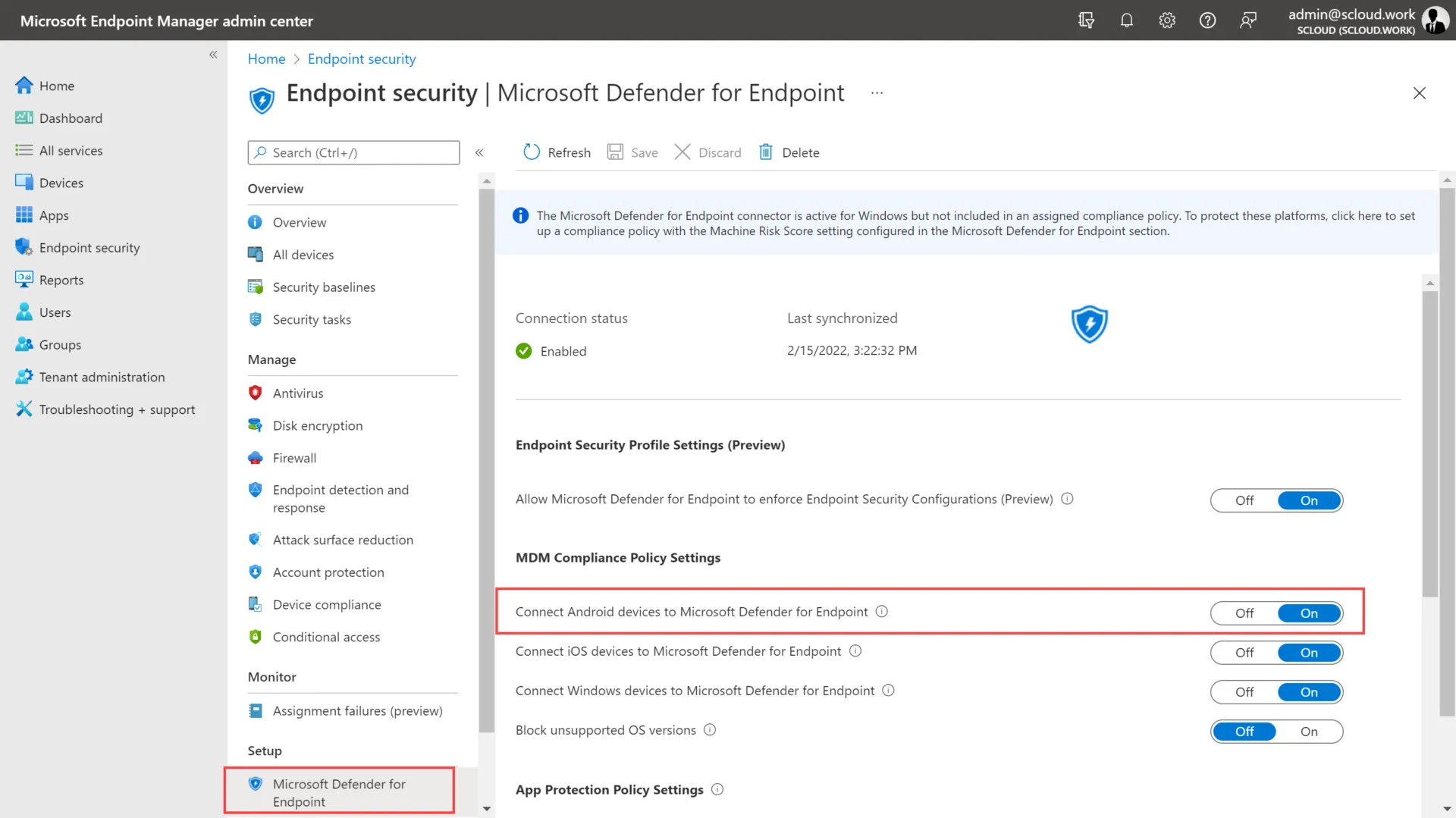
You also have to enable the connection for Android devices in the Endpoint Manager.
You find the option under Endpoint Manager > Endpoint security > Microsoft Defender for Endpoint.
Installing Microsoft Defender App (MAM / Device Administrator)
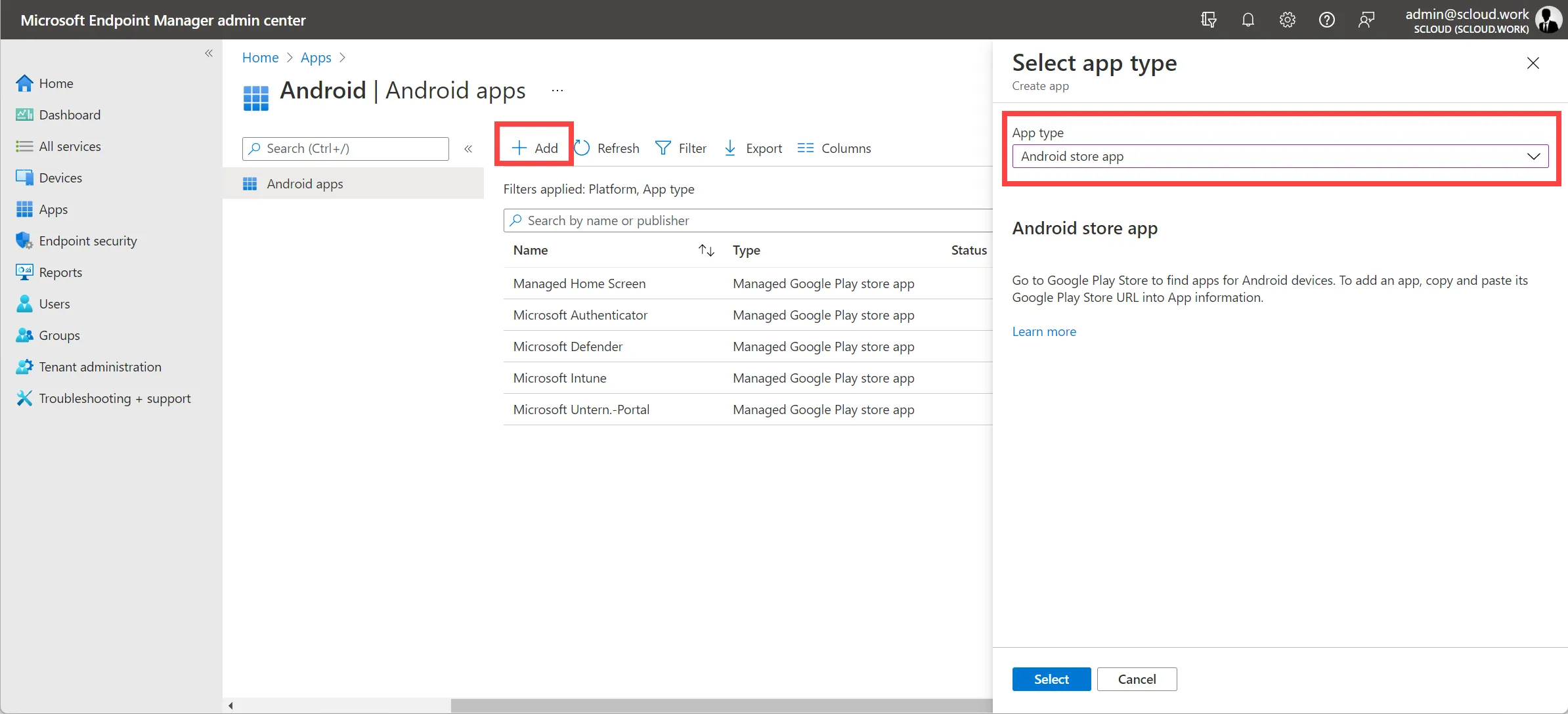
To distribute the app to the MAM managed devices, select +Add under “Apps > Android apps” in the Endpoint Manager. Here the type is “Android store app”.
You have to fill in the name, description, publisher and app URL yourself. Below you find the parameters for “Copy Paste”.
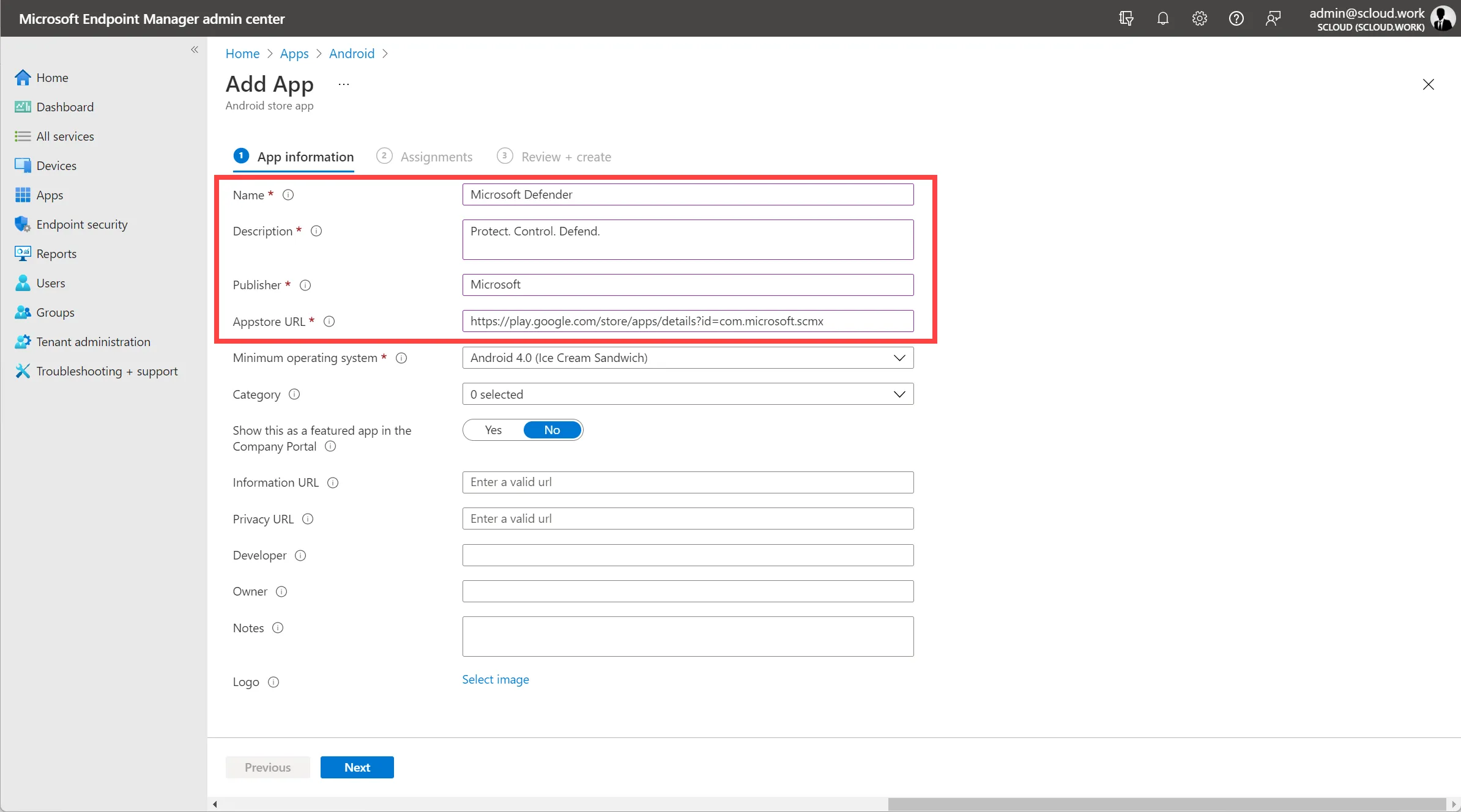
| Name | Microsoft Defender |
| Description | Protect. Control. Defend. |
| Publisher | Microsoft |
| Appstore URL | https://play.google.com/store/apps/details?id=com.microsoft.scmx |
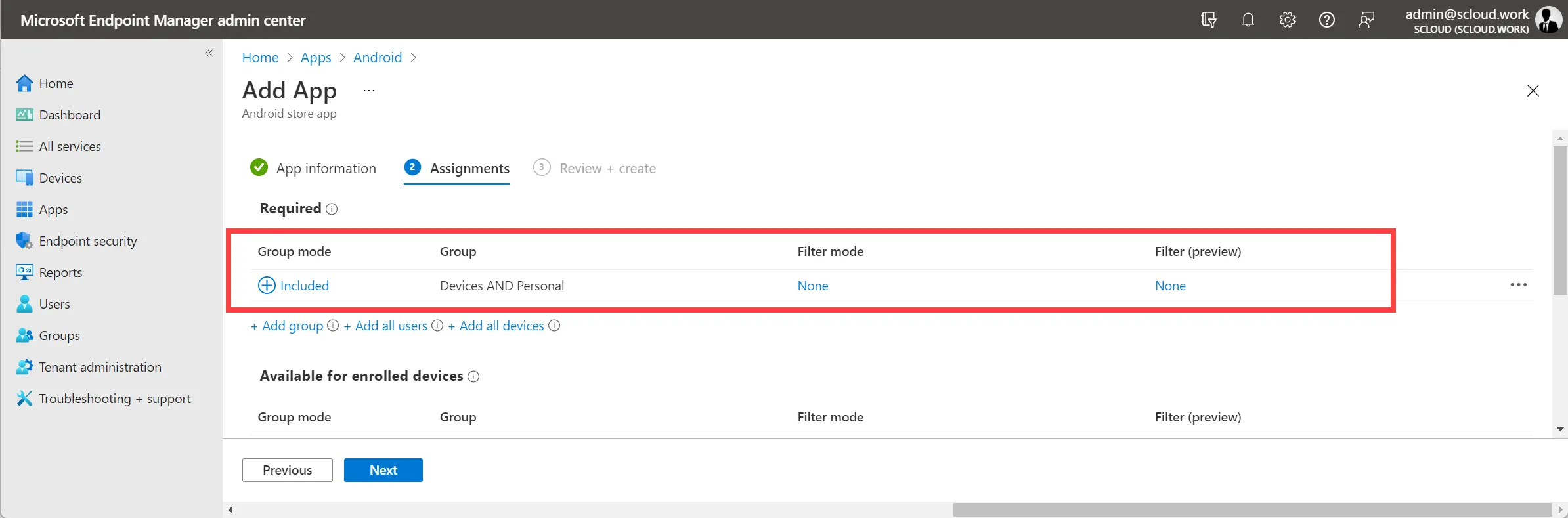
In the assignment you just have to assign the app to a group. For me that’s a dynamic device group that contains all the personal Android devices.
The parameter for that is: (device.deviceOSType -eq “Android”) and (device.deviceOwnership -eq “Personal”)
End User View - Defender for Business MAM
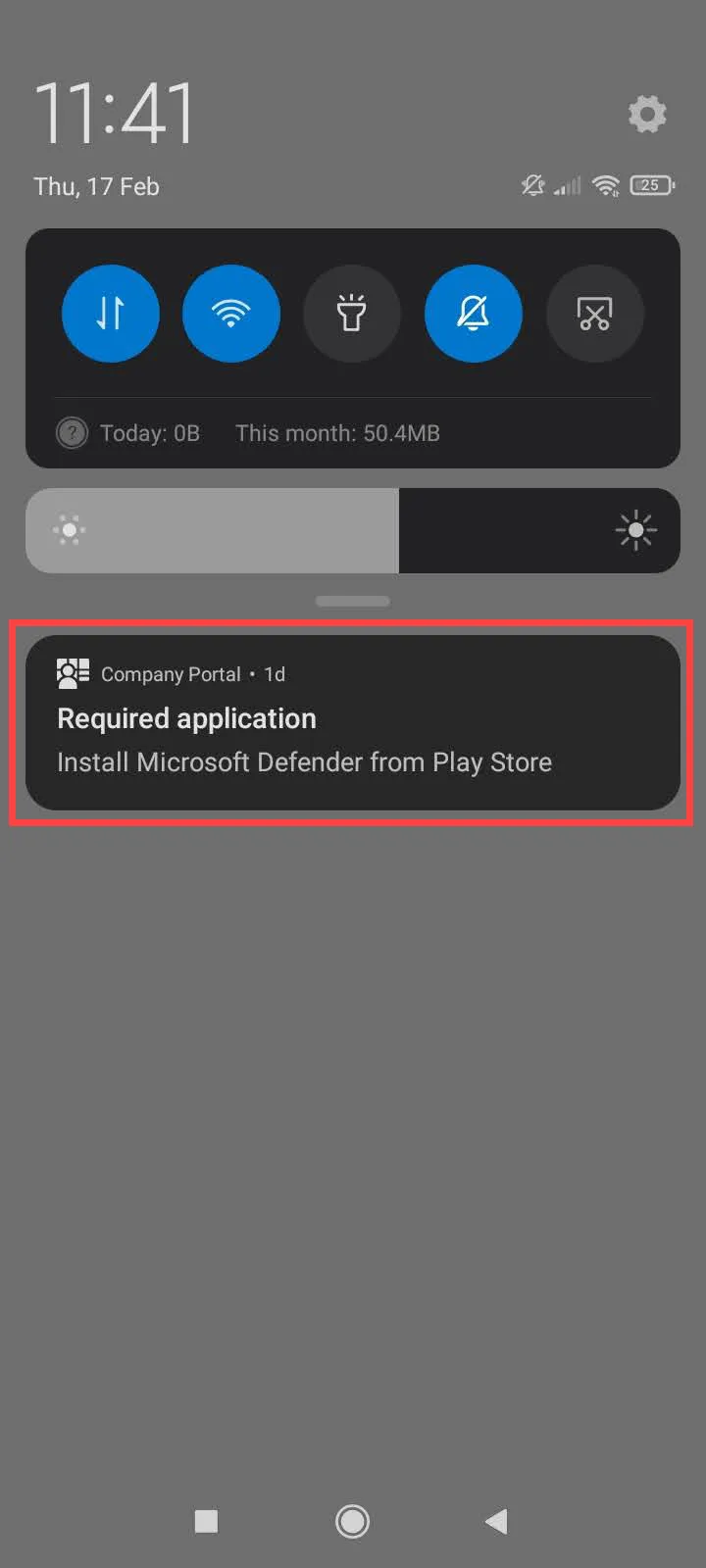
As soon as the app and policy are assigned, a popup will appear on the end user’s MAM device. This points to the required installation of Defender, and a click on it takes the user straight to the installation page in the Play Store.
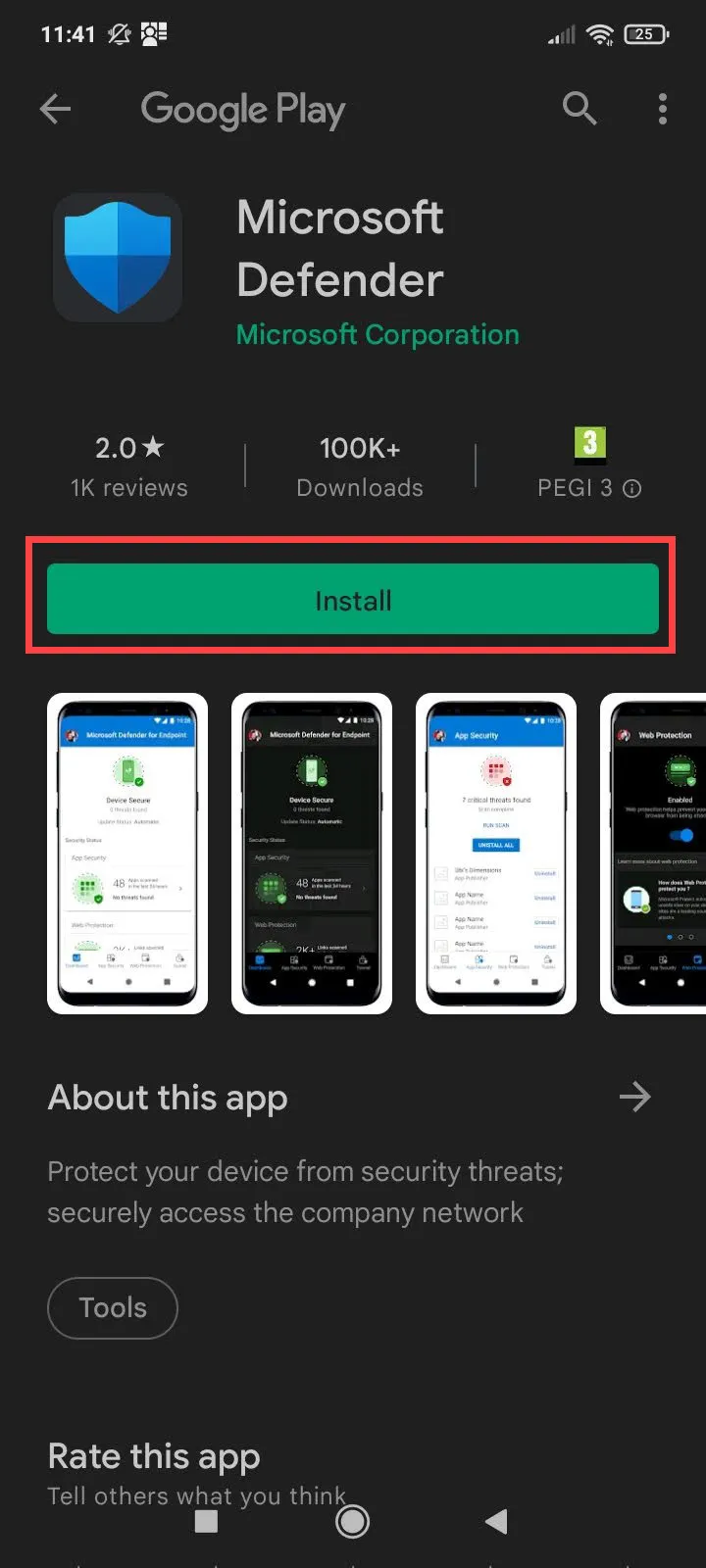
On the first start of Defender, the user gets guided through the setup. This requires a few confirmations from the user, and all of them have to be confirmed to complete the onboarding.
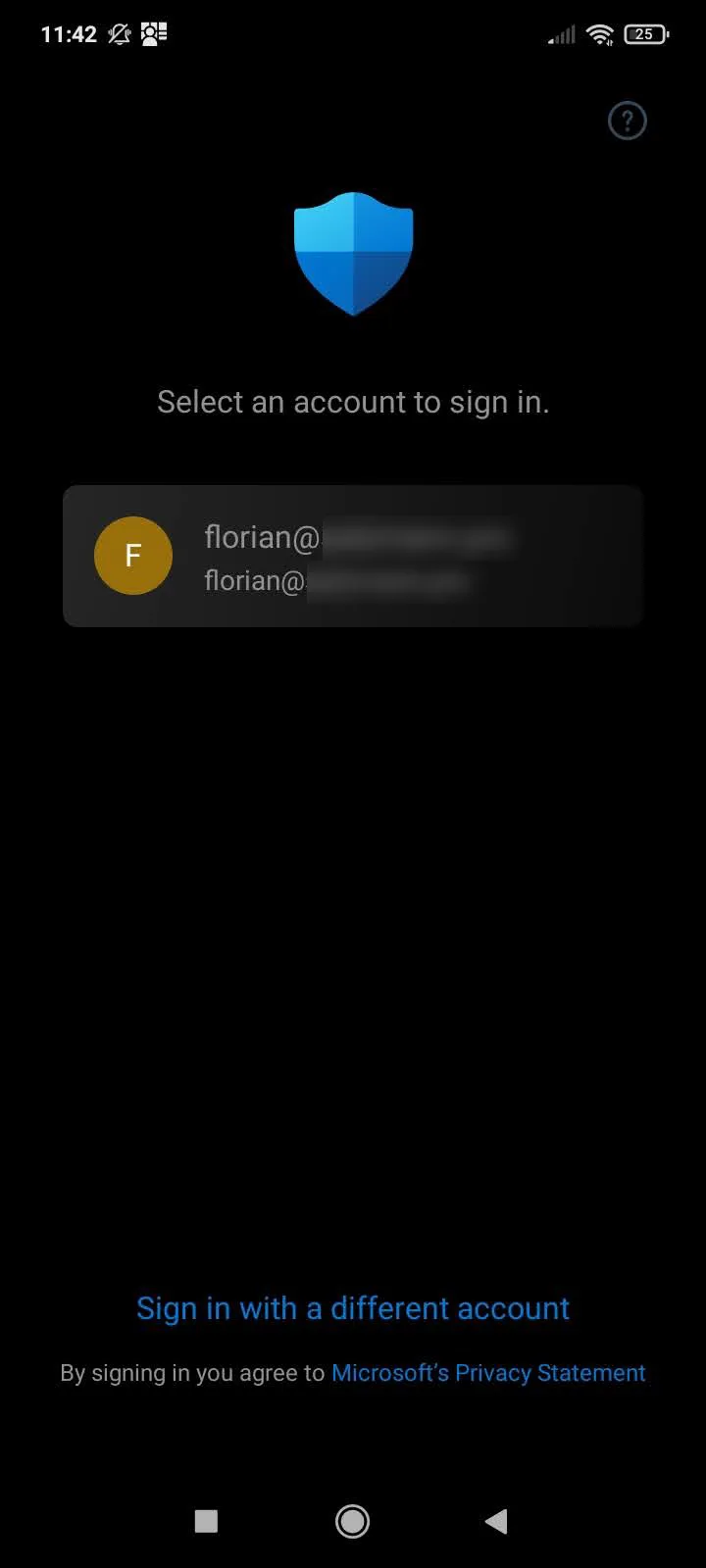
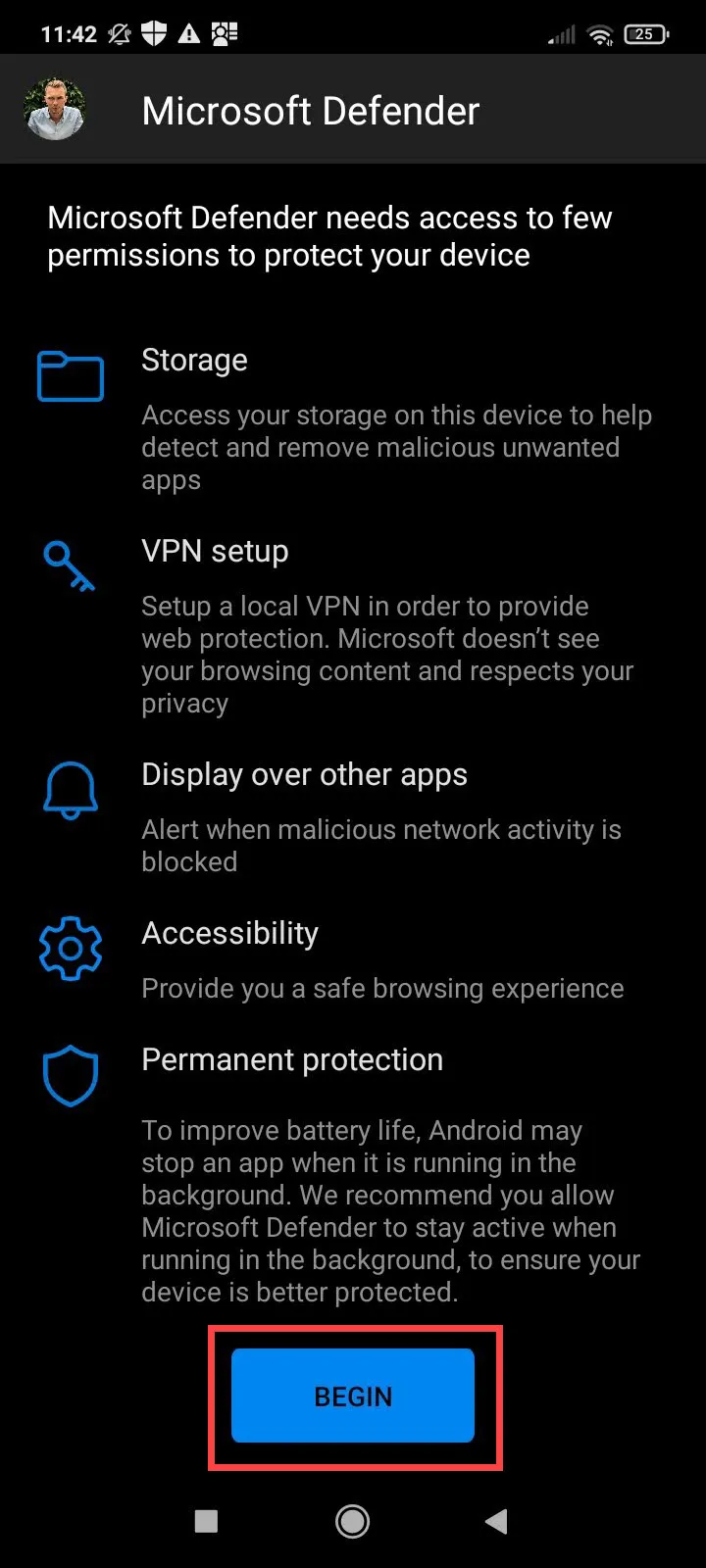
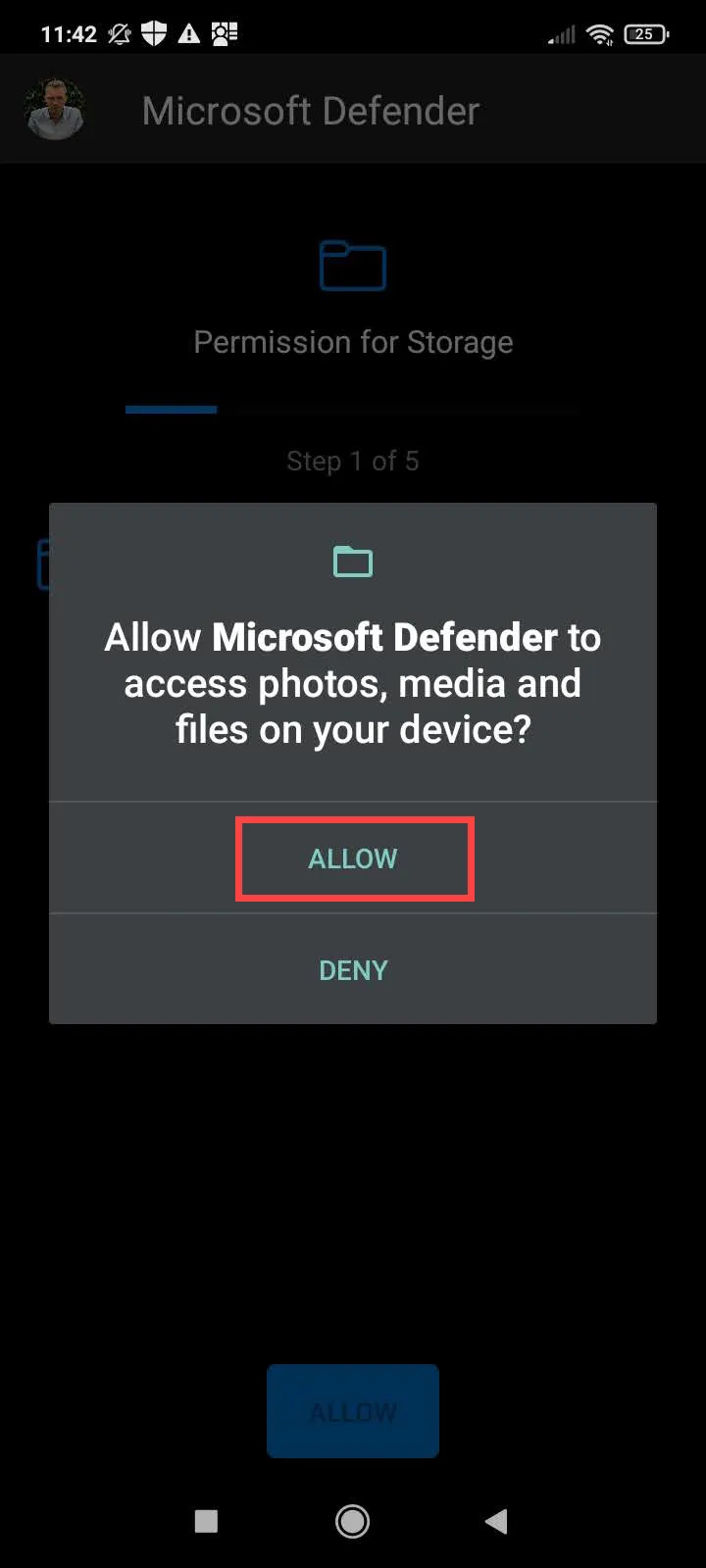
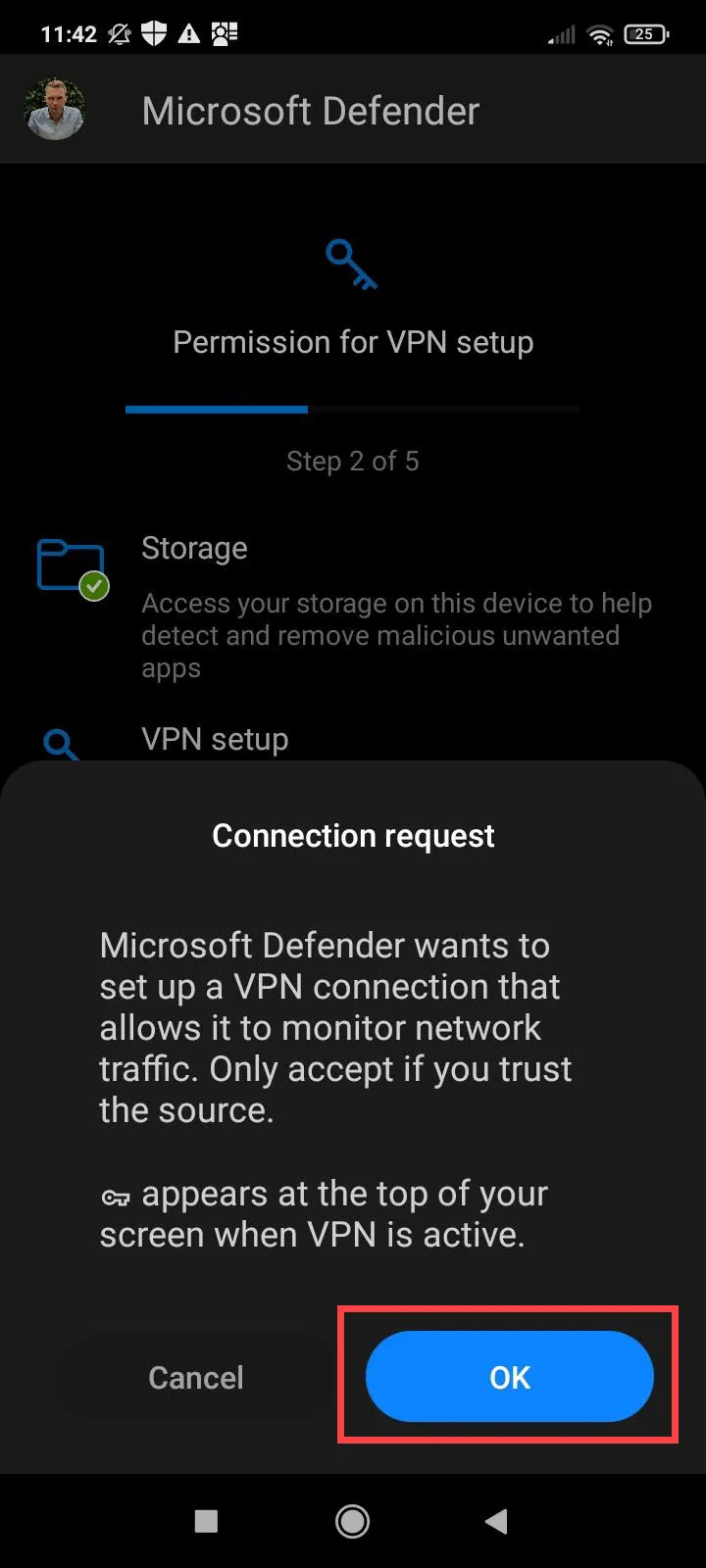
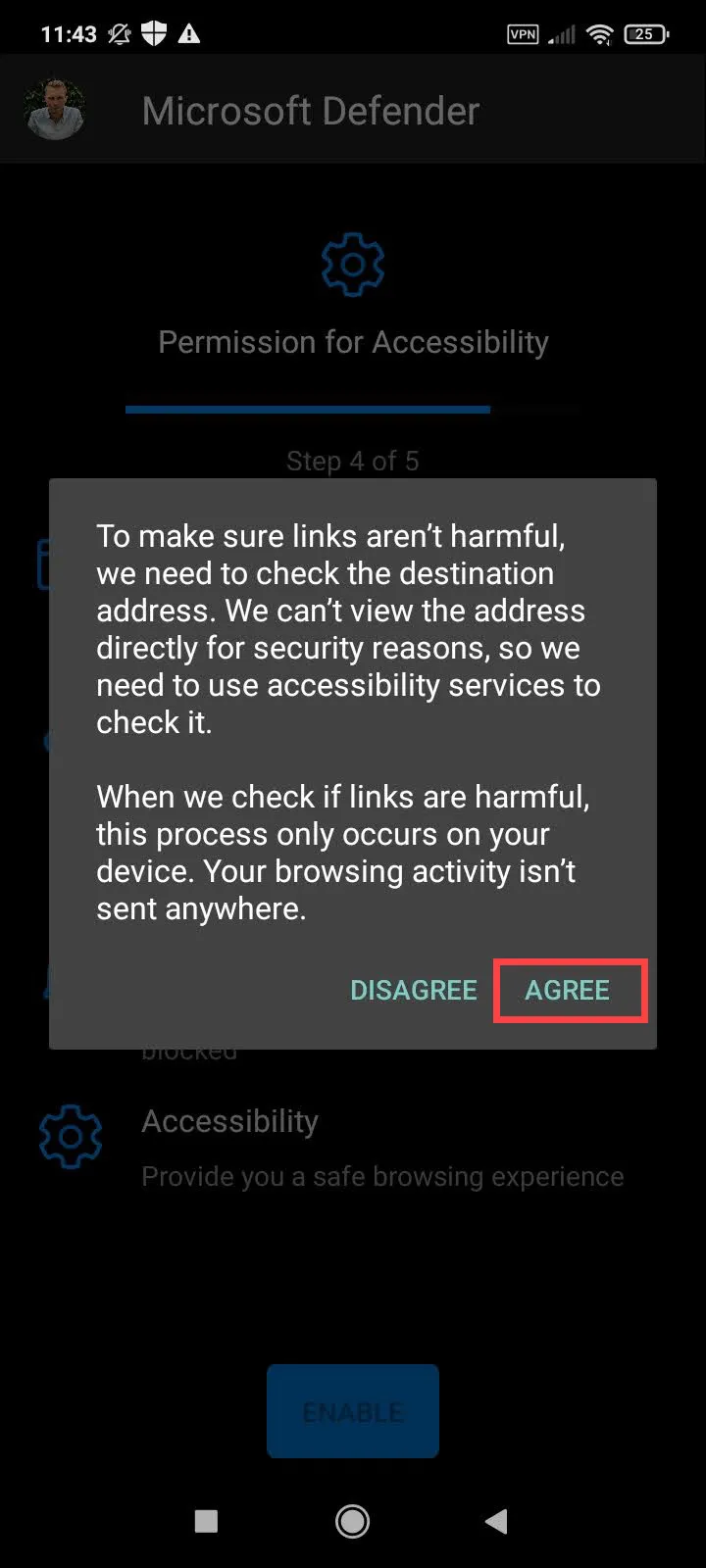
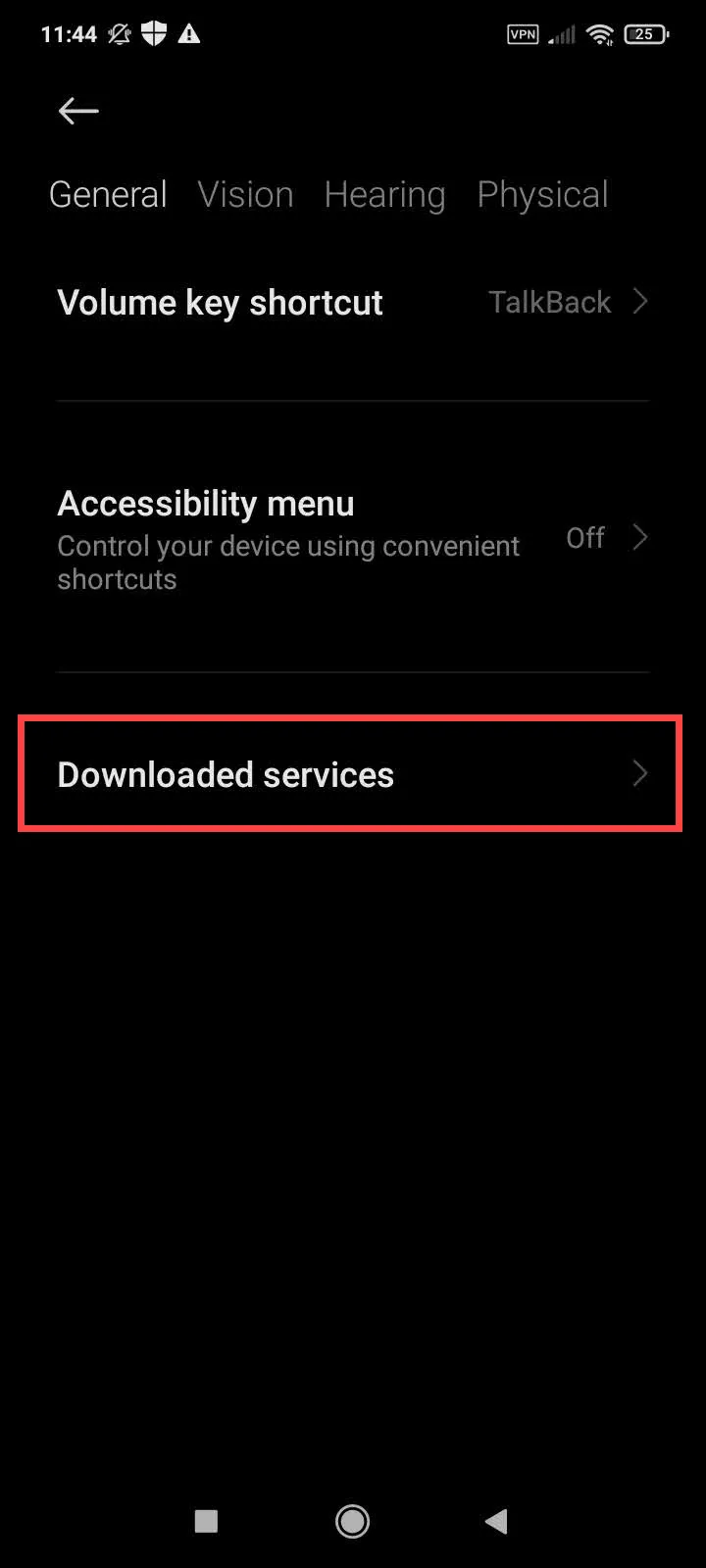
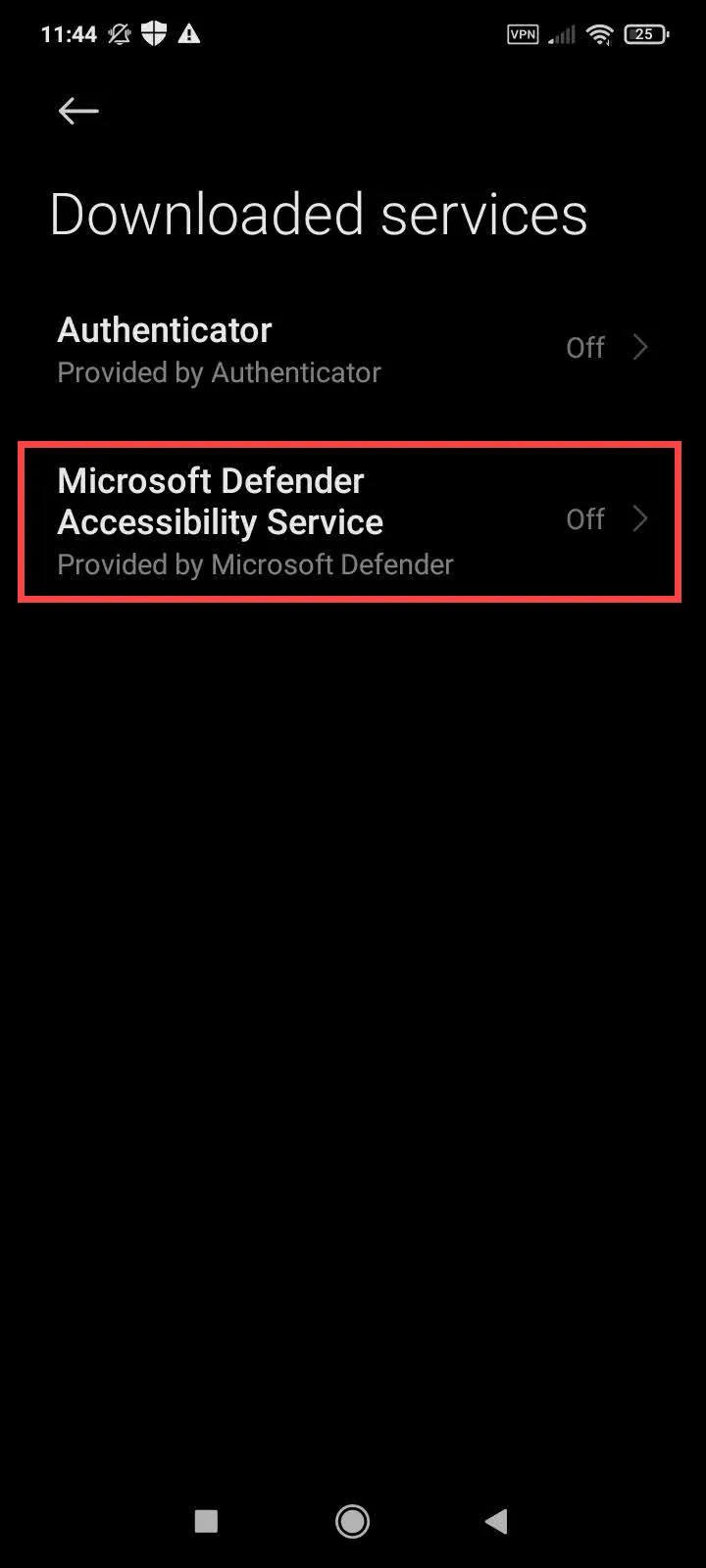
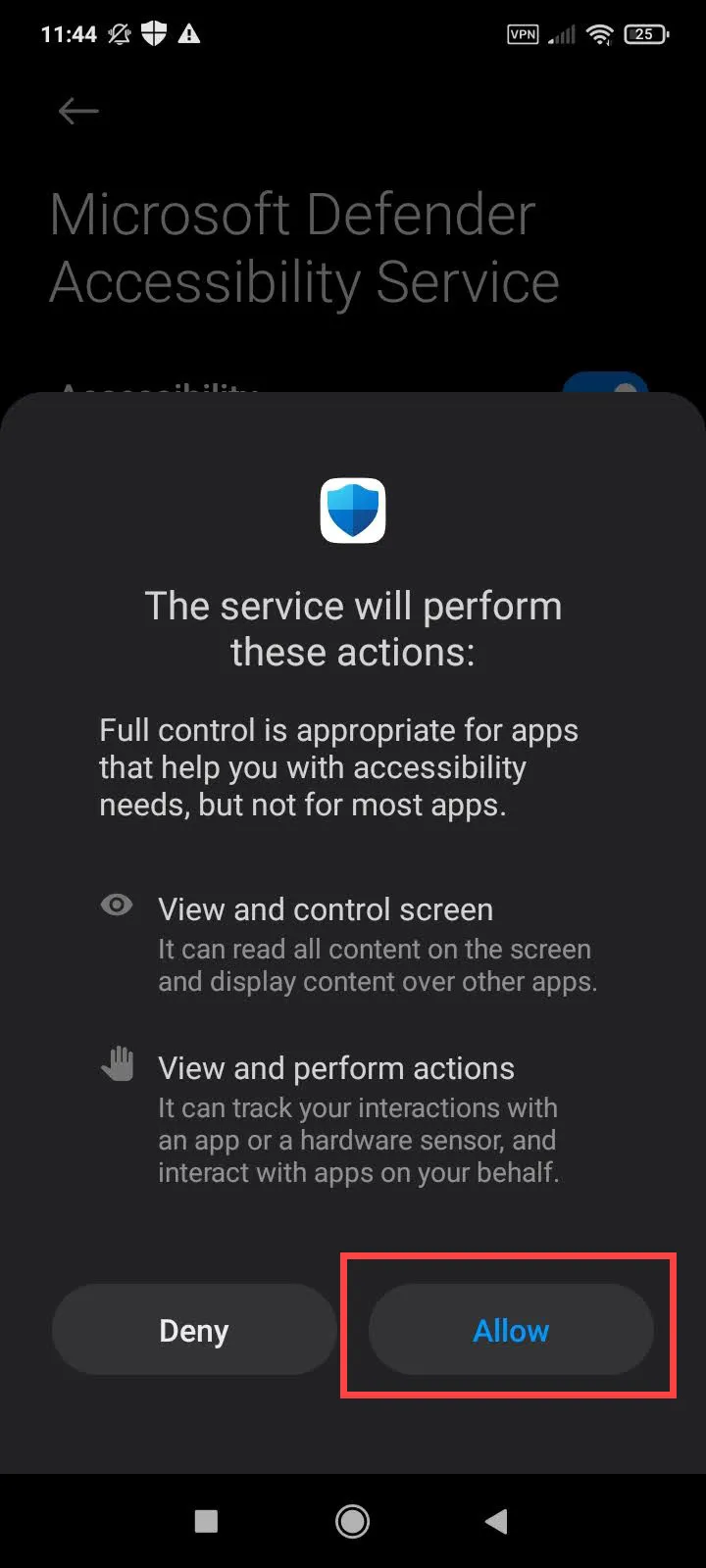
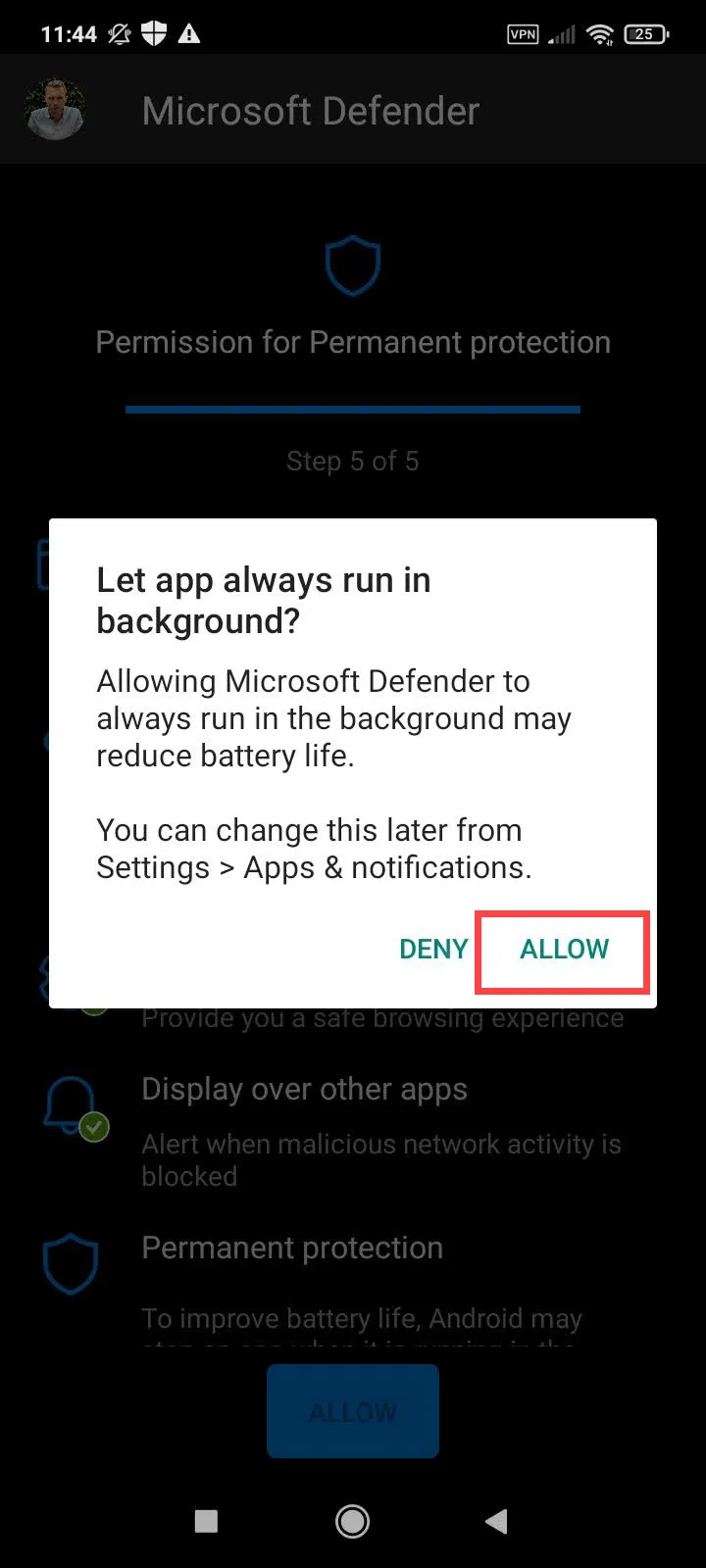
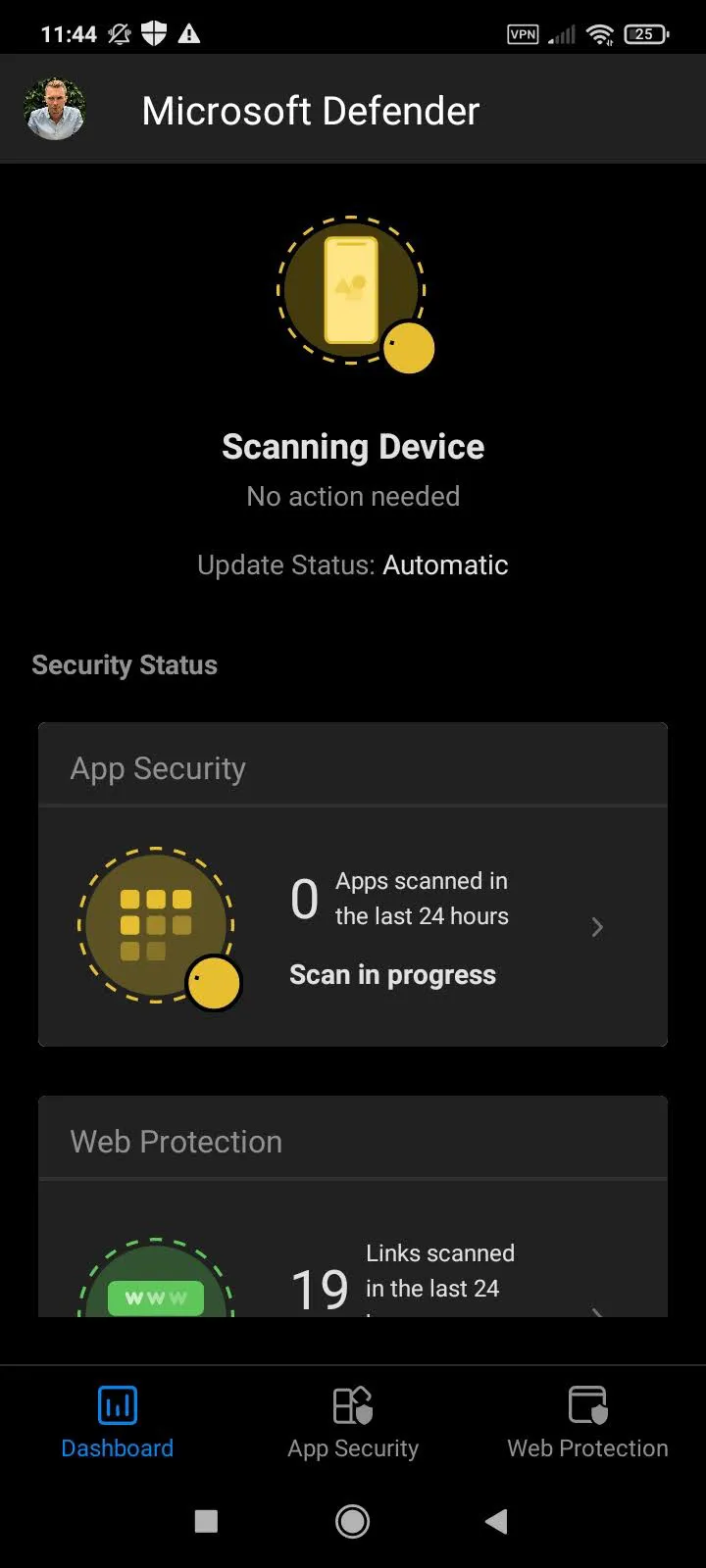
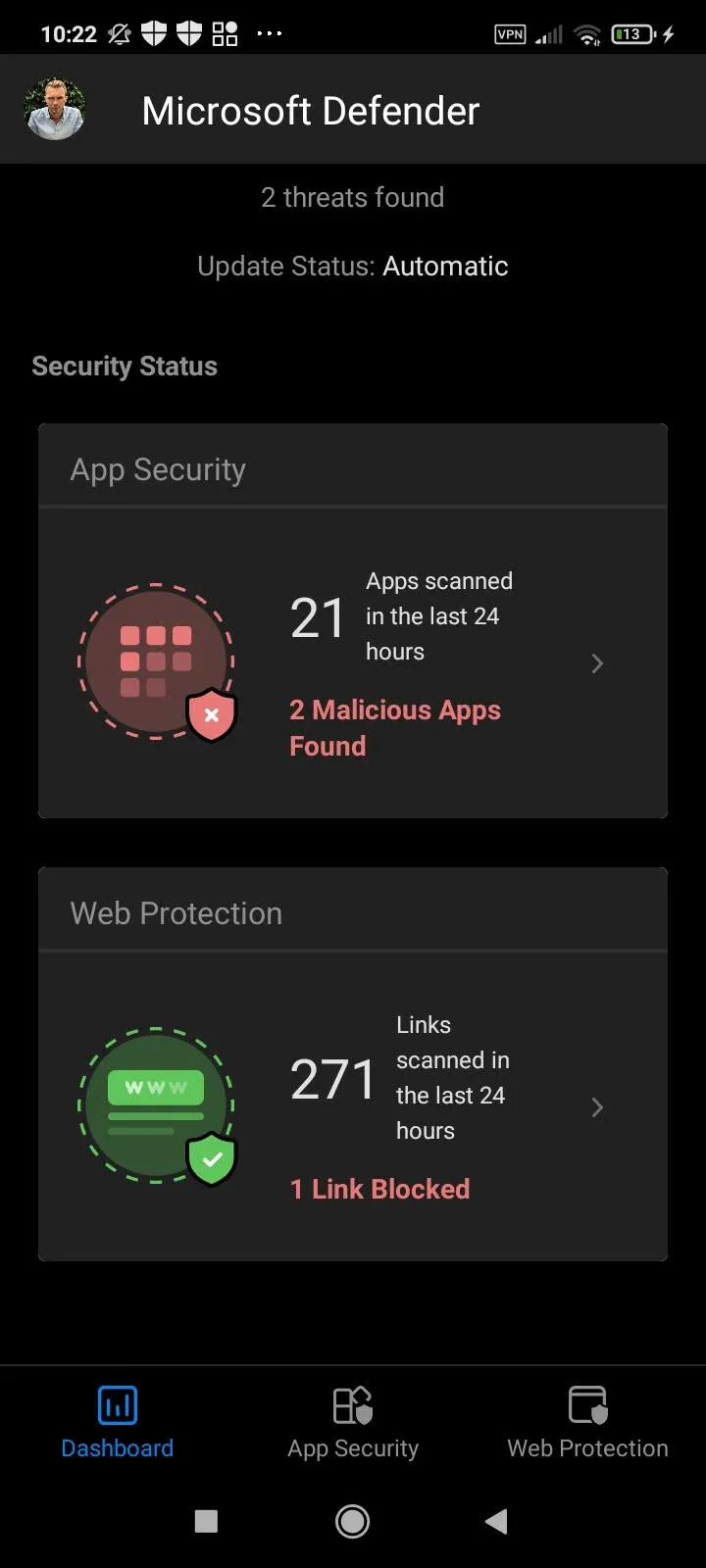
After all the many “OK” and “Allow” taps, Defender is finally set up and takes the user directly to the overview of scanned apps and filtered websites. The apps then also get scanned automatically. Every app gets scanned, also the ones not managed by MAM.
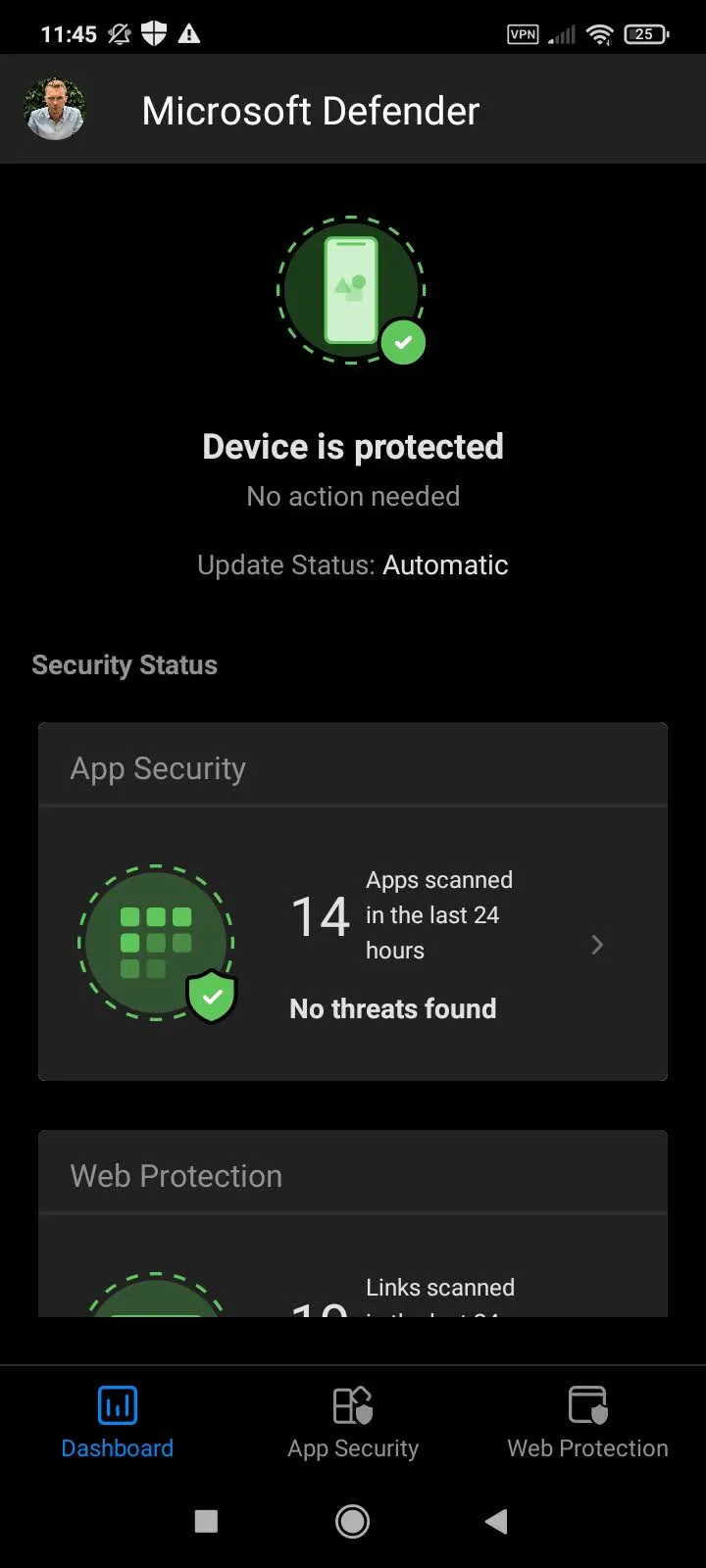
App Security
When the user installs a new app, it gets scanned right away and classified as trustworthy or not. If an app is classified as malicious, it is not quarantined or blocked. A block only happens with payloads or dangerous websites.
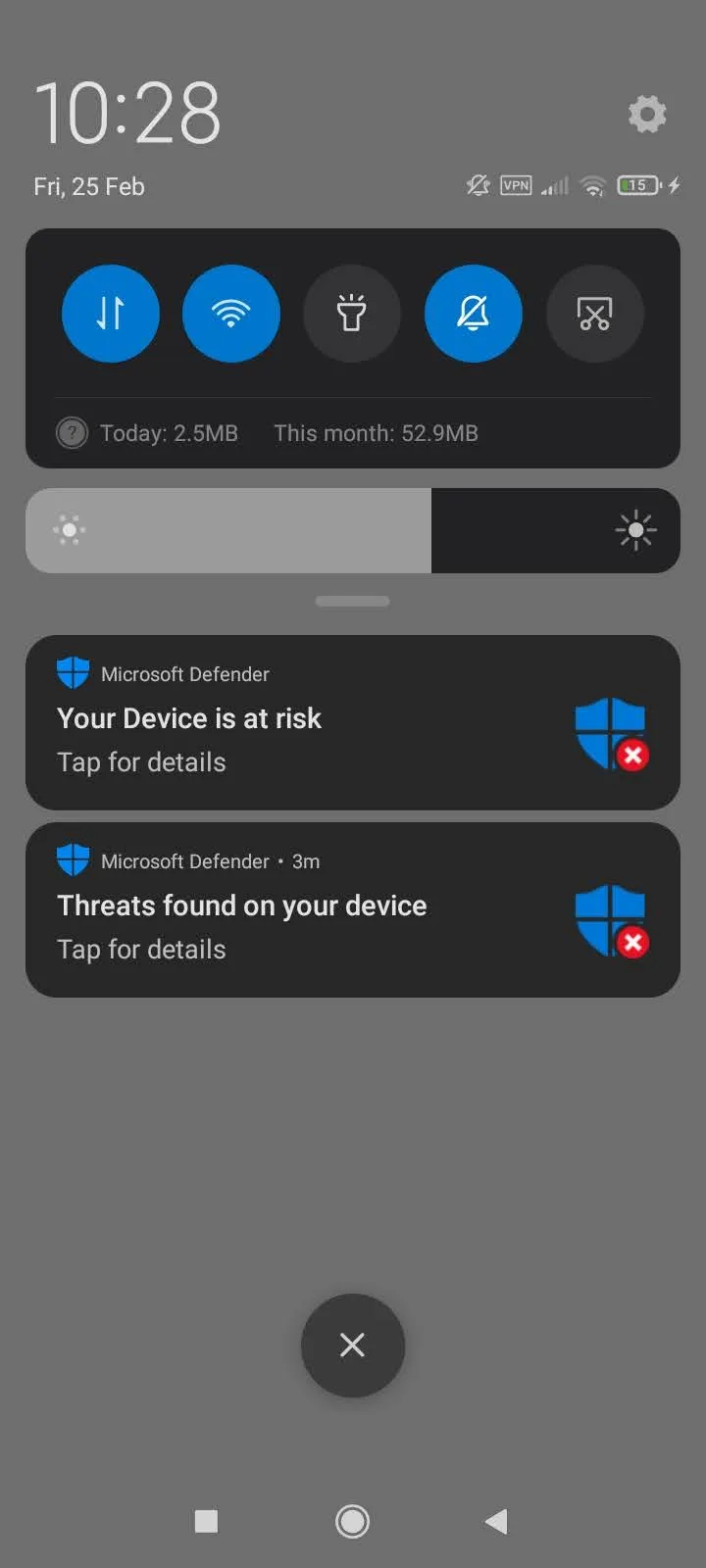
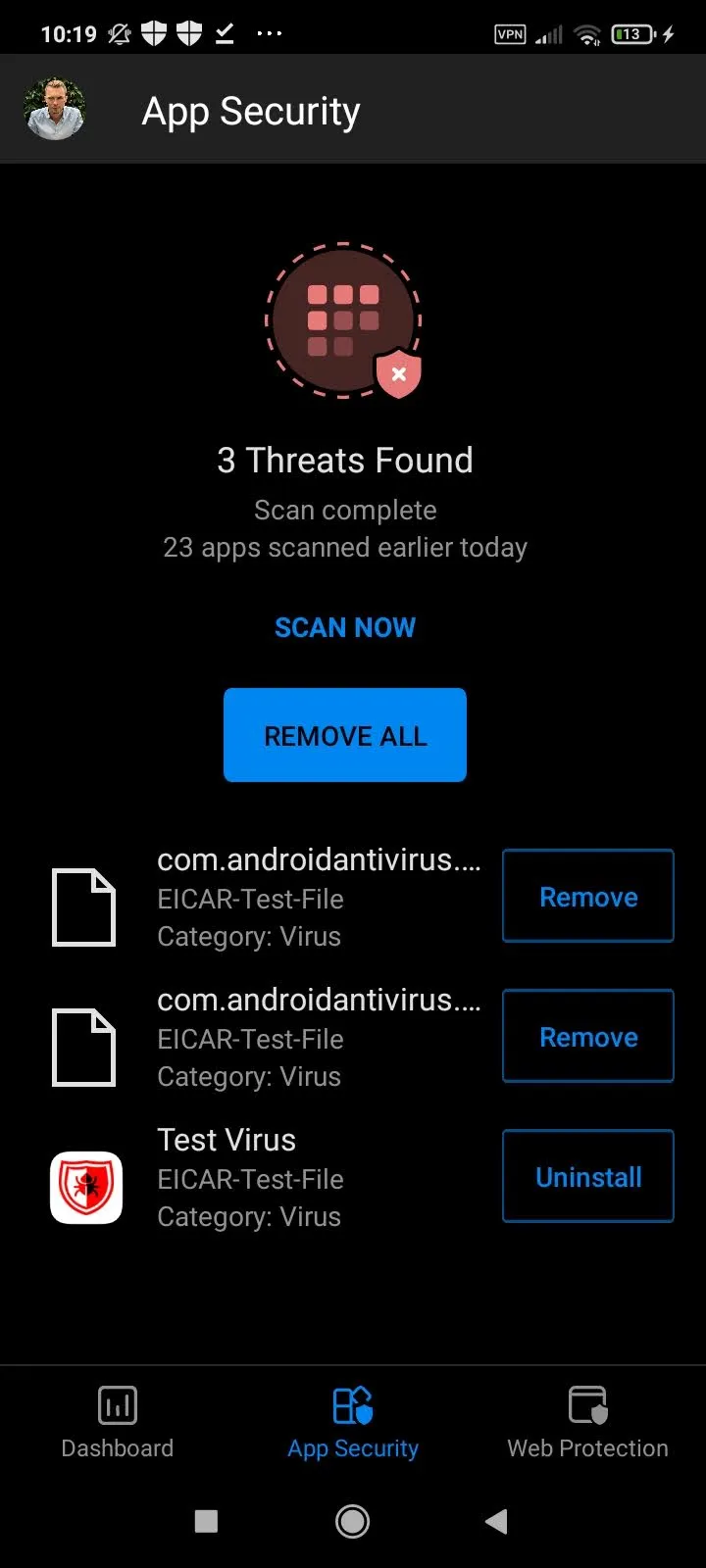
Web Filter
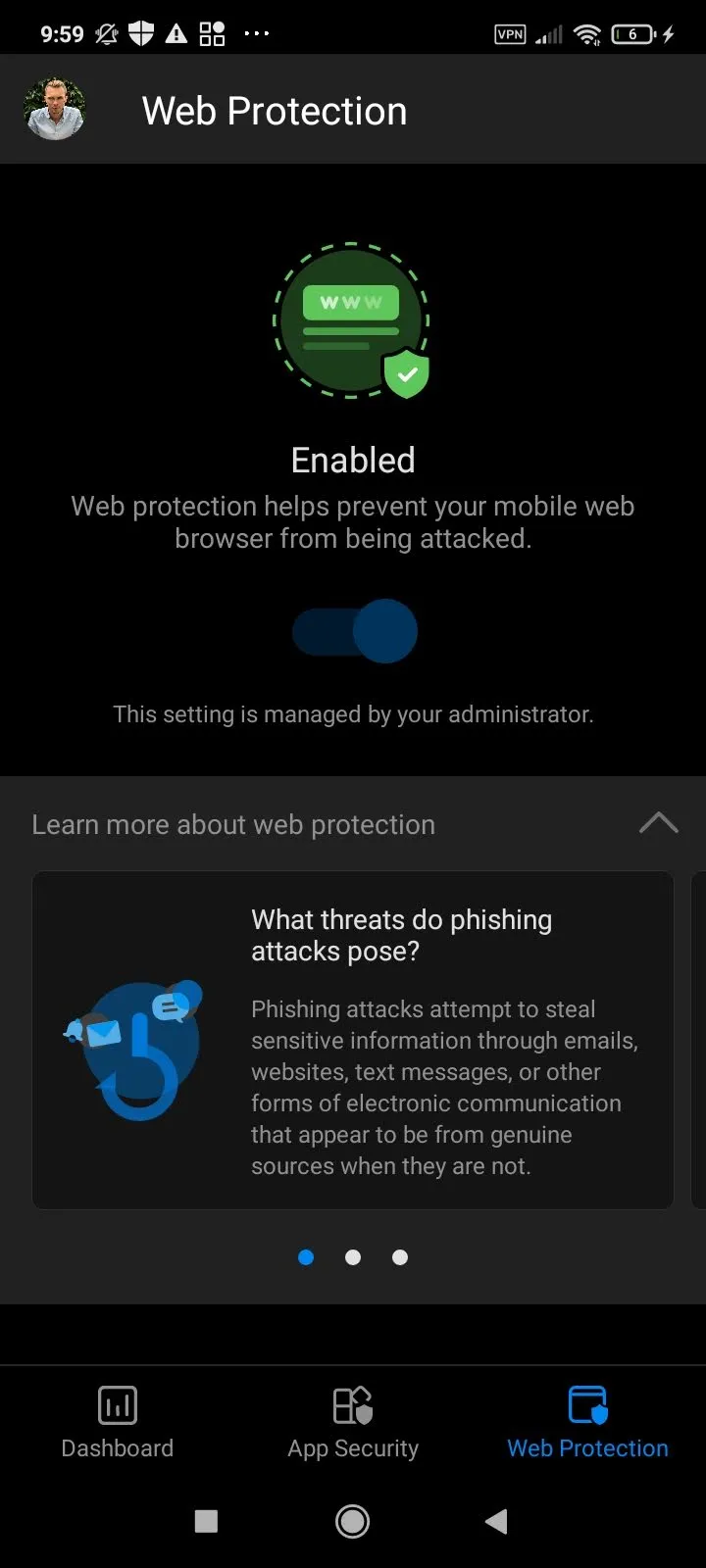
The web filter in Defender for Android works quite well, and it even opens a clear status page in non-Microsoft browsers, which is recognizable as coming from Defender. In the app overview, the user can view the URLs scanned and blocked in the last 24 hours. The “Web Protection” menu item just shows that the protection is active and gives the user a few hints about phishing and similar threats.
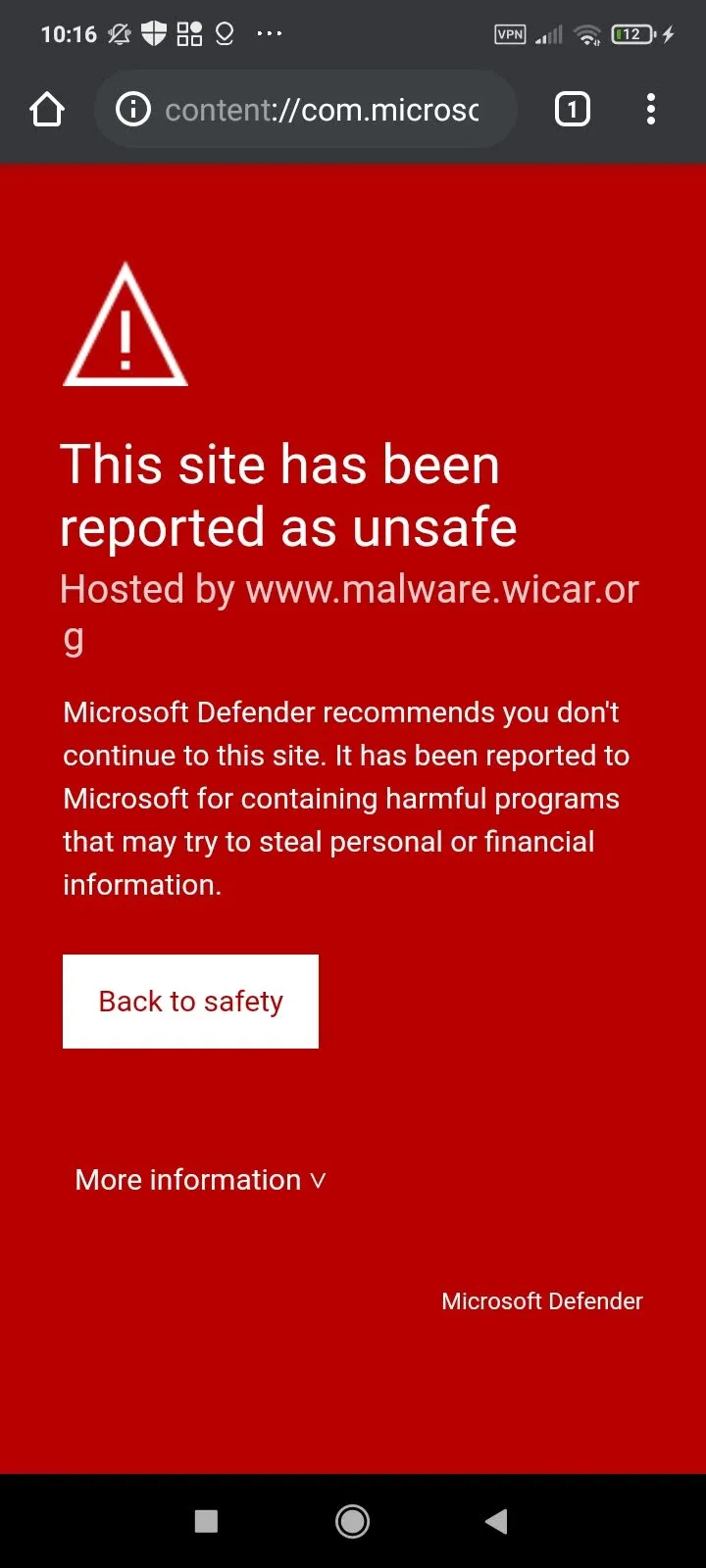
Defender for Android - Manual Installation (not possible)
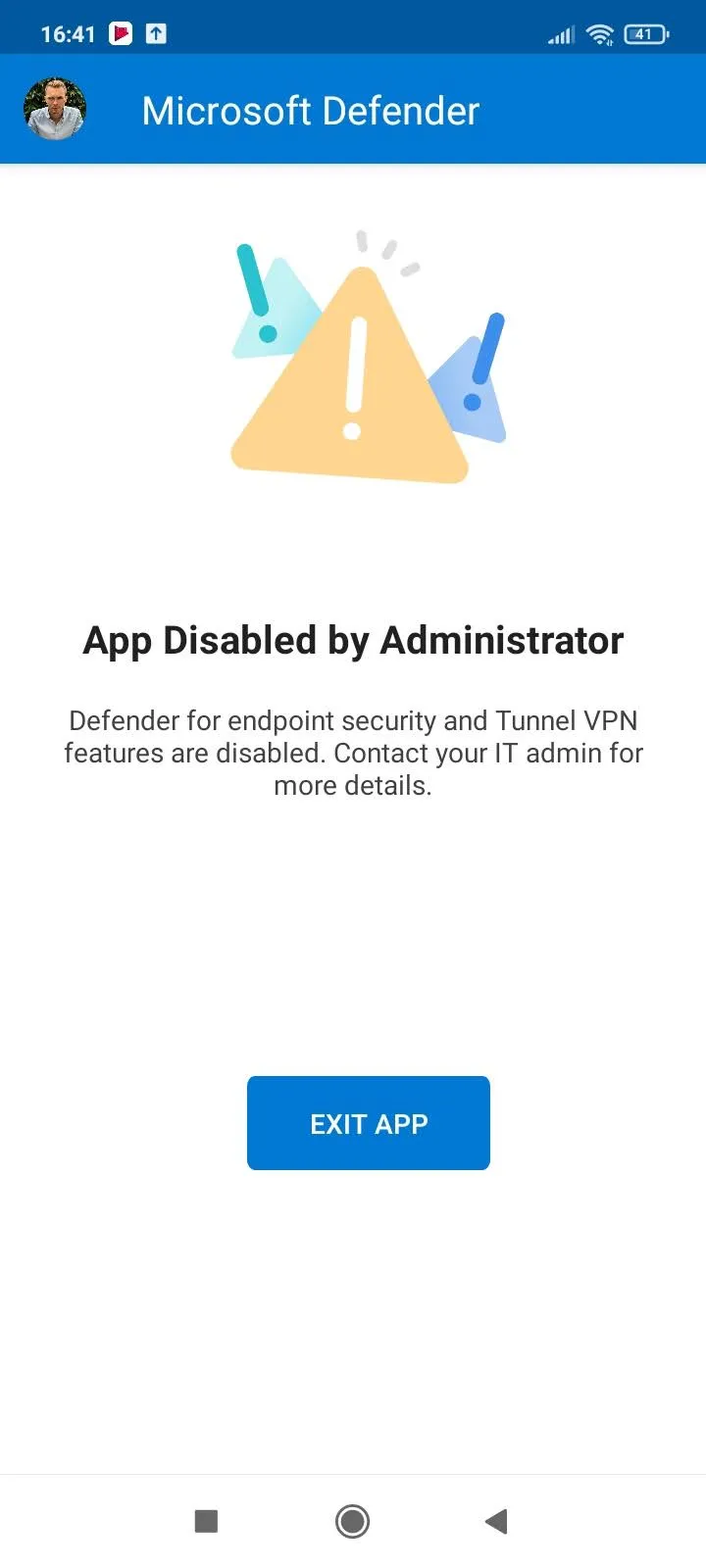
Unfortunately there’s currently no way, unlike with iOS devices, to use Defender without MAM or MDM, so there’s no way to test Defender for Android without MAM or MDM. If you still install the app and a user signs in, the Defender for Android app shows “App Disabled by Administrator”. In this case neither the malware nor the web filter protection is active.
Defender for Business - Android Devices Overview (MAM)
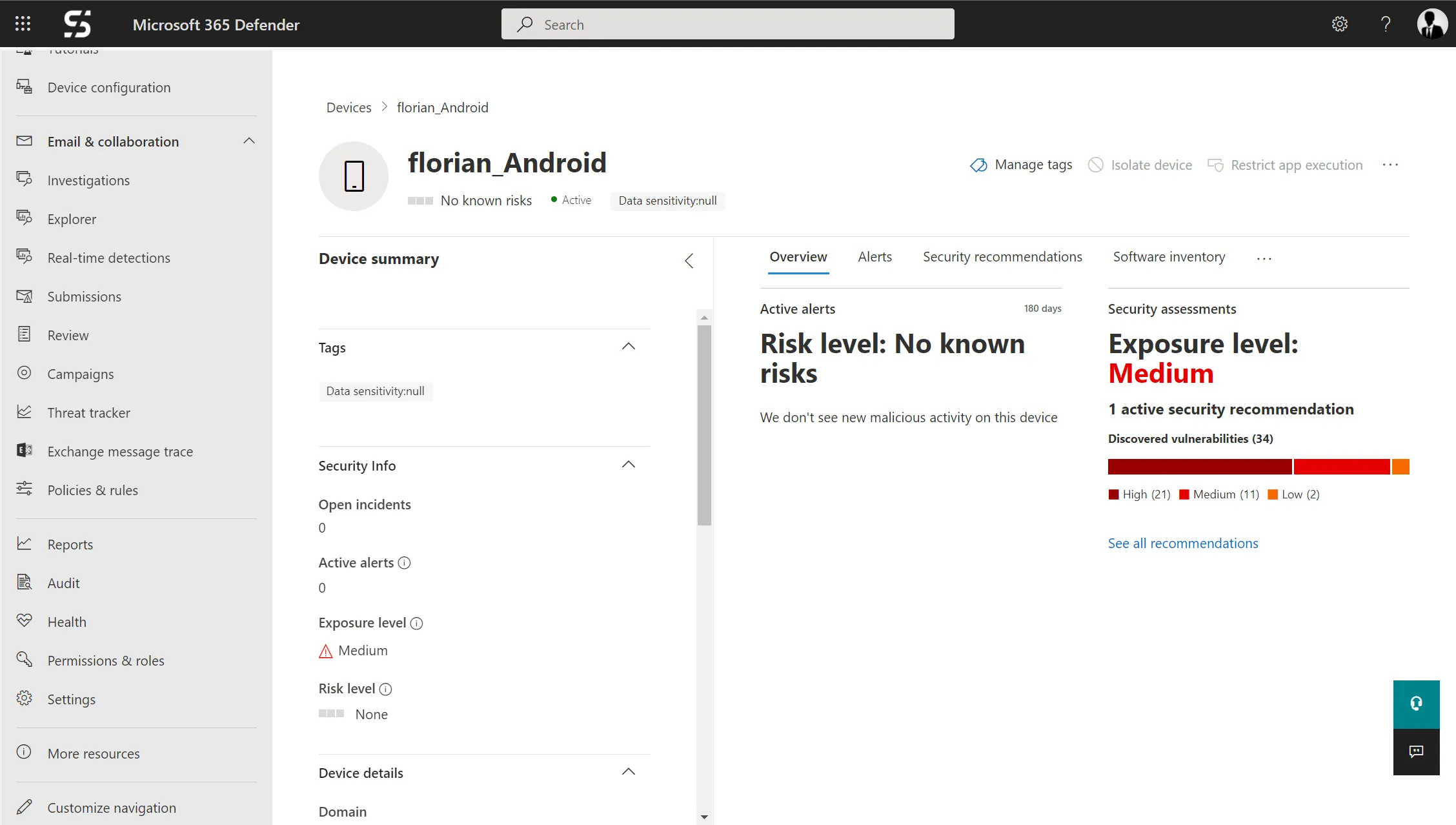
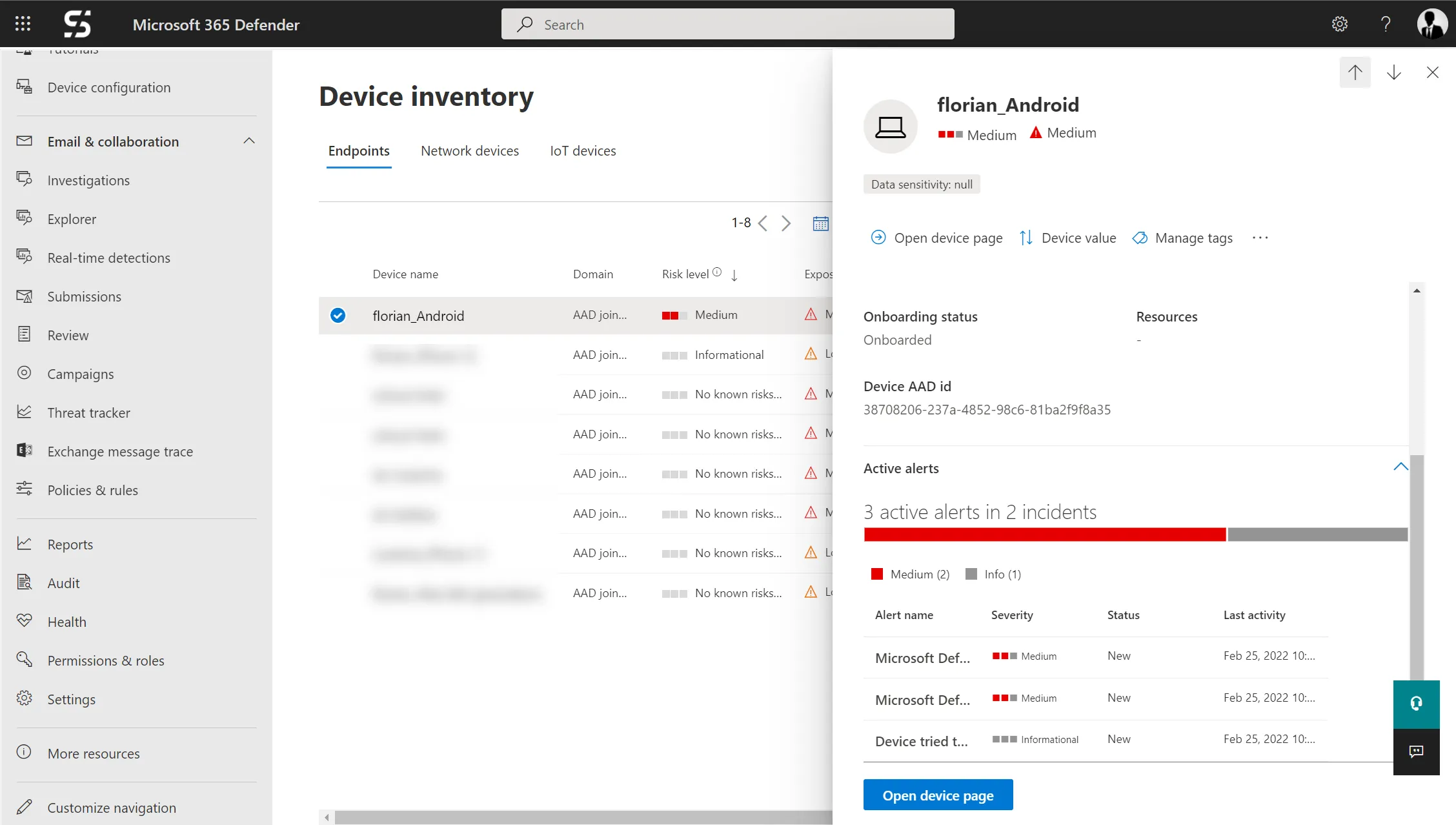
After some time, the Android smartphone also shows up in the Microsoft 365 Defender Device inventory:
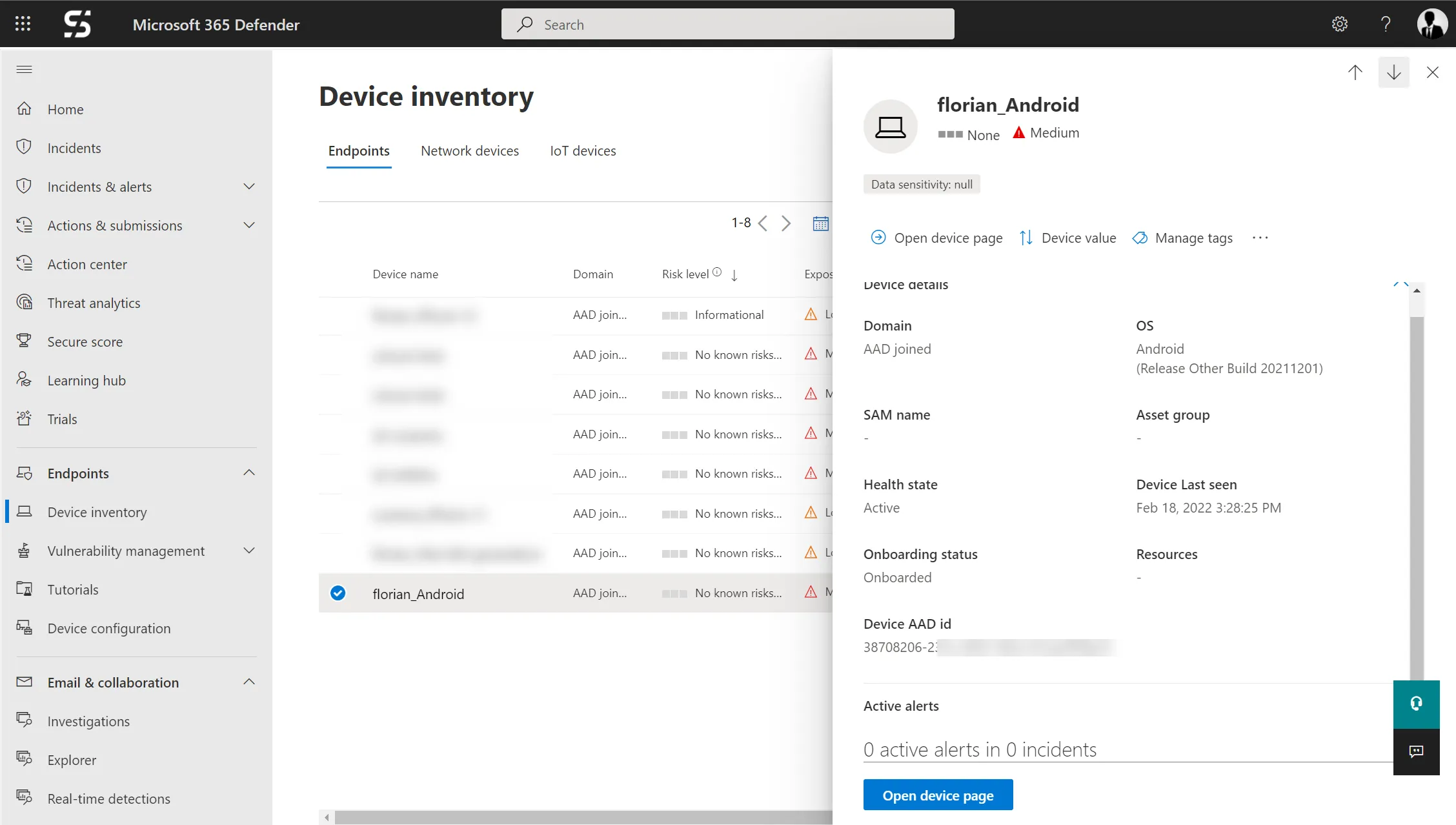
On the device page, just like with all other onboarded devices, you find the alerts, security recommendations and the software inventory listed.
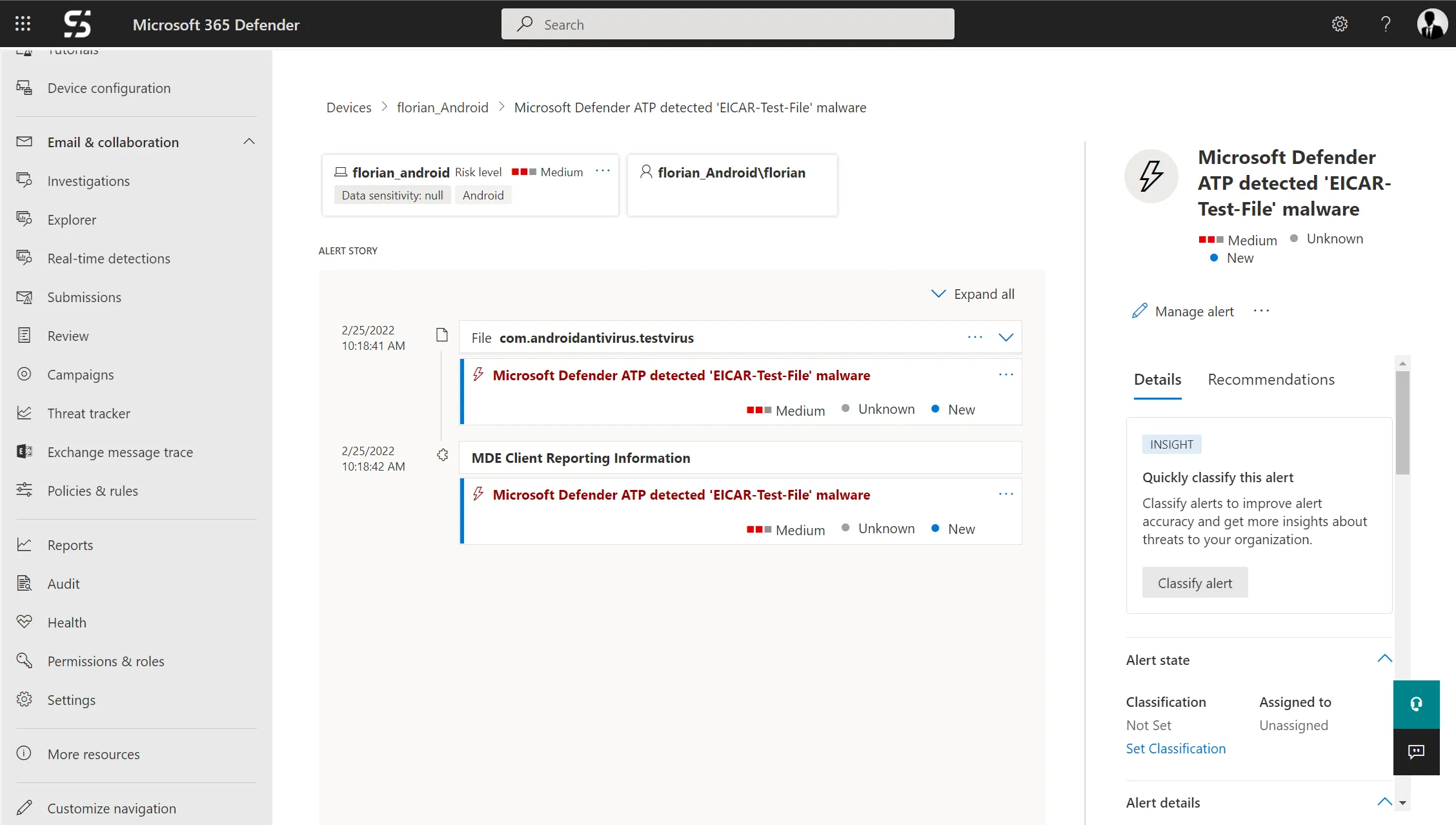
Events on the endpoints are visible in the portal. A click on it takes you to the extended overview, which shows you more details about the incident and its timeline.
Summary
Defender on Android devices offers good protection and, unlike the iOS version, also scans the applications themselves. What still bothers me at the moment is the fairly involved onboarding process on the user side. I’d like this to become more intuitive and require as little user interaction as possible. A direct block of potentially malicious applications would also be desirable.