Monitor OneDrive Status - Sync Admin Reports
- Florian Salzmann
- Posted on 14 Dec, 2021
- Updated on 12 Jul, 2026
- 03 Mins read
- Microsoft 365,Microsoft Intune,Windows 10,Windows 11
The OneDrive Sync Admin Reports allows you to monitor the status of OneDrive of all managed Windows devices. Often users ignore error messages from the OneDrive client and don’t think too much about it. But that’s exactly how data can be lost. The report gives you a quick insight into possible errors or conflicts and you can proactively approach a user.
Aktivierung des “Sync Health Dashboard”
- Activation must be under https://config.office.com/ be made.
- Here we navigate under Health to the OneDrive Sync and activate the preview feature:
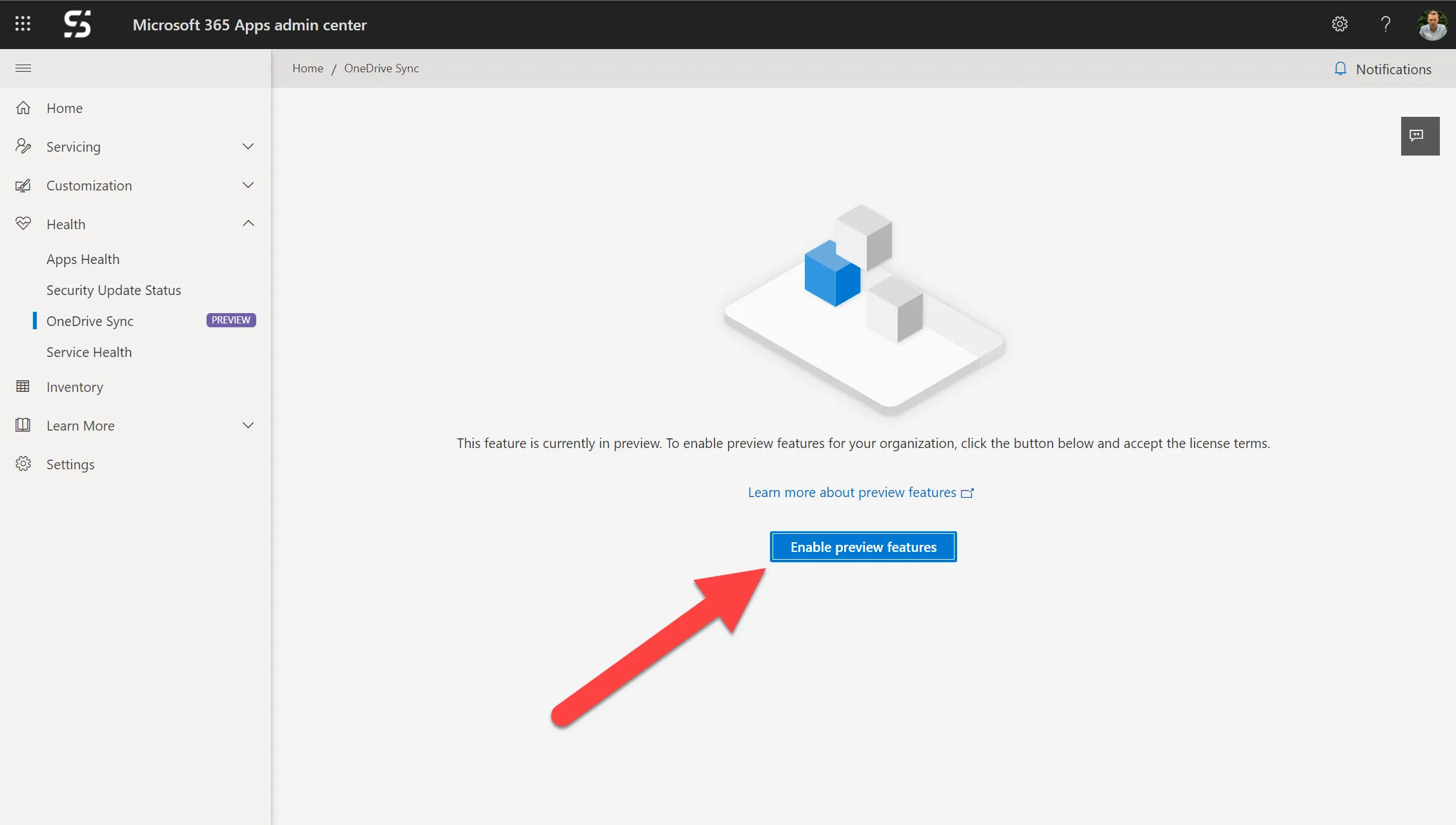
- The license conditions must be confirmed.
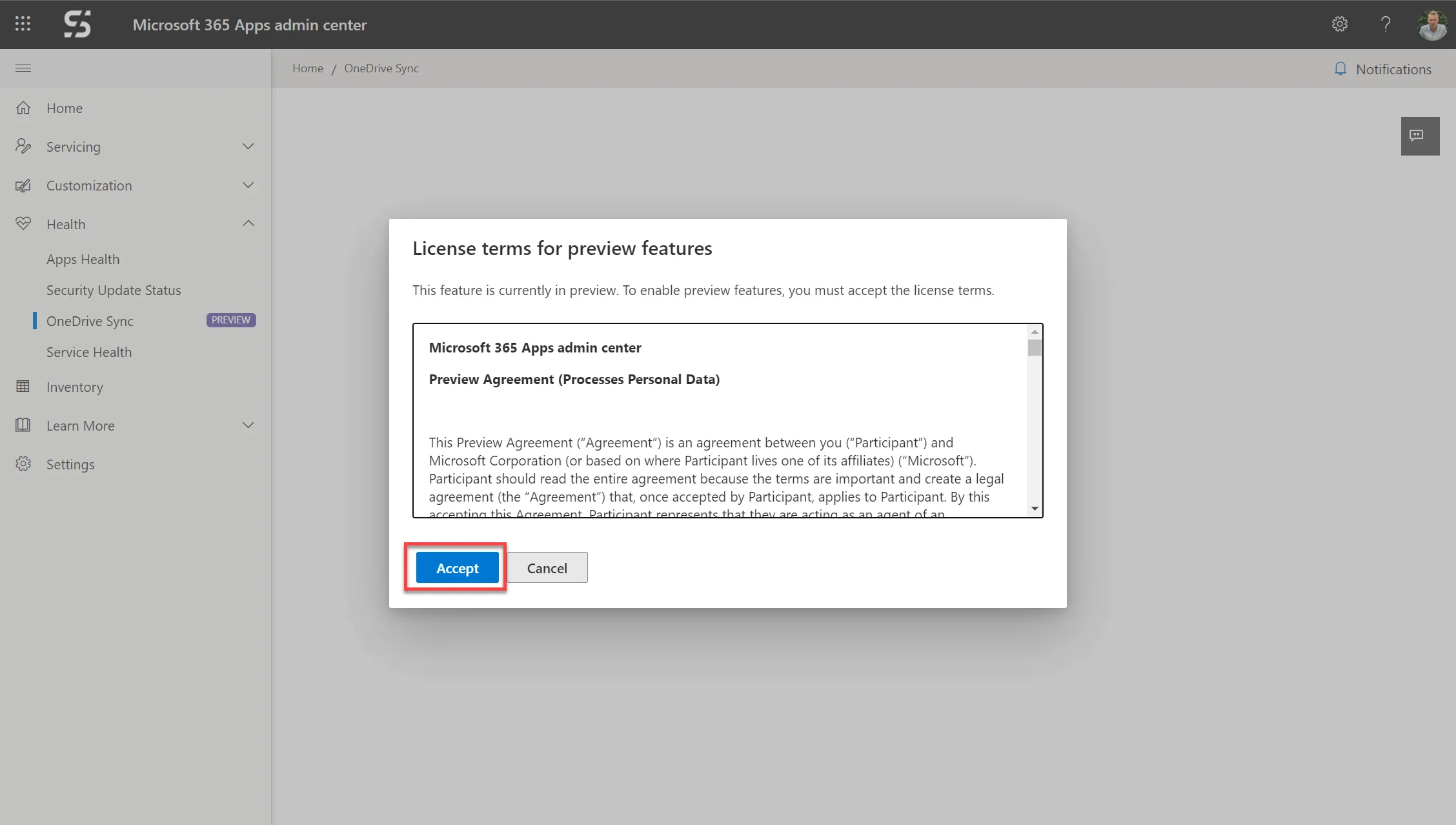
- After activation, it takes about 10 minutes before we can continue with the next step.
- Then we navigate to the settings and copy and the Tenant Association Key out.
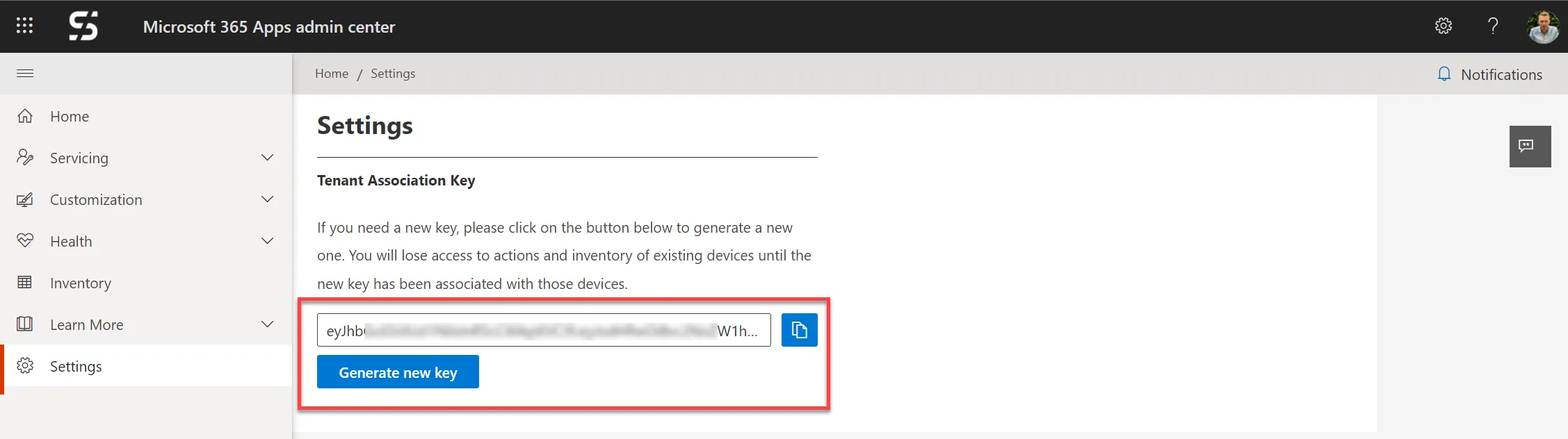
Attention: If the key is regenerated, it must be exchanged on devices that have already been recorded.
- With these steps the report is activated. Next we activate the function on the Windows end devices.
Activate monitoring
Monitoring of the local OneDrive client is activated for each device. There are three options for activation via Intune, GPO or Registry.
Attention: After activation on the device, it can take up to 3 days before the first results are visible in the dashboard.
Enable monitoring with Intune
OneDrive monitoring is activated quickly and easily with Intune and the administrative templates.
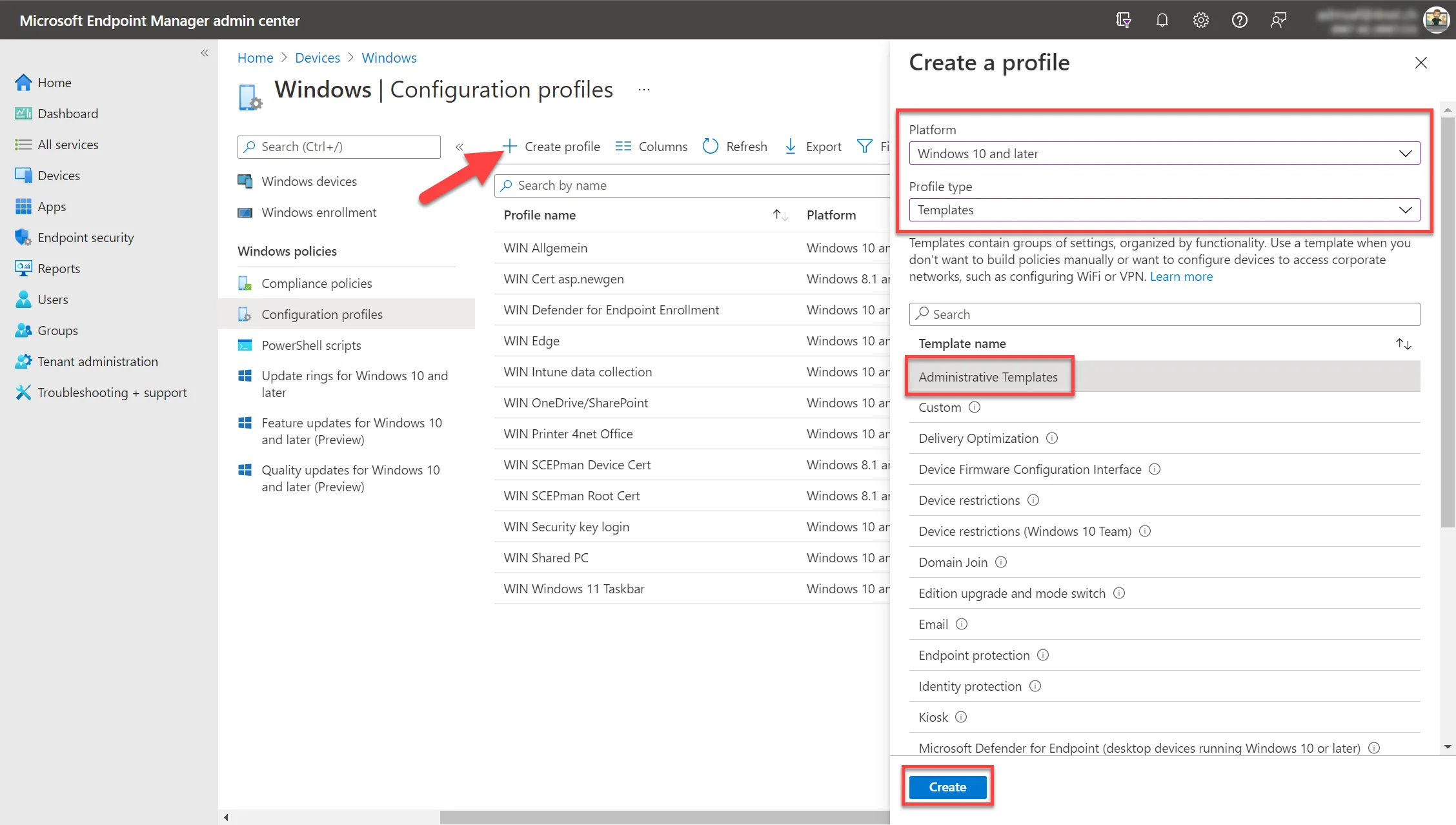
- To do this, we create the Endpoint Manager> Devices> Windows> Configuration profiles > Create profile a new template profile:
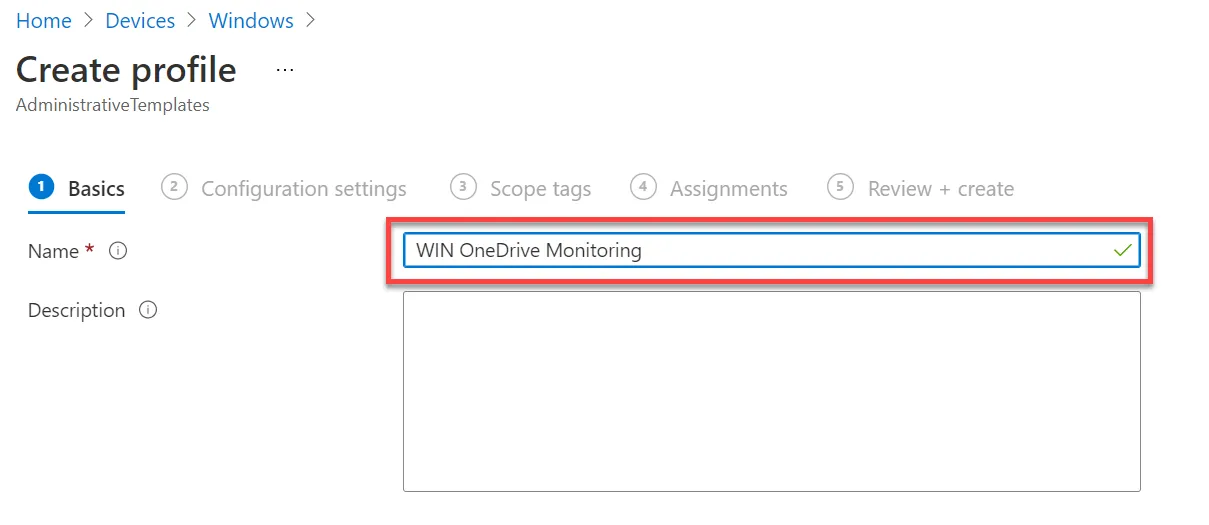
- We give the profile an understandable name. e.g. “WIN OneDrive Monitoring”
- In the Configuration settings we are looking for the setting Sync admin reports, activate this and finally add our Tenant Association Key one.
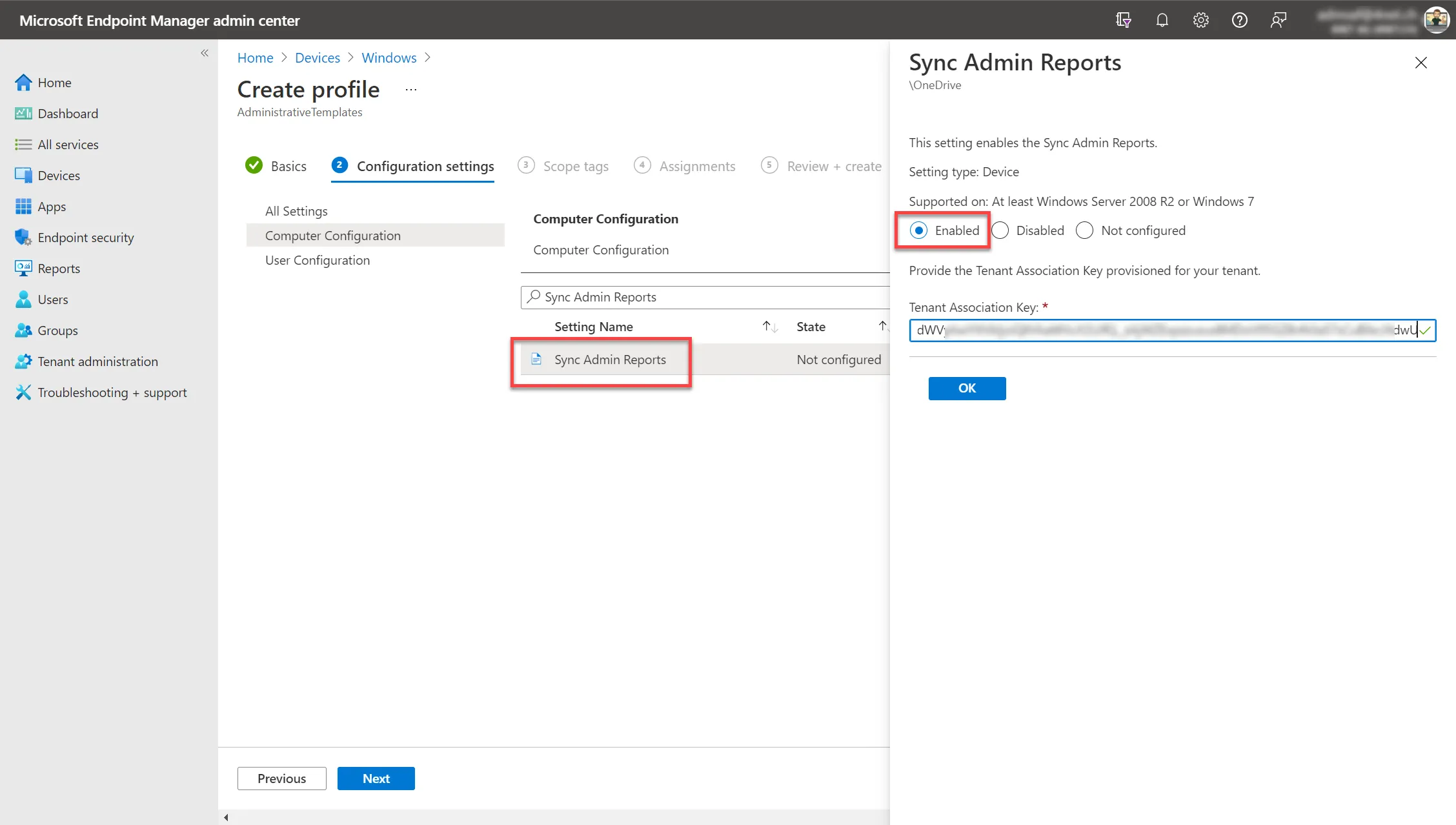
- The policy is then assigned to the desired group or to all devices.
Activate monitoring via GPO
We install the OneDrive GPOs first, if not already done. To do this, we copy the ADMX template from any Windows machine with a current OneDrive client into the local domain infrastructure.
You can find those at C:\Users\WDAGUtilityAccount\AppData\Local\Microsoft\OneDrive\21.230.1107.0004\adm
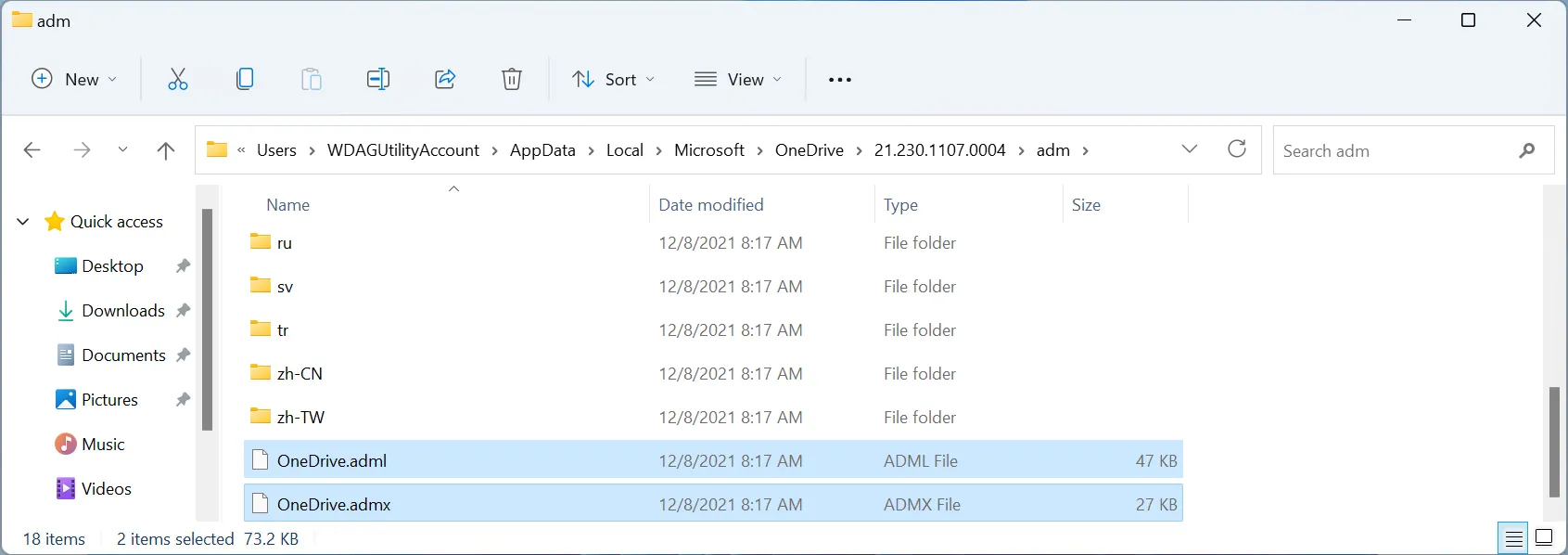
- The file must be under \\yourdomain.ch\SYSVOL\yourdomain.ch\Policies\PolicyDefinitions inserted
- The file under \\yourdomain.ch\SYSVOL\yourdomain.ch\Policies\PolicyDefinitions\en-US (or that of another language)
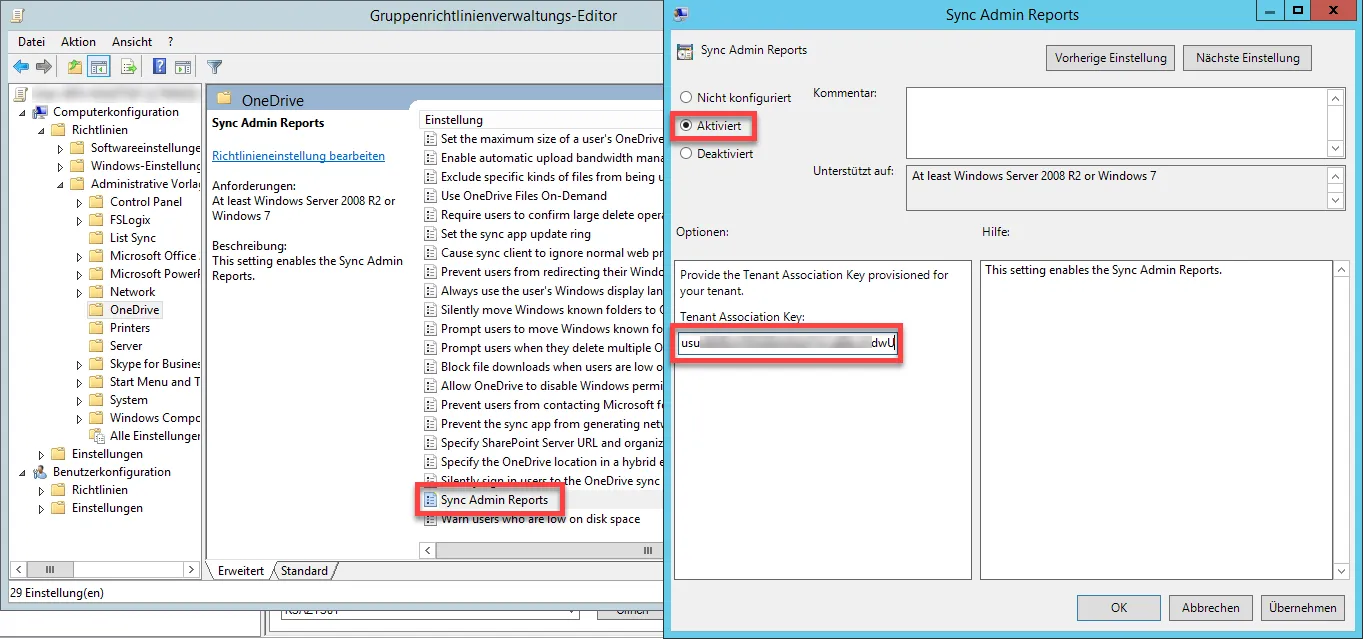
- Is the Group Policy Editor newly opened, the policy is under Computer Configuration\Administrative Templates\OneDrive > Sync Admin Reports available and is activated and configured accordingly.
Activate monitoring via registry / PowerShell
If you only want to activate the monitoring on one test device, you can also do this via the registry or PowerShell. With the PowerShell command, the monitoring can also be triggered by another administration.
| Pfad | String | Wert |
|---|---|---|
| HKLM\SOFTWARE\Policies\Microsoft\OneDrive | SyncAdminReports | Tenant Association Key (aus der Aktivierung) |
$TenantAssociationKey = "PasteInYourKeyHere!"

reg.exe add HKLM\Software\Policies\Microsoft\OneDrive /v SyncAdminReports /t REG_SZ /d $TenantAssociationKey /f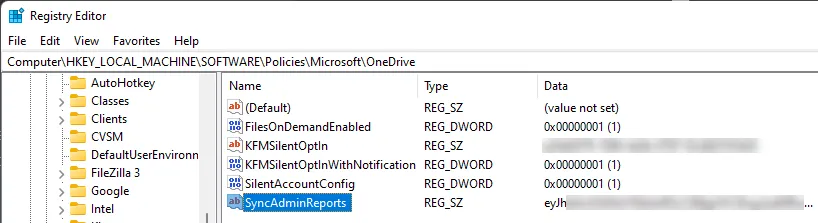
Overview - Sync Admin Reports
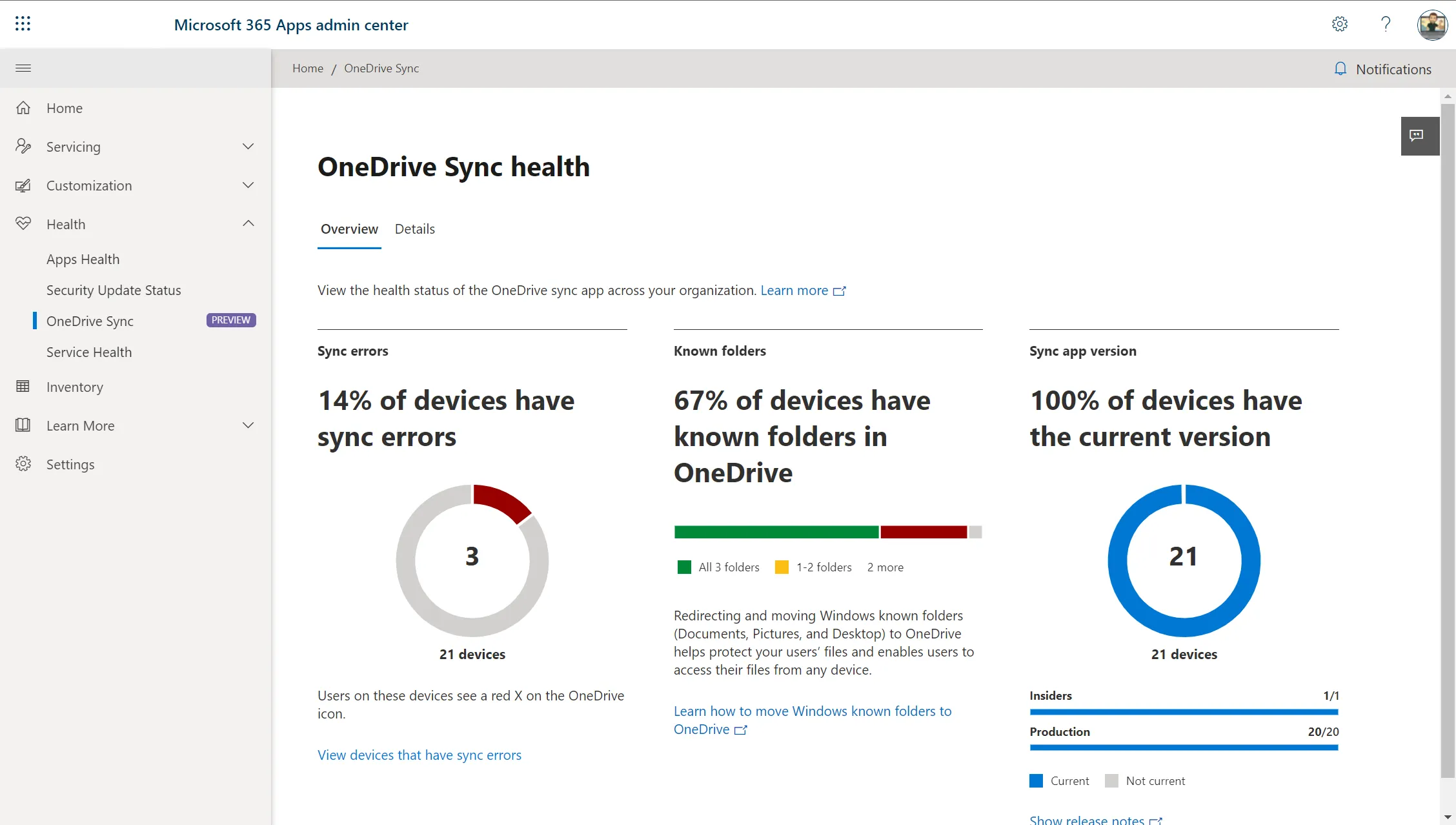
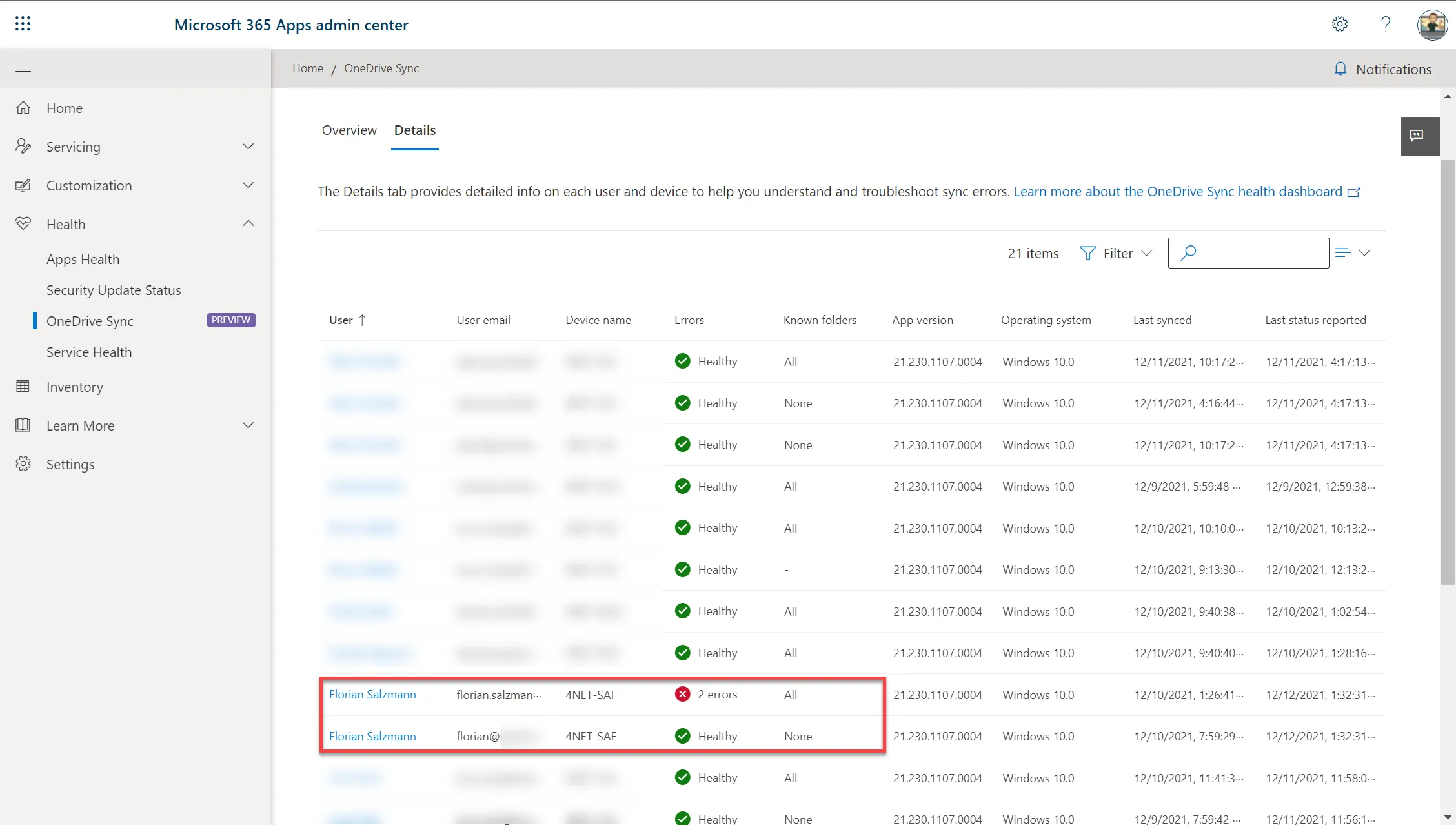
On the first page, the dashboard shows an overview of the analyzed OneDrive synchronizations with the errors, “Known Folder move” and the OneDrive client versions.
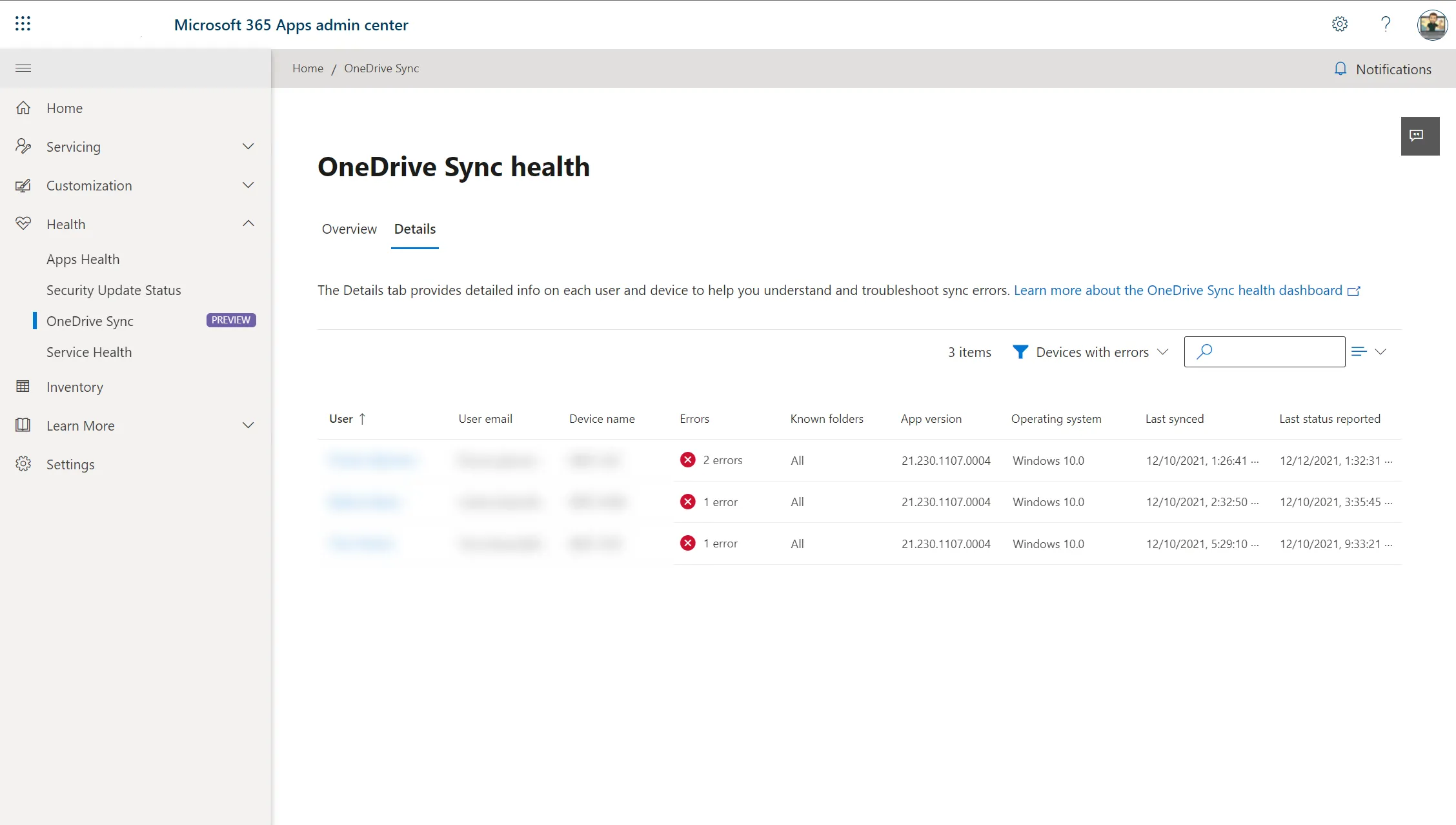
The error overview shows the user with their email address and host name. In addition, you can see how many errors the user has encountered and whether the “known folder move” is active.
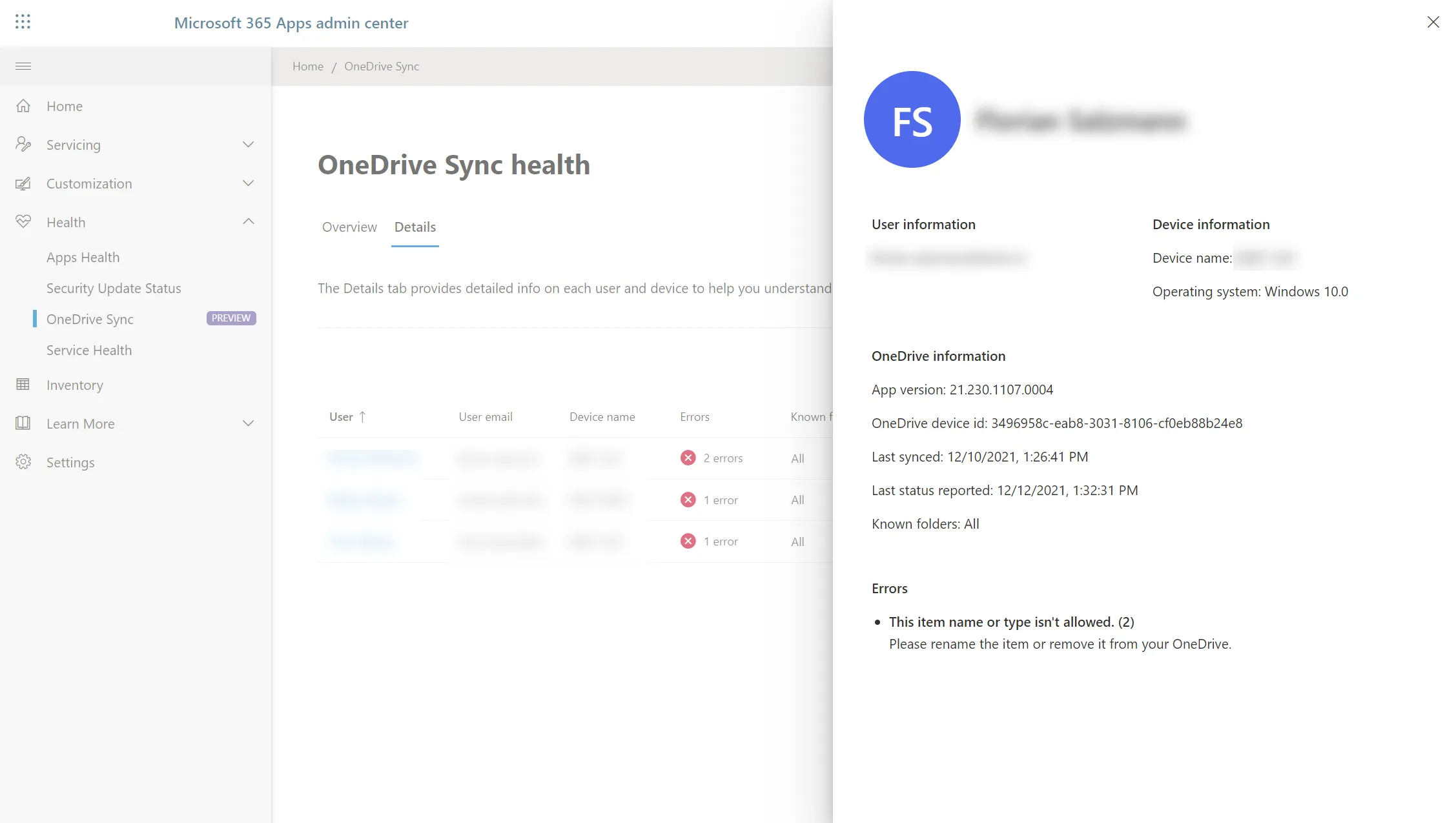
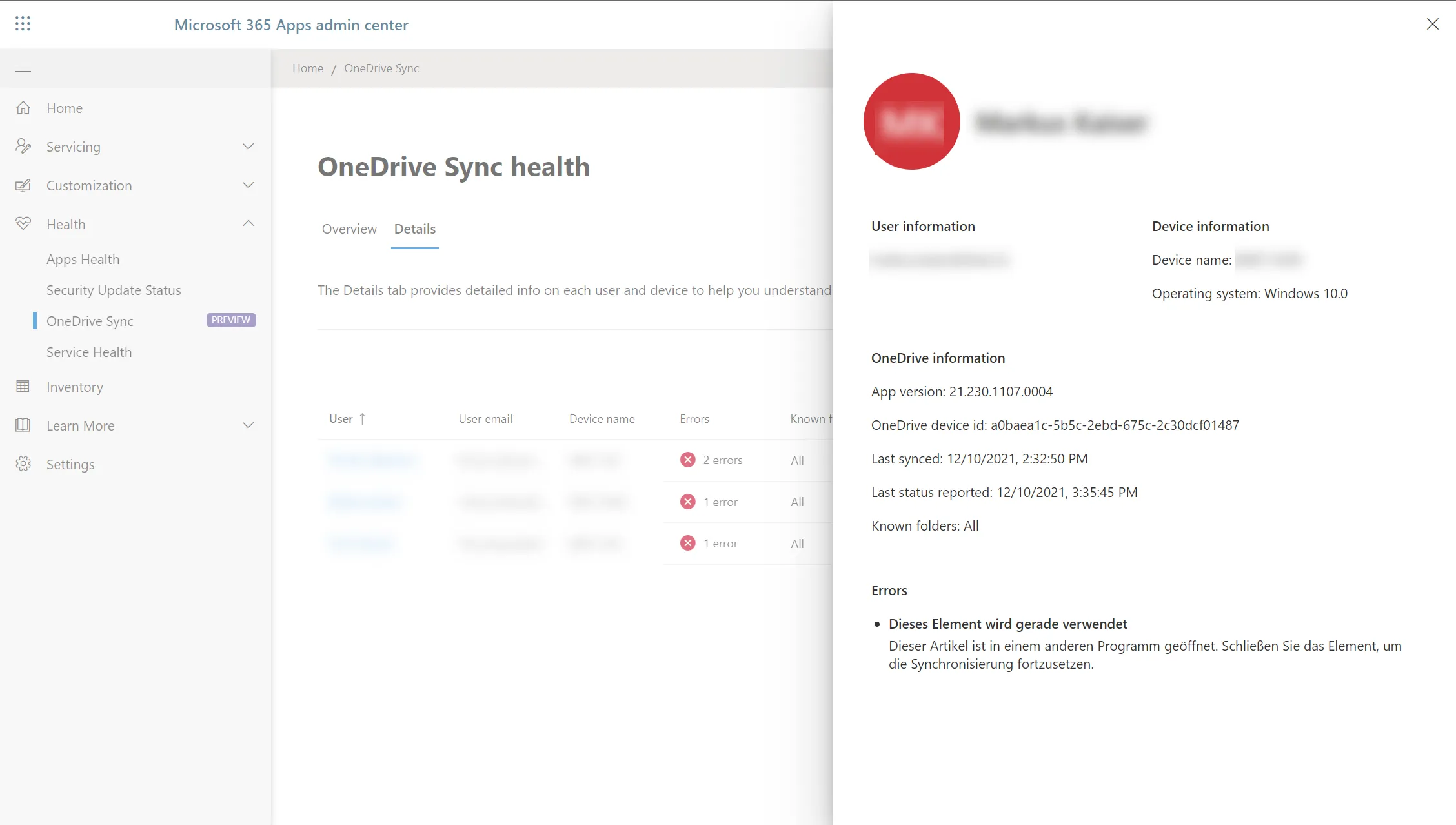
If we click on the user, a menu opens with further details and the error message from the OneDrive client. I cover the error message with the one on the local device.
The details are correct so far, only the Windows version is not correct. So I’m using Windows 11 and not 10.
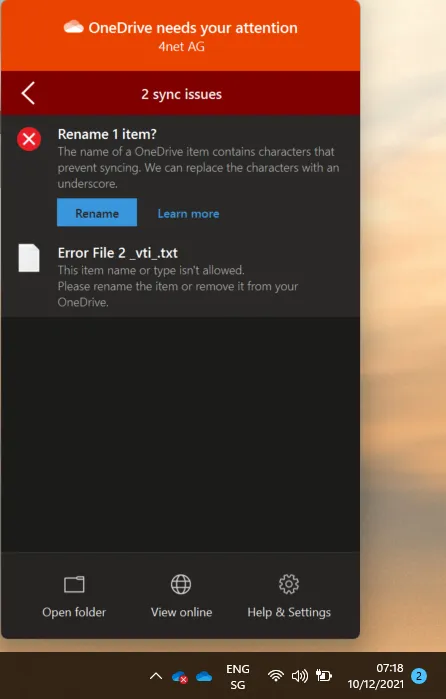
For larger, multilingual organizations, the error message can be a bit complicated, depending on the language display, as it is adopted from the local system language of the monitored device.
The general overview lists all devices and all OneDrive synchronizations. Several synchronizations can be displayed per device. In my case, for example, because I also synchronize my private tenant’s to the business OneDrive.
Summary
The OneDrive Sync Admin Reports are very helpful to proactively fight against data loss and to monitor the status of end users. The overview is simple, but shows the most important things.
What bothers me is that the report interval is very large. In my tests, the devices sent a report a maximum of once a day. This means that an error can go unnoticed for up to a day. Of course, the report is currently still in the preview and could still be improved.
Microsoft Docs article for more info: OneDrive sync reports in the Apps Admin Center - OneDrive | Microsoft Docs