Rename SharePoint Domain/URL
- Florian Salzmann
- Posted on 21 Dec, 2021
- Updated on 05 Aug, 2022
- 03 Mins read
- Microsoft 365,SharePoint
The SharePoint Online domain name isn’t always what you would wish for. This can be because a fantasy name was used when the Microsoft 365 tenant was created, or because the organization has since gotten a new name. For a long time, renaming this SharePoint domain wasn’t possible. The private preview already started back in spring (2021), but it was limited. Now the renaming is accessible in public preview. That’s why I decided to change my initial, unsuitable name and documented my approach and experience here.
Adding an onMicrosoft domain
First you need to add a new onMicrosoft domain in Azure AD, to use its prefix later as the SharePoint sub-domain. To do this, we navigate with the link https://aka.ms/SPORenameAddDomain into Azure AD to Custom domain names.
Note: With this link, it should be possible in the future to adjust the domain name without PowerShell.
- Here we add the desired new domain and immediately get feedback on whether it’s still available:
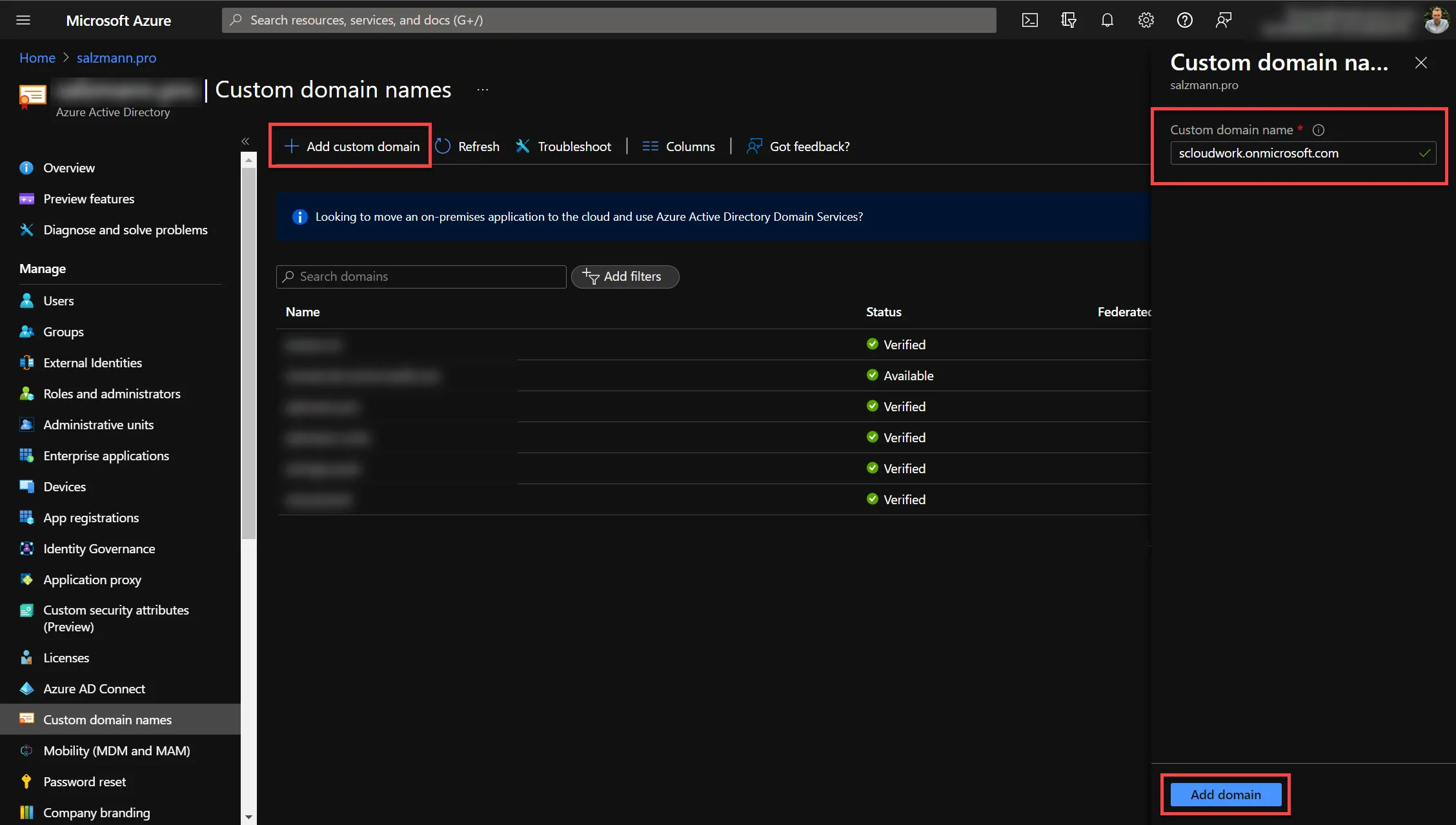
Renaming the SharePoint domain via Azure AD
- Once the domain is added, we open it.
- Here the link Configure initial domain is shown. For this you have to navigate via the link mentioned above.
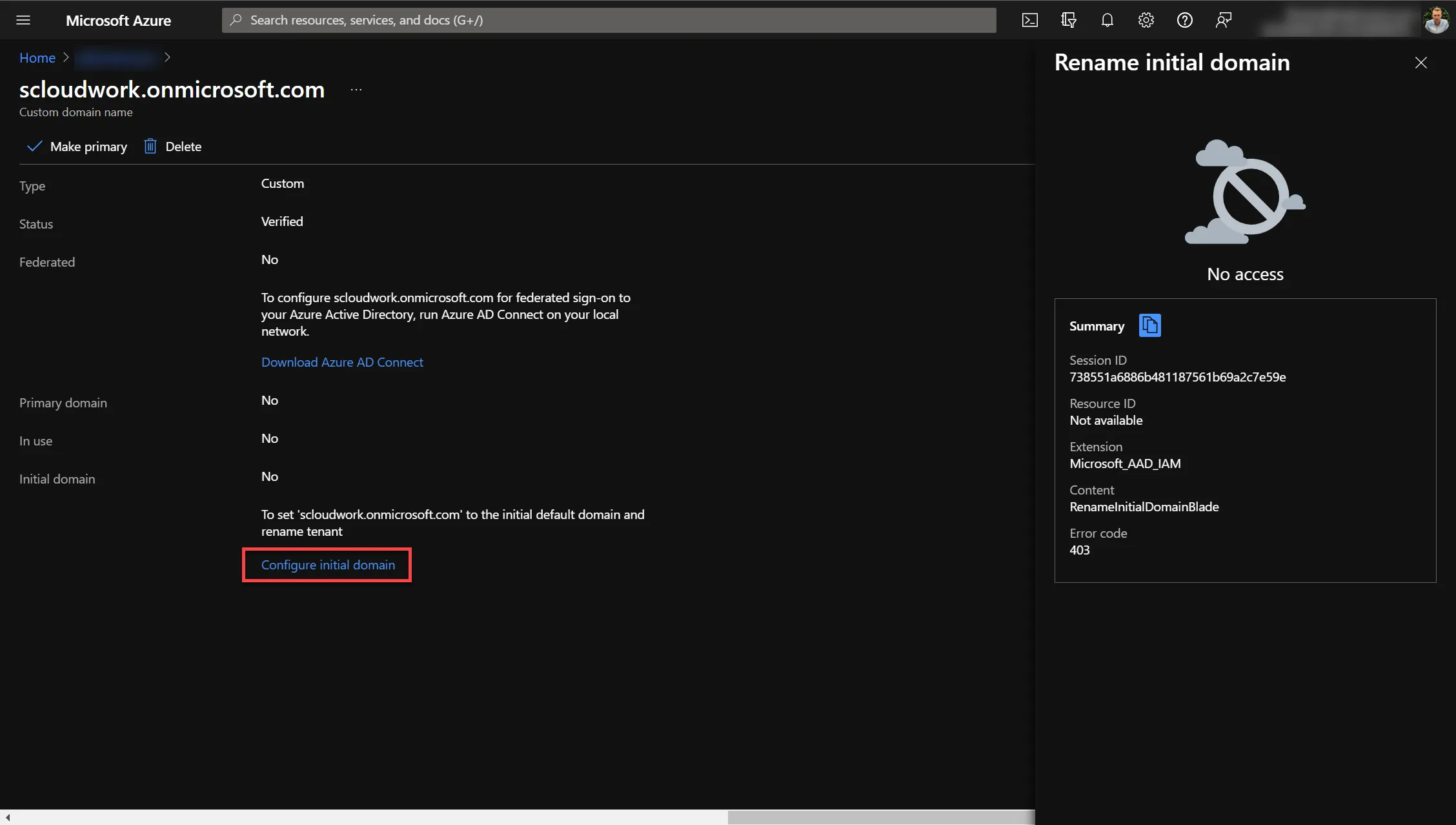
- In my case, unfortunately, this didn’t work yet.
Renaming the SharePoint domain with PowerShell
With PowerShell we can rename the domain relatively easily. This requires the SharePoint Online module, which can be installed with the command
Install-Module –Name Microsoft.Online.SharePoint.PowerShell
The rename job has to start at least 24h after it’s created and can be scheduled at most 30 days in the future.
- In my case, I ran the following commands:
(The time zone here is UTC)
Connect-SPOService -url https://xxxxxxx-admin.sharepoint.com/
Start-SPOTenantRename -DomainName scloudwork -ScheduledDateTime 2021-12-18T23:00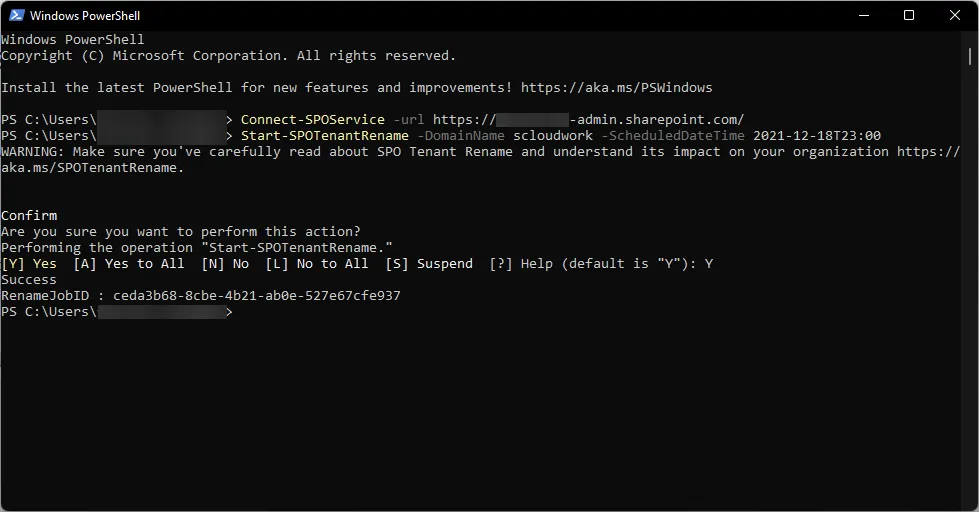
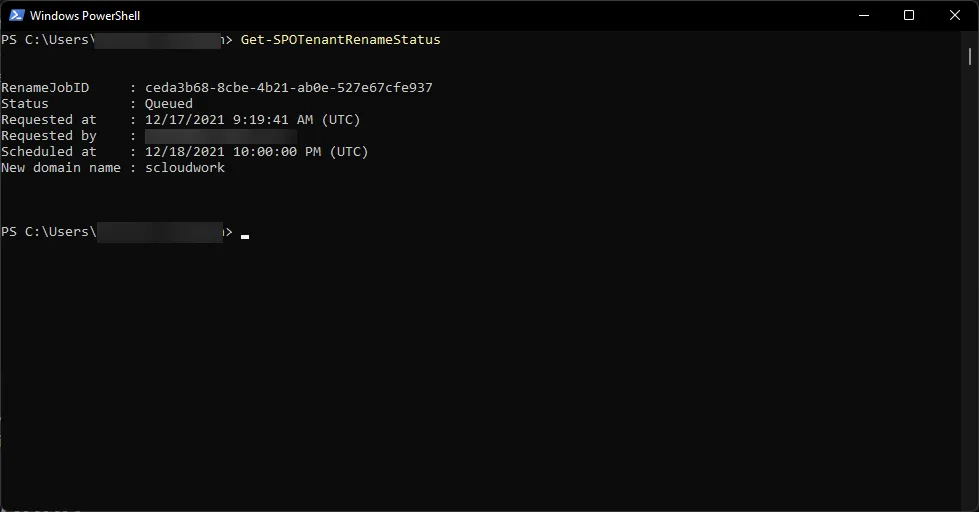
- We can check the status of the renaming with
Get-SPOTenantRenameStatus
Possible problems
Microsoft provides the possible limitations in their docs, split into the categories “Low impact”, “Medium impact” and “High impact”.
SharePoint Domain rename - Limitations
In my test, most of it worked without problems or user complaints (family works in the tenant). For myself, only three points came up which can have an impact on support effort.
- Power BI datasets (SharePoint lists) can no longer be synced.
Solution: Refresh the connection with Power BI Desktop, the sync happens automatically then. - Recently opened items (Lists, SharePoint, OneNote) no longer work and have to be opened once via the new URL.
- OneDrive links to SharePoint don’t work on mobile devices even after 72h.
Below are the error messages. I was able to solve the problem by deleting the link and adding it again. (In Windows it works normally.)


The OneDrive Sync Admin Report lets you centrally monitor possible problems with users. In my case, no errors showed up here though.
Takeaways
The SharePoint domain could be renamed with little initial effort. The impact on users is also relatively small for such a change. It’s also nice that the old URL keeps working with a redirect.
The biggest limitation, or potential source of user requests and therefore support effort, are the links and recently opened items that stop working. From my point of view, the biggest risk resulting from this is that someone keeps editing an “old” OneNote and doesn’t notice that it’s no longer syncing. In the worst case, this could lead to data loss.
Despite the possible errors or limitations, the renaming can add value for organizations. Off the top of my head, I can think of a handful of customers who, for historical reasons, have a wrong company name or one with a strange addition.