RunAsRob & Intune - The Part-Time Admin
- Florian Salzmann
- Posted on 19 Jul, 2022
- Updated on 12 Jul, 2026
- 04 Mins read
- Microsoft Intune,Security
It’s quite clear that no enduser should have local administrator rights on their device. Unfortunately, there are still programs out there which can’t be installed without admin rights or with a silent parameter, and also don’t offer any update routine. Often CAD or other drawing programs are candidates for this kind of situation. But to still be able to guarantee a reasonably secure environment, the tool “RunAsRob” is a good option. It can be distributed via Intune and lets you run a directory or program as admin, without having admin rights everywhere.
What is “RunAsRob”?
The tool “RunAsRob” is installed as a service and enables the granting of administration or system rights on predefined areas or files. This way a user can run data in a directory or a specific application as admin.
The program is free for private use. For companies, the price starts at 48 $ for 10 devices, and every additional device costs 1.80 $ (per 5 years). (Order RunAsRob (robotronic.de))
Security standard and risk
Whenever a new tool is used, especially when it concerns admin and system rights, it’s important to also look into the topic of security. I contacted the developer Oliver from “Oliver Hessing IT Service” about this, who immediately gave me information and sent me a few articles. I’ve summarized them for you here:
- Safety risk (robotronic.de)
- The security standard and safety risk of Runas, RunAsSpc and RunAsRob (runasstandarduser.com)
Both articles nicely show the risks and points that should be considered.
For me, the most important thing is that these functions are used with moderation and only where really necessary. Of course, it’s always more secure to not give the user any admin rights at all and lock down the system as much as possible. But that ultimately hinders the user in their work, and they’ll find a workaround or work on a private device - and all the security precautions are for nothing.
Configuring RunAsRob
The three essential functions can be configured via GPO or also via the registry. These define which paths or files are executed as admin or system, what the default value for the execution is, and which applications should be run as a service in the system context.
The settings are stored in the registry here:
| HKEY_LOCAL_MACHINE\SOFTWARE\RunasRob |
Under this path you’ll already find the entries if you’ve already installed the tool - if not, you can also create them manually. The values are always of the type “REG_EXPAND_SZ”.
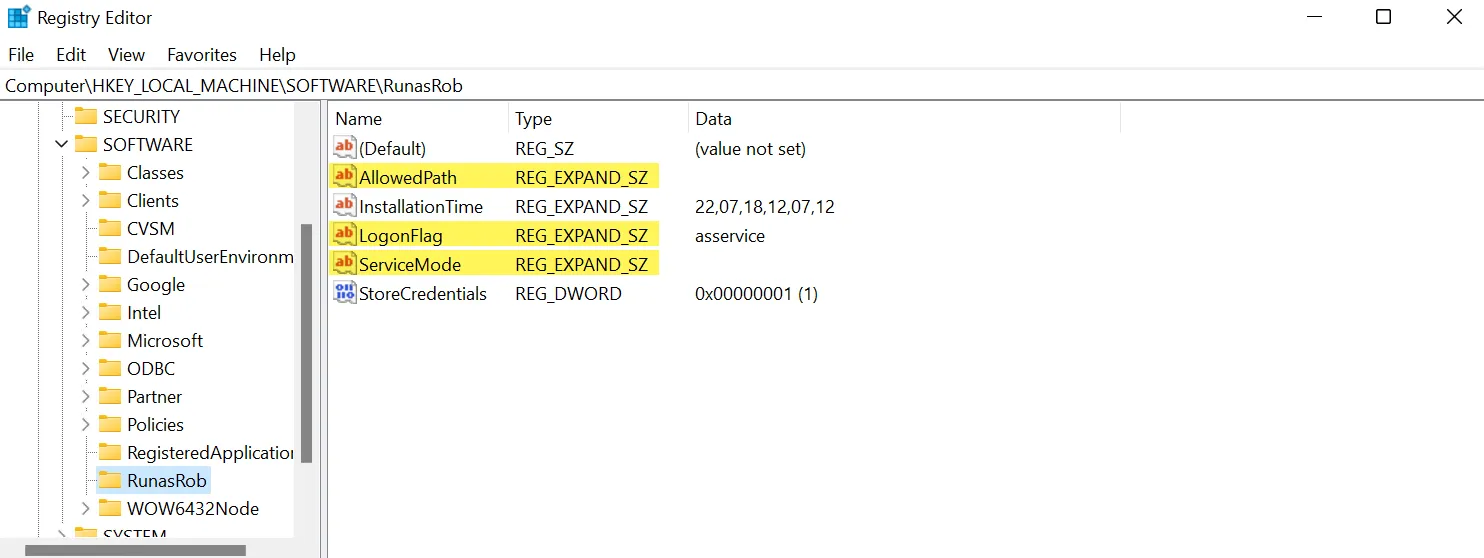
You can pre-configure these three values as follows:
| Value | Description | Example |
|---|---|---|
| LogonFlag | Default value for paths under “AllowPath”. asservice or asadmin | asadmin |
| AllowedPath | Directory(-ies) and application(s) that are allowed to be run as admin or system. The paths are strung together and separated with a semicolon (;). If the startup behavior should differ from the default (LogonFlag), this can be specified with /asservice or /asadmin. | C:\Windows\System32\cmd.exe;\\s-xx-app01\XYZ\;C:\CAD\XYZ.exe /asservice |
| ServiceMode | Application that should be started as a service in the system context, such as a monitoring agent, for example. | C:\System\monitoring.exe;C:\Program Files\Agent\agentXY.exe; |
Installing RunAsRob and distributing it with Intune
To get the program onto our devices managed with Endpoint Manager / Intune, we install the service “RunAsRob” on one hand, and on the other hand set the registry entries with the desired configuration.
I’ve put the template for the complete package on GitHub for you:
The package consists of the EXE, an installation and uninstallation routine, a validation file and the configuration data with the registry entries.
Of all these files, we actually only need to adjust the configuration file “RunAsRob_Policies.ps1”. This contains the three configuration options described above and stores them in the Windows registry.
$AllowedPath = ""           #   exp. C:\Windows\System32\cmd.exe;\\s-xx-app01\XYZ\;
$ServiceMode = ""           #   exp. C:\System\monitoring.exe;C:\Program Files\Agent\agentXY.exe;
$LogonFlag = "asadmin"      #   asservice or asadmin

$PolicyPath = "HKLM:\SOFTWARE\RunasRob"

if(!(Test-Path $PolicyPath)){New-Item -Path $PolicyPath -Force}
if($AllowedPath){Set-ItemProperty -Path $PolicyPath -Name "AllowedPath" -Value $AllowedPath -Type "ExpandString"}
if($ServiceMode){Set-ItemProperty -Path $PolicyPath -Name "ServiceMode" -Value $ServiceMode -Type "ExpandString"}
if($LogonFlag){Set-ItemProperty -Path $PolicyPath -Name "LogonFlag" -Value $LogonFlag -Type "ExpandString"}
Once you’ve adjusted the file to your needs, you can turn the whole package into a Win32 app (intunewin). I’ve documented how you can do this here:
Create Win32 App / .intunewin | scloud
Have you created the intunewin file?
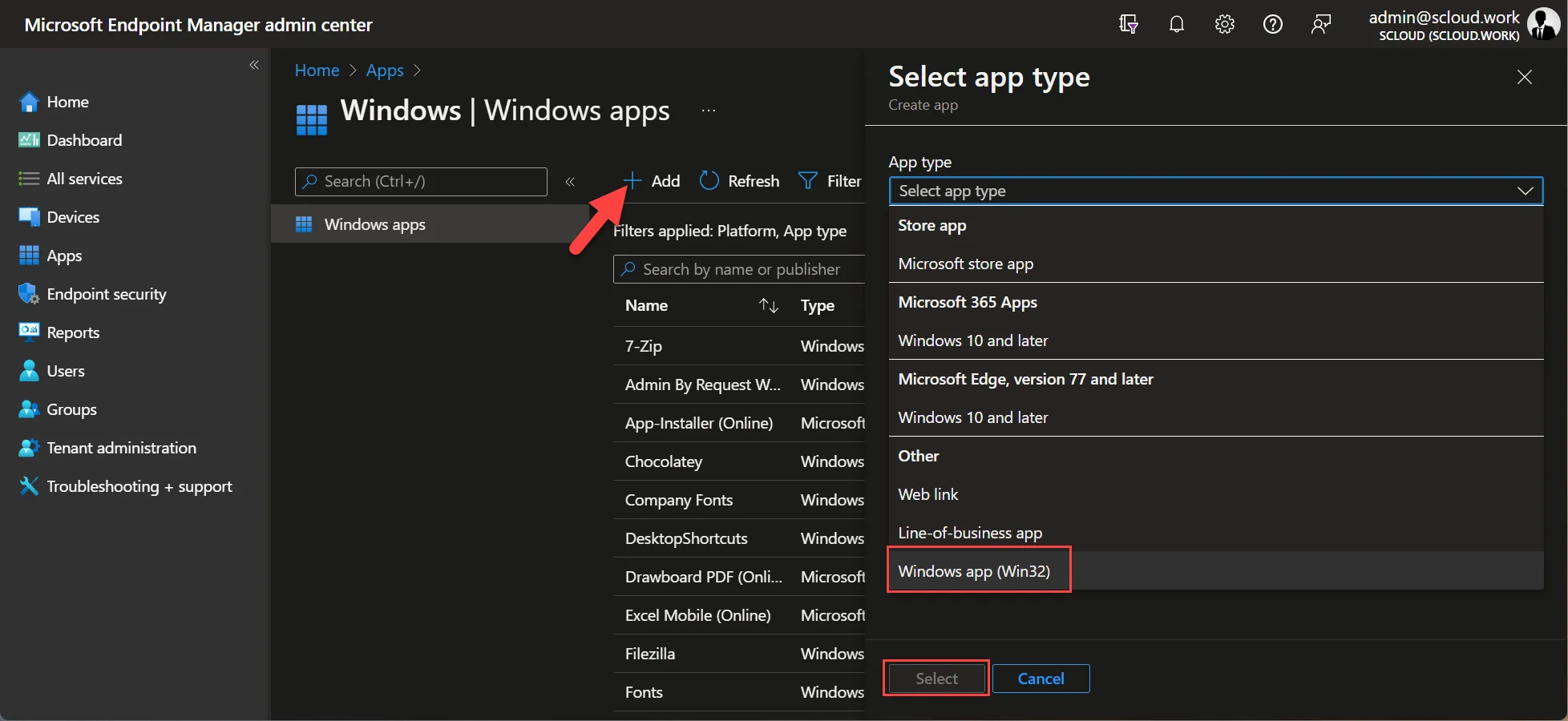
Then we just need to register and upload it in Endpoint Manager under “Apps > Windows apps” as a Windows app (Win32).
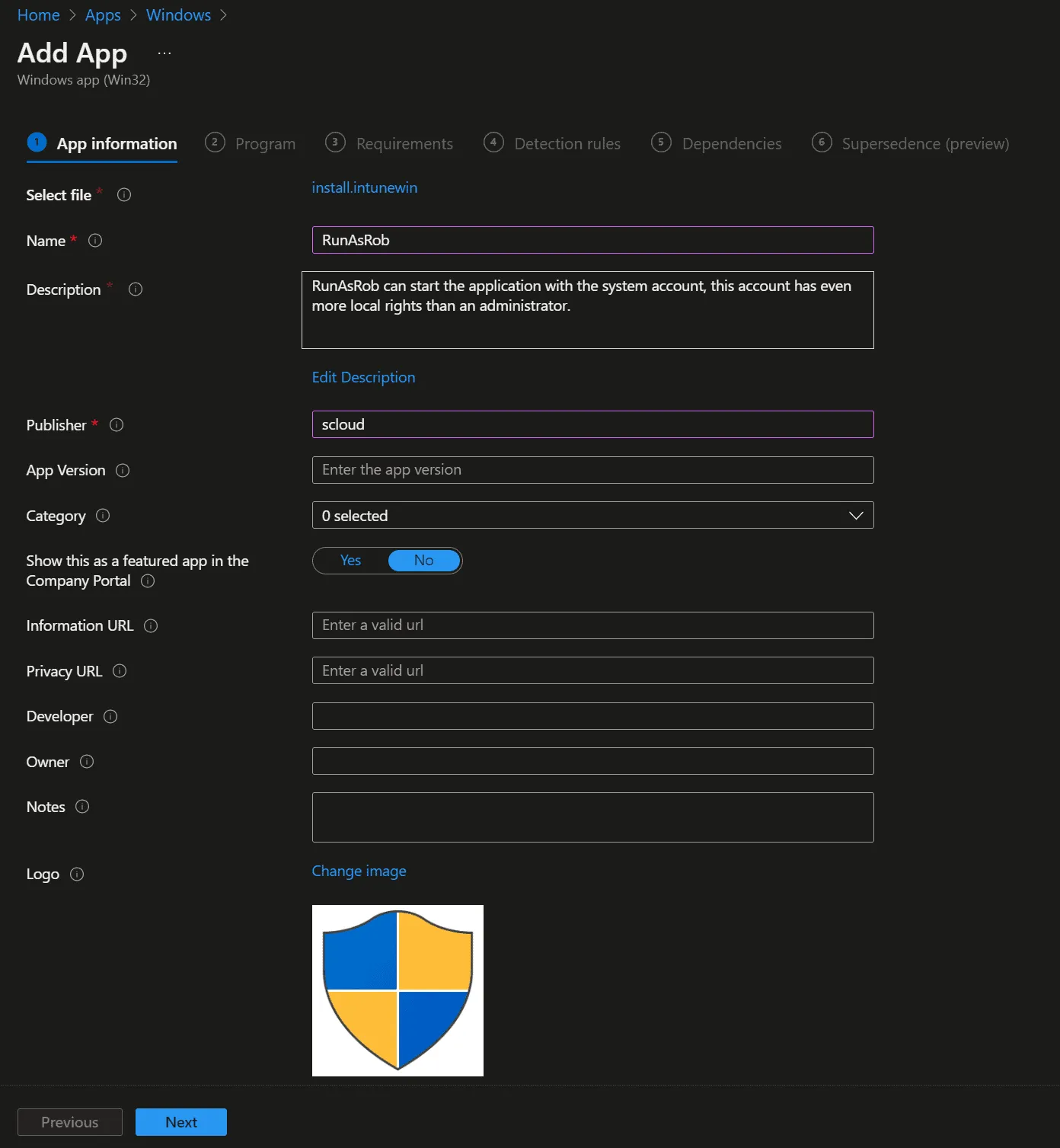
Then we assign at least a name, a description, and the publisher.
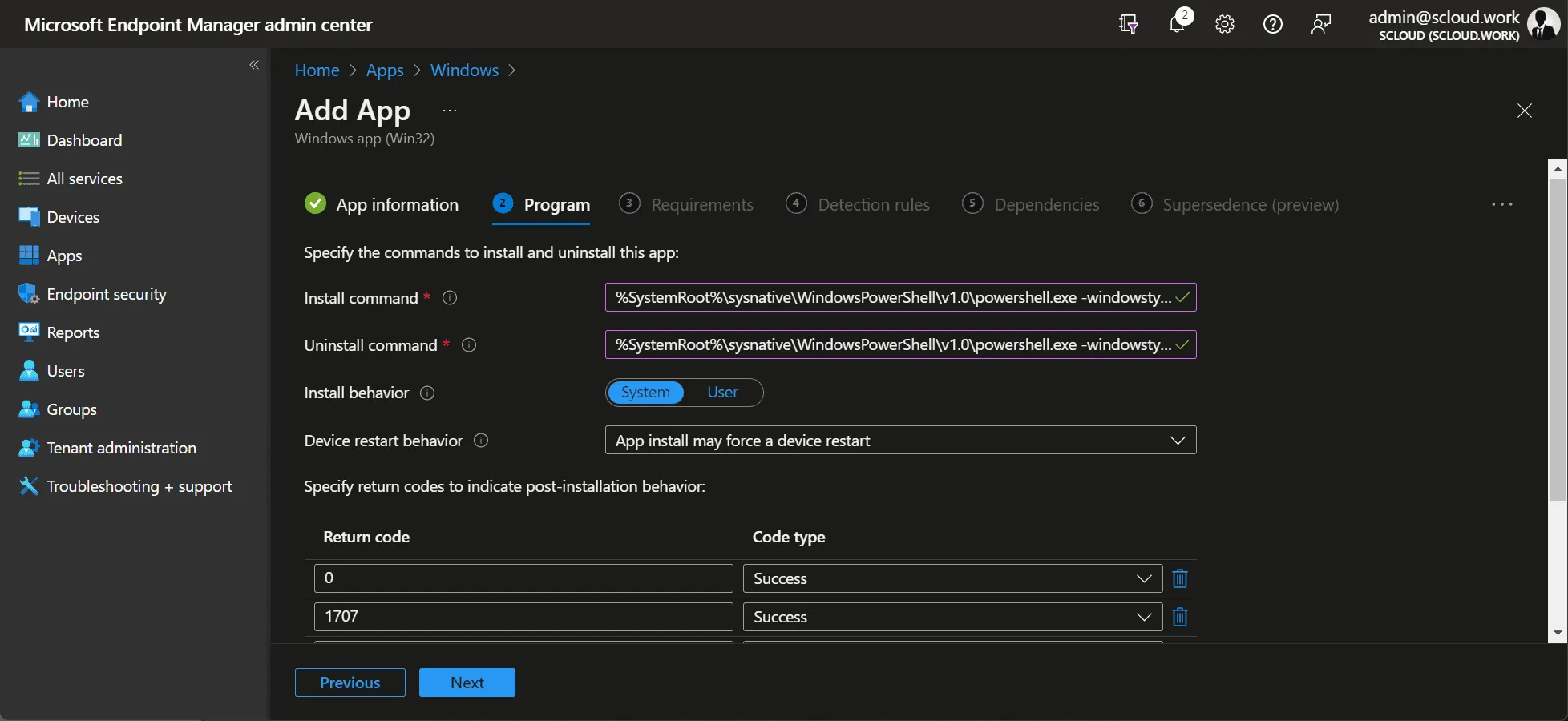
For the install and uninstall commands, you can insert the two lines below. We leave the execution context as System.
| Install command | %SystemRoot%\sysnative\WindowsPowerShell\v1.0\powershell.exe -windowstyle hidden -executionpolicy bypass -command .\install.ps1 |
| Uninstall command | %SystemRoot%\sysnative\WindowsPowerShell\v1.0\powershell.exe -windowstyle hidden -executionpolicy bypass -command .\uninstall.ps1 |
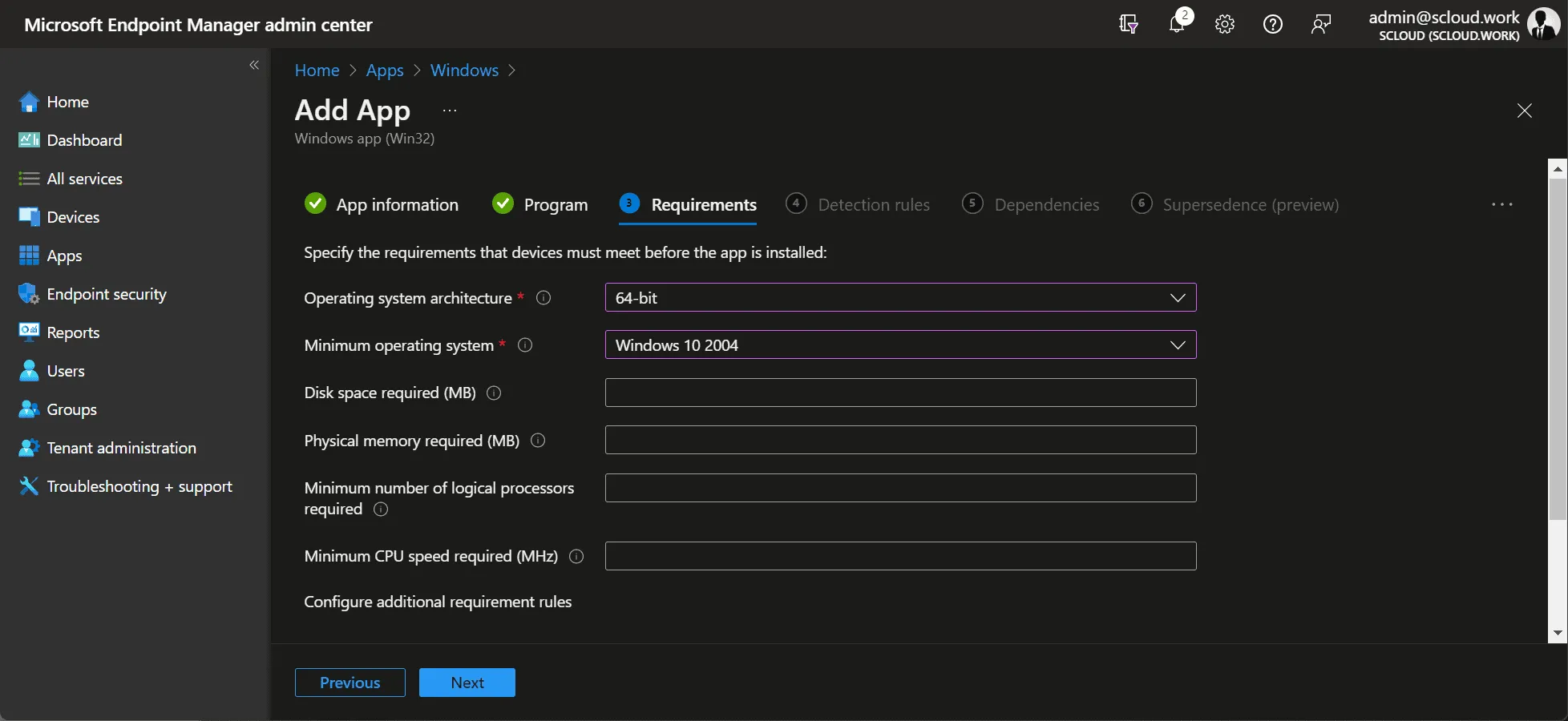
For the requirements, only x64 is required, the Windows version doesn’t matter. In the next step you still need to upload the Detection Rule (check.ps1).
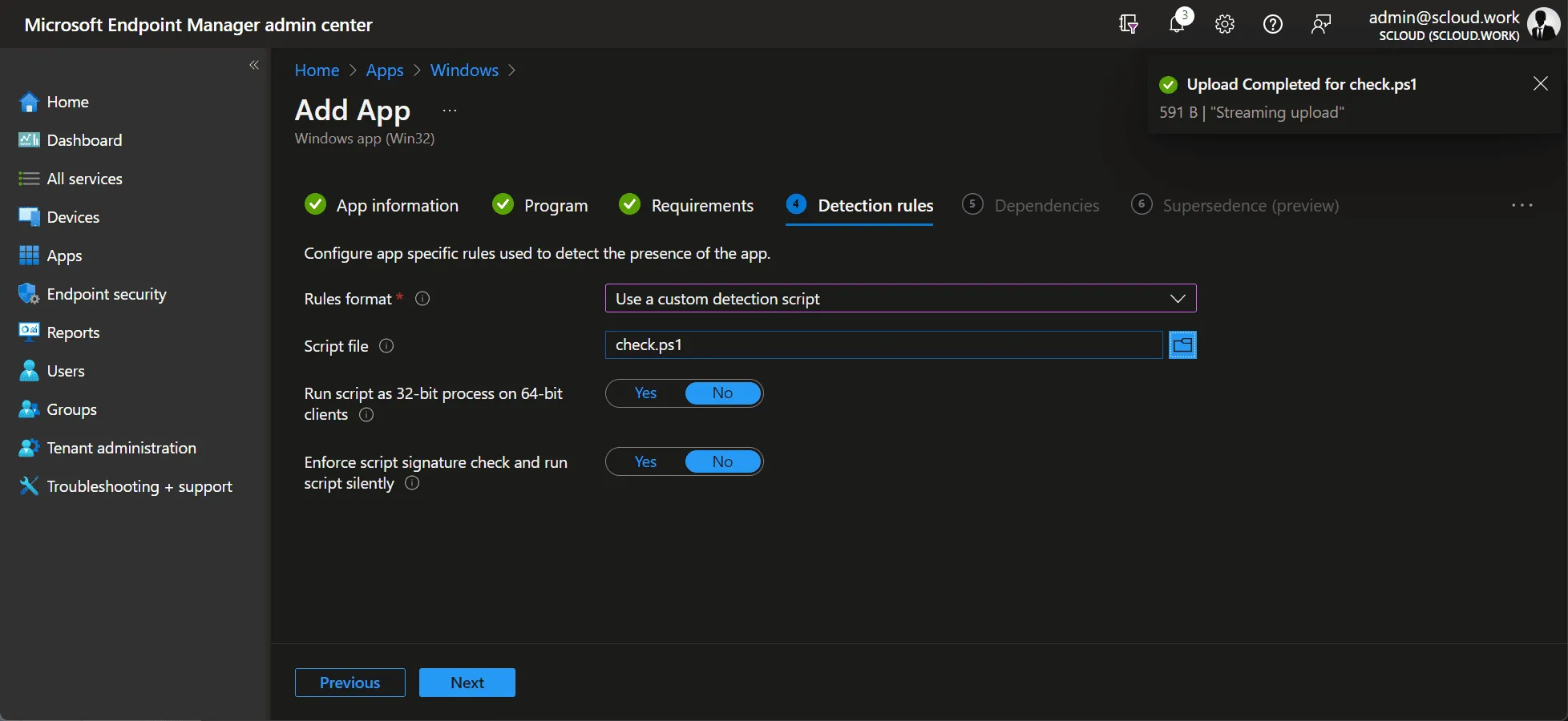
The program has no dependencies. Finally, you just need to assign it to the desired group.
Updating the RunAsRob configuration
To define new paths or behavior for the program, you have two options:
- Rebuild and redistribute the package like during the initial creation.
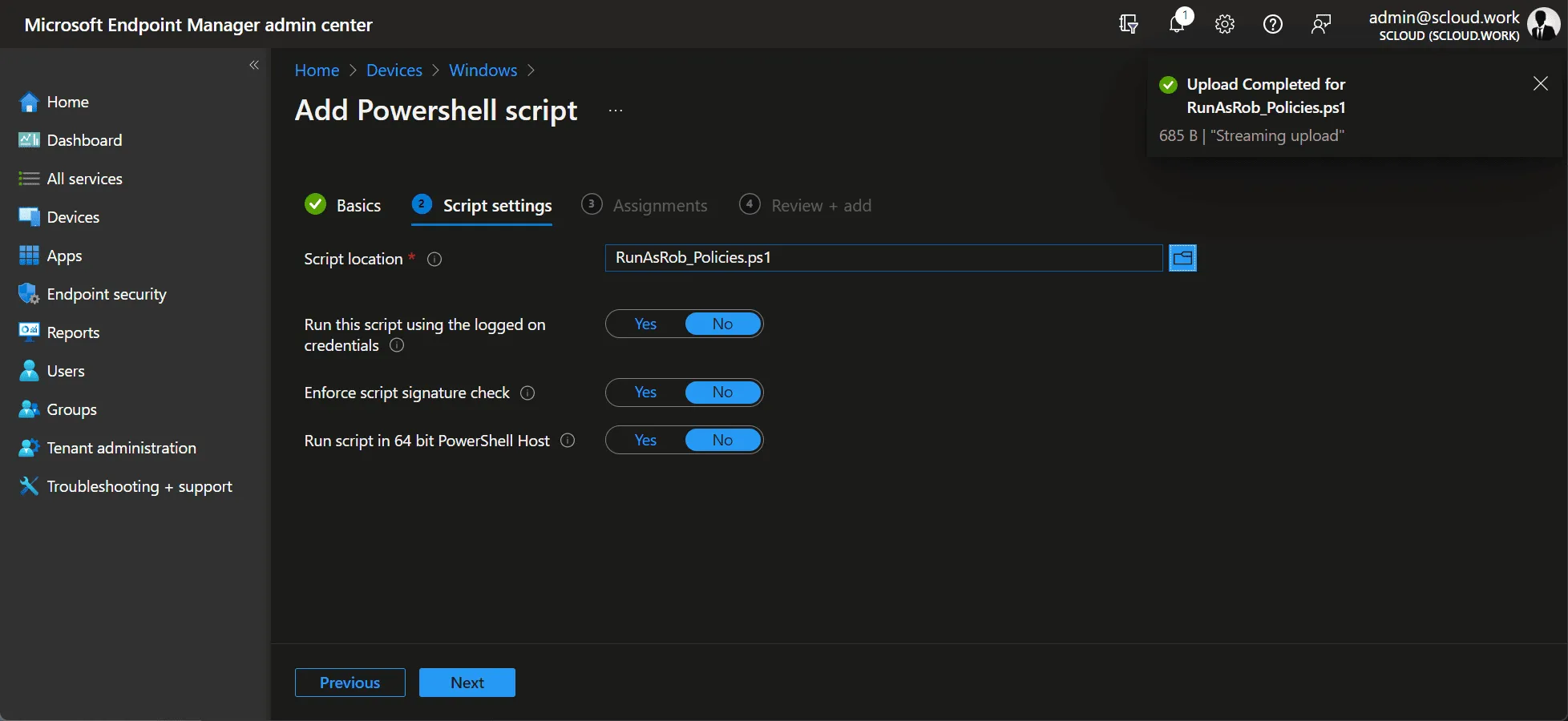
- Only adjust the configuration file (RunAsRob_Policies.ps1) and distribute it as a PowerShell script.
- You can upload the script under “Devices > Windows > PowerShell scripts”.
- Here you simply assign a name, select the script (RunAsRob_Policies.ps1) and assign it to the target group. All default settings can be left as they are: