Enable Windows Hello - Intune
- Florian Salzmann
- Posted on 13 Jul, 2021
- Updated on 11 Aug, 2023
- 02 Mins read
- Microsoft Intune
Short answer: deploy a PowerShell script via Intune that sets AllowDomainPINLogon and the PassportForWork registry keys, so users can still sign in with a PIN or biometrics even when Windows Hello for Business itself is disabled.
There are configurations in which activating Windows Hello for Business does not make sense for our customers and is therefore switched off.
Basically, Windows Hello is a very good and secure way to protect the devices on site and to follow a “passwordless” approach. In production or when workplaces have to be changed sporadically, the second factor can be annoying. Because this is always required for employees when they log in to the PC for the first time. In addition, Windows Hello is also often blocked in local environments.
How do I enable Windows Hello PIN sign-in via Intune?
In order to still offer the possibility of PIN and bio-authentication, I distributed the following PowerShell script to the end devices in such cases.
Set-ItemProperty -Path "HKLM:\SOFTWARE\Policies\Microsoft\Windows\System" -Name "AllowDomainPINLogon" -Value 1 -Type DWORD

reg add "HKEY_LOCAL_MACHINE\SOFTWARE\Policies\Microsoft\PassportForWork" /v Enabled /t REG_DWORD /d 1 /f
reg add "HKEY_LOCAL_MACHINE\SOFTWARE\Policies\Microsoft\PassportForWork" /v DisablePostLogonProvisioning /t REG_DWORD /d 1 /f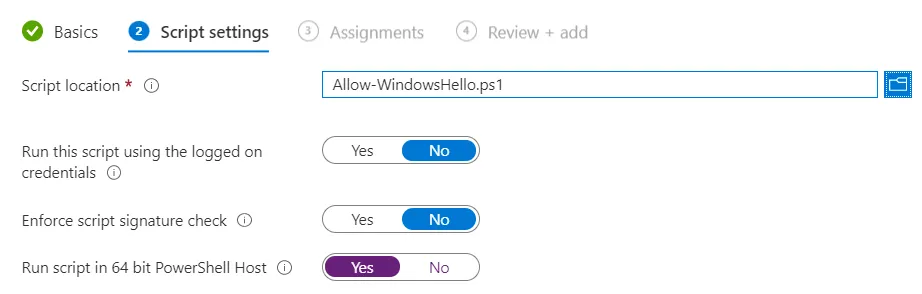
Switch on Windows Hello via PowerShell with Intune
Download PowerShell Script and activate Windows Hello:
FAQ
Does this replace Windows Hello for Business entirely?
No - it configures a fallback so PIN and biometric sign-in still work locally even when Windows Hello for Business is switched off tenant- or device-wide.
Which registry keys does the script change?
HKLM:\SOFTWARE\Policies\Microsoft\Windows\System (AllowDomainPINLogon) and HKLM:\SOFTWARE\Policies\Microsoft\PassportForWork (Enabled, DisablePostLogonProvisioning).
Do I need to sign users out or restart the device for this to take effect?
Yes, typically a sign-out is enough for the PIN sign-in option to appear; a full restart guarantees it if the sign-out alone doesn’t. Since this is delivered as a PowerShell script (not a Configuration Profile), it only runs once per assignment cycle rather than continuously enforcing the setting - if a later policy or reset changes the registry values back, you’ll need to trigger the script again.
Assigning this as a Proactive Remediation instead of a one-time script
If you want the setting continuously enforced rather than applied once, package the same commands as a Proactive Remediation with a detection script that checks the registry values and a remediation script that sets them - that way Intune re-applies the fix automatically if something resets it, instead of you having to re-run the one-time script manually.