Cloud PKI vs Certificate Connector: Which Path Should You Choose?
- Florian Salzmann
- Posted on 26 Nov, 2026
- 08 Mins read
- Microsoft Intune,Security
If you deploy certificates through Microsoft Intune, you now have two options: the classic Certificate Connector with an on-premises CA or the newer Microsoft Cloud PKI. Both solve the same problem. They deliver certificates to your managed devices for Wi-Fi, VPN, email encryption and device authentication. But the way they do it is fundamentally different.
In this post I compare both approaches side by side. I share what I have seen in production, explain the trade-offs and help you decide which path fits your environment.
Why certificate deployment matters in Intune
Certificates are the backbone of secure device authentication. They replace passwords in scenarios like 802.1x Wi-Fi, always-on VPN and S/MIME email signing. Without a working certificate infrastructure, your Conditional Access policies and Zero Trust strategy have a gap.
For years, the only option in Intune was the Certificate Connector paired with an on-premises Microsoft CA. It works. It is proven. But it requires infrastructure, maintenance and expertise. Cloud PKI changes that equation.
The Certificate Connector: the established path
The Certificate Connector for Microsoft Intune is an on-premises component that bridges Intune with your Active Directory Certificate Services (AD CS) environment. You install it on a Windows Server, connect it to your CA and configure certificate profiles in Intune.
How it works
The connector supports two distinct certificate delivery options. Each one has its own flow, its own prerequisites and its own use cases. You select which features to enable during connector setup.
Option 1: SCEP (Simple Certificate Enrollment Protocol)
SCEP is the protocol you use when you want the device to generate its own key pair. The device creates a private/public key pair locally, builds a certificate signing request (CSR) and sends only the public key to the SCEP service. The CA signs the request and the device receives the certificate. The private key never leaves the device.
This is the more secure option because the private key stays on the endpoint. It is also the more complex option to set up.
What SCEP requires on top of the base connector:
- The NDES (Network Device Enrollment Service) role installed on the connector server
- An NDES service account with Read and Enroll permissions on SCEP certificate templates
- IIS configured for the NDES endpoint
- A certificate template duplicated from the User template with the right settings (key usage, validity, subject name)
- The SCEP URL reachable by your managed devices (directly or through a reverse proxy)
When to use SCEP:
- Wi-Fi authentication (802.1x) where the device needs a client certificate
- VPN authentication with certificate-based profiles
- Device identity scenarios where you want the private key generated on the device
- Any scenario where you also plan to migrate to Cloud PKI later (Cloud PKI uses SCEP exclusively)
Option 2: PKCS #12
PKCS is the protocol you use when you want the connector server to generate the key pair on behalf of the device. The connector creates the private and public key, packages them as a PKCS #12 (.pfx) file and delivers the full certificate to the device.
This is the simpler option to set up because it does not require NDES. The trade-off is that the private key is generated on the server, not on the device.
What PKCS requires on top of the base connector:
- A certificate template on your CA configured to allow private key export
- The connector service account with Read and Enroll permissions on the template
- Issue and Manage Certificates permissions on the CA (for revocation)
- No NDES role needed
When to use PKCS:
- Email signing and encryption (S/MIME) using user certificates
- Scenarios where NDES complexity is not justified
- Imported PFX certificates that you upload to Intune and distribute to specific users
- Any use case that requires PKCS #12 format delivery
Shared prerequisites for both options
Regardless of whether you choose SCEP, PKCS or both, every Certificate Connector deployment needs these basics:
- A Windows Server (2012 R2 or later, 2019+ recommended for strong mapping)
- Desktop Experience enabled on the server
- .NET Framework 4.7.2 or later
- Active Directory Certificate Services with a configured CA
- A service account with the required CA permissions
- An account with the Intune Administrator role and an Intune licence assigned, used to sign in during connector setup
- Network connectivity between the server and Intune service endpoints
You install the connector from the Intune admin center under Tenant administration > Connectors and tokens > Certificate connectors > Add. During setup, you select the features you need: SCEP, PKCS, PKCS imported certificates or any combination. You can run up to 100 connector instances per tenant for redundancy and load balancing.
Strengths
- Two protocol options covering a wide range of certificate use cases
- S/MIME email encryption via PKCS imported certificates
- Proven in production for years
- Up to 100 connector instances per tenant for redundancy and scale
- Included with Intune Plan 1 (no additional licence cost)
- Automatic updates when internet access is available
Challenges
- SCEP with NDES adds significant setup complexity
- Requires on-premises server infrastructure and ongoing maintenance
- Server patching, connector updates and certificate template management add operational overhead
- Troubleshooting often means digging through event logs on the connector server
- Each connector version runs out of support six months after a newer version is released, so updates are a recurring task
Microsoft Cloud PKI: the cloud-native path
Cloud PKI is a fully managed certificate service built into Intune. It provides a complete two-tier PKI hierarchy (root CA and issuing CA) without any on-premises infrastructure. You set it up entirely in the Intune admin center and Microsoft handles the rest.
How it works
Cloud PKI uses SCEP exclusively. When a device checks in, it receives a SCEP profile from Intune. The device generates a key pair, creates a certificate signing request (CSR) and sends it to the Cloud PKI SCEP service. The built-in registration authority validates the request and the issuing CA signs the certificate. The device receives the signed certificate. All of this happens without touching a single on-premises server.
What you need
- Microsoft 365 E5 (included since July 2026), an Intune Suite licence or the Cloud PKI standalone add-on
- Intune Administrator role or custom role with Cloud PKI permissions
- A few minutes in the Intune admin center to create root and issuing CAs
That is it. No server. No NDES. No connector.
Strengths
- Zero on-premises infrastructure required
- Setup takes minutes instead of hours
- Microsoft manages updates, patching and availability
- Built-in high availability with Azure managed HSM key storage
- Supports all Intune platforms (Windows, iOS, macOS, Android)
- Bring your own CA (BYOCA) option if you want to anchor to an existing root
- Automatic certificate lifecycle management (issuance, renewal, revocation)
Limitations
- SCEP only. No PKCS #12 support
- No imported PFX certificates (so no S/MIME email encryption)
- Requires Microsoft 365 E5, the Intune Suite or the standalone add-on. Microsoft 365 E3 does not include it
- Maximum of 3 CAs per tenant, bring-your-own CAs included
- Trial CAs use software-backed keys that cannot be converted to HSM after licensing
Side-by-side comparison
Technically, the three paths differ most in where the private key is created and which servers sit between the device and the CA.
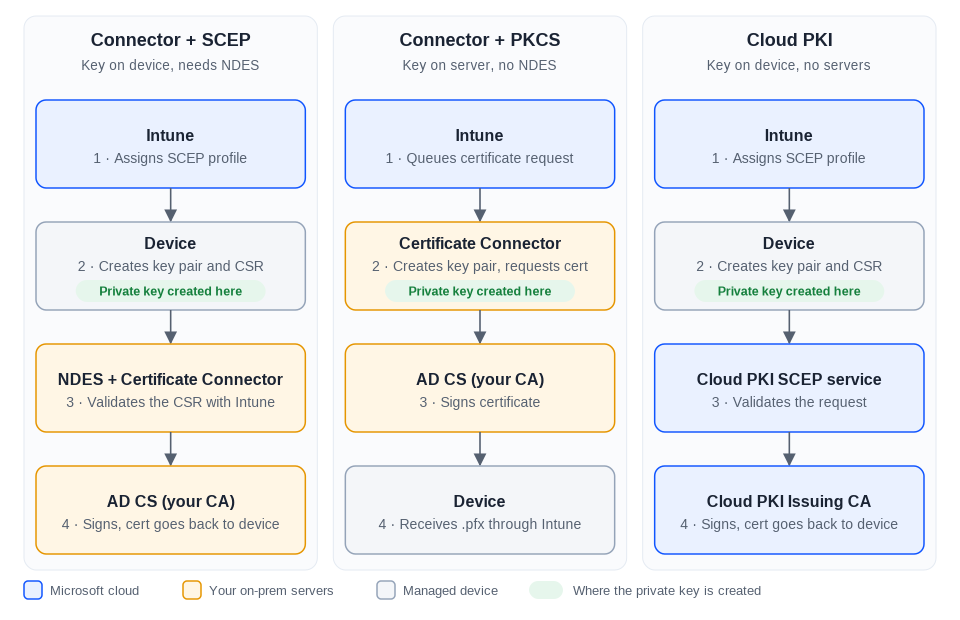
Here is a quick reference to help you compare both options at a glance.
| Criteria | Connector: SCEP | Connector: PKCS | Cloud PKI |
|---|---|---|---|
| Infrastructure | Windows Server, NDES, CA | Windows Server, CA (no NDES) | None. Fully cloud-hosted |
| Setup time | Hours to days (NDES adds complexity) | Hours (simpler than SCEP) | Minutes (wizard in admin center) |
| Protocol | SCEP | PKCS #12 | SCEP |
| Key generation | On the device | On the connector server | On the device |
| S/MIME encryption | No | Yes (via imported PFX) | No |
| NDES required | Yes | No | No |
| Bring your own CA | Yes (your AD CS) | Yes (your AD CS) | Yes (BYOCA option available) |
| High availability | Multiple connector instances (up to 100) | Multiple connector instances (up to 100) | Built-in, managed by Microsoft (max. 3 CAs) |
| Key storage | Device (private key stays local) | On-premises server | Azure managed HSM (licensed) or software keys (trial) |
| Certificate revocation | Yes | Yes | Yes (automatic and manual) |
| Maintenance | Server patching, connector updates, NDES upkeep | Server patching, connector updates | None. Microsoft manages everything |
| Platforms | Windows, iOS, macOS, Android | Windows, iOS, macOS, Android | Windows, iOS, macOS, Android |
| Licensing | Intune Plan 1 (included in M365 E3) | Intune Plan 1 (included in M365 E3) | M365 E5 (since July 2026), Intune Suite or add-on |
| Best for | Wi-Fi (802.1x), VPN, device auth | S/MIME, email signing, PFX import | Wi-Fi (802.1x), VPN, device auth (cloud-native) |
Which path should you choose?
The answer depends on your environment, your licensing and your specific certificate use cases. Here is how I think about it.
Choose Cloud PKI if
- You are cloud-first or cloud-only and want to avoid on-premises infrastructure
- You deploy certificates primarily for Wi-Fi (802.1x), VPN or device authentication
- You have M365 E5, the Intune Suite or the Cloud PKI add-on
- You want minimal operational overhead and fast setup
- You are starting fresh with certificate deployment and have no existing AD CS investment
Stay with the Certificate Connector if:
- You need PKCS #12 certificate delivery
- You use imported PFX certificates for S/MIME email encryption
- You already have a mature AD CS environment and the operational processes around it
- Your licensing does not include the Intune Suite or M365 E5 (and you want to avoid the add-on cost)
- You have specific compliance requirements that mandate on-premises key storage
Consider a hybrid approach
You can run both side by side. Use Cloud PKI for straightforward device authentication certificates (Wi-Fi, VPN) and keep the Certificate Connector for S/MIME or PKCS-specific scenarios. Each SCEP profile points to its own SCEP URL, either the Cloud PKI SCEP URI or your NDES URL, so both can run in the same tenant without conflicts.
This approach lets you migrate gradually. Start new deployments on Cloud PKI and move existing use cases over as Cloud PKI adds more features.
The licensing angle: what changed in July 2026
Until July 2026, Cloud PKI required the Intune Suite or a standalone add-on licence. Since 1 July 2026, Microsoft 365 E5 includes Cloud PKI, together with Endpoint Privilege Management and Enterprise App Management. Microsoft 365 E3 got a smaller set of Intune Suite features, and Cloud PKI is not part of it.
If you are on M365 E5, Cloud PKI is included at no extra cost. This removes the biggest adoption barrier. For organisations on E3, you still need the Intune Suite or the standalone Cloud PKI licence.
This licensing shift makes Cloud PKI the default recommendation for E5 customers starting fresh with certificates. The Certificate Connector remains the cost-effective choice for E3 environments where the on-premises infrastructure already exists.
Practical tips from the field
Test with a trial first. If you are not on E5, Microsoft offers a 90-day trial of the Intune Suite or of standalone Cloud PKI. Use it to create a Cloud PKI environment and validate your use cases. Keep in mind that trial CAs use software-backed keys, and you can’t convert them to HSM later. If you need HSM-backed keys for compliance, create new CAs after purchasing the licence.
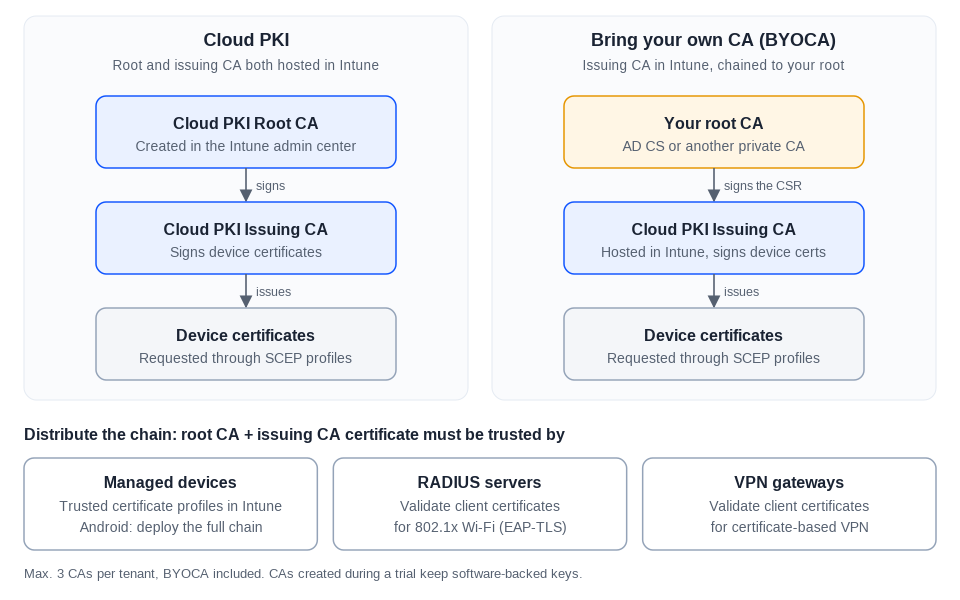
Plan your trust chain. Cloud PKI requires you to deploy root and issuing CA certificates to all devices and relying parties (RADIUS servers, VPN gateways). Map out your trust chain before you start. Android devices are especially strict and need the full chain deployed explicitly. A broken chain is also a classic reason for failing 802.1x Wi-Fi, even when every profile in Intune reports success. I covered that case in 802.1X Wi-Fi Failing? Check Your Certificate Chain.
BYOCA for existing environments. If you already have an established root CA, use the bring-your-own-CA option. This lets you anchor Cloud PKI to your existing trust hierarchy while moving certificate issuance to the cloud.
Monitor connector health. If you stay with the Certificate Connector, check its status and version regularly in the Intune admin center. A connector version is supported for six months after a newer version is released. Out-of-support connectors keep working for up to 18 months after that release, but then they might stop communicating with Intune.
Wrapping up
Cloud PKI and the Certificate Connector both deliver certificates to your Intune-managed devices. The difference is where the complexity lives. With the Certificate Connector, you own the infrastructure. With Cloud PKI, Microsoft owns it.
For new deployments, Cloud PKI is the simpler and faster path. For environments with existing AD CS infrastructure and PKCS or S/MIME requirements, the Certificate Connector remains the right choice. And if you are somewhere in between, run both side by side and migrate at your own pace.
If you are on M365 E5, Cloud PKI is already part of your licence since July 2026.