Map Network Drives with Intune using Custom ADMX
- Florian Salzmann
- Posted on 15 May, 2025
- Updated on 17 May, 2026
- 03 Mins read
- Microsoft Intune
Network drives are still very common in many organisations. Even in 2025 I often see file servers that are used for departments, scanners or legacy tools. The problem starts when you move to Entra joined or cloud only devices. There are no GPOs anymore and Intune does not offer any native drive mapping feature.
I get many questions about this in projects. Most admins try a PowerShell script first. It works, but it is not ideal. You do not see anything in the Intune UI, you need to maintain it manually, and you can create PowerShell popups for your users. There is also a VBS based solution that hides the script window, but VBS will be blocked by default very soon.
So I use a different and much cleaner approach. I use custom ADMX files from Rudy Ooms that bring the classic drive mapping GPOs to Intune. The result is a simple and clean configuration that is visible in the Intune UI and easy to maintain.
In this post I show you how I configure drive mappings for cloud only devices and how I fix the reconnect issues that many users see.
What you need
- Entra joined or Hybrid joined Windows device
- Access to the file share through LAN, VPN or Entra Private Access
- Cloud Kerberos Trust if you want Kerberos authentication on cloud only devices
- The custom ADMX files
You do not need a PowerShell script to create the drive. We only use a small script to fix the well known red cross issue and the visibility problem.
Import the custom ADMX into Intune
Rudy Ooms created a custom ADMX that exposes drive mapping settings in Intune.
This works like any other ADMX upload.
Drivemapping ADMX/ADML @GitHub
- Go to Intune
- Navigate to Devices
- Configuration / Import ADMX
- Import custom ADMX
- Upload the ADMX and ADML files
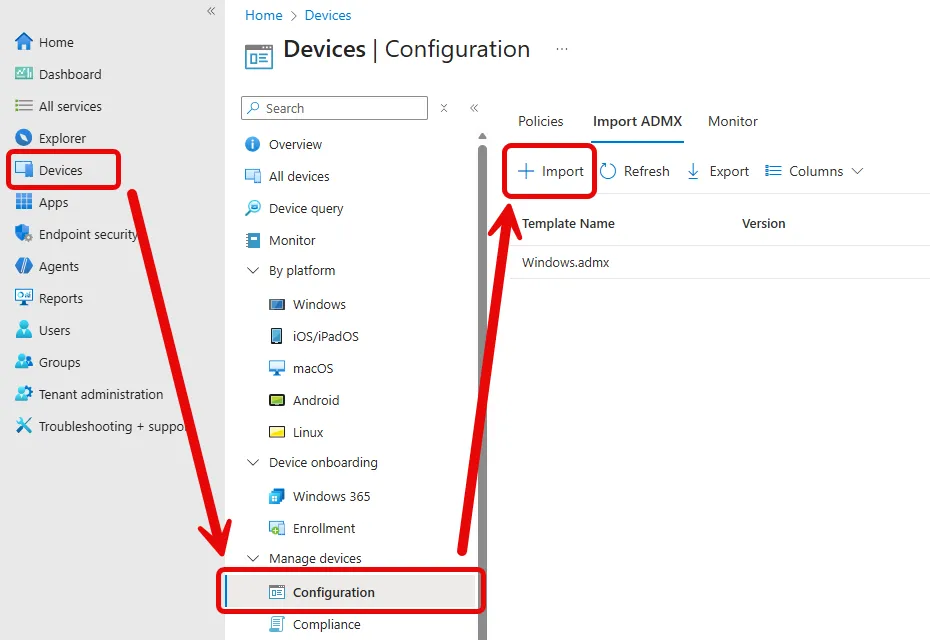
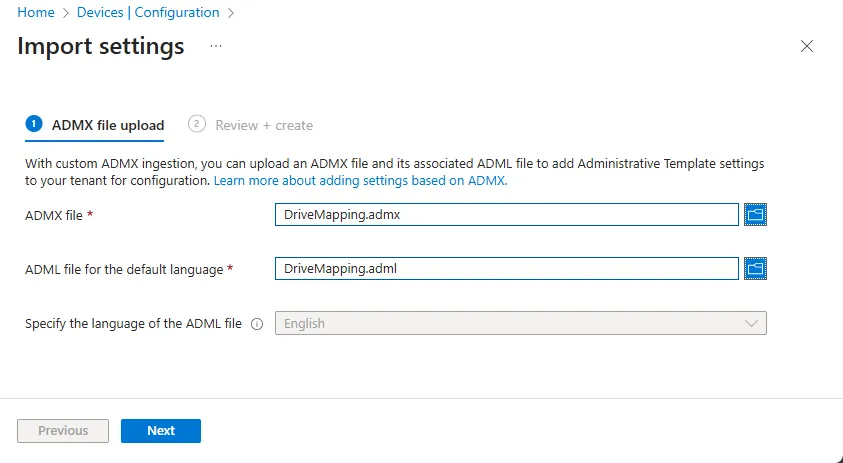
After the upload you will see a new ADMX category in while creating a new Policy (Template/Imported Administrative templates (Preview)).
**Error while Uploading?
**Make sure you have the Windows ADMX in place: How to Resolve Error in Intune - scloud.work
Create the drive mapping policy
Now we can create the actual mapping.
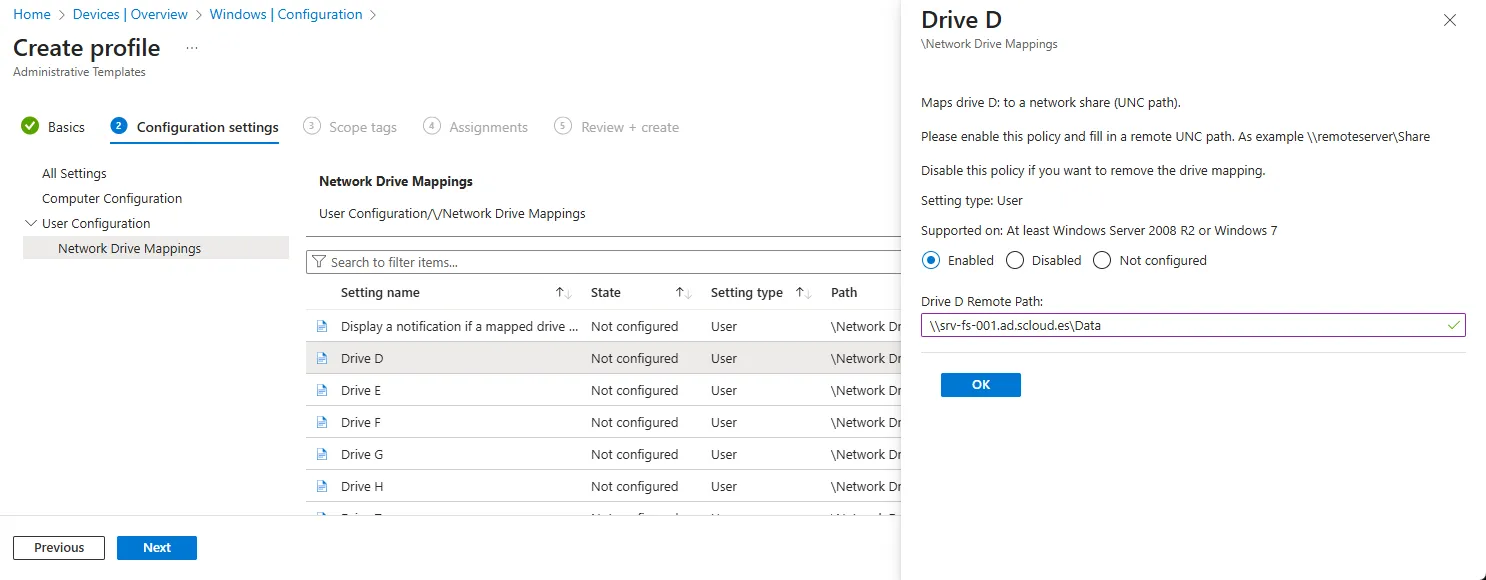
- Create a new Template/Imported Administrative templates (Preview) profile
- Select the new ADMX category (User Configuration/Network Drive Mappings)
- Configure your drive mapping
- Select drive letter and add the UNC path
- (I create one profile for each drive I want to connect. I don’t put all drives in one policy since there is no targeting in the policy as there was in the GPO preferences.)
- In the assigment i preffere to target a user group with the püermission to the specific network drive.
The configuration looks very similar to the old GPO interface.
This is one of the reasons why I prefer this method.
**Tip: Name your share folders properly
**The mapped drive will use the name of the shared folder itself.
If your share is called “Projects”, the drive will also show “Projects”.
I recommend naming the share exactly the way users should see it.
Fix reconnection and visibility issues
Many admins ask me why the drive shows a red cross or does not appear after login.
This is a classic Windows behaviour and not related to Intune.
To fix this I deploy a small script as a remediation.
It sets two registry values that solve the problem.
Here is the script:
$PackageName = "Windows_Script_DriveMappingFix"
Start-Transcript -Path "C:\ProgramData\Microsoft\IntuneManagementExtension\Logs\$PackageName.log"

# Fix for Red Cross and Disconnection Warnings
$Path = "HKLM:\SYSTEM\CurrentControlSet\Control\NetworkProvider"
$Key = "RestoreConnection"
$KeyFormat = "DWord"
$Value = "0"

if(!(Test-Path $Path)){New-Item -Path $Path -Force}
if(!$Key){Set-Item -Path $Path -Value $Value
}else{Set-ItemProperty -Path $Path -Name $Key -Value $Value -Type $KeyFormat}

# Fix for drive mapping not showin up
$Path = "HKLM:\SOFTWARE\Microsoft\Windows\CurrentVersion\Policies\System"
$Key = "EnableLinkedConnections"
$KeyFormat = "DWord"
$Value = "1"

if(!(Test-Path $Path)){New-Item -Path $Path -Force}
if(!$Key){Set-Item -Path $Path -Value $Value
}else{Set-ItemProperty -Path $Path -Name $Key -Value $Value -Type $KeyFormat}

Stop-Transcript
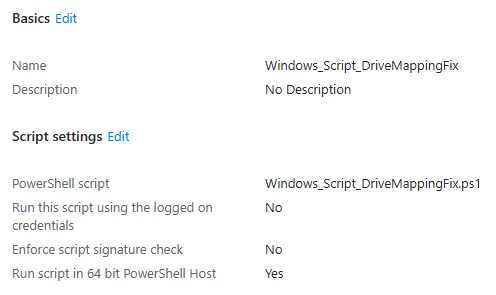
I uploaded this script to Intune as a platform script, so that it runs once per device.
Conclusion
Mapping network drives on cloud only devices is still possible and actually very simple. The custom ADMX approach is clean, visible in the UI and easy to maintain. With one small registry fix the drives reconnect every time without issues.
If you still use PowerShell for drive mapping, I recommend switching to this method. It is more reliable and future proof.
If you want, I can provide additional examples for multiple drives, department structures or drive mapping based on Entra group membership.