Passwordless with Microsoft Authenticator and Card
- Florian Salzmann
- Posted on 07 Dec, 2021
- Updated on 05 Aug, 2022
- 03 Mins read
- Entra ID,Microsoft 365,Security
In the previous post, I wrote about the passwordless variant with a security key and its deployment. In this post, I want to explain the scenario of passwordless login with the Microsoft Authenticator and the card shown as a display.
Passwordless login with the Microsoft Authenticator offers a very practical option to sign in easily without a password and without any additional hardware. Passwordless login also raises security to a new level. This is because most attacks happen due to intercepted passwords. In addition, passwords are often lost, which generates extra effort in many places. With the additional card display, there is yet another factor to give the user security. Even the push itself can be made more secure with this.
Here you can find Microsoft’s article on “Number matching” and the card: New Microsoft Authenticator security features are now available! - Microsoft Tech Community
Demo Video - User Experience
https://www.youtube.com/embed/4qzdauV4WMk
Prerequisites in Azure AD
First, we need to make sure that the “Microsoft Authenticator” authentication method is active in Azure AD. We do this under Azure AD > Security > Authentication methods.
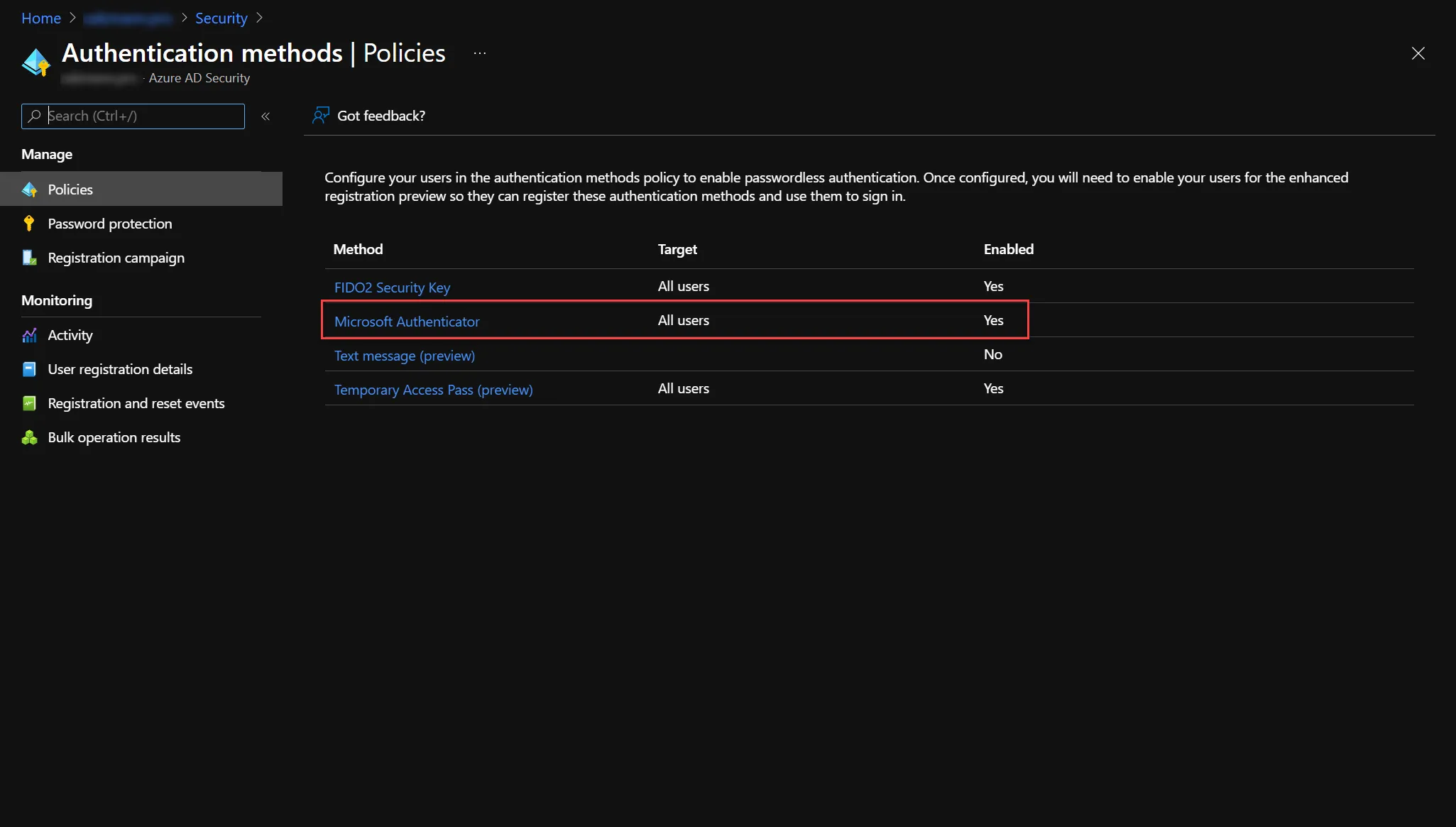
Under “Target” we can choose whether the option is available to all users or only to a selected group. We do the configuration via the three dots:
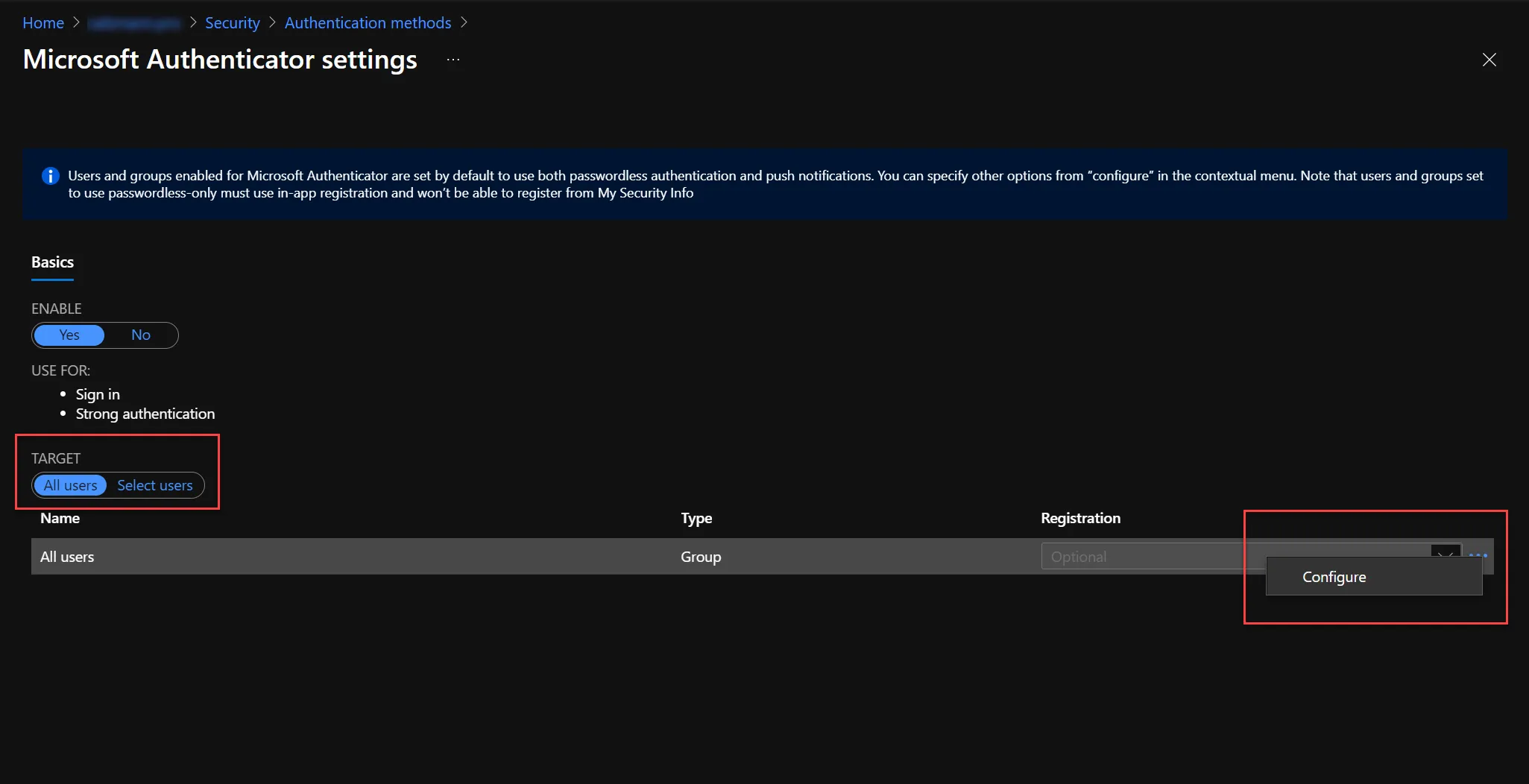
In the options menu, we have the following options:
| Setting | Options |
|---|---|
| Authentication method | - Any - Passwordless (entering a number) - Push (push after password entry) |
| Require number matching | Enabled/Disabled Not just push, but also a number for confirmation must be selected. |
| Show additional context | Enabled/Disabled Card with the login location is shown. |
Here I choose the following options, to still give the user the freedom to decide whether they want to use passwordless or not.
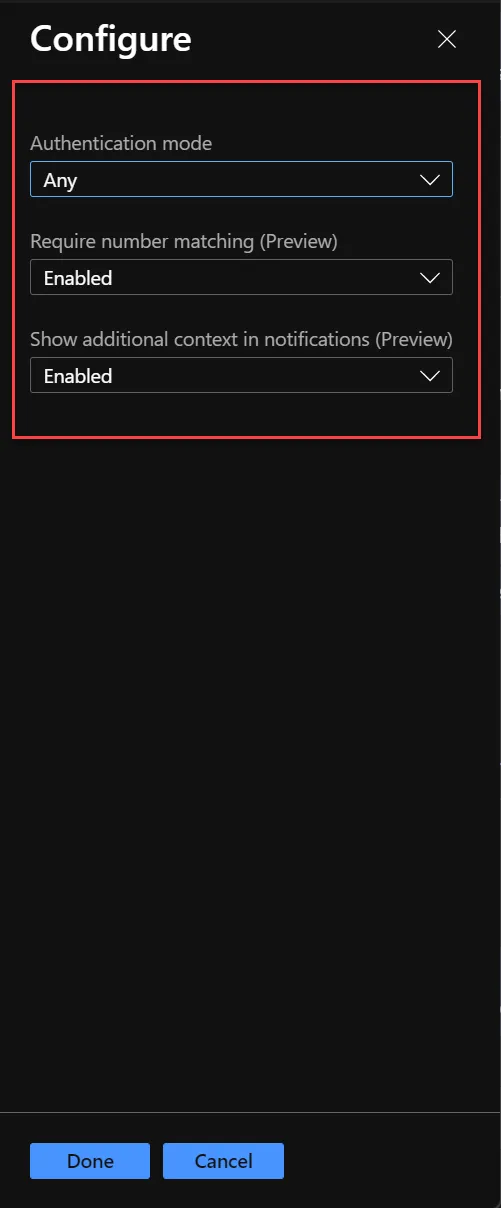
User settings - Microsoft Authenticator
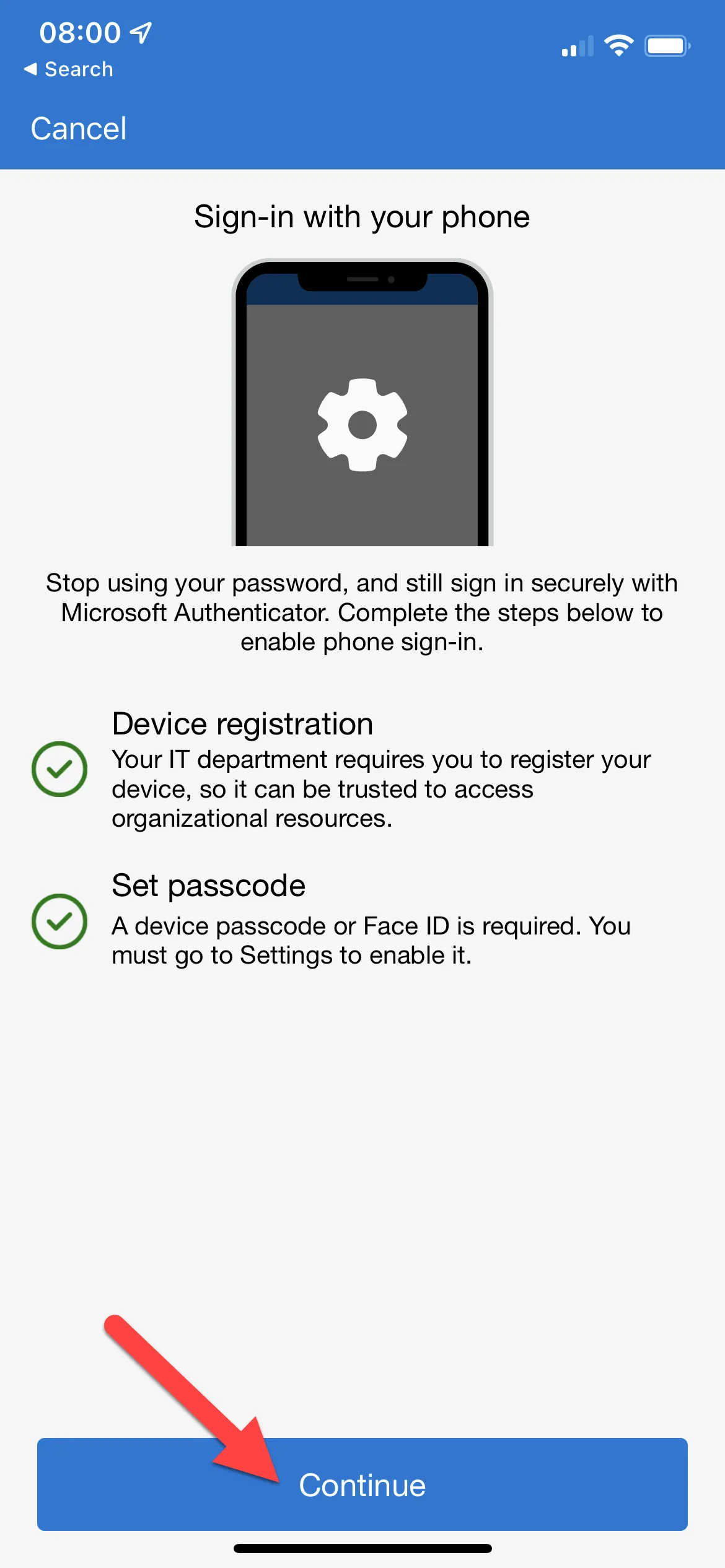
Has the end user already set up the Microsoft Authenticator and is the “Any” option selected for the “Authentication method”? That means the user has to enable passwordless login once. To do this, they can activate the option “Enable phone sign-in” in the corresponding account. If the smartphone is not yet registered, it is captured accordingly in this step.
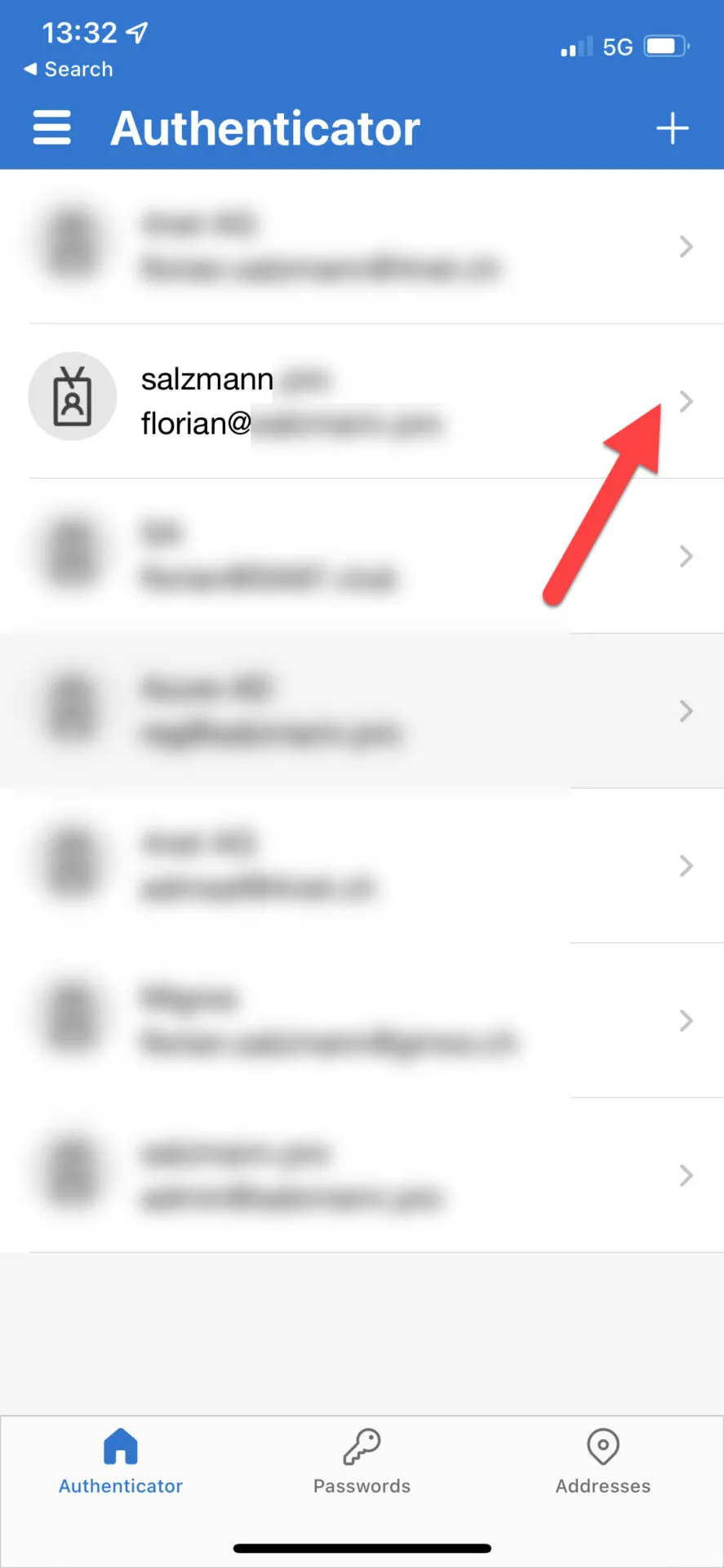
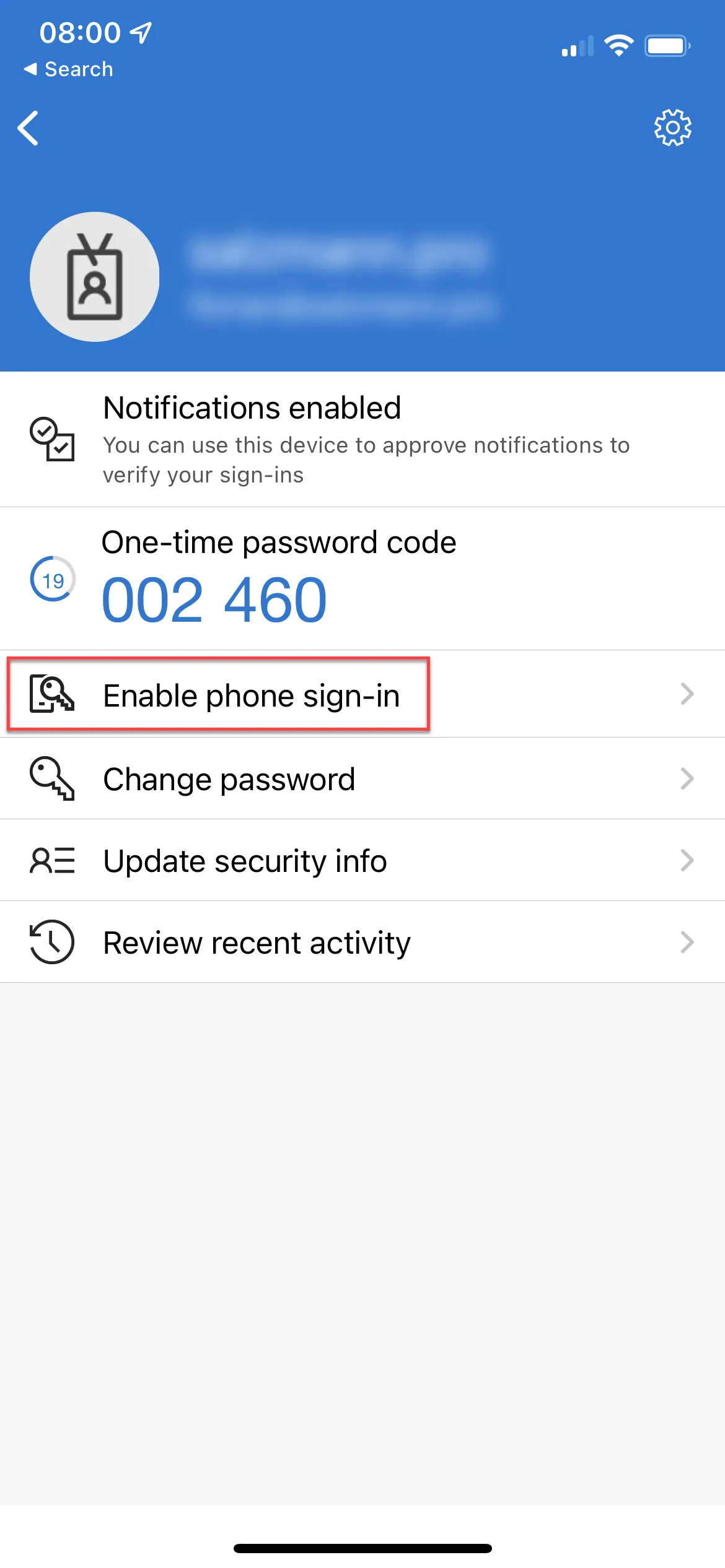
Passwordless login as a user
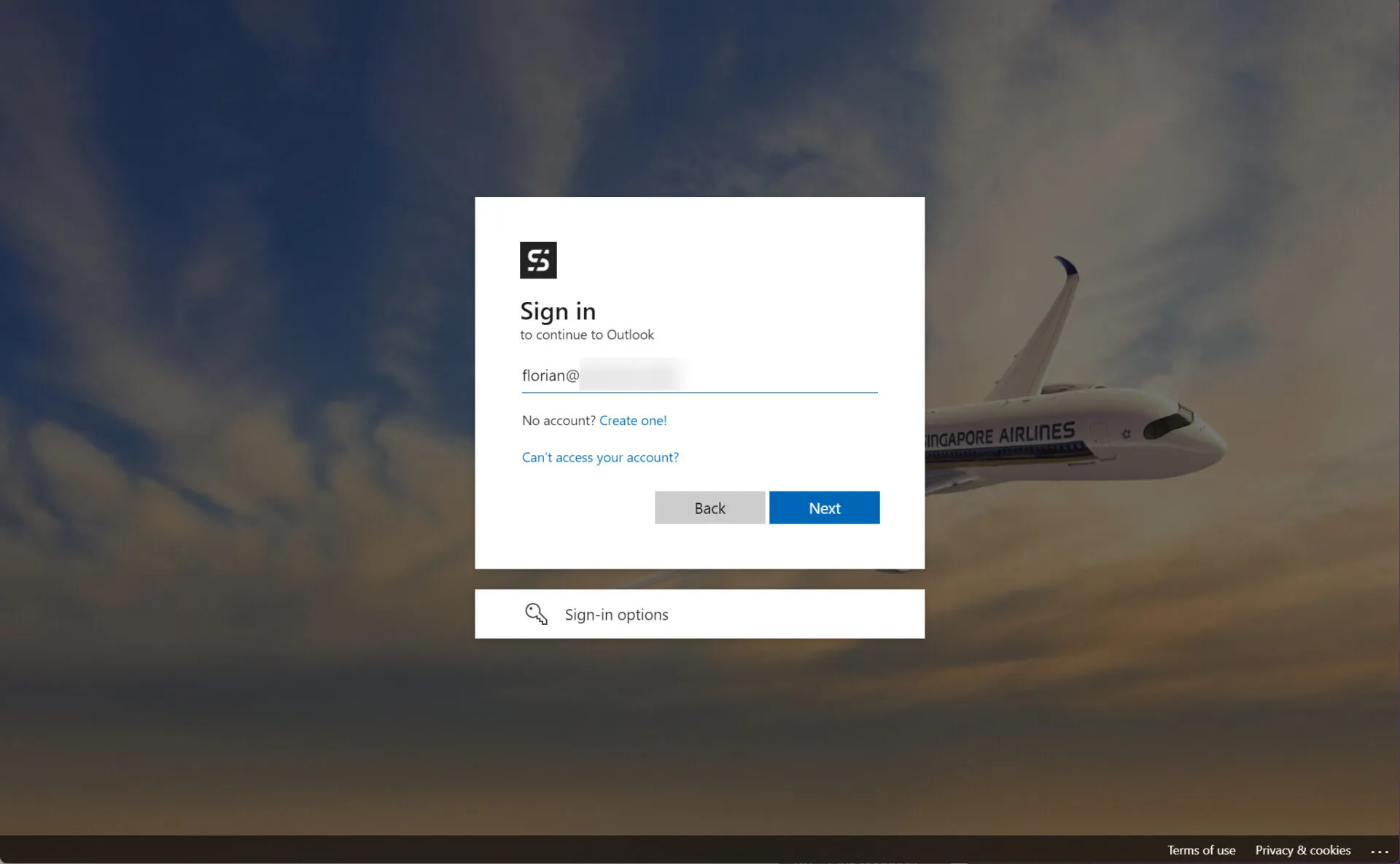
The user navigates as usual to portal.office.com, SharePoint or another entry page. There they enter their username and press “Next”.
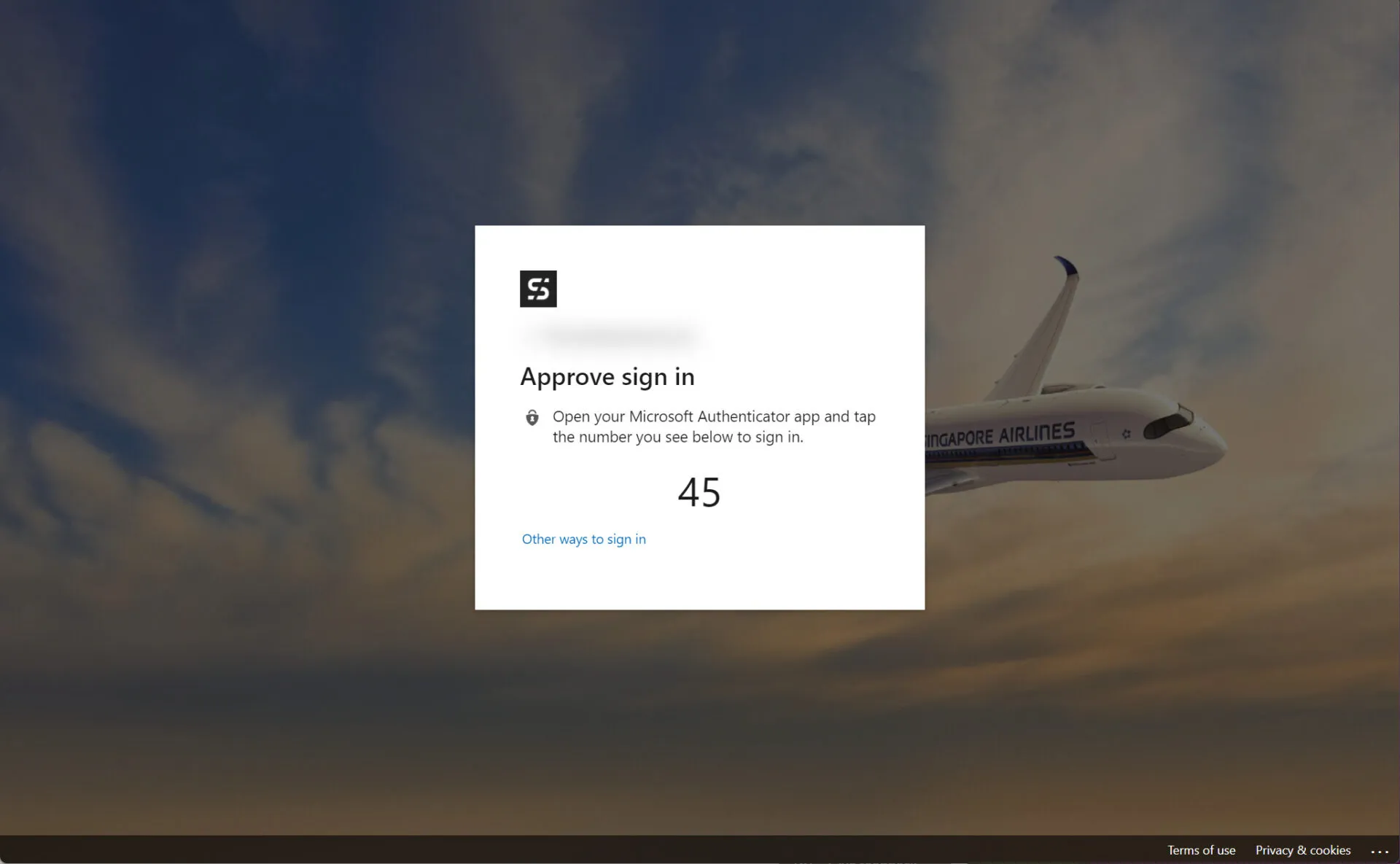
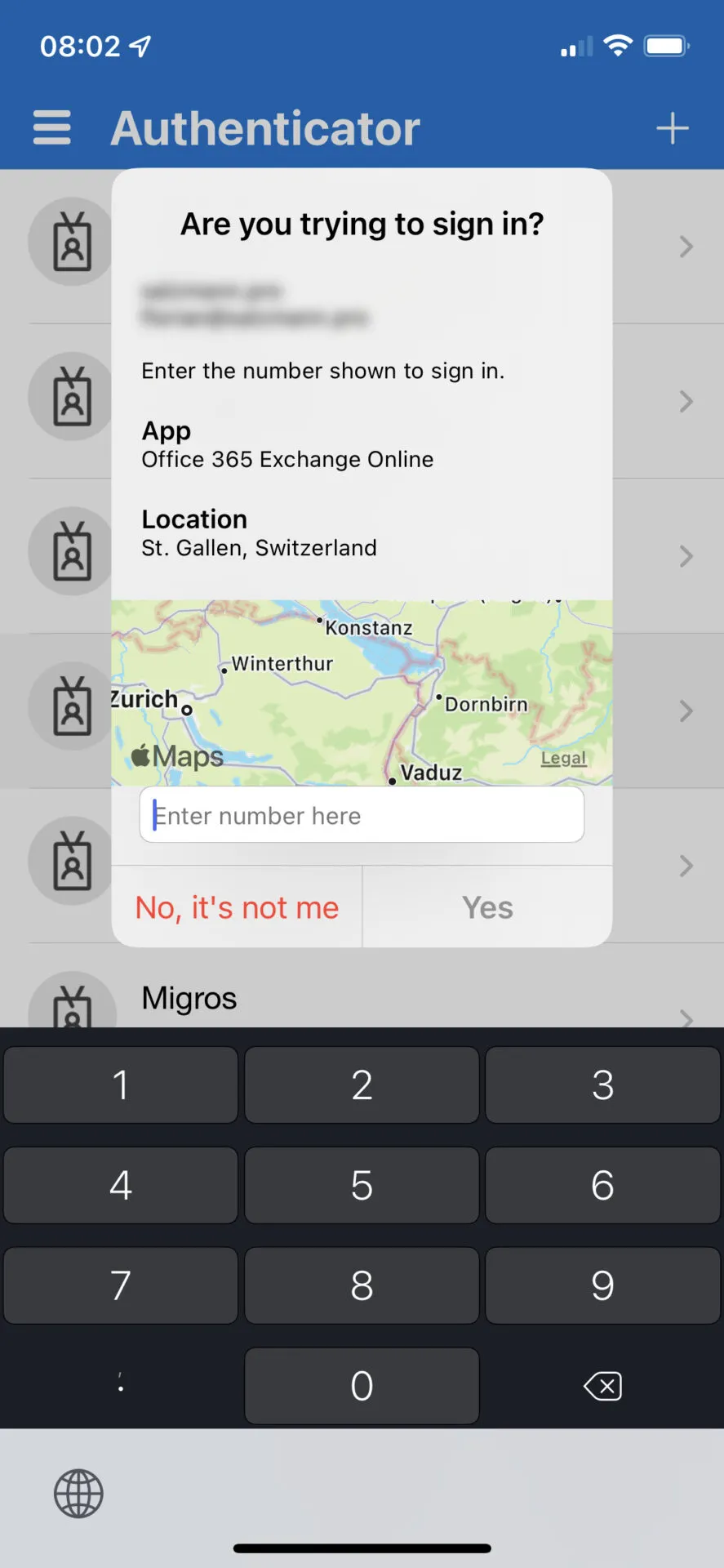
In the next step, the end user is presented with a number, and at the same time they get a pop-up from the Authenticator on their smartphone in which they have to enter the corresponding number.
The additional card excerpt helps to assign the login. This applies even when the login is not carried out passwordless, but via push.
The user is then signed in and forwarded to the desired page.
Summary
With the Microsoft Authenticator, a passwordless scenario can be implemented very well and conveniently, and the card also offers a good indication of where the login is coming from. Through the card feature, the user is made aware of the login location and alerted to a possible attack from outside.
The whole functionality is enabled very quickly, and even the user doesn’t have to make any major configuration on their side to use the features. Even if passwordless login is not an option, the card offers a great added value on its own.