YubiKey Bio - Embrace Passwordless Authentication in Entra ID
- Florian Salzmann
- Posted on 24 Nov, 2021
- Updated on 14 Nov, 2023
- 03 Mins read
- Entra ID,Microsoft 365,Microsoft Intune,Security
Introducing the YubiKey Bio, a FIDO2 key revolutionizing passwordless authentication for Microsoft 365/Azure AD and Windows devices. Take a leap toward a “Passwordless” future, especially beneficial for production personnel.
Yubico, with its YubiKeys, provides diverse avenues to explore passwordless environments. “Passwordless” authentication includes Smart Card, PIN, or biometric factors. YubiKeys, compliant with the FIDO2 standard, seamlessly integrate into various applications, including the Microsoft 365/Azure ecosystem.
For a comprehensive overview, visit Passwordless login with YubiKey (yubico.com). Explore all supported MFA and/or Passwordless applications in the Works with YubiKey catalog | Yubico
The new [YubiKey Bio](https://www.amazon.de/gp/search?ie=UTF8&tag=scloud-21&linkCode=ur2&linkId=27dba89dae549ddca9e6f2dc5a1e1204&camp=1638&creative=6742&index=computers&keywords=YubiKey Bio) Series seamlessly combines the familiar Smart Card function with a fingerprint, eliminating the need for a PIN during YubiKey login.
After testing the key extensively, I am pleased with how infrequently I need my keyboard for everyday tasks, even on unfamiliar devices.
Demo Video
Requirements
To use a YubiKey in the Entra ID / AZure AD Tenant:
In Azure AD / ENtra ID, you need to activate the FIDO2 Security Key authentication method for a specific group or all users.
For that navigate to: Authentication methods - Microsoft Azure
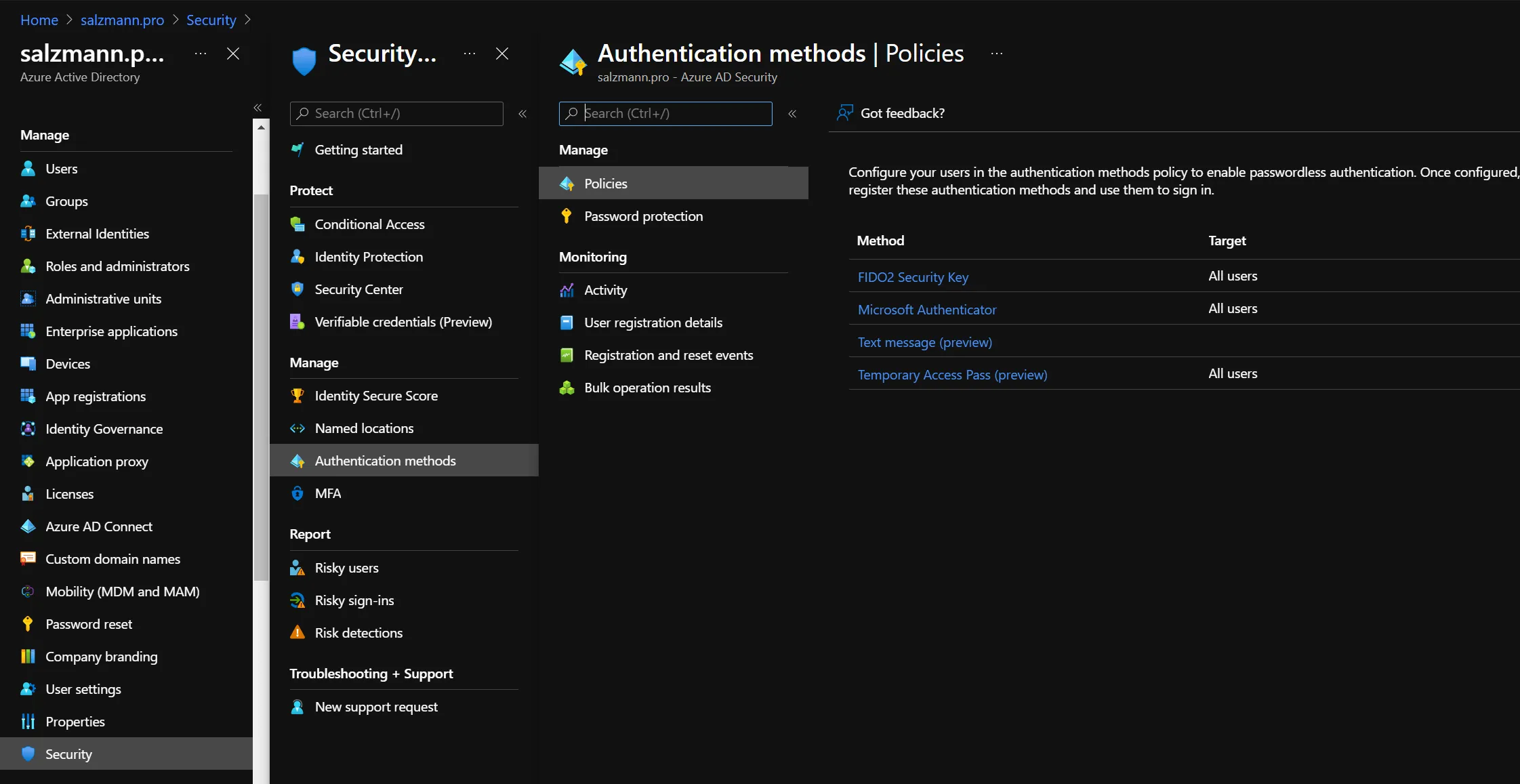
Azure AD Security Settings - Authentication methods - Microsoft 365
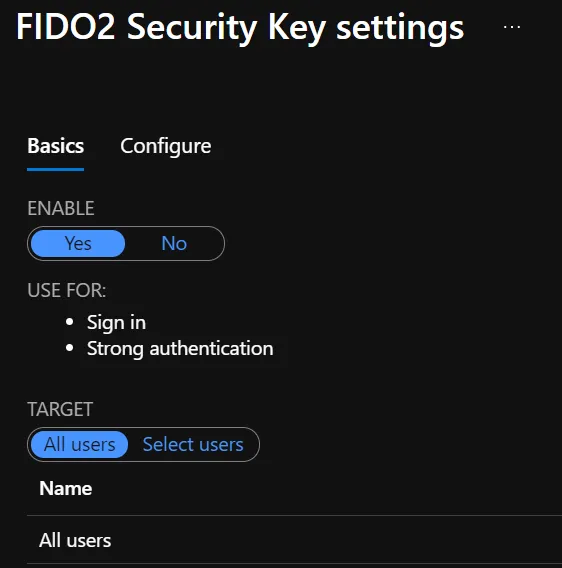
Enable FIDO2 Security Key
ℹ️ In the case of an initial activation, the option for user enrollment is available immediately.
Windows Local Login
Distribute the policy for Smart Card login on Windows computers via OMA-Uri.
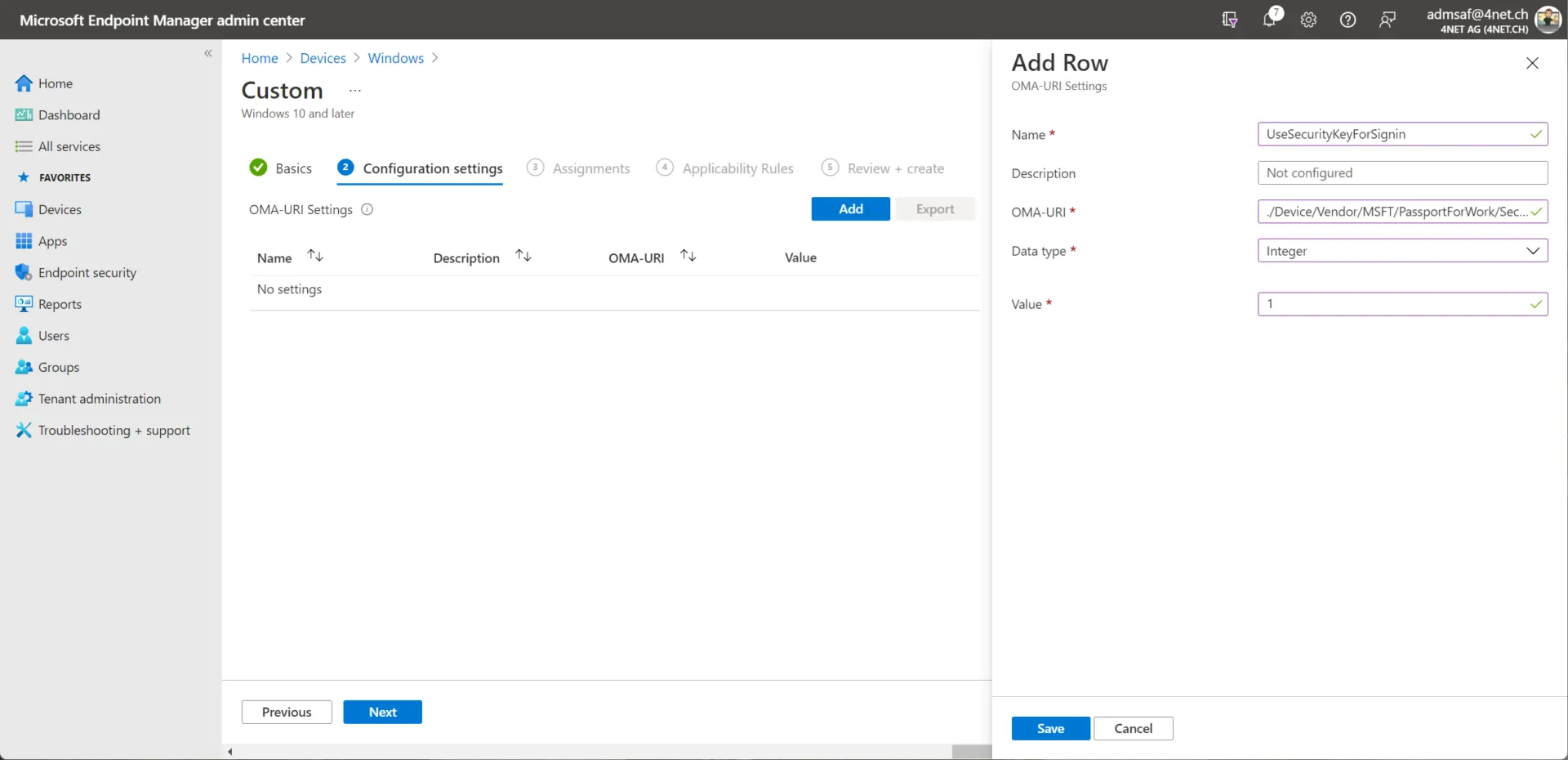
OMA Uri for Windows Login - Passwordless
| Setting | Wert |
|---|---|
| Name | UseSecurityKeyForSignin |
| Description | nicht zwingend nötig |
| OMA-Uri | ./Device/Vendor/MSFT/PassportForWork/SecurityKey/UseSecurityKeyForSignin |
| Data type | Integer |
| Value | 1 |
User Enrollment
Setting up YubiKey Bio
Provided the user has already configured a password and MFA, he can configure the stick as follows:
- Configure the security key in the Windows settings under Sign-in options
- It is best to insert the stick from the start.
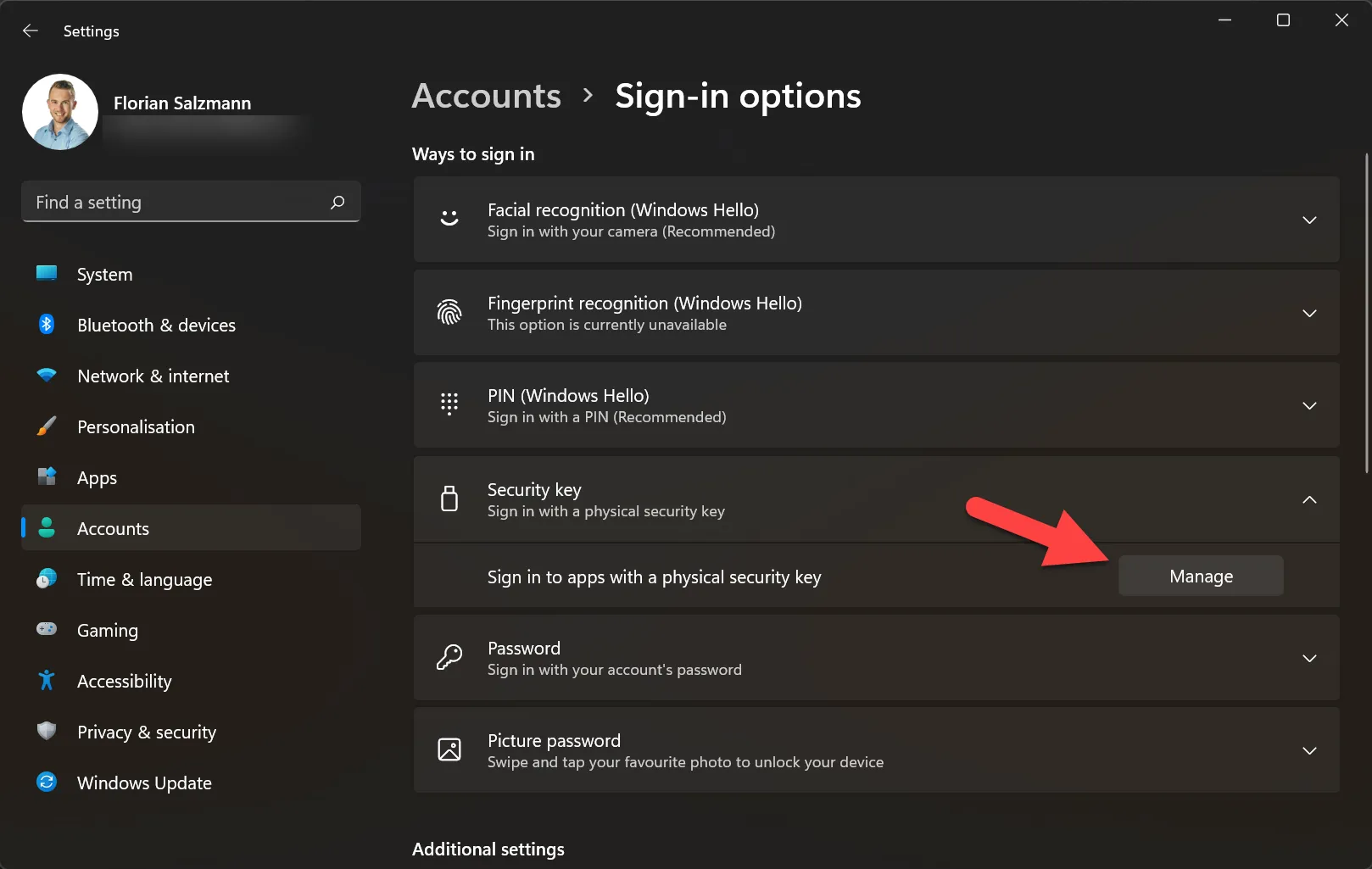
Register your Key (Windows Settings Link)
- Provided the stick is recognized, it must be tapped once on the fingerprint sensor and a PIN can be set.
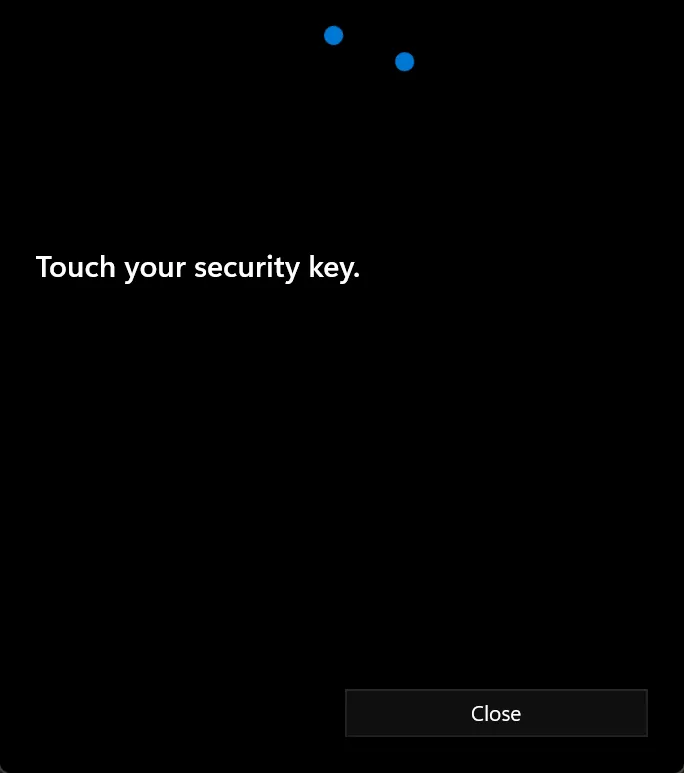
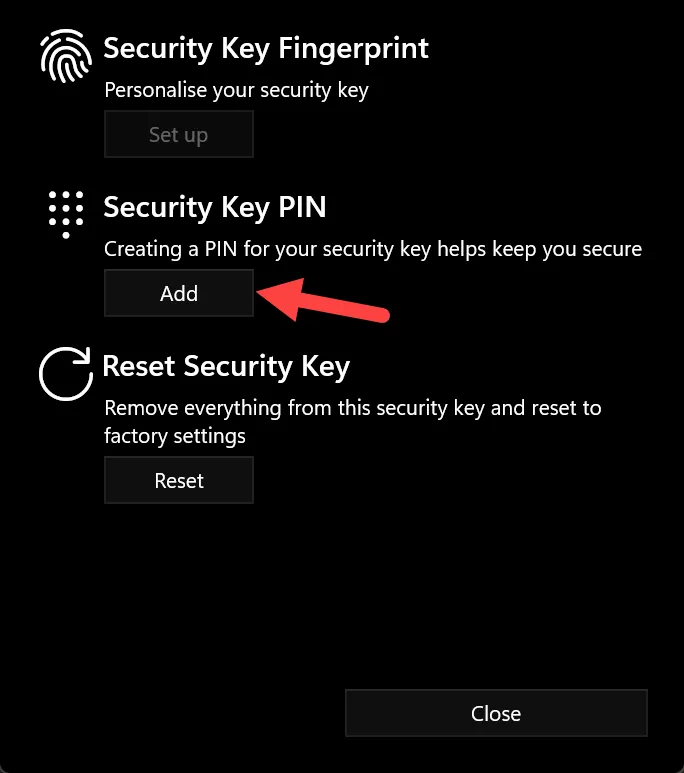
- If the PIN is set, the finger(s) can be read in.
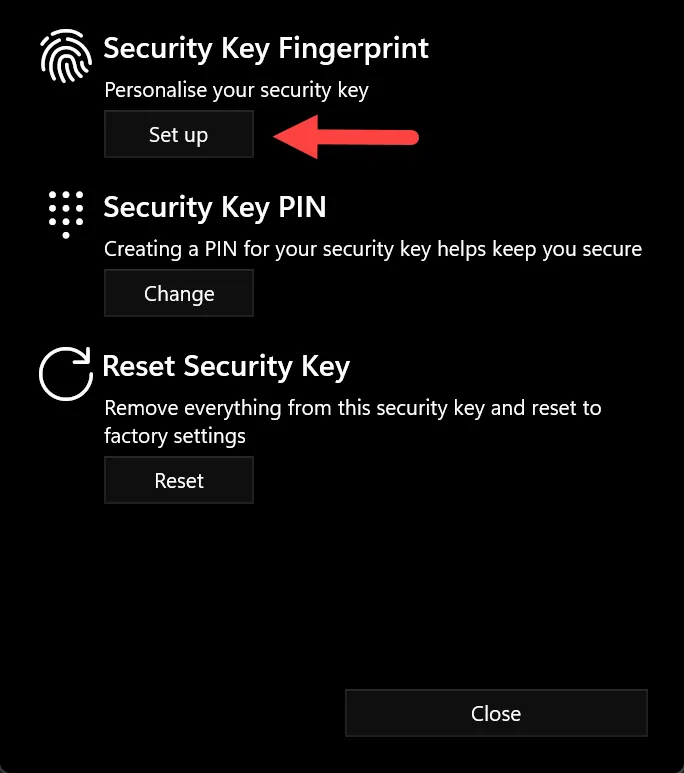
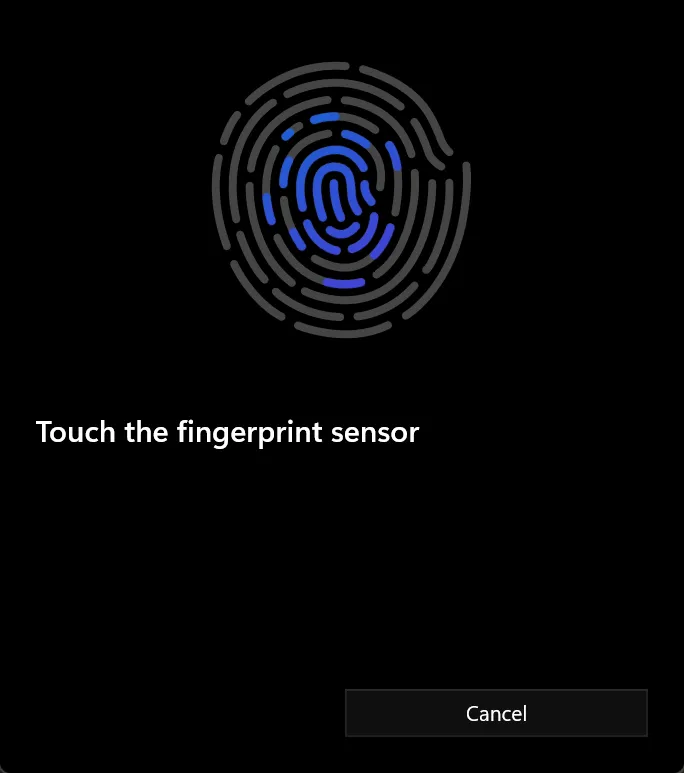
- The fingerprint function is activated by setting the PIN.
ℹ️ yubico itself offers a nice video, which can be very helpful for users: https://youtu.be/Fp96iTxk0RU
If the option is not available, it can be activated as described in the previous article: Windows Hello | scloud
YubiKey for Entra ID / Azure AD (including Windows Hello for Business Login)
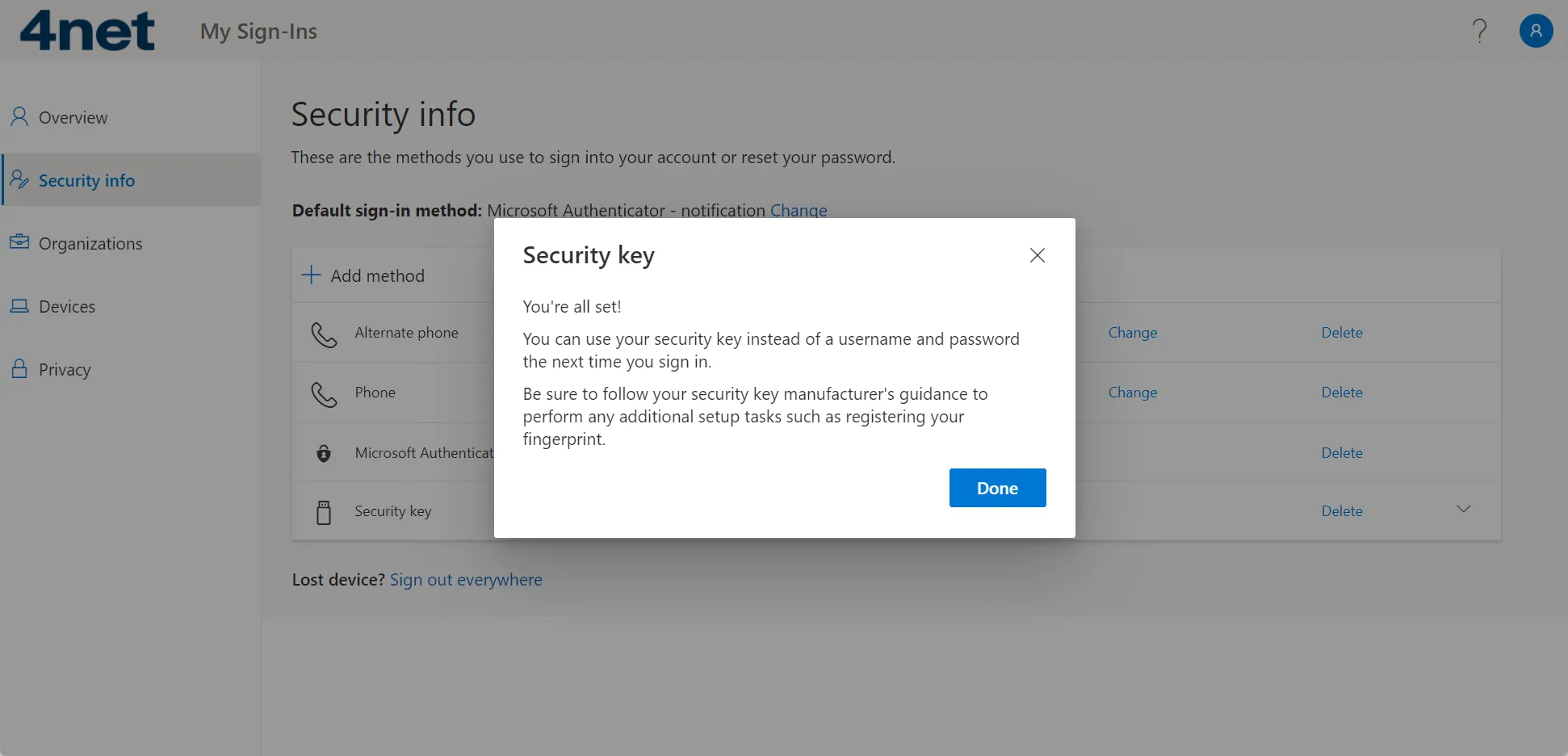
- Add YubiKey Bio (or other models) via MFA Setup (https://aka.ms/setupmfa).
Confirm the second factor when MFA is active.
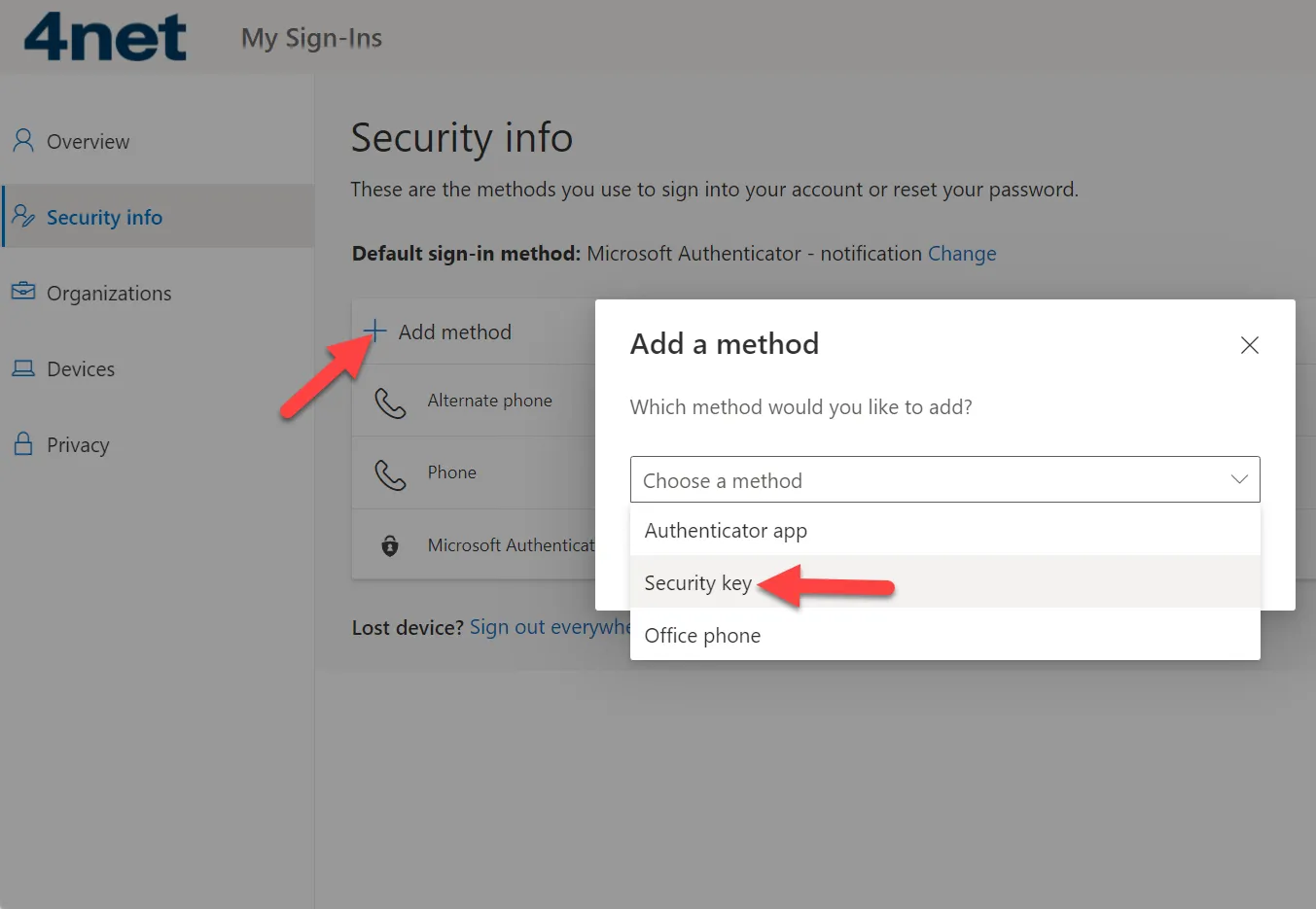
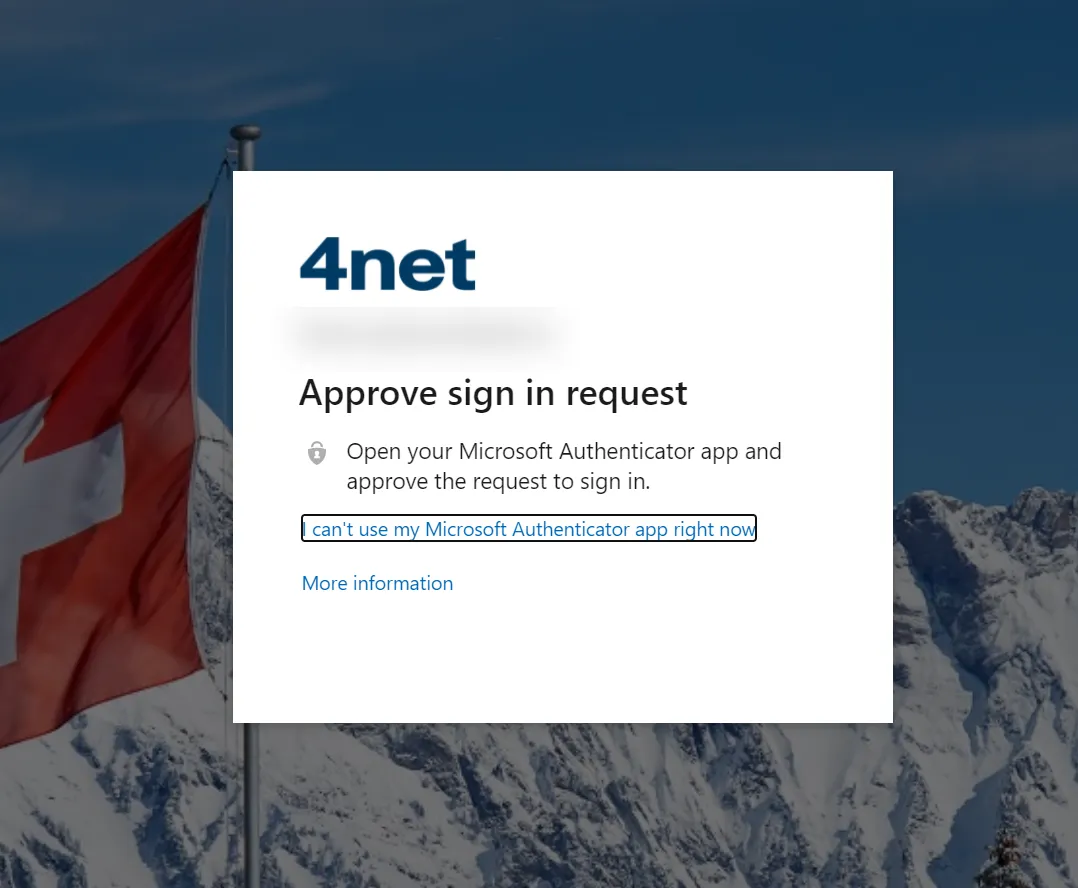
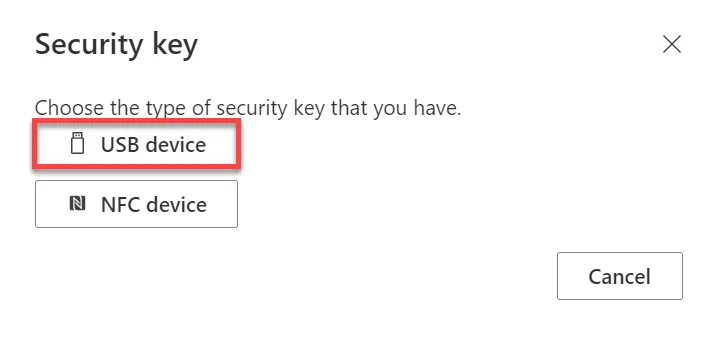
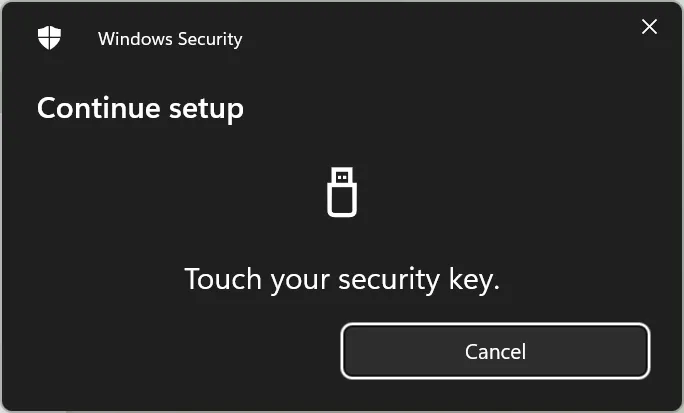
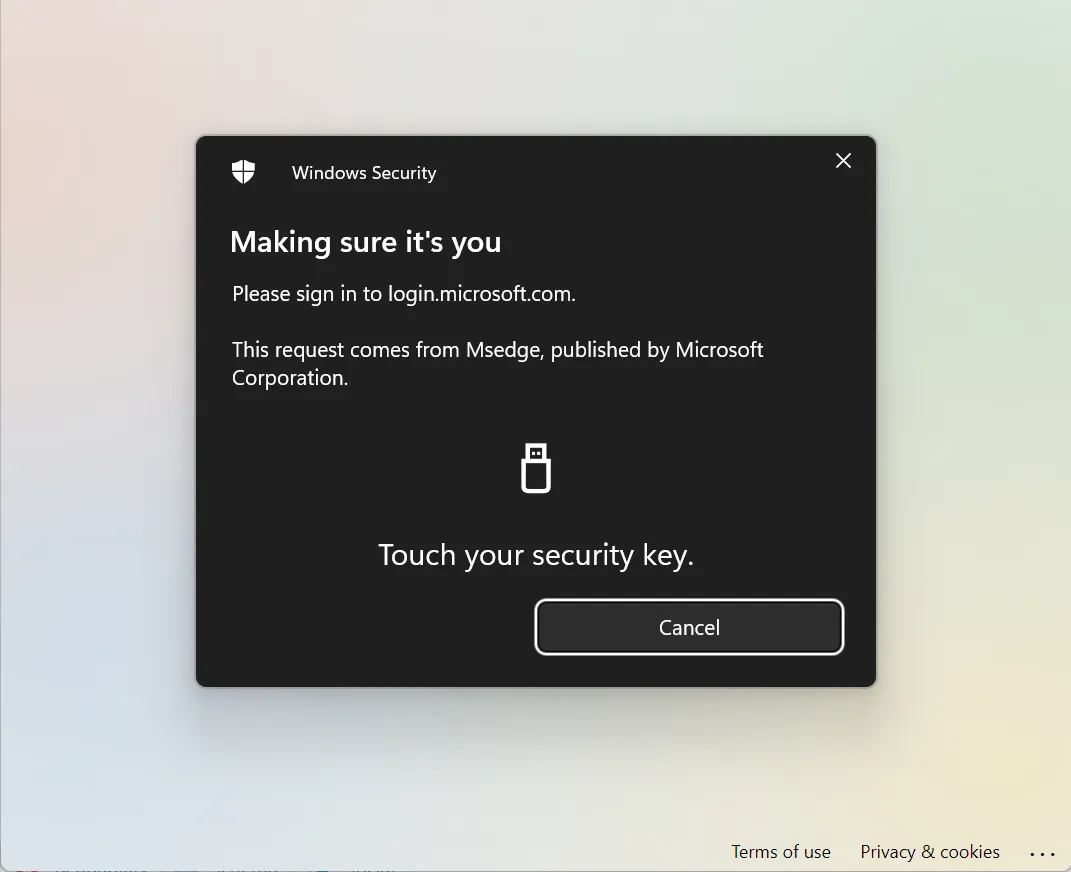
- Select “USB device” and confirm the Windows Security prompts. Validate the key with your finger (or code for YubiKeys without a scanner).
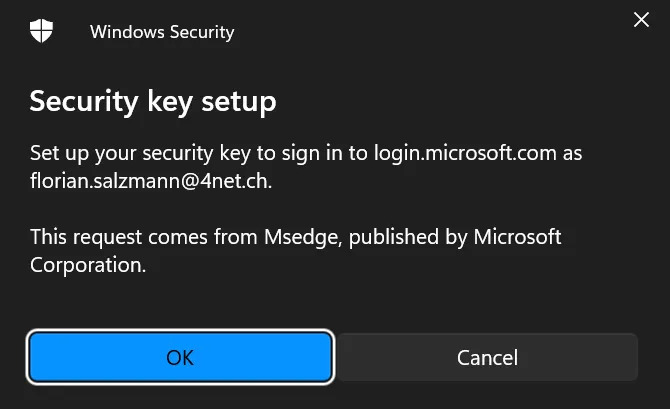
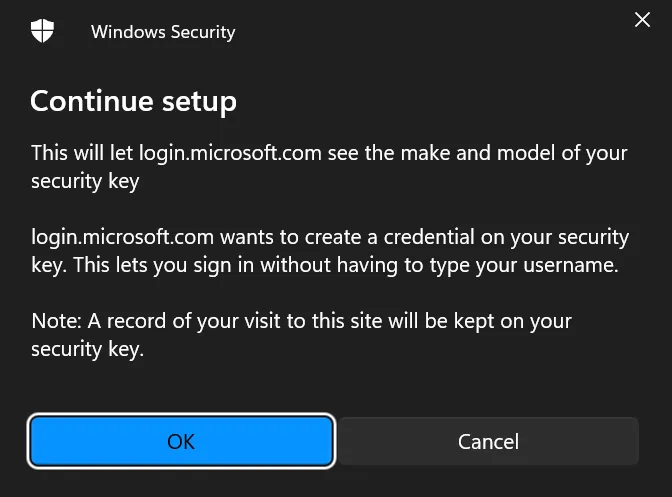
- After the instructions, the key only needs to be confirmed with your own finger (code for YubiKeys without scanner).
Login with YubiKey (User Perspective)
Login via portal.office.com
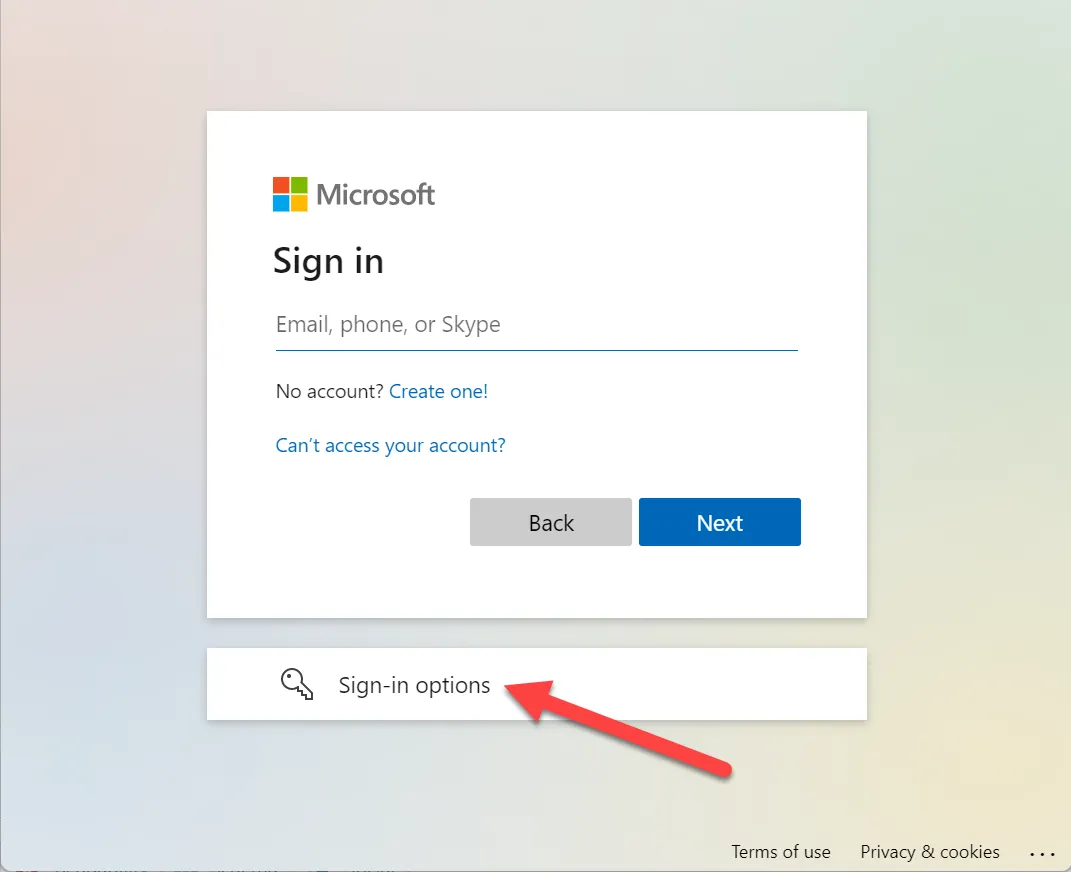
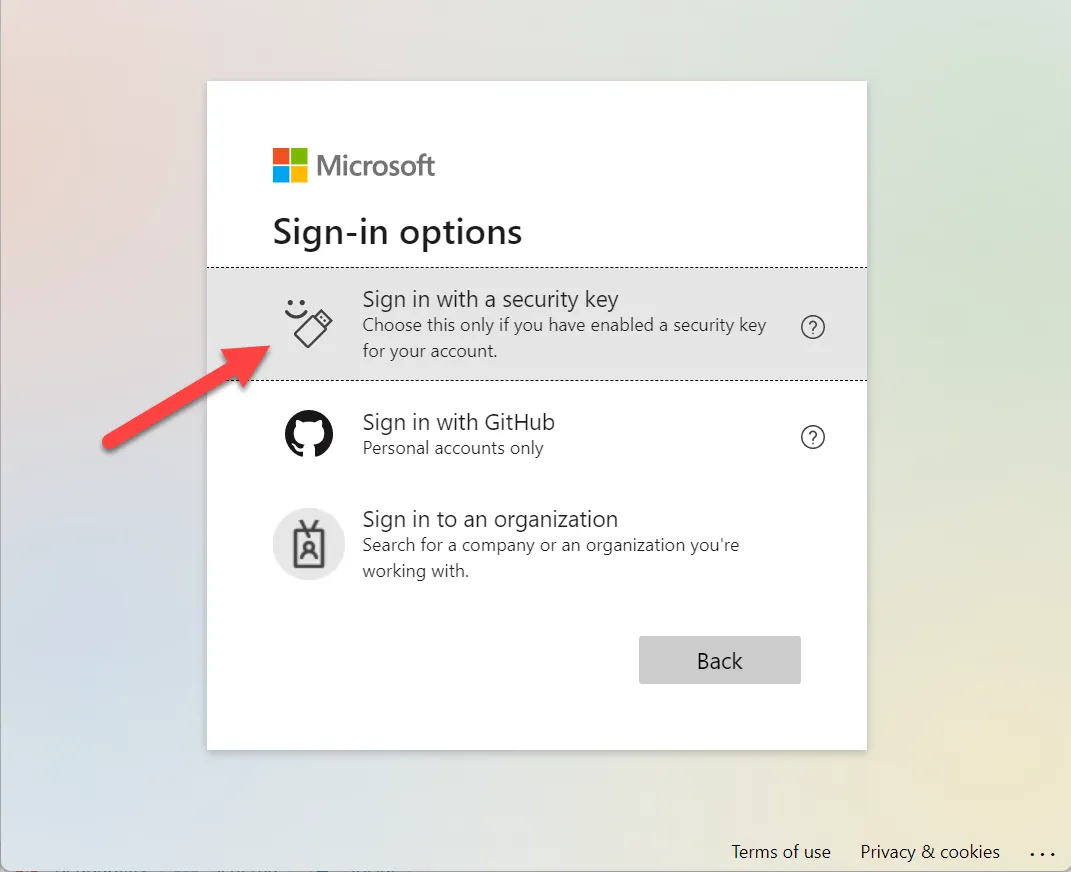
Browser login is seamless—no need for a username or password. Connect the YubiKey Bio, choose Security Key authentication, and touch the fingerprint.
Login on a Windows PC (AAD Joined)
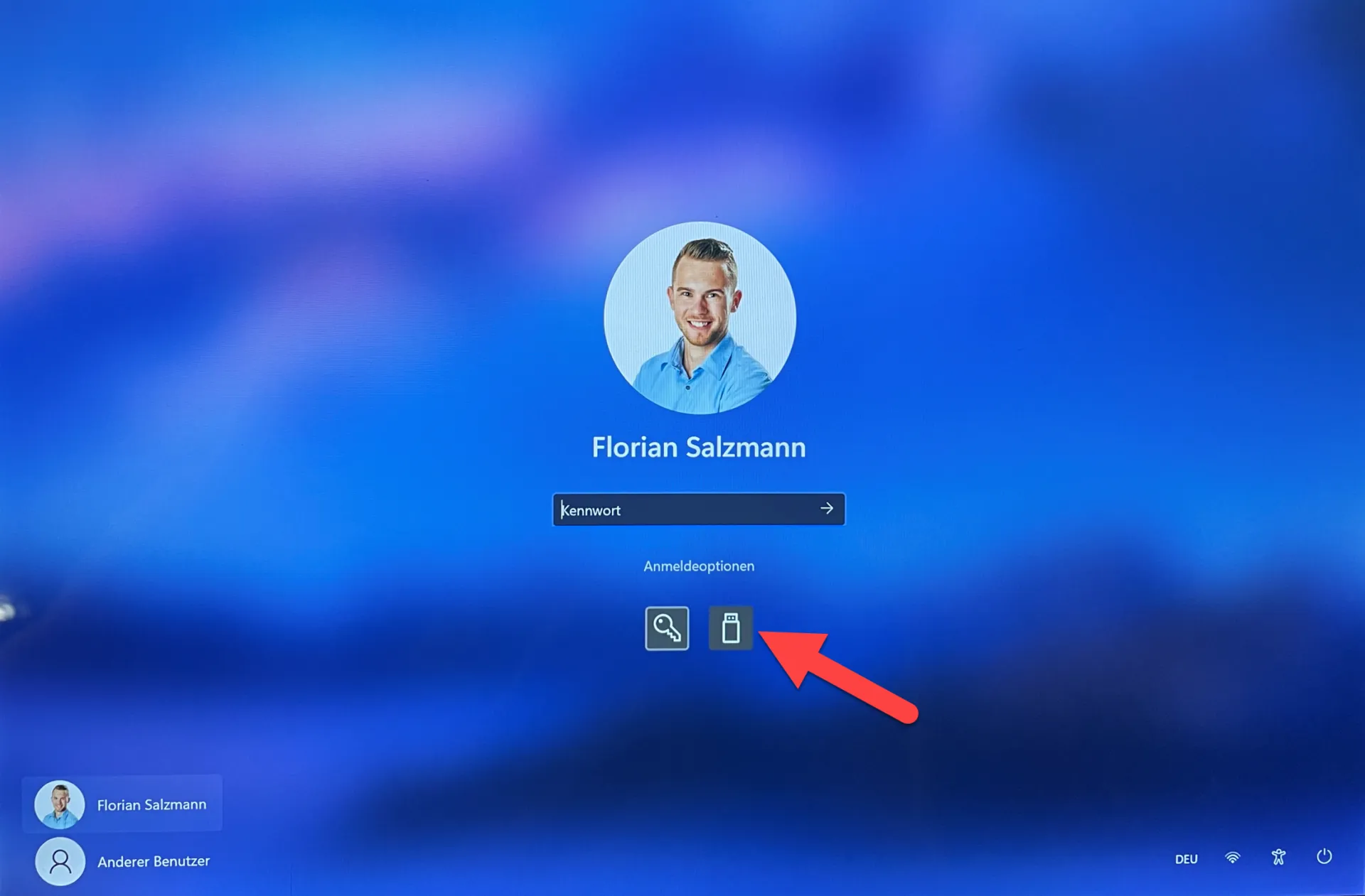
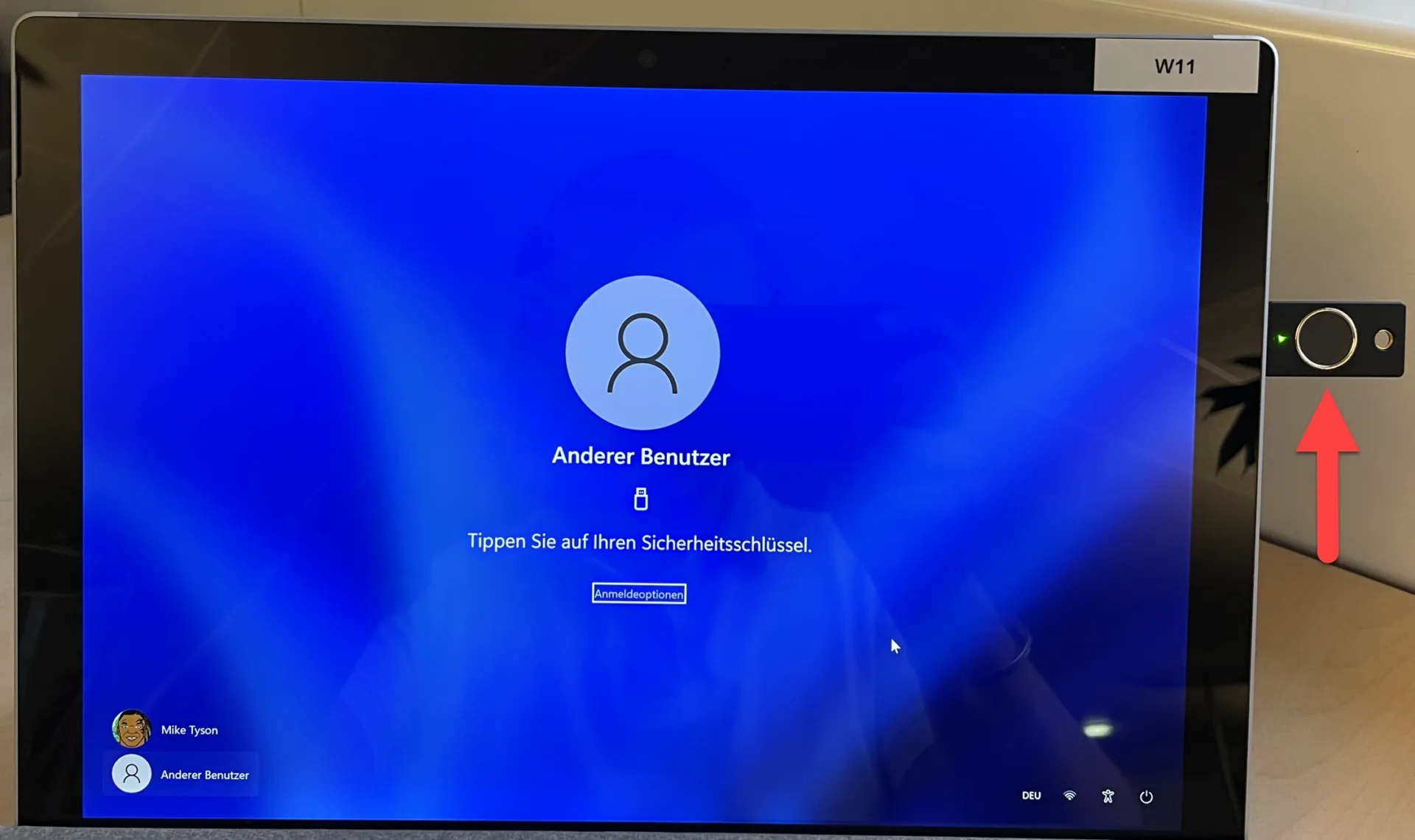
The key is usually detected instantly; if not, choose “FIDO Security Key” in login options.
Notes from the field
The key is reliable and user-friendly. While accustomed to Windows Hello for Business and MFA via Authenticator, using the YubiKey as the sole login method for a week confirmed its reliability.
For users without a smartphone or those sharing devices or frequently changing locations, the YubiKey Bio (FIDO2) offers a practical and secure solution. The fingerprint provides a convenient and secure authentication method, ensuring no employee forgets their PIN. 😊