Required Intune App, but Not Installed During Pre-Provisioning or ESP
- Florian Salzmann
- Posted on 08 Jul, 2025
- Updated on 19 Nov, 2026
- 04 Mins read
- Microsoft Intune,Windows Autopilot,Win32 Applications
The problem and the fix
You want an app on every device, so you assign it as Required. But you don’t want it installed during Autopilot pre-provisioning or the first sign-in, where the Enrollment Status Page (ESP) is running. Maybe the installer is big and slows provisioning down. Maybe it needs a user session, or it fails under defaultuser0. A required app that is targeted at the device gets picked up by ESP anyway, and the device sits there until it installs or times out.
The fix is a script requirement rule on the Win32 app that only passes once a real user has a desktop. Until then Intune reports the app as Not applicable, nothing installs, and ESP has nothing to wait for. After the user is on the desktop, the rule passes and the Required assignment does its job.
- Open the Win32 app in Intune, go to Properties and edit Requirements.
- Under Configure additional requirement rules, click Add and choose the requirement type Script.
- Upload this script:
# Returns True only when a real user has a desktop session.
# During pre-provisioning and ESP there is no such session, so this returns False.
$explorer = Get-CimInstance -ClassName Win32_Process -Filter "Name = 'explorer.exe'" -ErrorAction SilentlyContinue
foreach ($p in $explorer) {
    $owner = Invoke-CimMethod -InputObject $p -MethodName GetOwner
    if ($owner.User -and $owner.User -notin @('defaultuser0', 'defaultuser1')) {
        Write-Output 'True'
        exit 0
    }
}
Write-Output 'False'
exit 0- Use these settings:
| Setting | Value |
|---|---|
| Run script as 32-bit process on 64-bit clients | No |
| Run this script using the logged on credentials | No |
| Enforce script signature check | No |
| Select output data type | Boolean |
| Operator | Equals |
| Value | Yes |
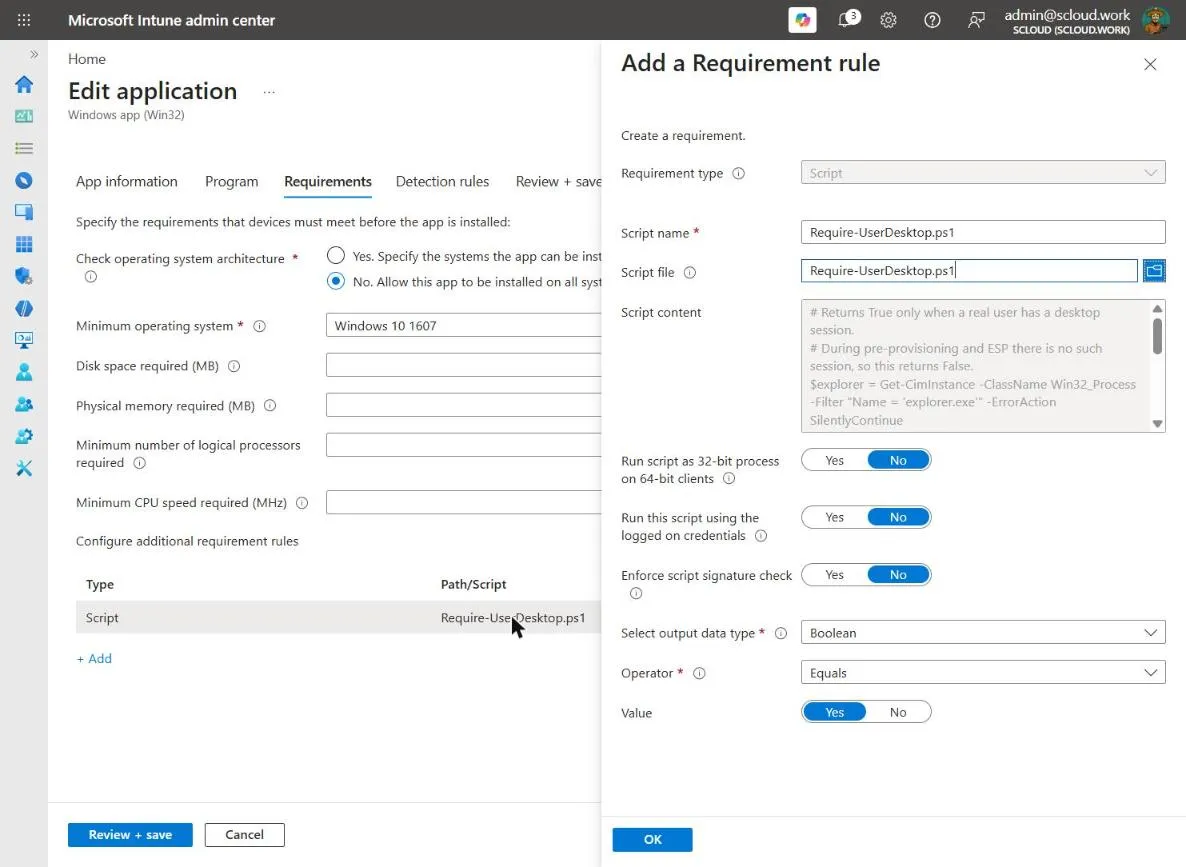
- Click OK and save the app. The script now shows up under the additional requirement rules.
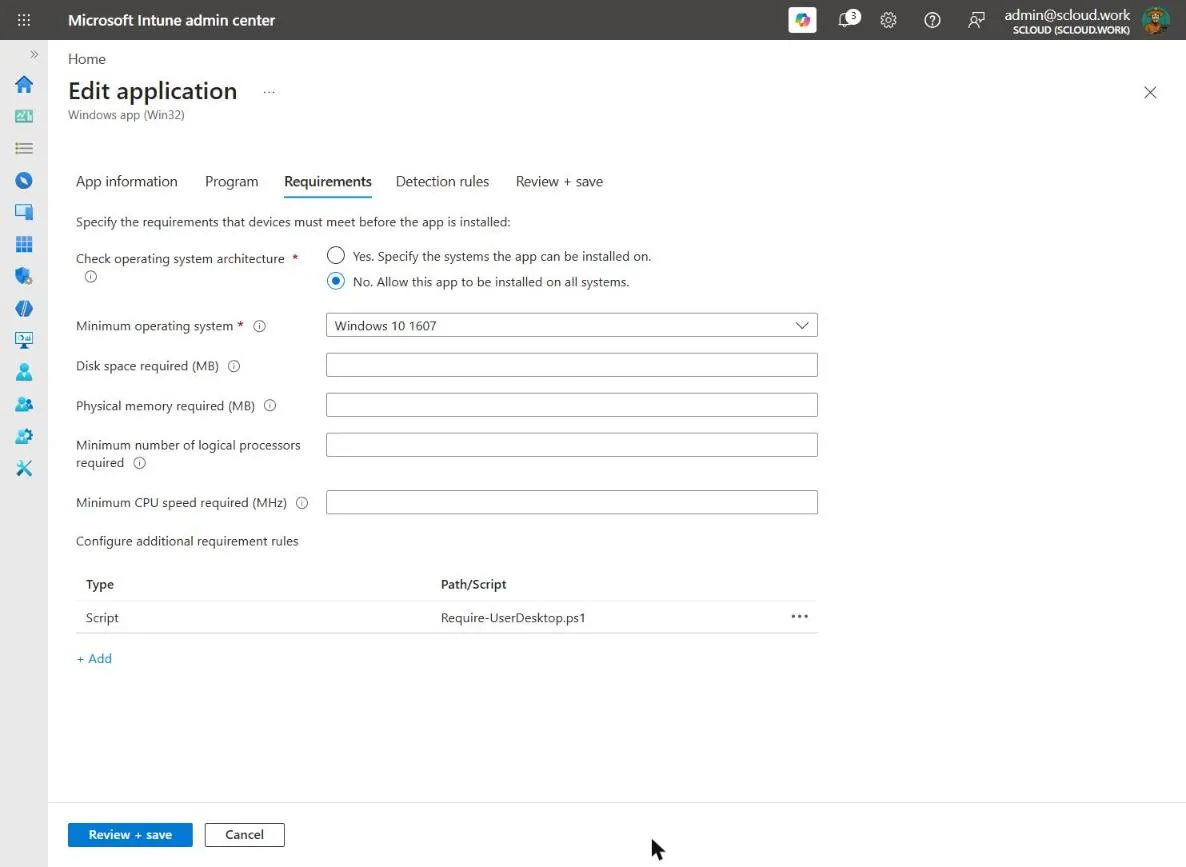
Keep the Required assignment as it is. You don’t touch the ESP profile and you don’t need a second group.
How the Intune requirement rule works
Before the Intune Management Extension (IME) installs a Win32 app, it checks the requirement rules of the app. If any rule isn’t met, the app is not applicable to that device. IME doesn’t run the install command and reports Not applicable instead of a failure.
The script is the rule. It asks Windows for all explorer.exe processes and checks who owns them. It returns True when one belongs to a user other than defaultuser0 or defaultuser1, and False in every other case.
With the output type Boolean, operator Equals and value Yes, Intune treats True as “requirement met” and anything else as “not met”.
Why explorer.exe and defaultuser0
Pre-provisioning and the device phase of ESP run in the SYSTEM context, or in the temporary defaultuser0 account during OOBE (on some devices it is defaultuser1). The account phase shows the ESP full screen before the user’s desktop loads. In none of these phases does a signed-in user have a running explorer.exe, so the script returns False.
Once the ESP is finished and the user lands on the desktop, their explorer.exe is running. The next time IME evaluates the app, the script returns True, the rule passes and the Required install starts.
The script runs as SYSTEM (Run this script using the logged on credentials: No). It doesn’t need the user’s context because it only reads the process owner through CIM. During ESP there is no user context to run it in anyway.
Check the result in the IME log
The install doesn’t start the second the desktop appears. IME re-evaluates the requirement at its own check-in, so a sync or a restart of the IME service speeds this up. On a device you can trigger it with Settings > Accounts > Access work or school > Info > Sync.
To see what the rule did, open the IME log on the device:
C:\ProgramData\Microsoft\IntuneManagementExtension\Logs\IntuneManagementExtension.logSearch for the app ID. You will find the requirement rule result for each evaluation, which shows not applicable during provisioning and the install after the user has signed in.
Common questions
Why not just set the app to Available instead of Required?
Available apps only install when a user picks them in the Company Portal. The goal here is a guaranteed install on every device, just later. A Required assignment with a requirement rule gives you both.
Can’t I leave the app out of the ESP blocking apps list?
In the ESP profile you can choose which apps block the device. Required apps that are not on that list still start installing in the background while ESP runs. The requirement rule keeps the install from starting at all until the user is on the desktop.
Can I use a different condition than explorer.exe?
Yes. Any script that returns True only after provisioning is done works, for example a registry value that your own setup script writes at the end of provisioning. The explorer.exe check needs no extra setup on the device.
Does this also work for Autopilot pre-provisioning (white glove)?
The technician phase of pre-provisioning runs in the SYSTEM context, so the script returns False there like it does in the ESP. For that flow, see my post on Windows Autopilot for pre-provisioned deployment.