Percentage-Based Deployment Rings with Dynamic Groups in Intune
- Florian Salzmann
- Posted on 29 May, 2026
- 04 Mins read
- Microsoft Intune,Entra ID
You want to roll out a new app, a policy or a Windows feature update to 10% of your devices first, then 50%, then everyone. The usual answer is a pile of static groups that someone has to fill by hand, or an extension attribute that someone has to set on every device.
There is a simpler way. Every Entra ID device has a deviceId, and that value is a GUID. A GUID starts with a random hex character, so a regex on the first character splits your fleet into ring groups without touching a single device. One dynamic rule per ring, and new devices sort themselves in.
Why Does device.deviceId Work for Rings?
The first character of a GUID is one of 0-9 or a-f, 16 values in total. Entra generates the IDs randomly, so each value covers about 1/16 of your devices. Pick a range of characters and you pick a share of the fleet:
| Regex | Characters | Share of devices |
|---|---|---|
^0 | 1 of 16 | ~6.25% |
^[0-1] | 2 of 16 | ~12.5% |
^[0-3] | 4 of 16 | 25% |
^[0-7] | 8 of 16 | 50% |
^[0-9a-f] | 16 of 16 | 100% |
The steps are powers of two. That is not exactly 10%, but a ring of 2 characters is close enough for a pilot, and the numbers stay easy to reason about. If you need finer steps, match on the first two characters. That gives you 256 buckets of about 0.4% each.
The Base Query
The ring condition on device.deviceId does the splitting. The other two conditions keep the group to the devices you actually target. Here is the 12.5% ring:
(device.deviceId -match "^[0-1]") -and
(device.deviceOSType -eq "Windows") -and
(device.managementType -eq "MDM")
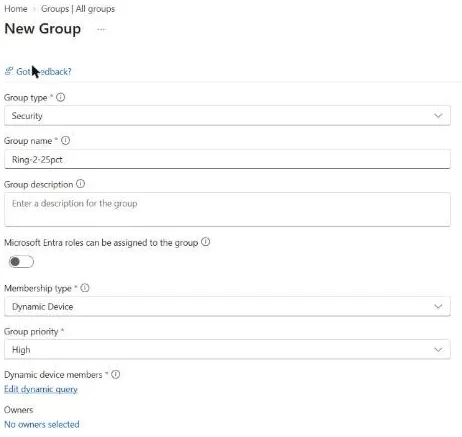
Create a new security group in Intune, set the membership type to Dynamic Device and open Add dynamic query.
Switch to the rule syntax editor and paste the rule. This is the 25% ring in the dynamic membership rules:
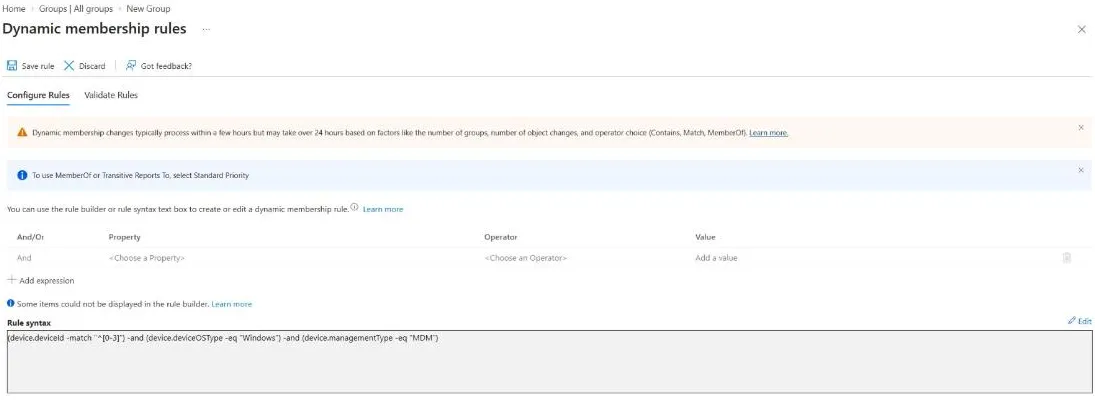
I write -and as in Microsoft’s documentation. The form without the dash (and) works as well.
The Ring Ladder: 12.5%, 25%, 50%, 100%
Same rule, only the character range changes. This is the 25% ring:
(device.deviceId -match "^[0-3]") -and
(device.deviceOSType -eq "Windows") -and
(device.managementType -eq "MDM")
And the 50% ring:
(device.deviceId -match "^[0-7]") -and
(device.deviceOSType -eq "Windows") -and
(device.managementType -eq "MDM")
For 100%, widen the range to every hex character:
(device.deviceId -match "^[0-9a-f]") -and
(device.deviceOSType -eq "Windows") -and
(device.managementType -eq "MDM")
Since every device matches that first line anyway, you can also drop it and keep only the OS and management type conditions.
Cumulative or Exclusive Rings?
The ladder above is cumulative. Every device in the 12.5% ring is also in the 25% ring, and so on. That is convenient for staged rollouts: when the first ring looks healthy, you assign to the next larger group, and the devices from the earlier ring are already covered.
If you want rings that do not overlap, use character ranges that do not share characters, and let the last ring catch the rest with -notMatch:
Ring 1:  (device.deviceId -match "^[0-1]")
Ring 2:  (device.deviceId -match "^[2-7]")
Ring 3:  (device.deviceId -notMatch "^[0-7]")
Add the same OS and management type conditions to each. Exclusive rings are easier to report on, because a device is in exactly one of them. Cumulative rings are easier to assign.
Assigning the Rings in Intune
Create one dynamic device group per ring, name them so the order is obvious (for example Ring-1-12pct, Ring-2-25pct, Ring-3-50pct, Ring-4-100pct) and assign your app or policy to the first group. When the ring looks healthy, add the next group to the assignment.

I would still keep a small static group for IT and test devices as ring 0. A percentage ring picks devices at random, and you do not want your first victims to be the CEO’s laptop. For assignment pitfalls with dynamic groups, especially around exclusions, read Mastering Assignments in Intune. For other dynamic rule patterns, see Advanced Dynamic Autopilot Group Queries.
Limits to Know About
- The split is statistical. Check the member count of each group after the rule has been evaluated. In a fleet of a few dozen devices, a “12.5%” ring can end up noticeably bigger or smaller.
- Use the Entra device ID.
device.deviceIdis the Microsoft Entra device ID. It is not the Intune managed device ID, and the two are different GUIDs. If you want to check which ring a device is in, look at the Entra ID value. - A new device object means a new ring. The ID stays the same for the lifetime of the Entra device object. If a device is deleted and joined again, it gets a new ID and can move to another ring.
- You do not choose who is in a ring. If specific devices must be in the first wave or must be left out, use a static group for them.
- Dynamic groups are not instant. New devices show up in a ring after the group has been processed, not at the moment of enrollment.